OneDrive usually appears inside File Explorer. It is a quick way to access cloud files. But sometimes, most people complain that OneDrive is missing from File Explorer in Windows 11/10.
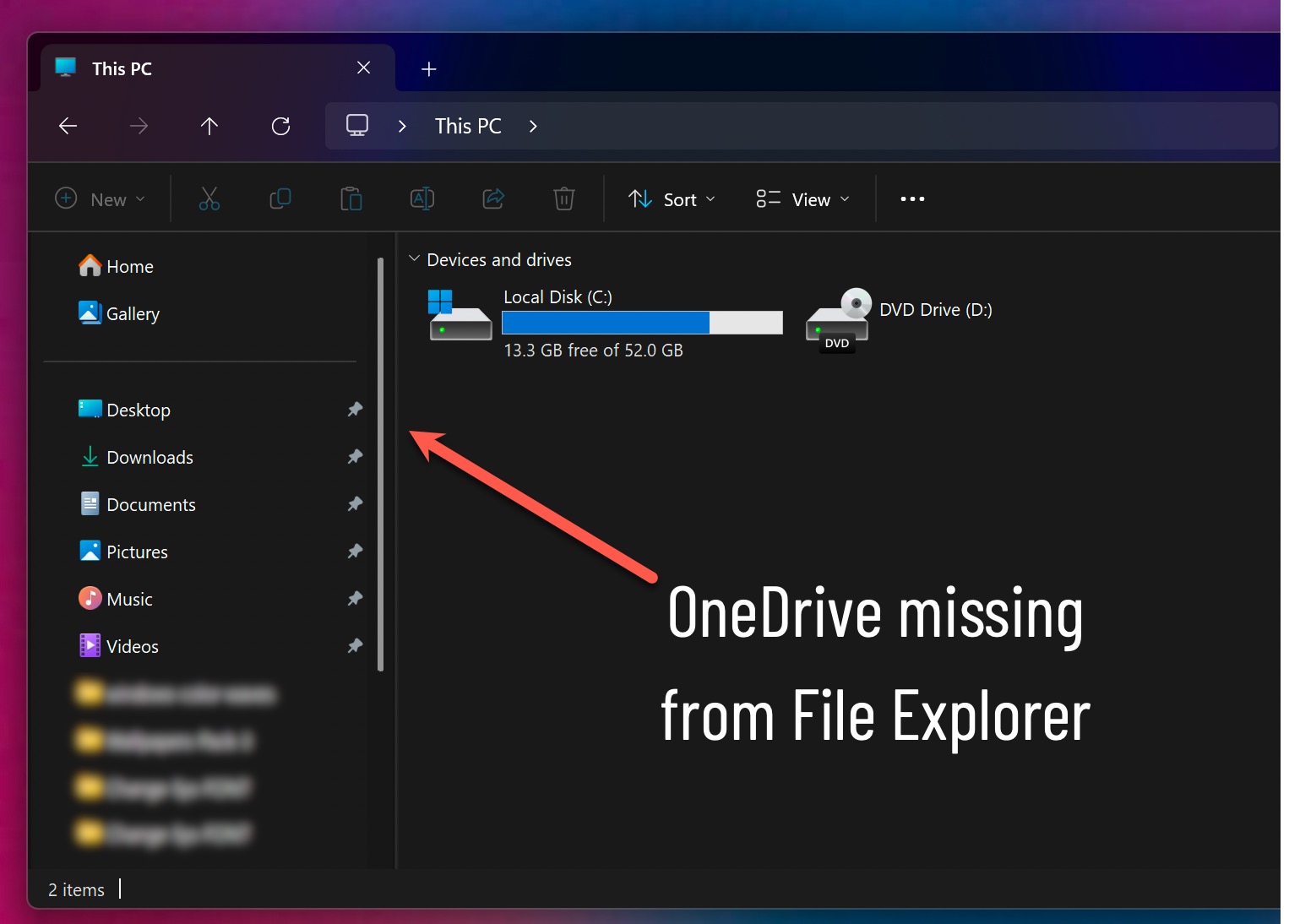
This issue can happen after a Windows update, a sync error, or corrupted OneDrive settings. You can fix it in a few simple steps, as outlined below.
Page Contents
Why Does OneDrive Disappear From File Explorer?
This problem can happen for several reasons, which can be:
- Corrupted OneDrive settings or cache files
- A failed Windows or OneDrive update
- OneDrive not starting during system boot
- Broken sync configuration
- Incorrect Registry settings
- Damaged OneDrive installation files
- Temporary Windows Explorer glitches
- Disabled OneDrive policies in Windows
Fix: OneDrive Is Missing From File Explorer
Let’s see how you can fix it when OneDrive is missing from File Explorer.
Fix 1: Restart Your Windows 11 PC
Before you try advanced fixes, restart your computer once. Temporary system glitches can stop OneDrive from loading properly in File Explorer.
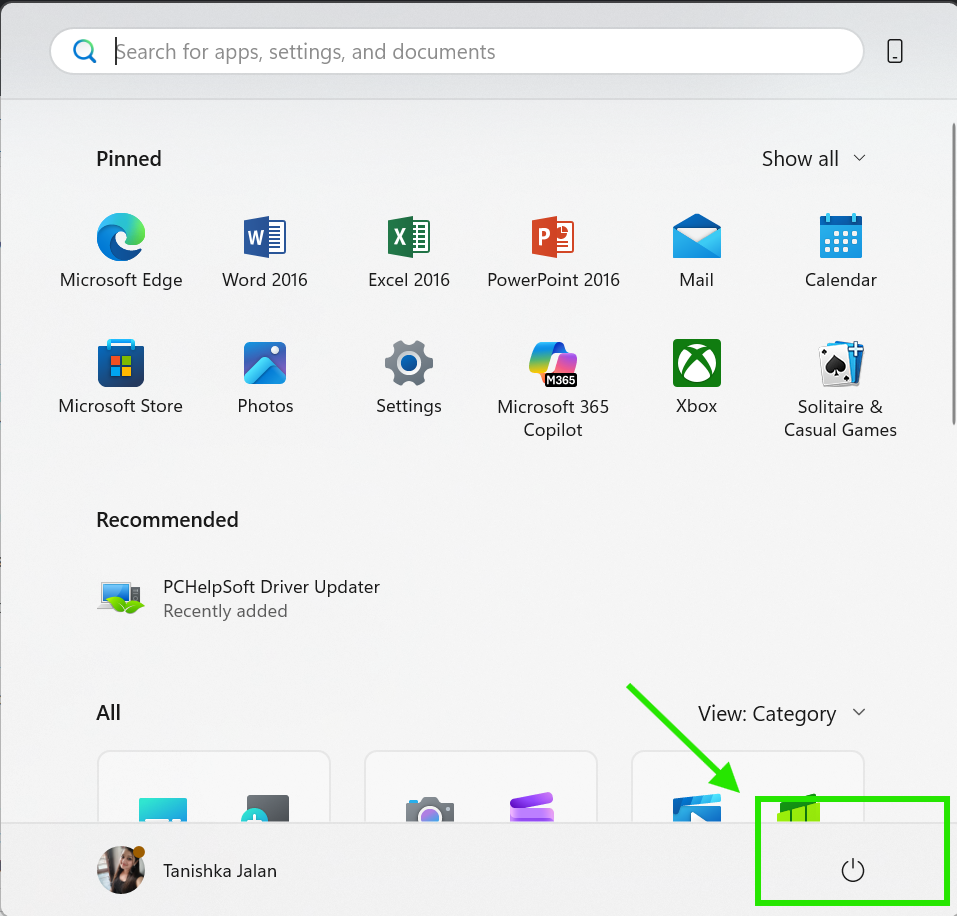
1. Click the Start menu.
2. Select the Power icon.
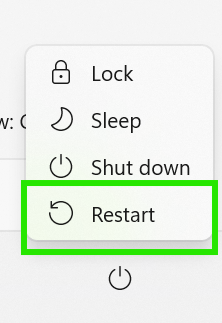
3. Click Restart.
After rebooting, check whether the OneDrive folder appears again.
Fix 2: Reinstall Microsoft OneDrive
A damaged installation can also remove OneDrive from File Explorer.
Uninstall OneDrive
1. Press Windows + I to open Settings.
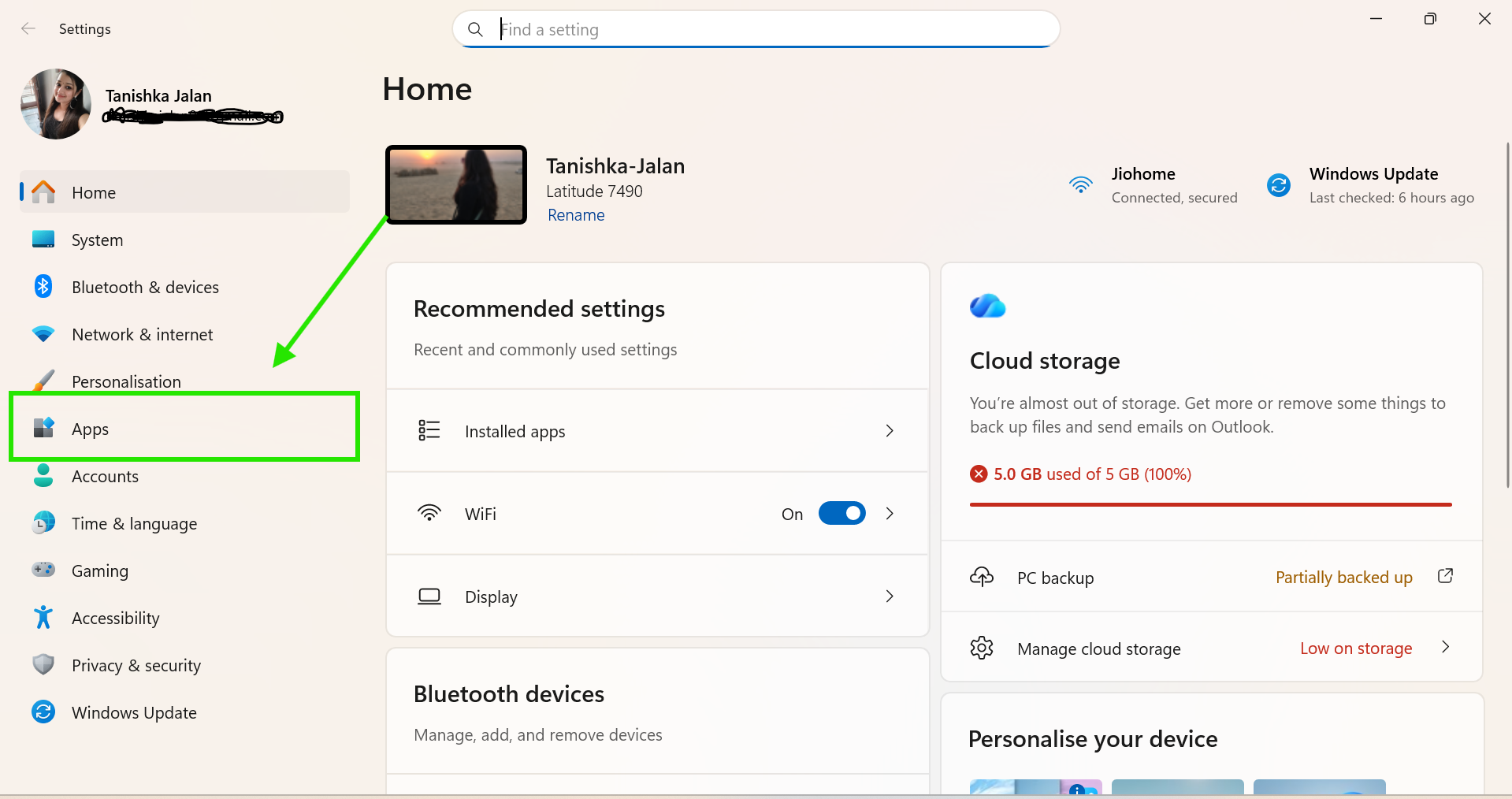
2. Go to Apps > Installed Apps.
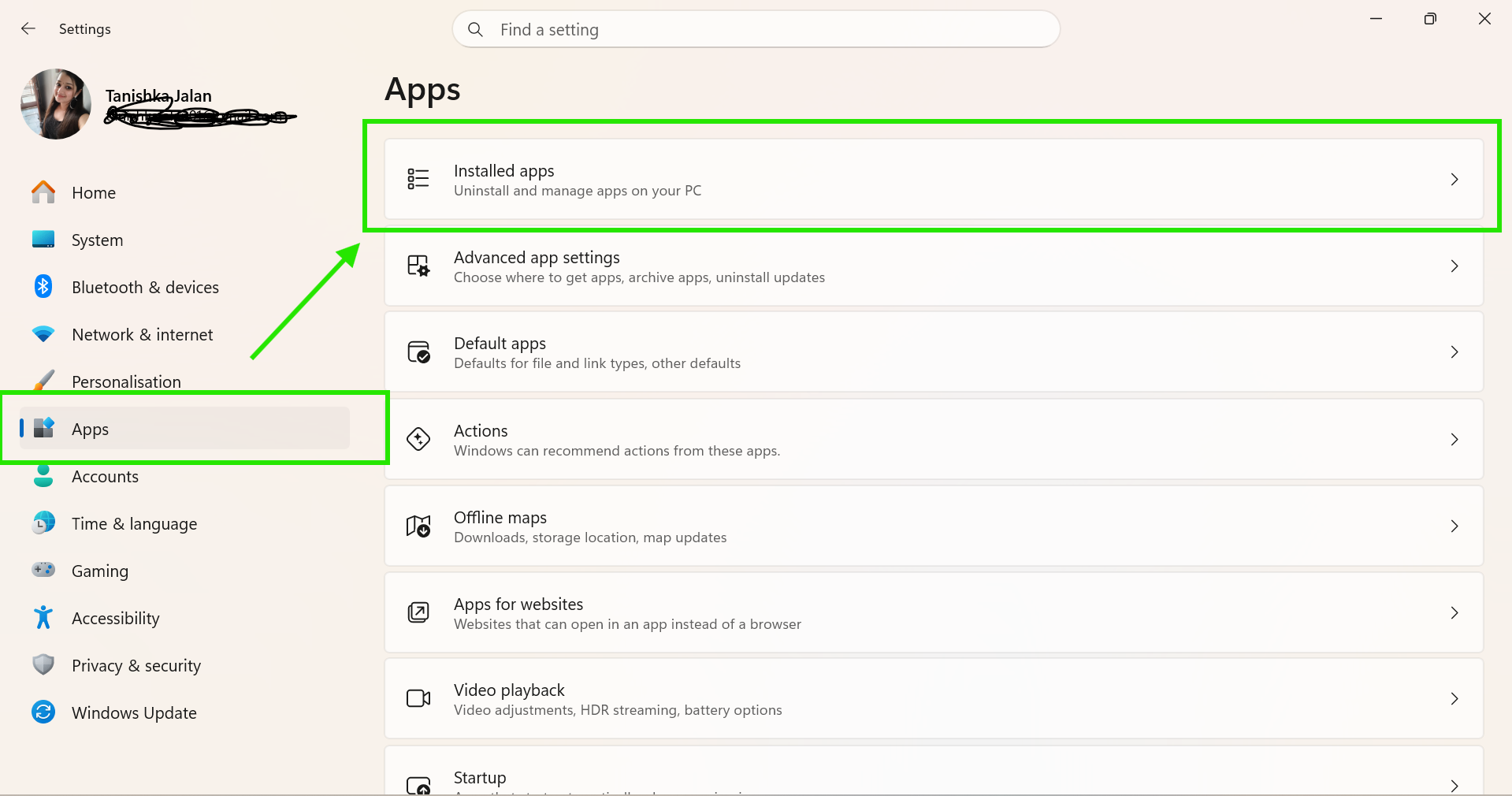
3. Search for Microsoft OneDrive.
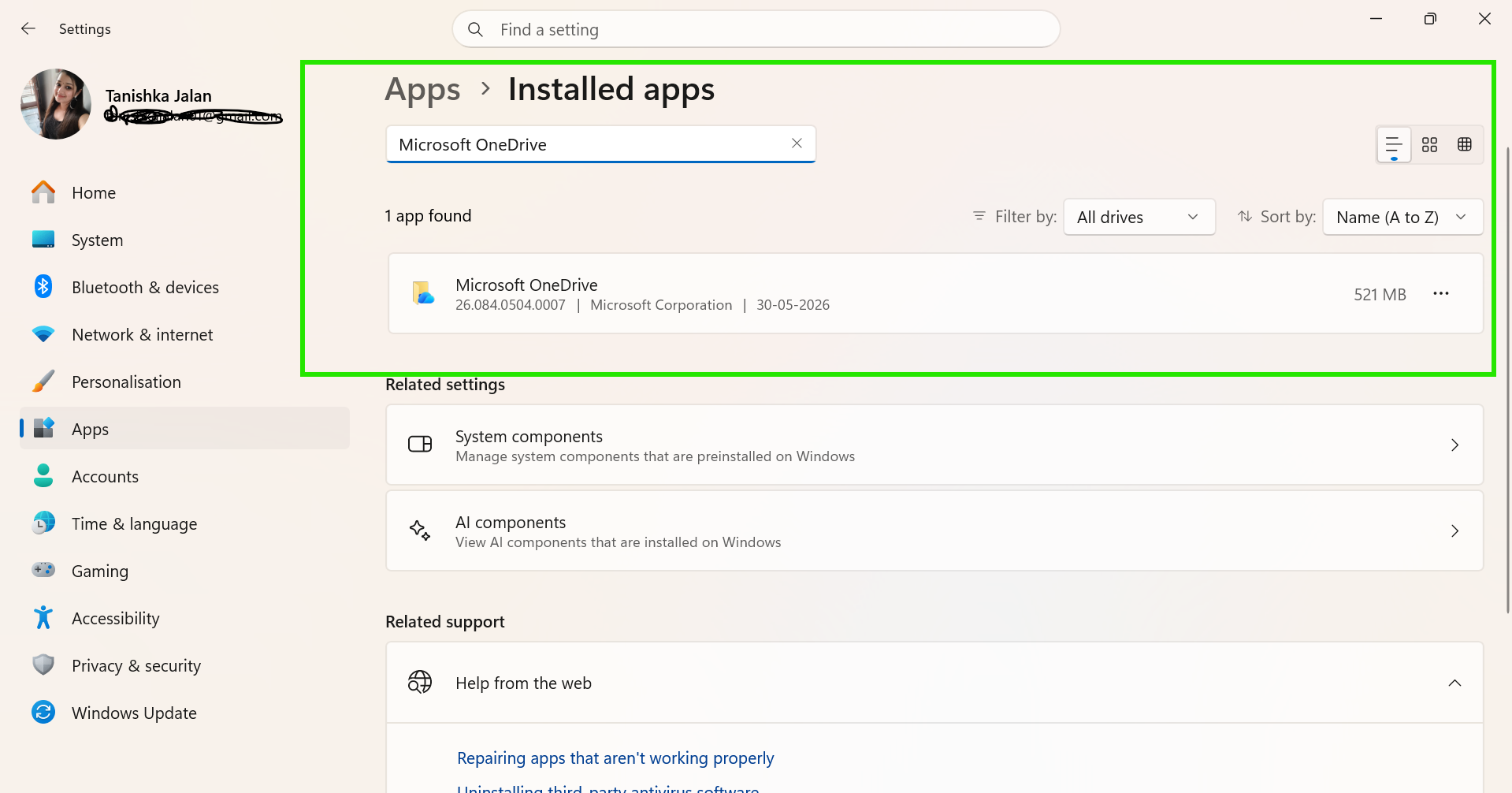
4. Click the three-dot menu beside it.
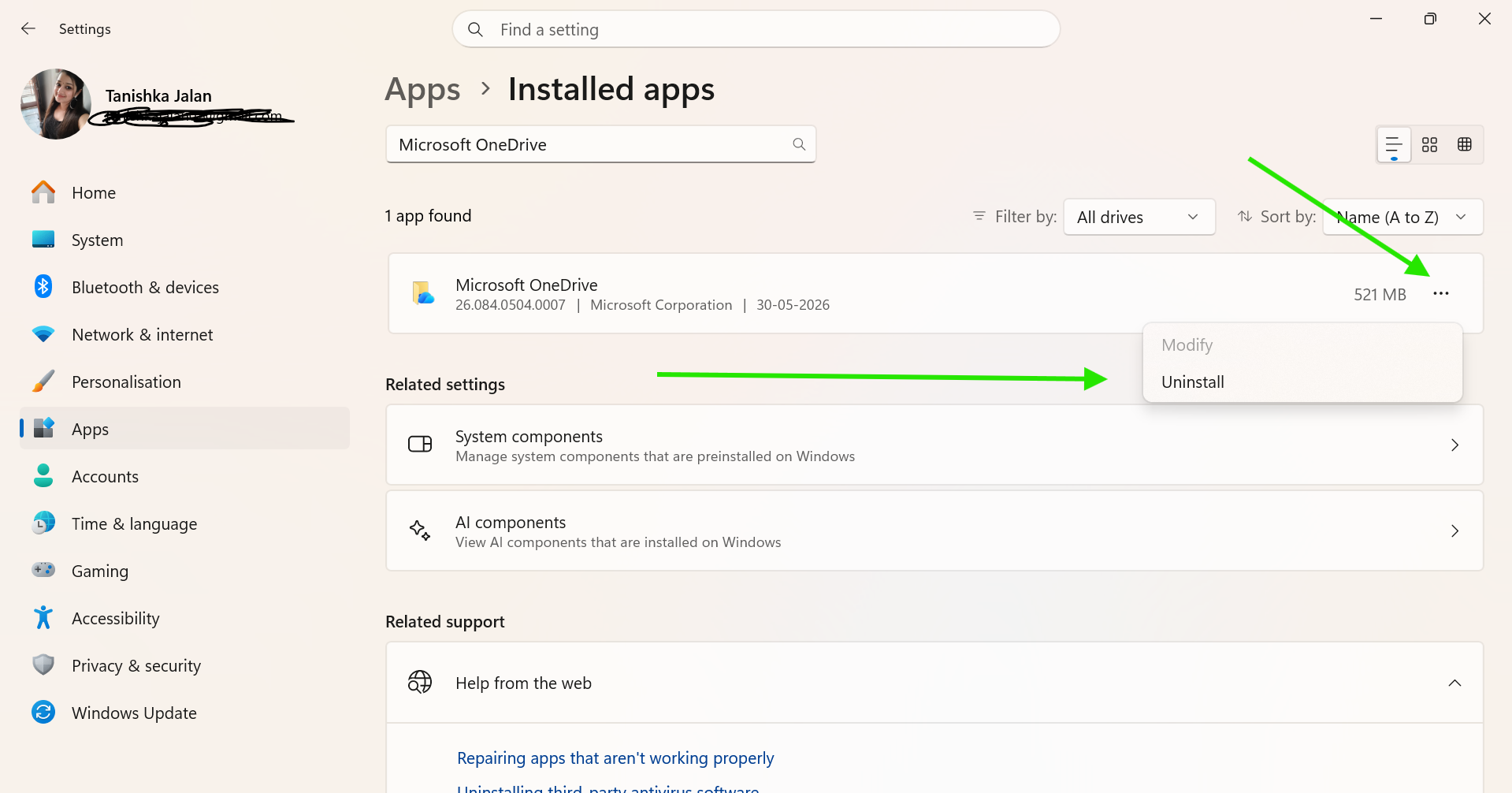
5. Select Uninstall.
Install OneDrive Again
1. Visit the official Microsoft OneDrive download page (https://www.microsoft.com/en-in/microsoft-365/onedrive/download).
2. Download and install the latest version.
3. Sign in with your Microsoft account.
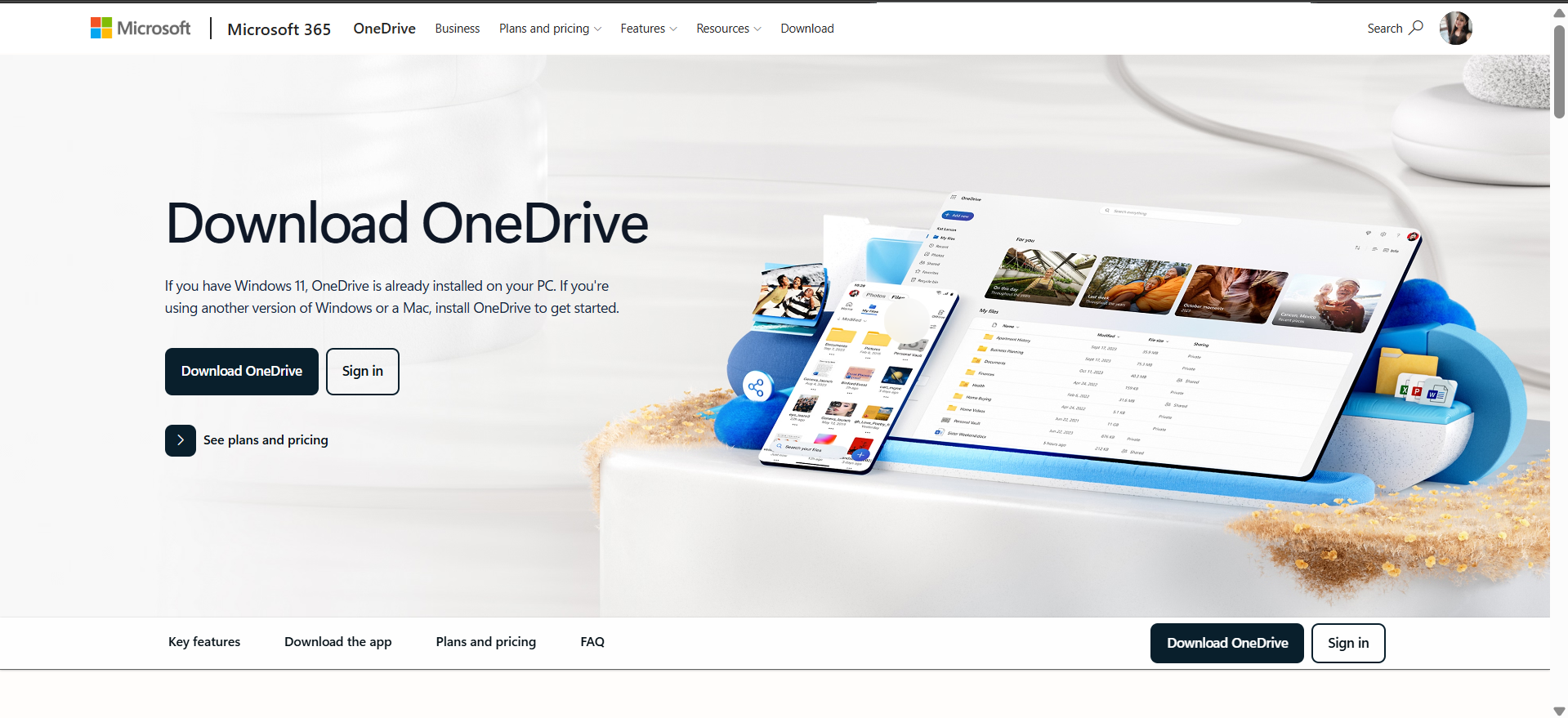
Once OneDrive is downloaded and complete it’s setup process, the folder should return to File Explorer.
Fix 3: Using Registry Editor
In some cases, incorrect registry settings may hide OneDrive from File Explorer.
1. Press Windows + R, type regedit, and press Enter.
2. Go to following registry location:
HKEY_LOCAL_MACHINE\SOFTWARE\Policies\Microsoft\Windows
3. Right-click Windows. Select New > Key. Name it OneDrive.
4. Now create a new DWORD. Right-click the empty area. Select New > DWORD (32-bit) Value.
5. Name it DisableFileSyncNGSC. Double-click it and set Value Data to 1.
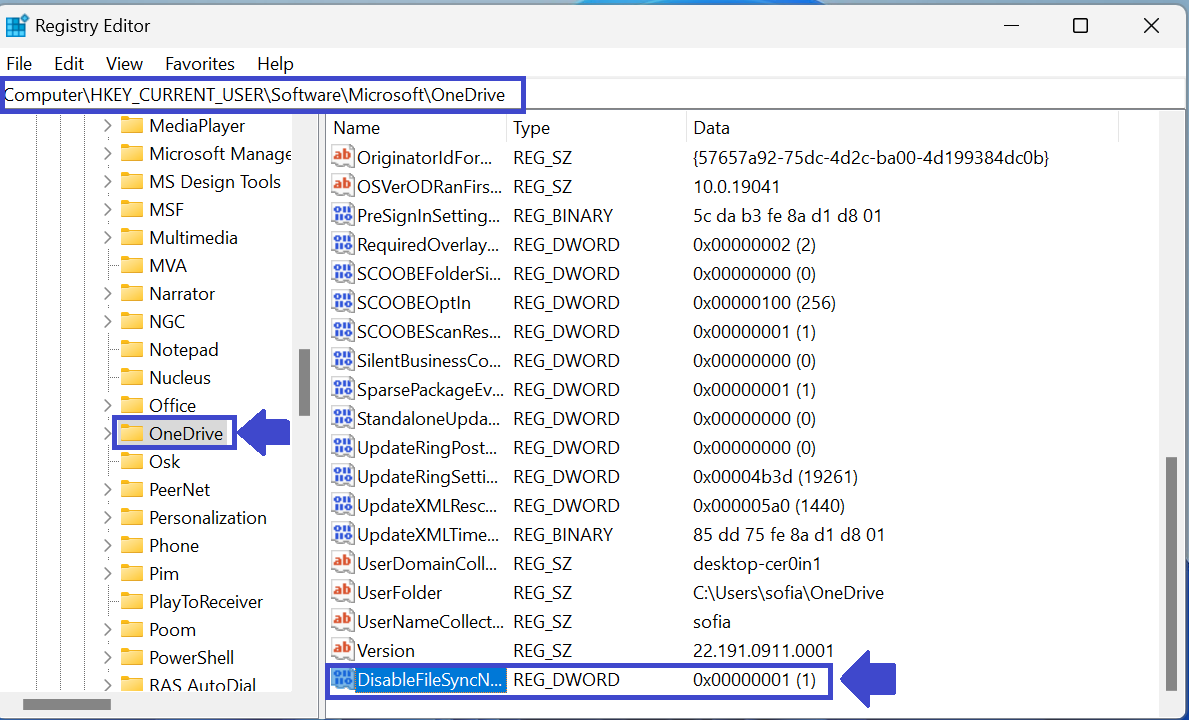
6. Click OK and restart the PC.
Fix 4: Reset OneDrive
Resetting OneDrive refreshes its settings and fixes sync-related problems.
1. Press Windows + R.
2. Type the following command and press Enter:
%localappdata%\Microsoft\OneDrive\onedrive.exe /reset
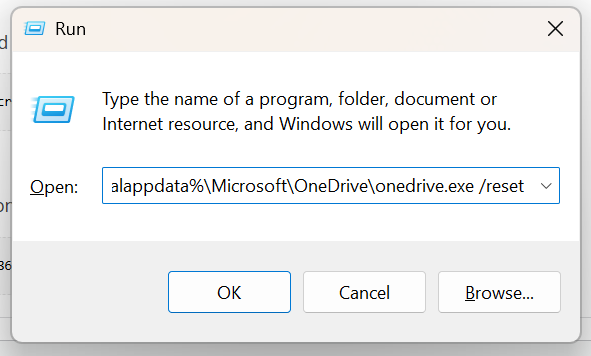
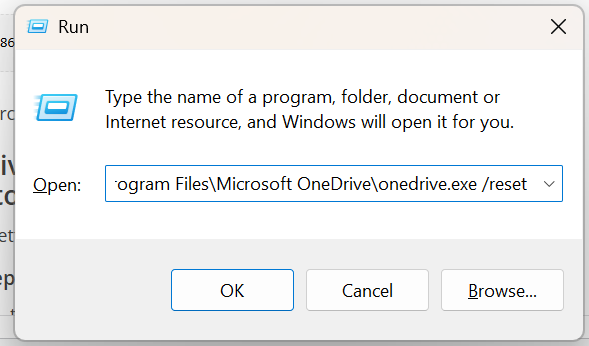
If the first command does not work, try:
C:\Program Files\Microsoft OneDrive\onedrive.exe /reset
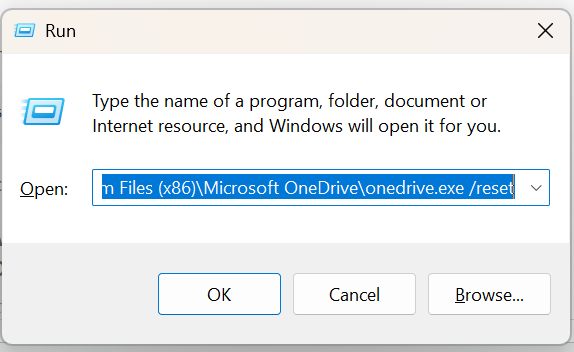
For 32-bit installations, use:
C:\Program Files (x86)\Microsoft OneDrive\onedrive.exe /reset
After resetting, search for OneDrive from the Start menu and launch it manually.
We believe the missing OneDrive from File Explorer will now appear normally. If you have any questions, comment below!
![OneDrive offline on Windows 11 PC [Fix]](https://www.kapilarya.com/assets/OneDrive-123-768x511.jpg)