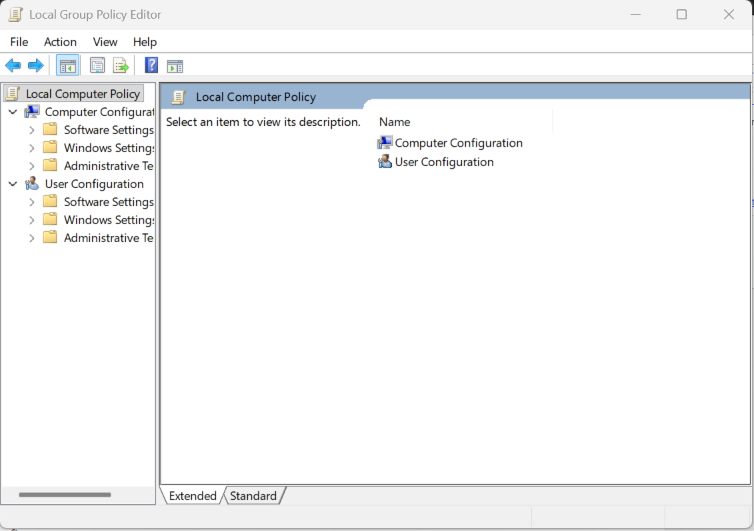
You want to change a Windows setting. So you opened Run, typed gpedit.msc, and pressed Enter. But you see nothing happened. The Group Policy Editor refuses to open. Well, this issue is most common in Windows 11. And it is usually caused by missing components, damaged files, permission problems or software conflicts.
Page Contents
Why Can’t You Open the Group Policy Editor In Windows 11?
Group Policy Editor may refuse to open under following scenarios:
- You are using Windows 11 Home.
- System files are corrupted.
- Registry-related files are damaged.
- A recently installed policy template is causing issues.
- Security or parental control software is blocking access.
- You are not using an administrator account.
Fix: Can’t Open Group Policy Editor In Windows 11
Let’s see how you can fix it:
Fix 1: Run Group Policy Editor as Administrator
Sometimes GPEDIT won’t open because it needs elevated permissions. Here is how you should do it:
1. Press Win + R.
2. Type gpedit.msc.
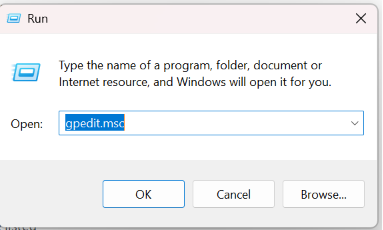
3. Press Ctrl + Shift + Enter.
4. Click Yes on the UAC prompt.
Fix 2: Check Your Windows Edition
Windows 11 Home does not include Group Policy Editor by default. Steps are listed below:
1. Press Win + R.
2. Type winver and press Enter.
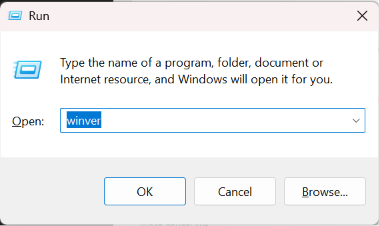
3. Check your Windows edition.
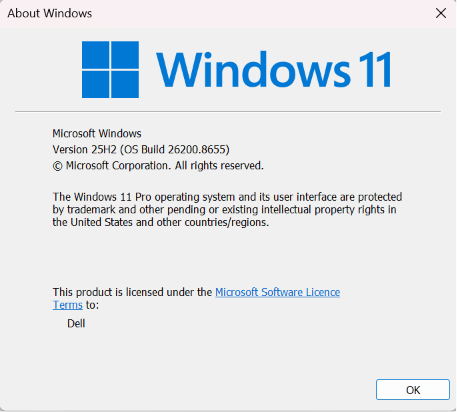
4. If you have Windows 11 Home, GPEDIT is not available on that edition. You can upgrade to Pro edition to use Group Policy Editor.
Fix 3: Repair System Files
Corrupted system files can sometimes stop Group Policy Editor from opening. So, fix it using the steps below:
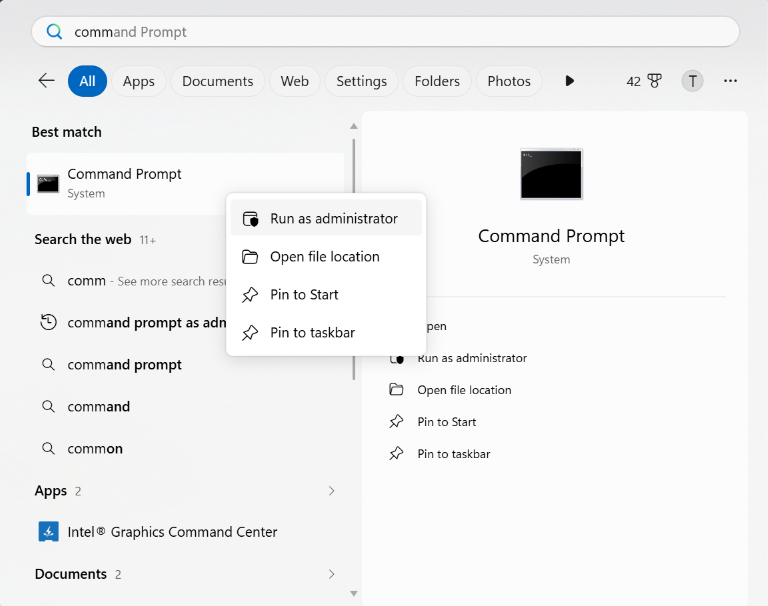
1. Open Command Prompt as Administrator.
2. Now run:
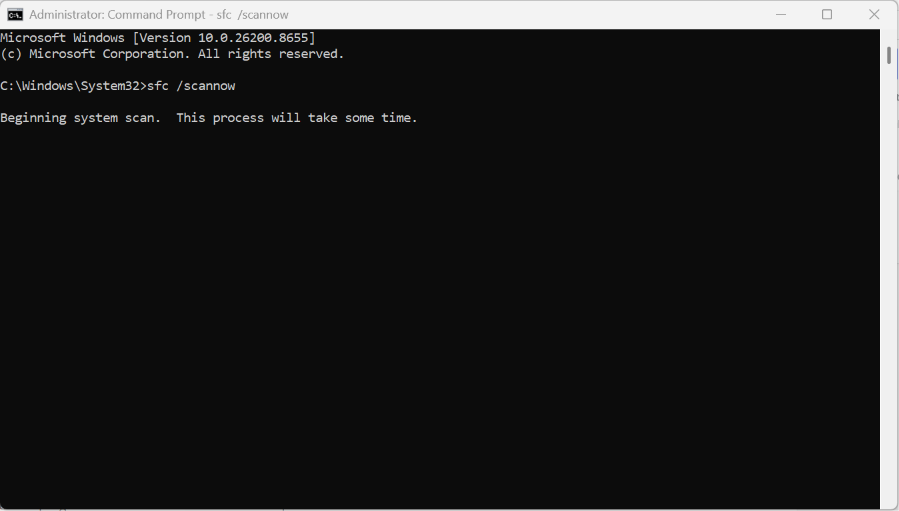
sfc /scannow
3. Then run:
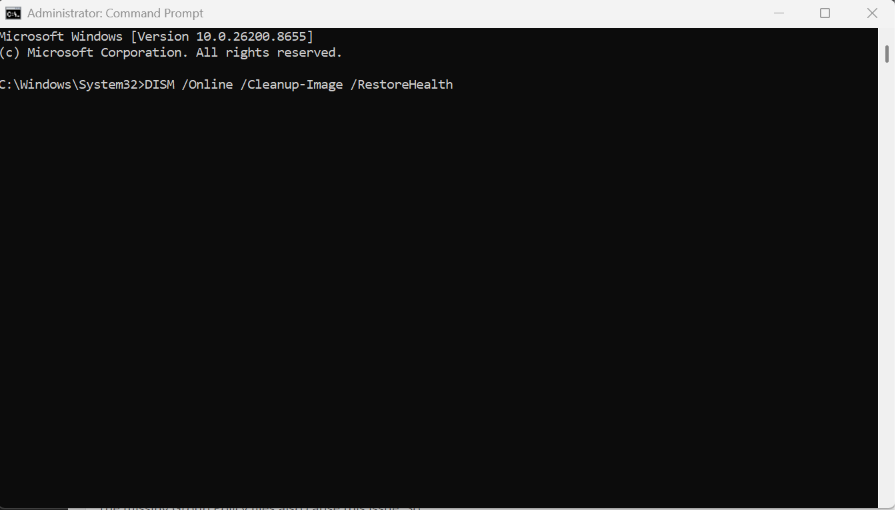
DISM /Online /Cleanup-Image /RestoreHealth
4. And now restart your PC.
Fix 4: Disable Security Software
Some antivirus programs block GPEDIT. Here are the steps to disable them:
1. Temporarily disable your antivirus.
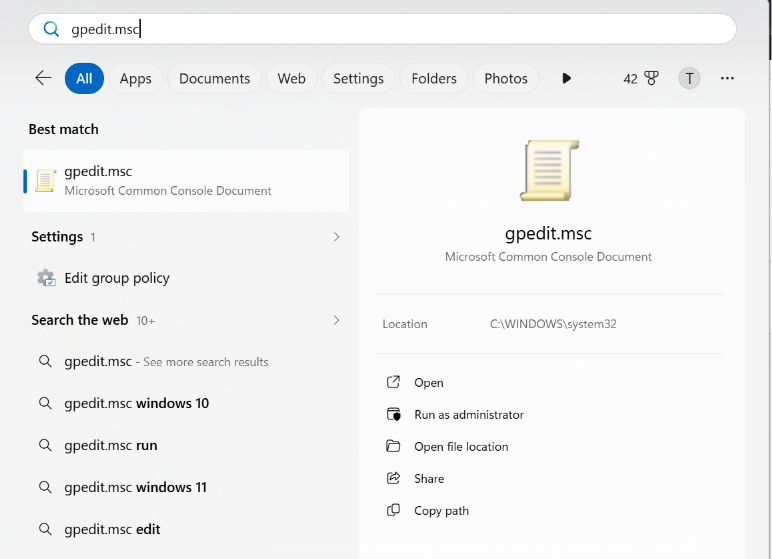
2. Try opening gpedit.msc.
3. Re-enable the software after testing.
Fix 5: Reinstall Group Policy Components
The missing Group Policy files also cause this issue. So,:
1. Open Windows Terminal (Admin).
2. Run:
DISM /Online /Add-Capability /CapabilityName: Rsat.GroupPolicy.Management.Tools~~~~0.0.1.0
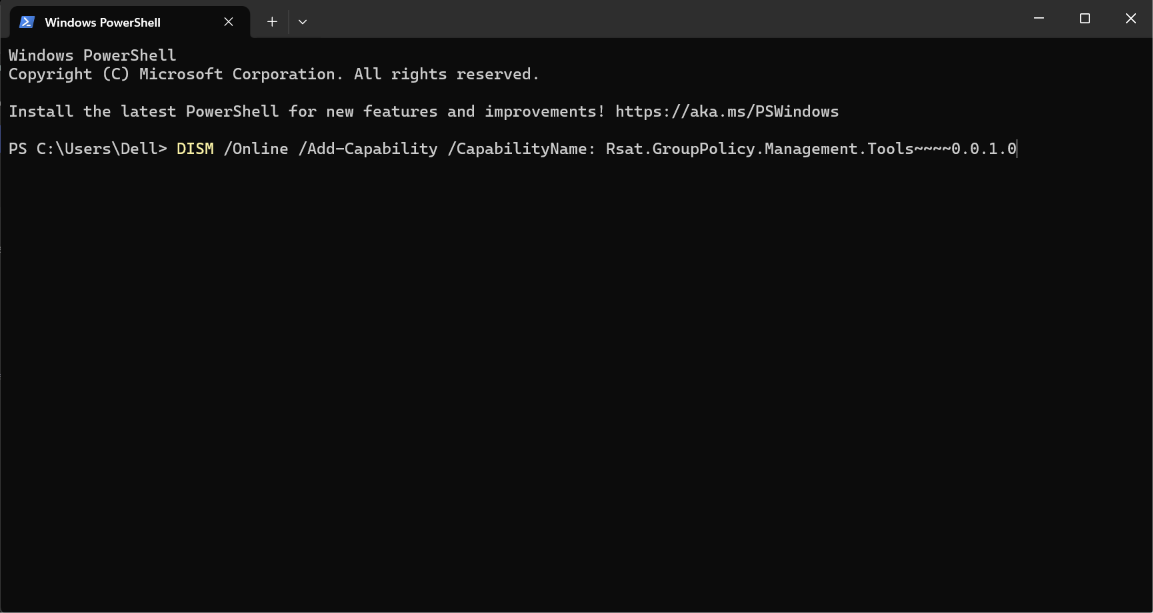
3. Now restart your computer.
Fix 6: Perform A Clean Boot
This process will help you identify software conflicts. Here is how to do it:
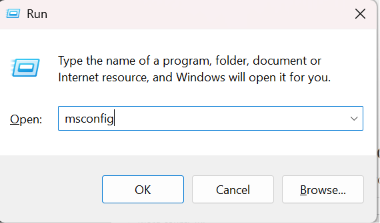
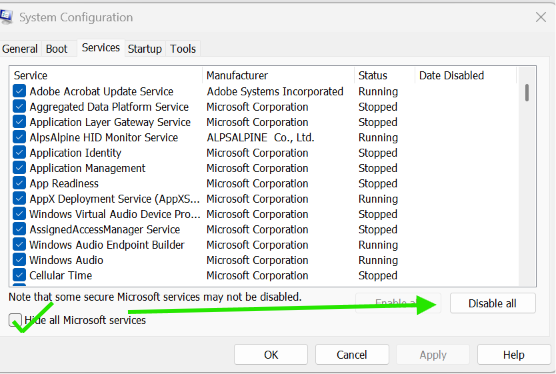
1. Press Win + R and type msconfig.
2. Open Services.
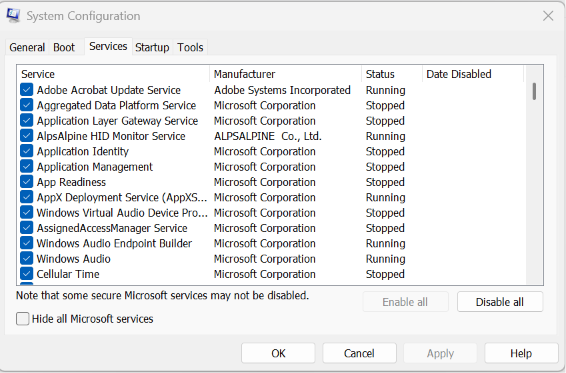
3. Check Hide all Microsoft services.
4. Click Disable all.
5. Restart your PC.
Fix 7: Remove Recent Policy Templates
A faulty template can prevent GPEDIT from loading.
1. Open C:\Windows\PolicyDefinitions.
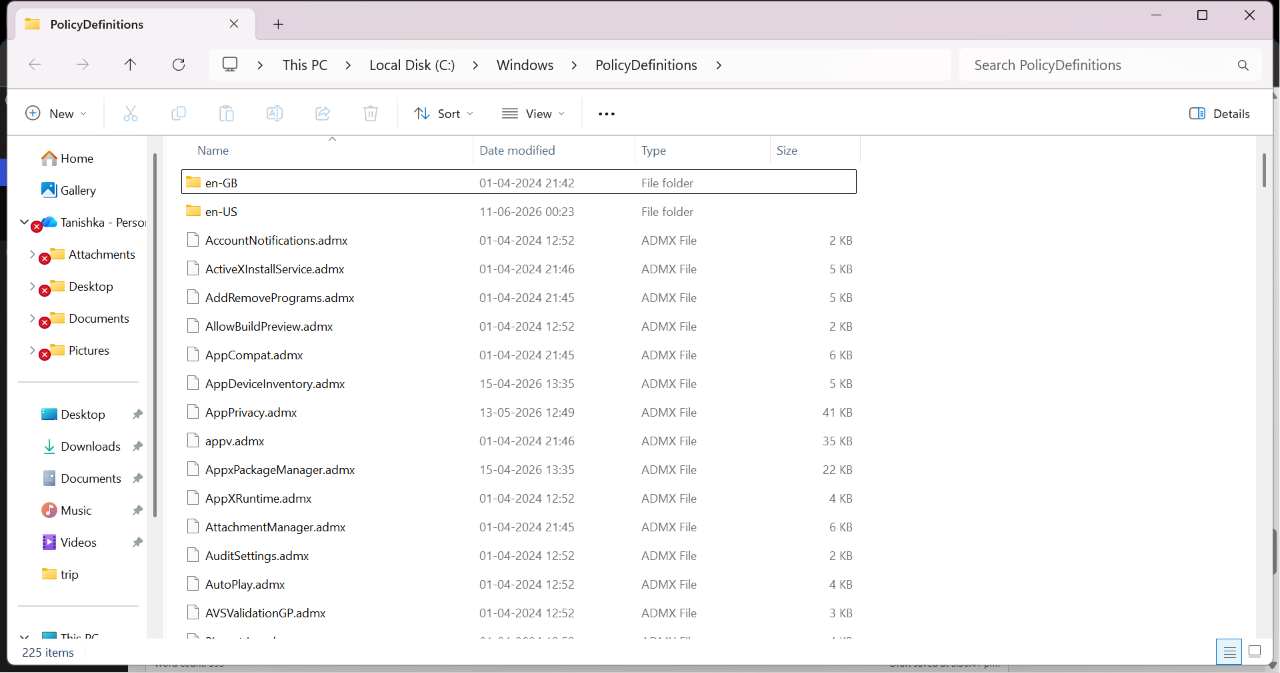
2. Delete the recently added template.
3. Remove its file from the en-US folder.
4. Restart your PC.
Fix 8: Use An Administrator Account
You may face this issue on losing admin access. Try this fix:
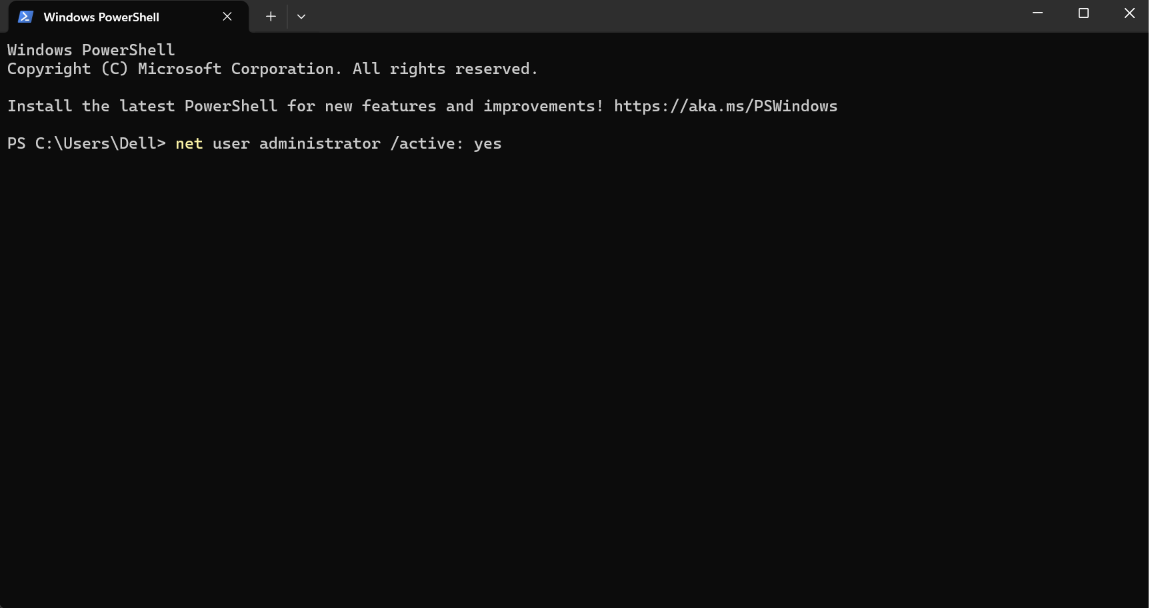
1. Open Windows Terminal (Admin).
2. Run:
net user administrator /active: yes
3. Sign in to the Administrator account.
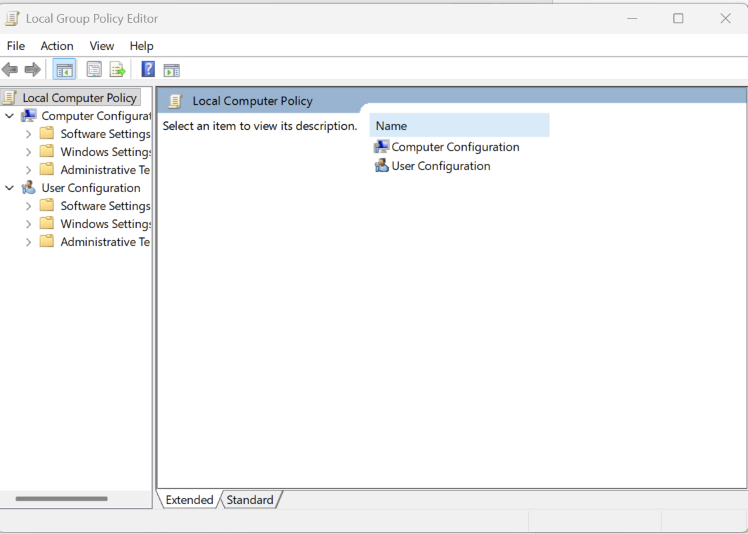
4. Open Group Policy Editor again.
That’s it. Hope we have shared all the fixes that will help.