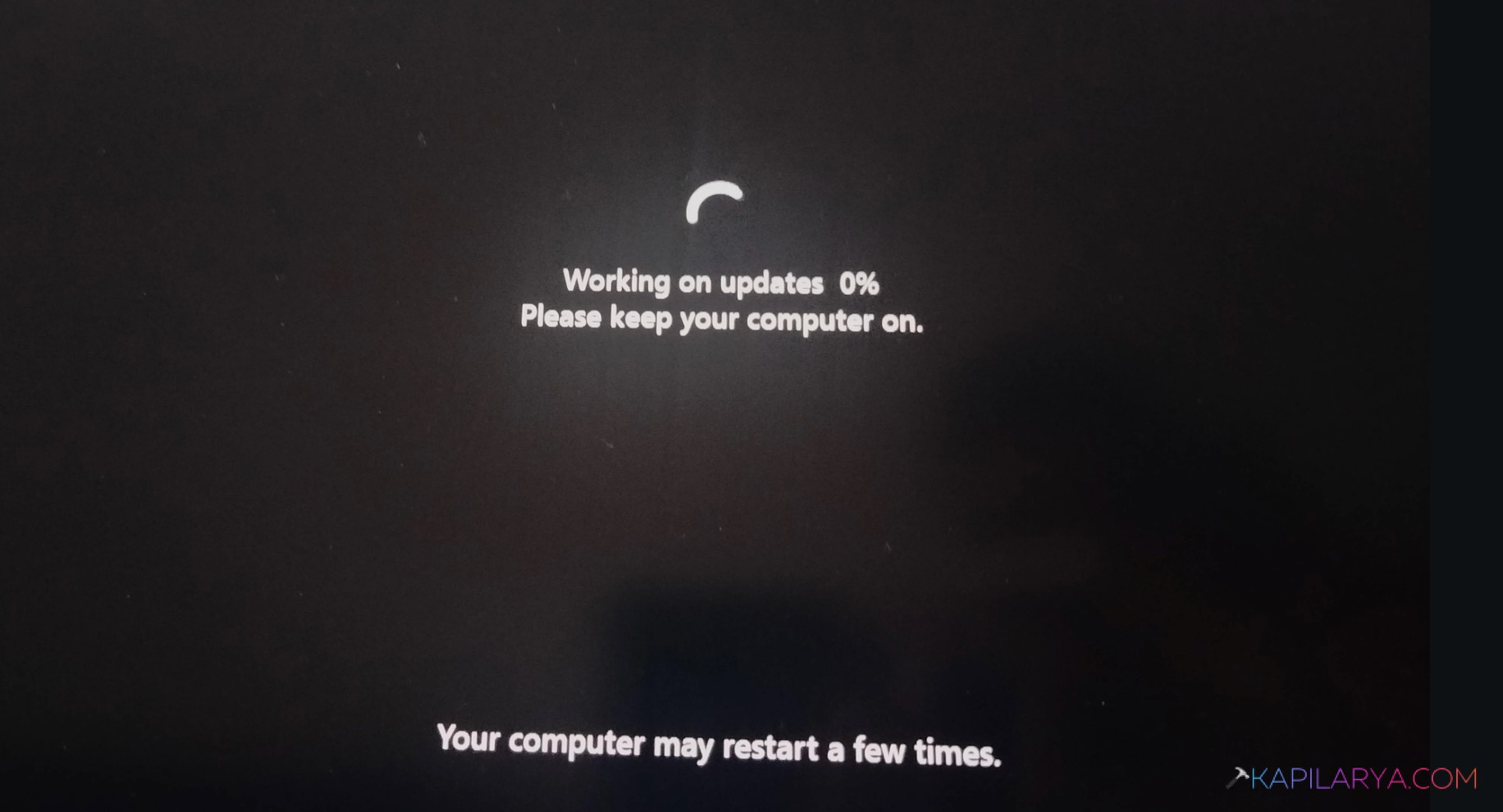
You click Check for updates and wait. But the update always stuck at 0% for minutes or even hours. No progress. No error. Nothing happens. This sometimes happens on Windows 11 devices. And the good news is you can usually fix it with a few simple steps.
Page Contents
Why Does Windows 11 Update Get Stuck At 0%?
Here are some of the most common reasons:
- Not enough free storage space
- Corrupted update files
- Incorrect date and time settings
- Outdated device drivers
- Antivirus or firewall interference
- Problems with Windows Update services
Fix Windows 11 Update Always Stuck At 0%
Below are the easy step-by-step fixes:
Fix 1: Run The Built-In Update Troubleshooter
Windows includes a tool that can automatically detect and fix update issues. The steps are listed below:
1. Open Settings.
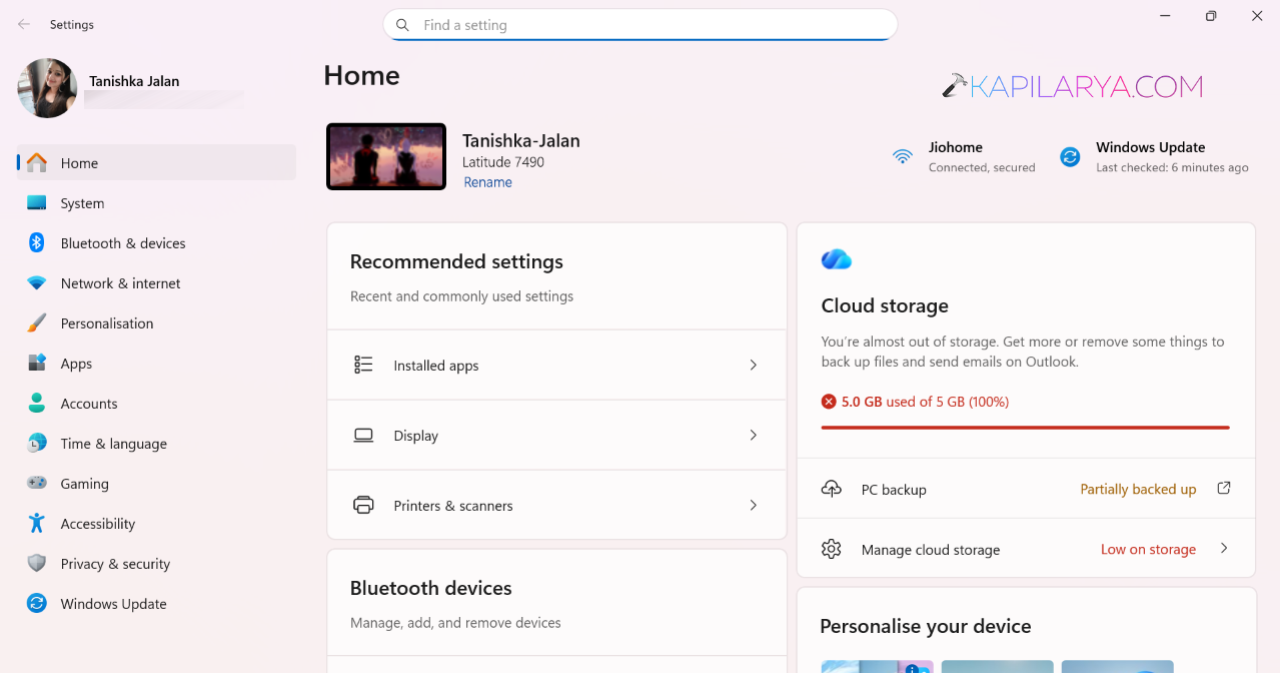
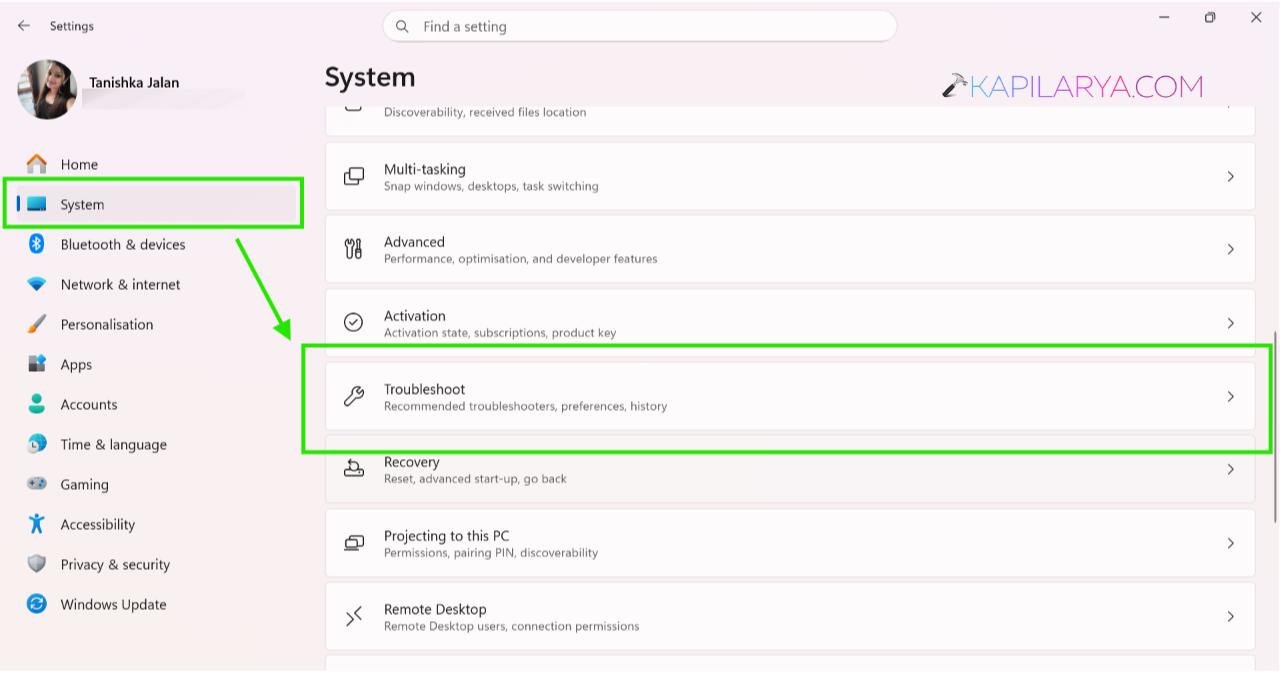
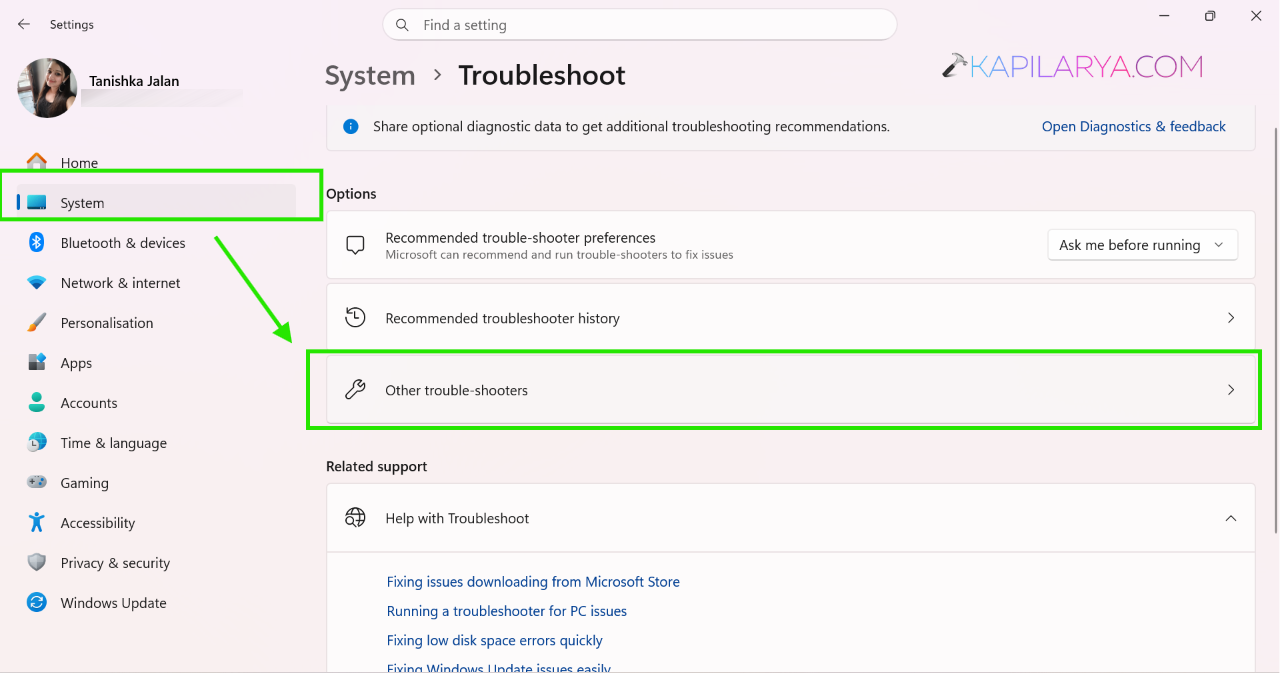
2. Go to System > Troubleshoot > Other troubleshooters.
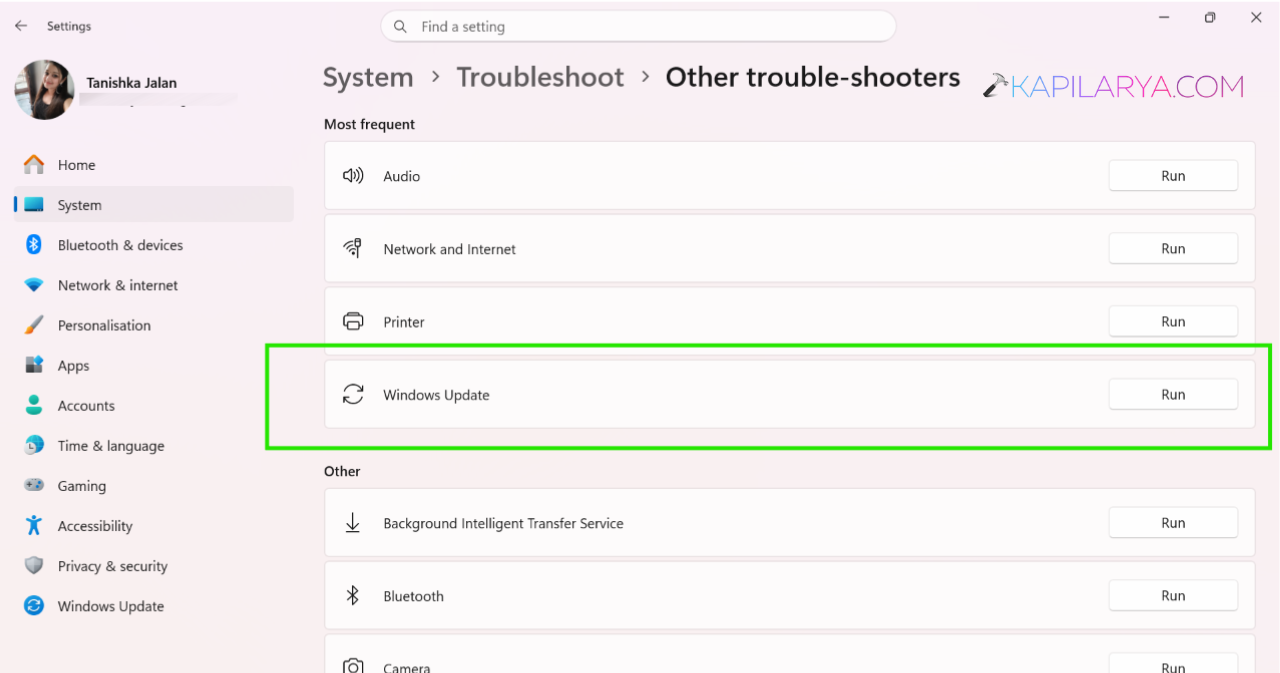
3. Find Windows Update.
4. Click Run.
5. Follow the on-screen instructions and restart your PC.
Fix 2: Check Your Date And Time Settings
An incorrect date or time can stop Windows from connecting properly to update servers. Here is how you can do it:
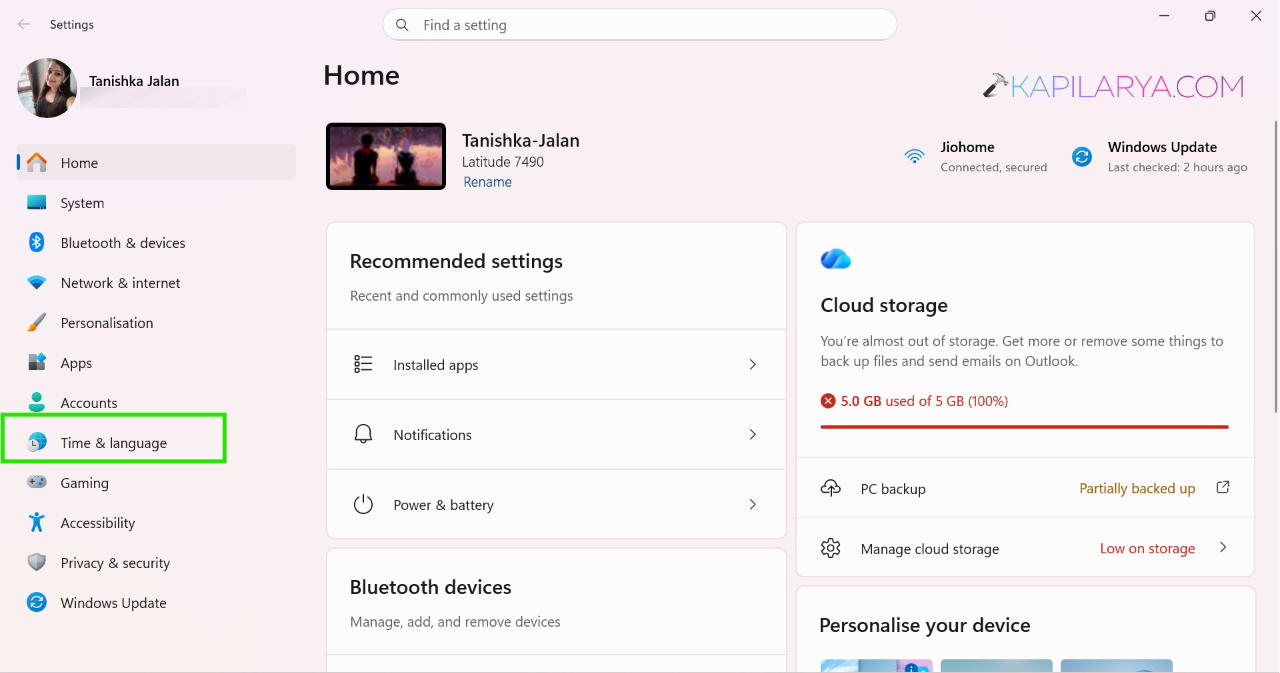
1. Open Settings > Time & Language.
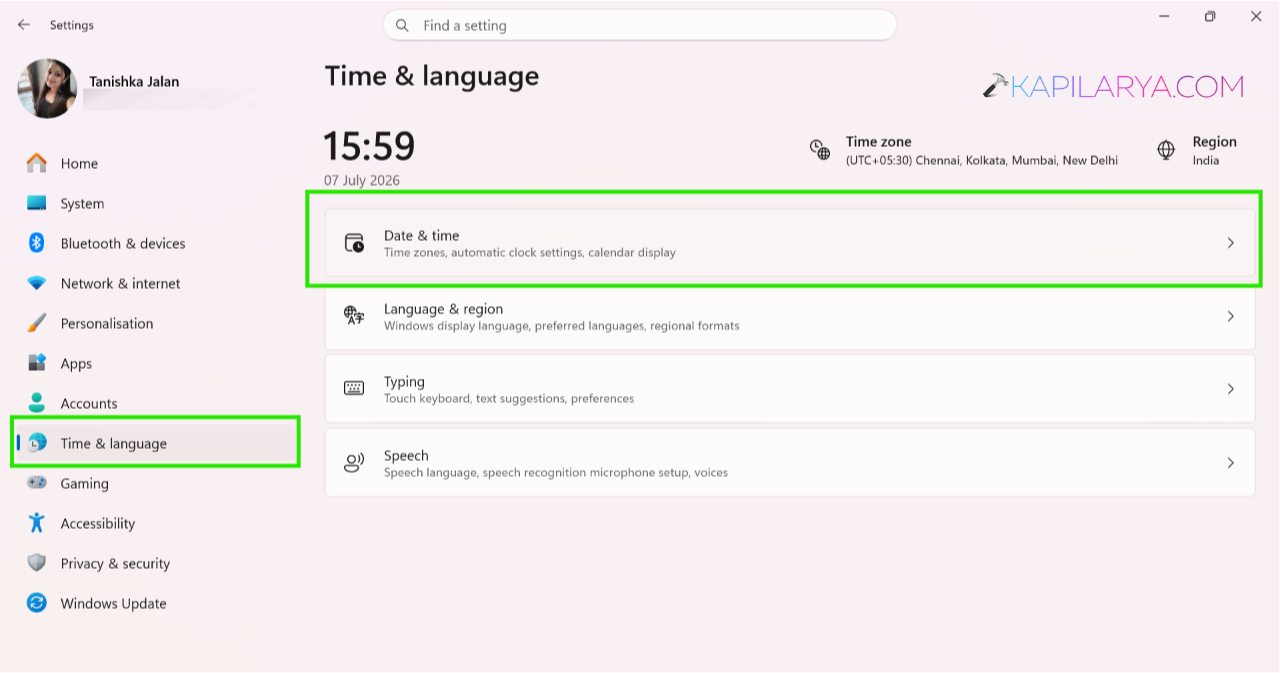
2. Select Date & Time.
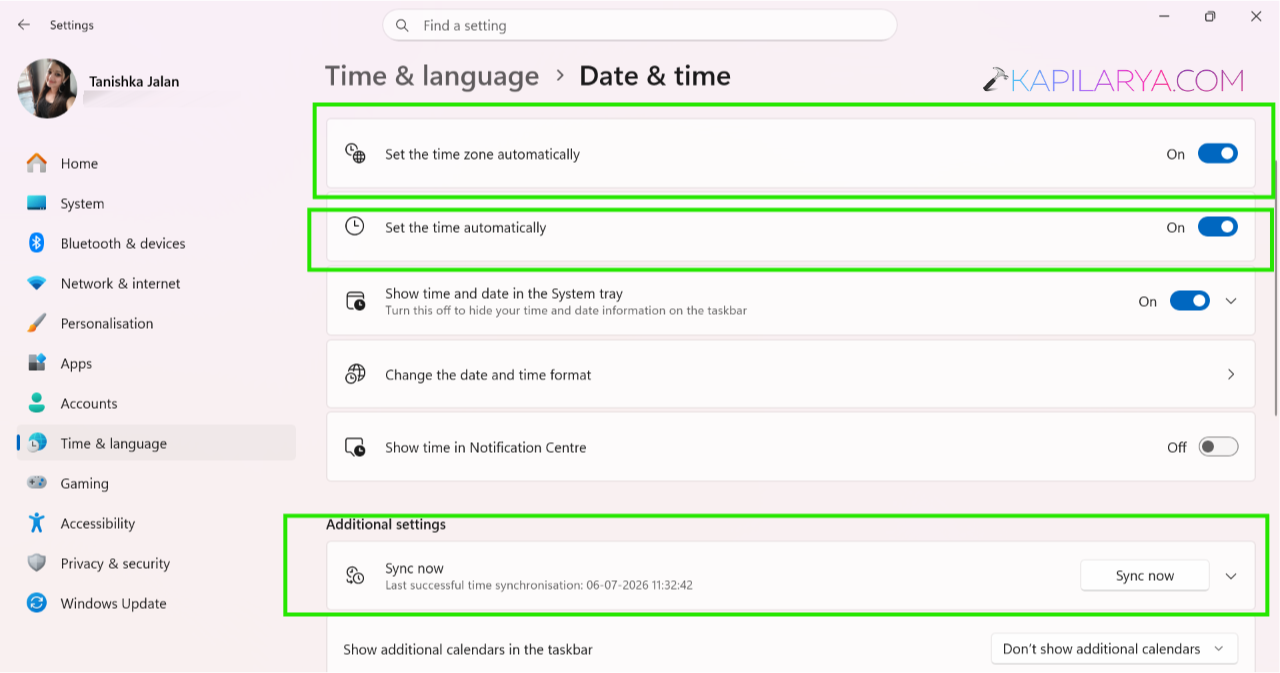
3. Turn on Set time automatically.
4. Turn on Set time zone automatically.
5. Click Sync now.
Fix 3: Make More Space Available
Windows updates need free storage to download and install files. Let’s share with you the steps:
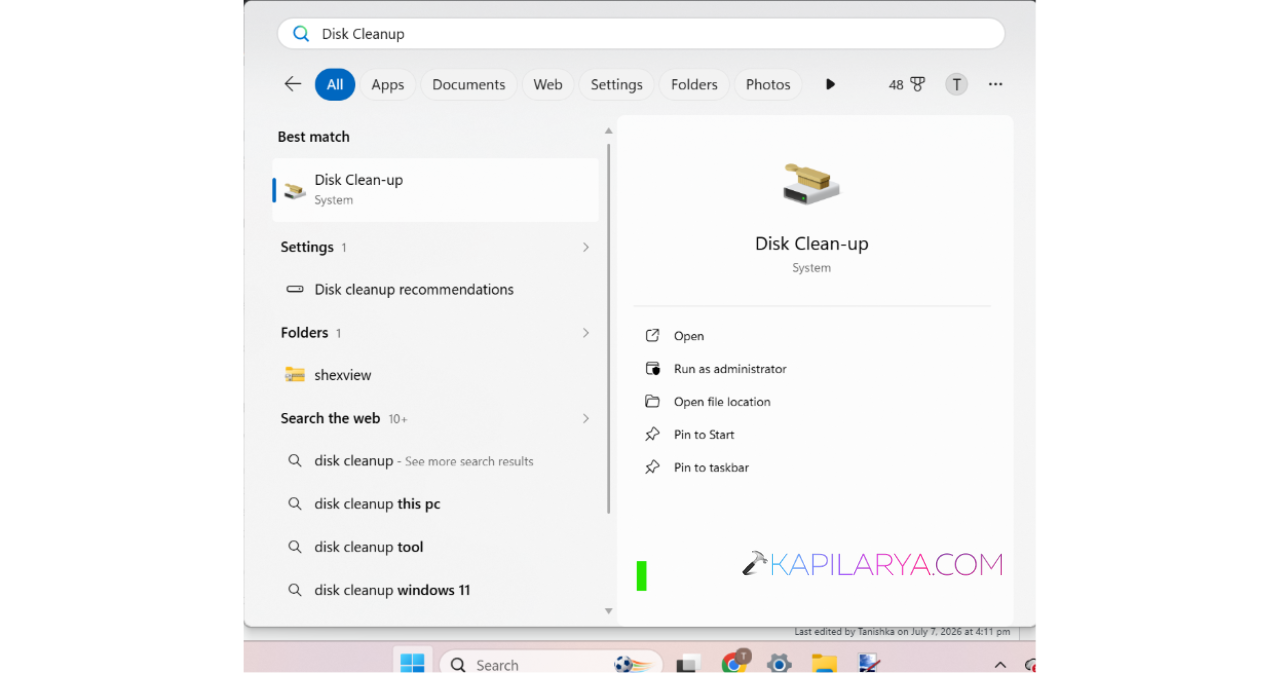
1. Open Disk Cleanup from the Start menu.
2. Select your C: drive.
3. Remove temporary files and unnecessary data.
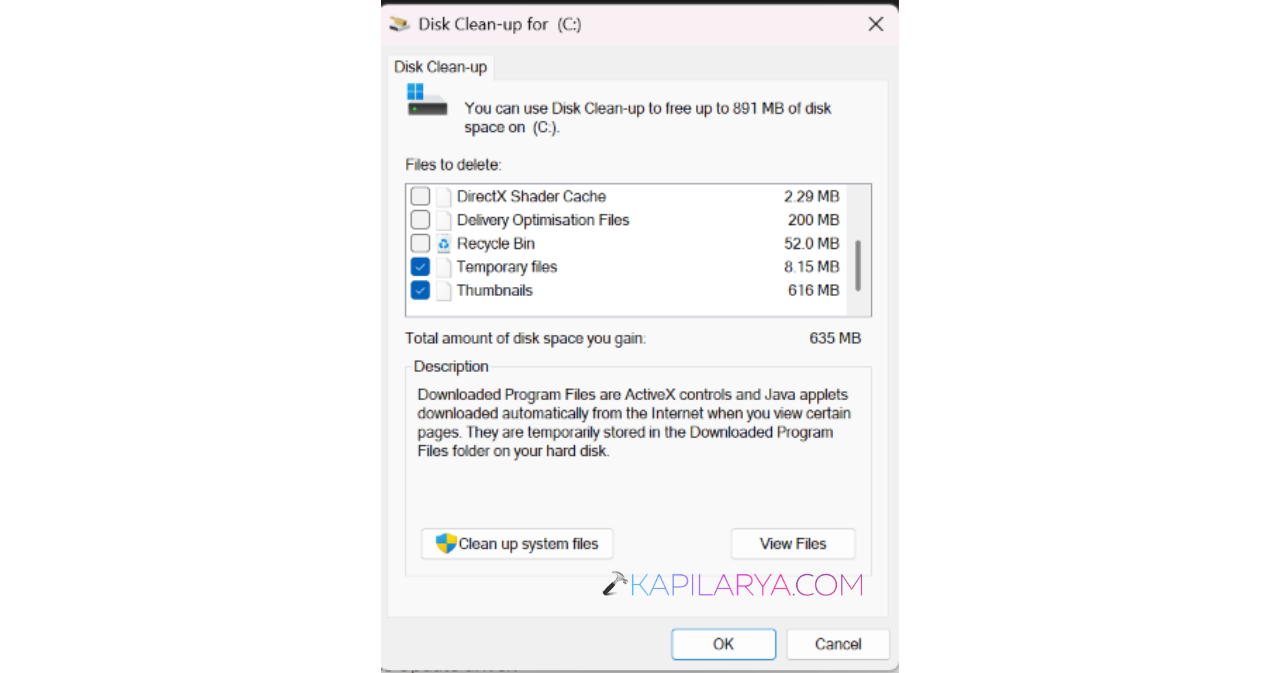
4. Keep at least 10–20 GB of free space.
Fix 4: Install The Latest Device Drivers
Old or faulty drivers can block updates. Steps are listed below:
1. Right-click Start and open Device Manager.
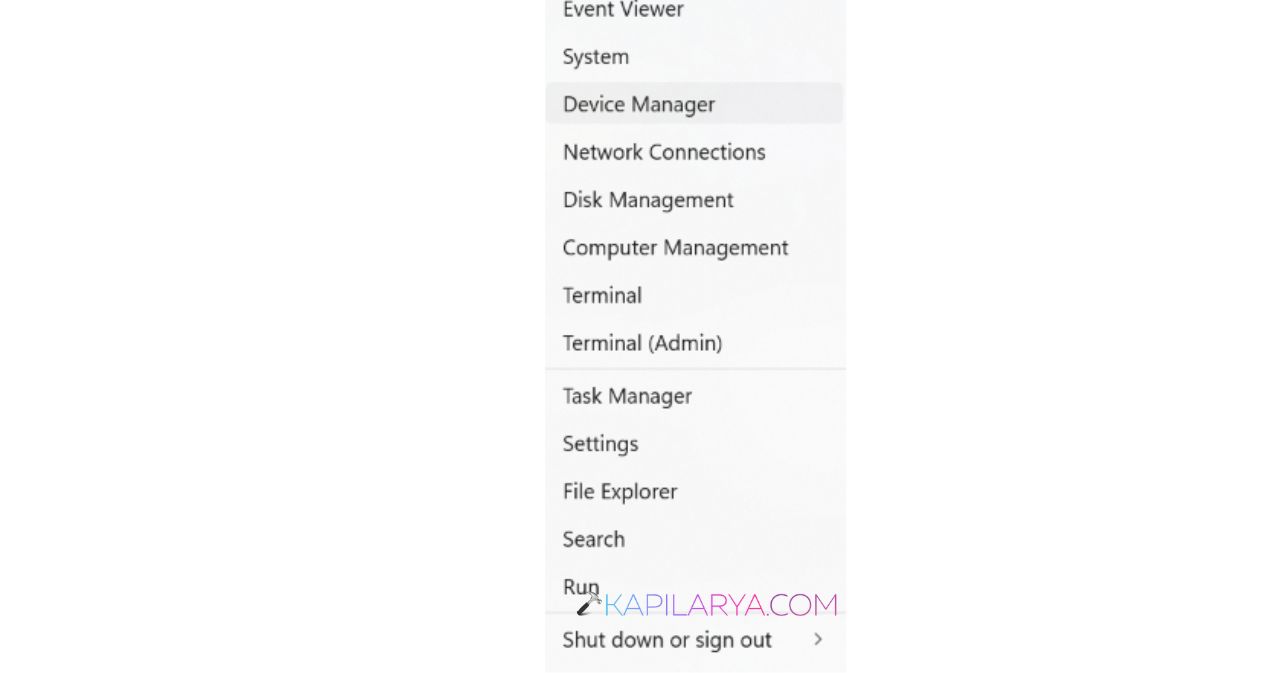
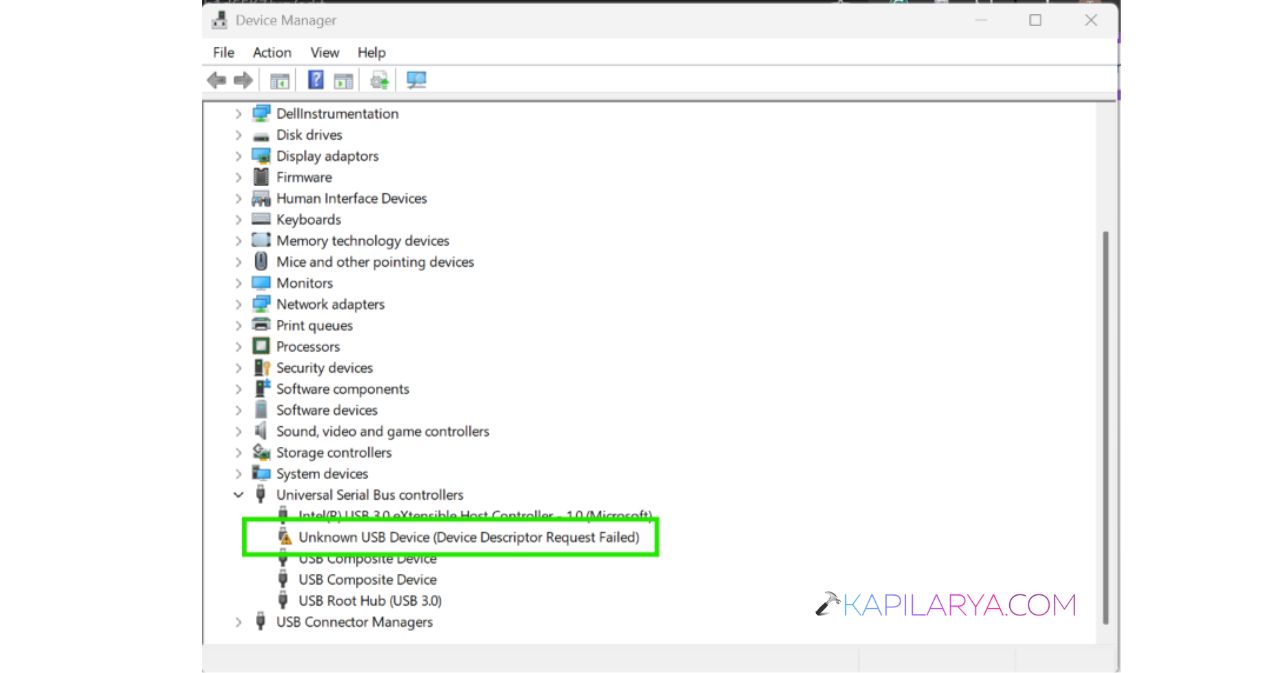
2. Look for devices showing warning icons.
3. Right-click the device and choose Update driver.
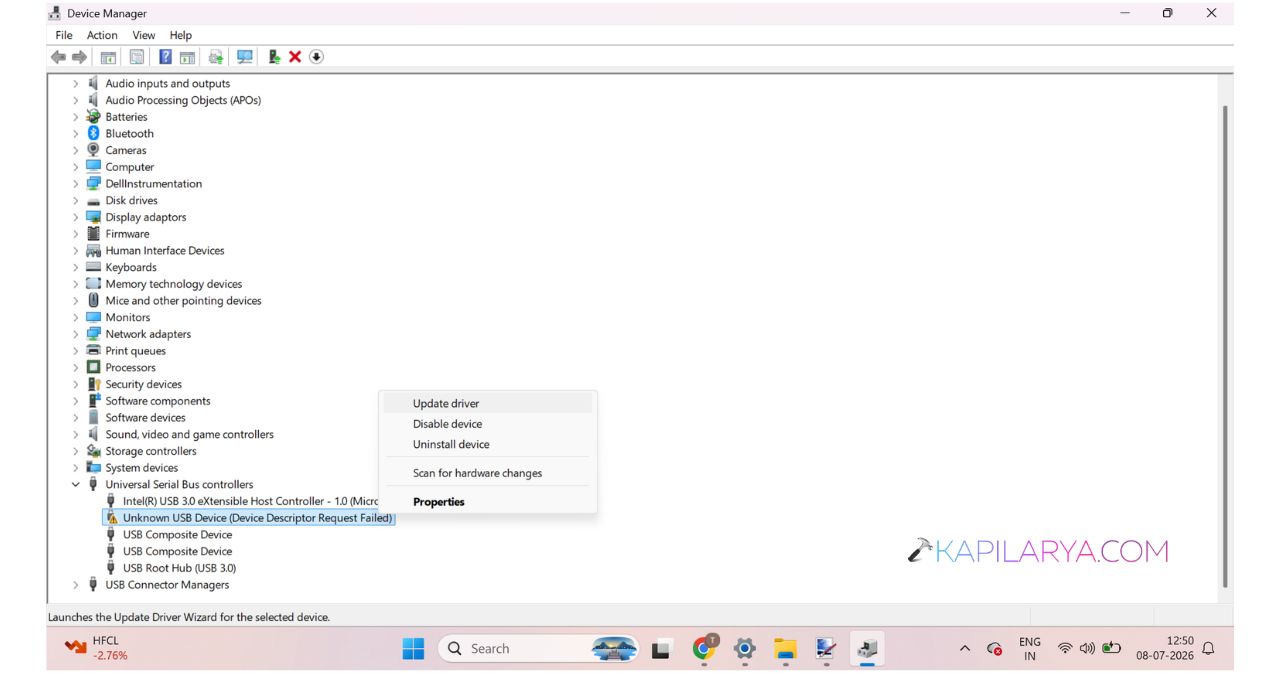
4. Restart your computer after updating.
Fix 5: Remove The Windows Update Cache
Damaged update files can cause downloads to freeze at 0%.
1. Open Services using services.msc command.
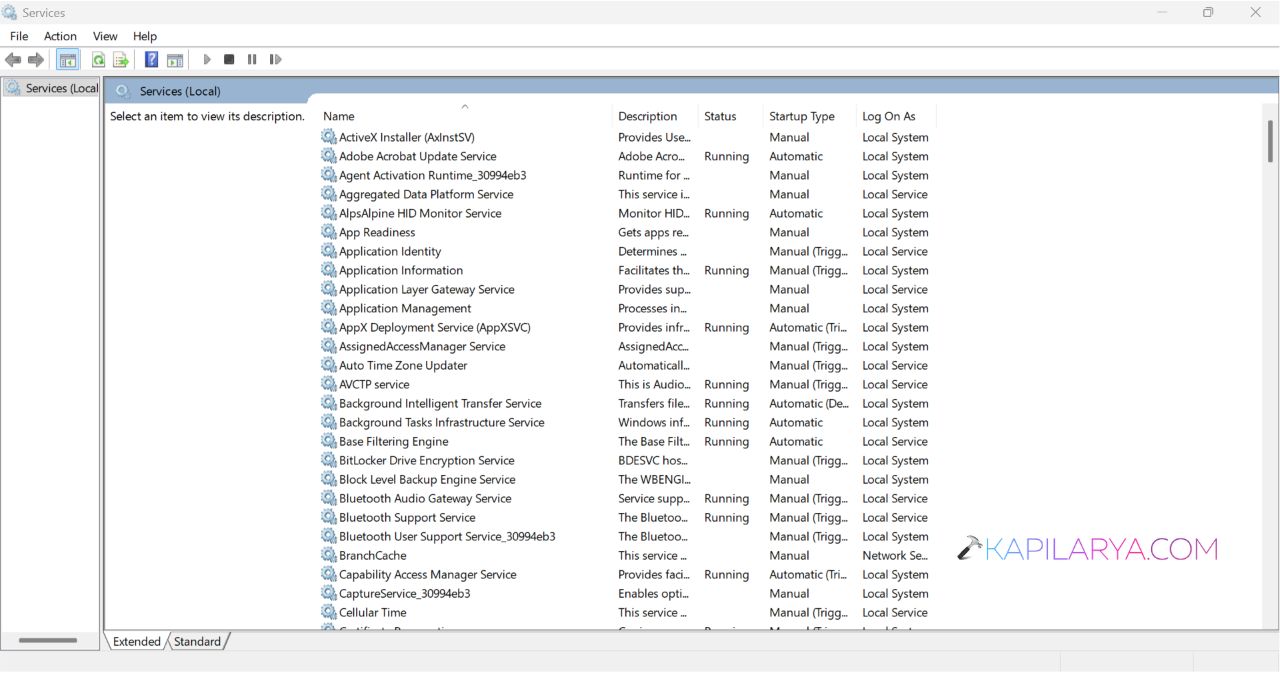
2. Stop Windows Update and BITS services.
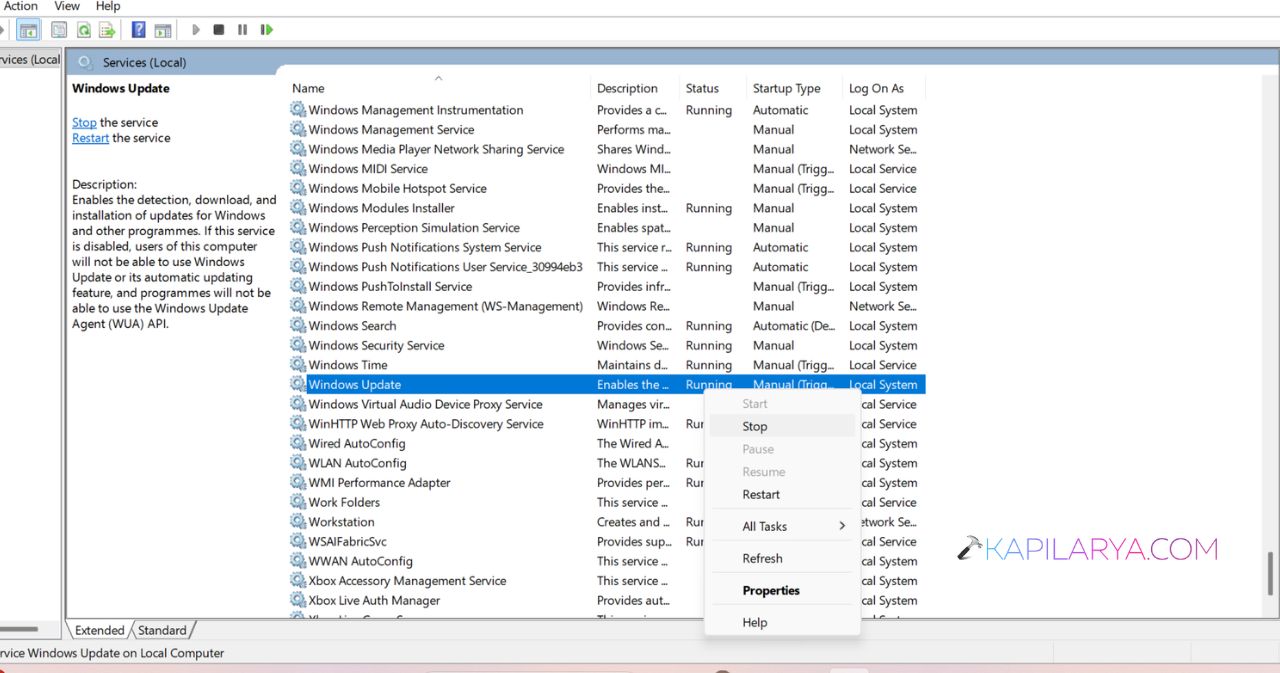
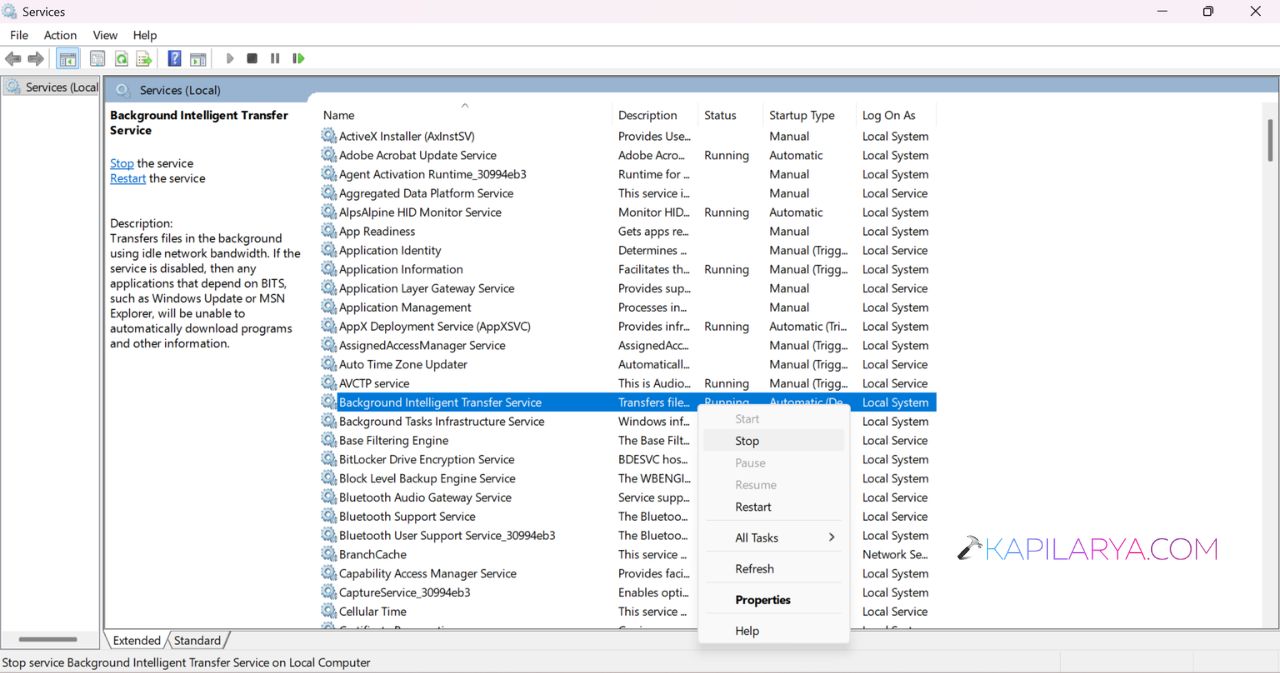
3. Open C:\Windows\SoftwareDistribution.
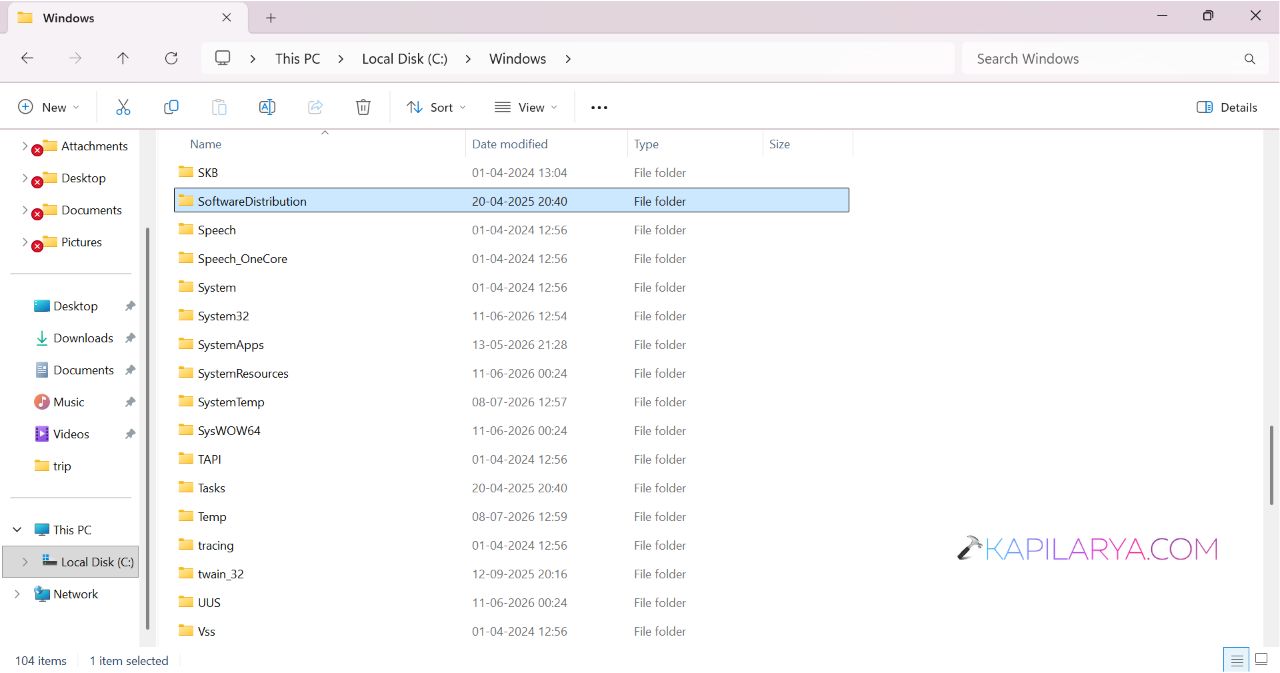
4. Delete the files inside the folder.
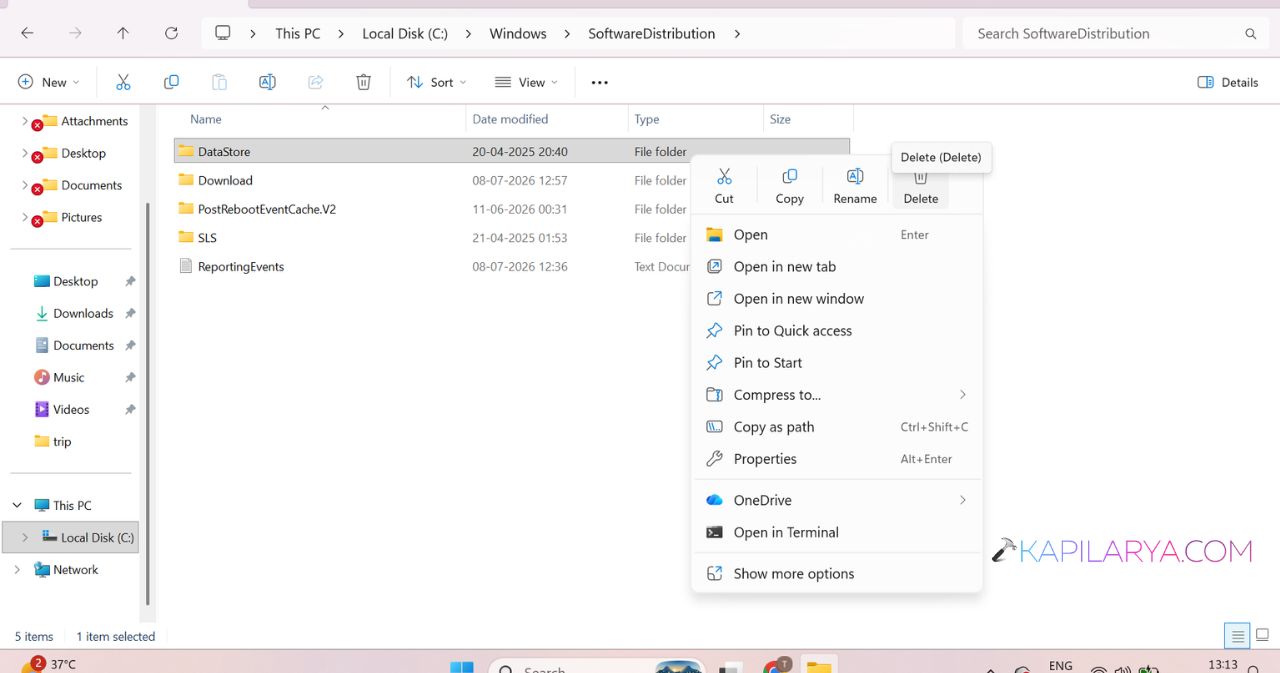
5. Start the services again and restart Windows.
Fix 6: Temporarily Turn Off Antivirus Or Firewall
Security software can sometimes block update downloads.
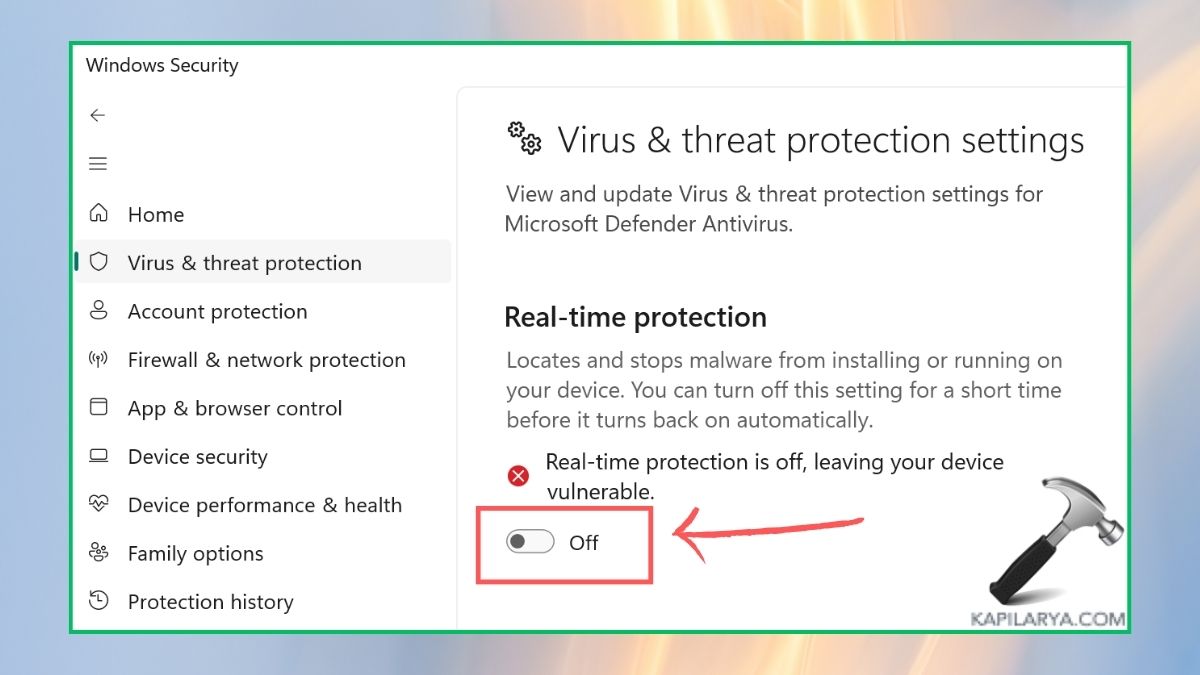
1. Disable your antivirus temporarily. You can turn off real-time protection in Windows Security, using this guide.
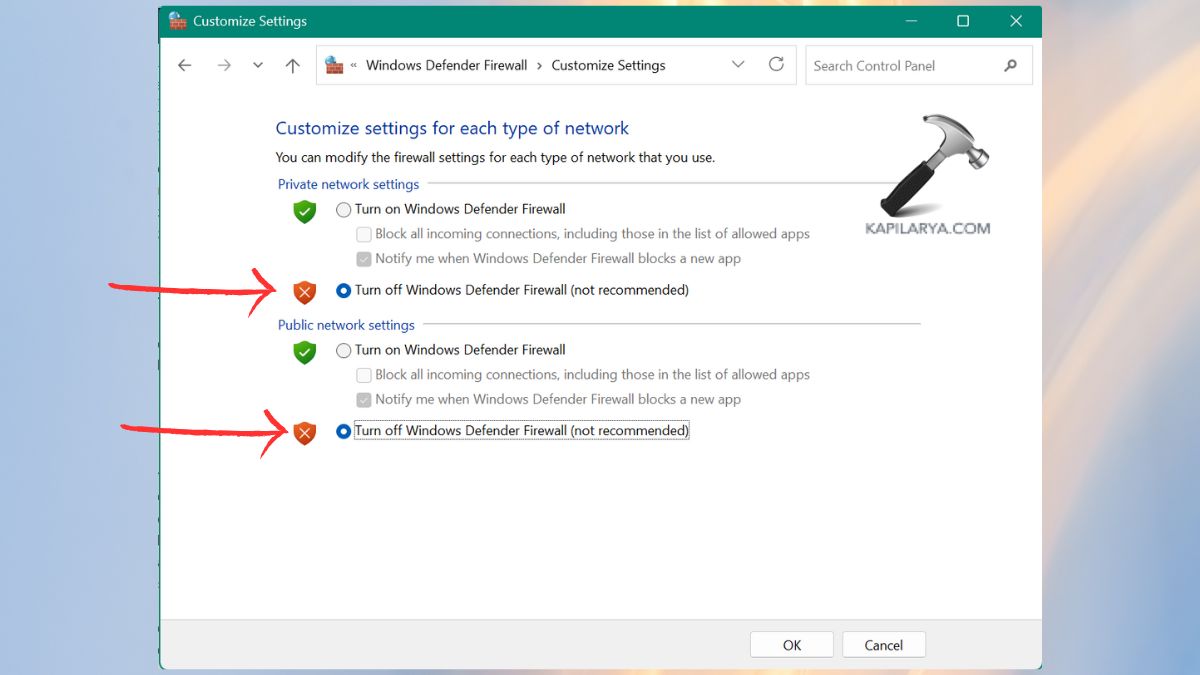
2. Turn off the active Windows Firewall profile.
3. Run Windows Update again.
4. Re-enable protection after the update finishes.
That’s it, you should now have the issue resolved.