

In Windows 8, recently we’ve come around a weird issue faced on switching users. One of my reader reported that he is booting his Windows 8 with multiple users. But he is unable to switch users right now, because he can’t find out the option to switch at Start Screen. Also he is unable to get switching options at login screen as well.
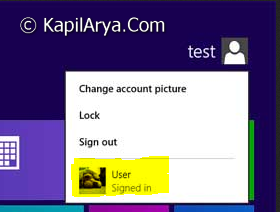
So how to fix this issue, how to make the second user visible in the infected sections so that we can switch to it? Well, here are the solutions which would worked fine to fix this problem:
Page Contents
FIX : Can’t Switch Users In Windows 8
If you could, try to make the system restore to the restore point created before you have introduced to this issue. Restoring system just work fine in this case.
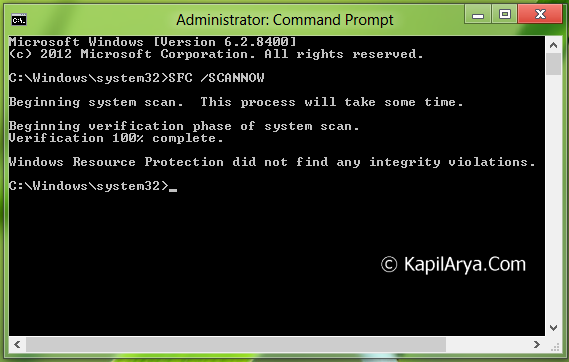
Alternatively you can try to run SFC /SCANNOW command in the elevated command prompt. If both of these not works try to refer other solutions listed below:
FIX : Using Registry Editor
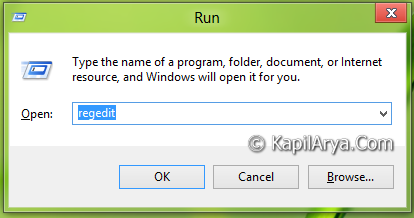
1. Press  + R and put regedit in Run dialog box to open Registry Editor (if you’re not familiar with Registry Editor, then click here). Click OK.
2. Navigate here:
HKEY_LOCAL_MACHINE\SOFTWARE\Microsoft\Windows\CurrentVersion\Policies\System
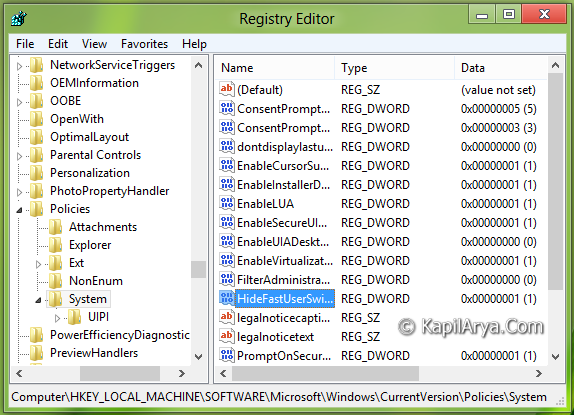
3. In the right pane, make the HideFastUserSwitching DWORD value equals to zero if it is not. To do that, double click on it, you get this:
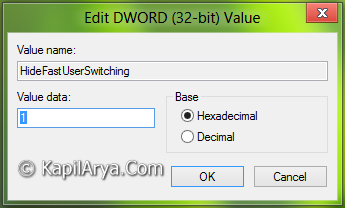
4. Put the Value data equals to 0. Do this to same DWORD for following locations as well:
HKEY_CURRENT_USER\Software\Microsoft\Windows\CurrentVersion\Policies\System
HKEY_LOCAL_MACHINE\SOFTWARE\Microsoft\Windows\CurrentVersion\Policies\System
Close the Registry Editor and reboot to get results.
Using Local Group Policy Editor
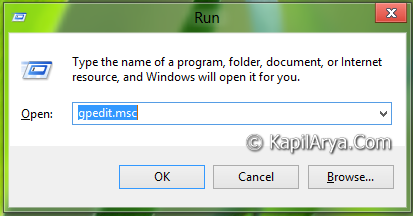
1. Press + R and put gpedit.msc in Run dialog box. Click OK.
2. Navigate here:
Computer Configuration -> Administrative Templates -> System -> Logon
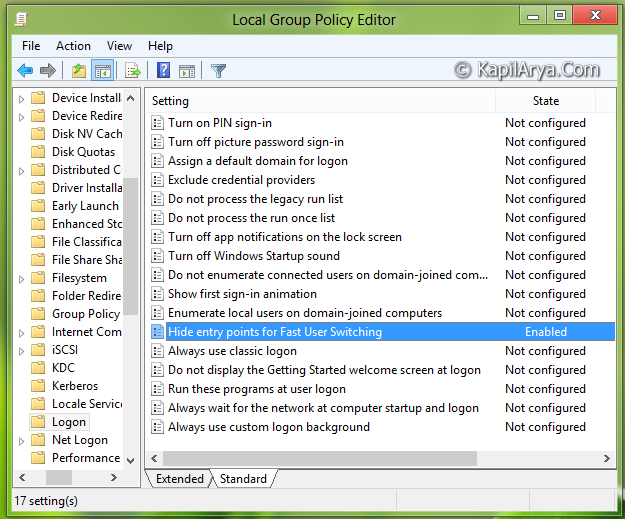
3. In the right pane, click on policy Hide entry points for Fast User Switching. You will get this window:
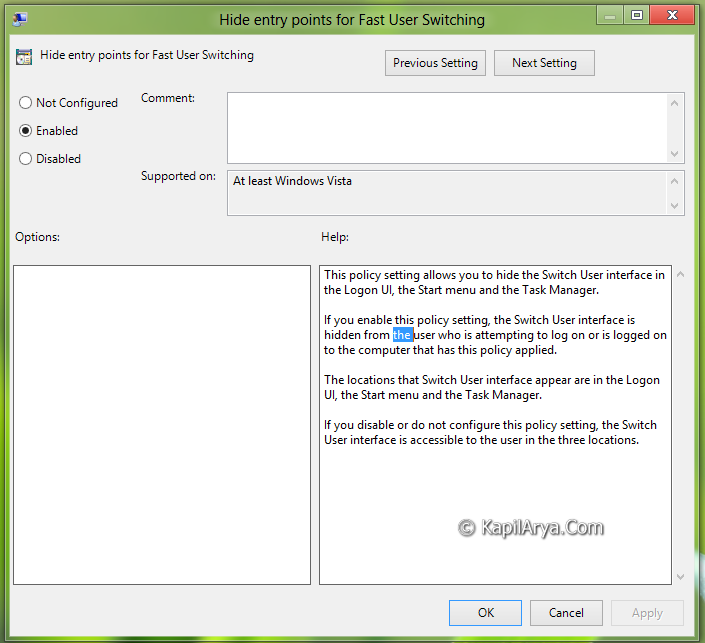
4. To fix your issue, set this setting to Not configured or Disabled. Not configured is default setting and it should be restored. Click Apply followed by OK. Reboot hopefully to get fixed.
That’s it!




Hi there, thanks for gr8 article:) Is there a way to create a shortcut to invoke the Switch User to a specific account?
What I mean by this:
Lets say you 2 users, A and B. The computer starts up and logs into A.
Clicking on the account picture of A on the Start screen gives you the option to switch to B.
When that is clicked, A is put in the background (not logged of) and B is logged in.
Is there a way to automate that process?
Thnks…
^^ Not that I’m aware of. Everything needs to be done through the lock and sign in screen for security purposes :)
I do realize that I won’t be able to do this with a shortcut or a context menu entry.
What I’m suggesting is a macro to perform the button clicks as described above.
And indeed it will be for the case of switching to a user that does not have a password, which does lead to logging in automatically.
That being said, I’m not having too much luck simulating the button clicks with AutoHotKey.
What are regular people supposed to do who have no idea what the “registery editor” is. My 90 year old Dad cannot login because there is no way to switch users on the start screen where you are locked into a start screen for a different user. This stuff is just crap and extremely hard to use. The other day I spent four hours trying to set up Skype (Microsoft Skype) and to get even one user account to work. It took hours to sign into Skype and Microsoft and multiple resets of passwords. I would give anything to go back to Windows 7.