Strong integration of OneDrive in Windows 10 provides you the facility to upload files directly from File Explorer. So you no longer need to go OneDrive page online and then manually select files to upload.
If you’re bit cautious about your data, you may configure OneDrive to automatically upload your stuff to cloud. By allowing OneDrive for automatic upload of photos and videos, you don’t need to care about manual selection of files and it will save your time as well. With this intention, Microsoft has already provided Auto save ability to OneDrive. In this article, we’ll see how to enable or disable automatic upload of your content to OneDrive in Windows 10.
So let us see the how-to part.
How To Allow/Prevent OneDrive To Save Photos And Videos Automatically In Windows 10
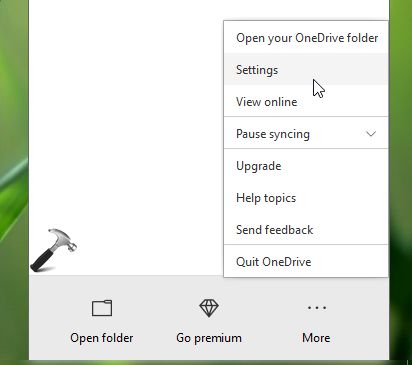
1. Right click on OneDrive icon on taskbar and click Settings.
2. In Microsoft OneDrive window, under Auto Save tab, you’ll find Photos and videos heading. Now check Automatically save photos and videos to OneDrive whenever I connect a camera, phone, or other device to my PC option to enable automatic upload of photos and videos from your Windows 10 device. Click OK.

3. Reboot the machine to make changes effective.
Note that when you content is automatically uploaded to OneDrive, the version of individual files are not touched. This means the content is only copied to the cloud, and is never deleted from your Windows 10 device, after upload. If you wish to delete the stuff locally on Windows 10 machine after upload, you need to do this manually using File Explorer. You can additionally configure Files On-Demand feature for OneDrive, which allows you save space on your disk and download files as you use them.
To disable automatic upload of your stuff to OneDrive (default setting), you can simply uncheck Automatically save photos and videos to OneDrive whenever I connect a camera, phone, or other device to my PC option in step 2 mentioned above.
That’s it!
Related: Disable automatic photo & video upload to OneDrive in Windows Phone 8.