

Error 0xc0000185 in Windows 11 indicates that the Boot Configuration Data (BCD), which instructs your PC on how and where to start Windows, is missing, corrupted, or unreadable.
Page Contents
Fix Error 0xc0000185 in Windows 11
When this happens, Windows can’t find the necessary information to boot, and you see a blue screen stating that a required device is missing or inaccessible.
Fix 1: Automatic Startup Repair (Modern Entry Method)
Windows includes a tool that tries to fix boot issues for you:
1. Turn your PC off.
2. Turn it on, and as soon as the Windows logo appears, hold the power button until it shuts down.
3. Repeat this 3 times, and on the 4th startup, the system should enter the Advanced Recovery Environment automatically.
4. In the Recovery screen, go to Troubleshoot, then Advanced options, and then Startup Repair, and let Windows scan and fix boot configuration problems.
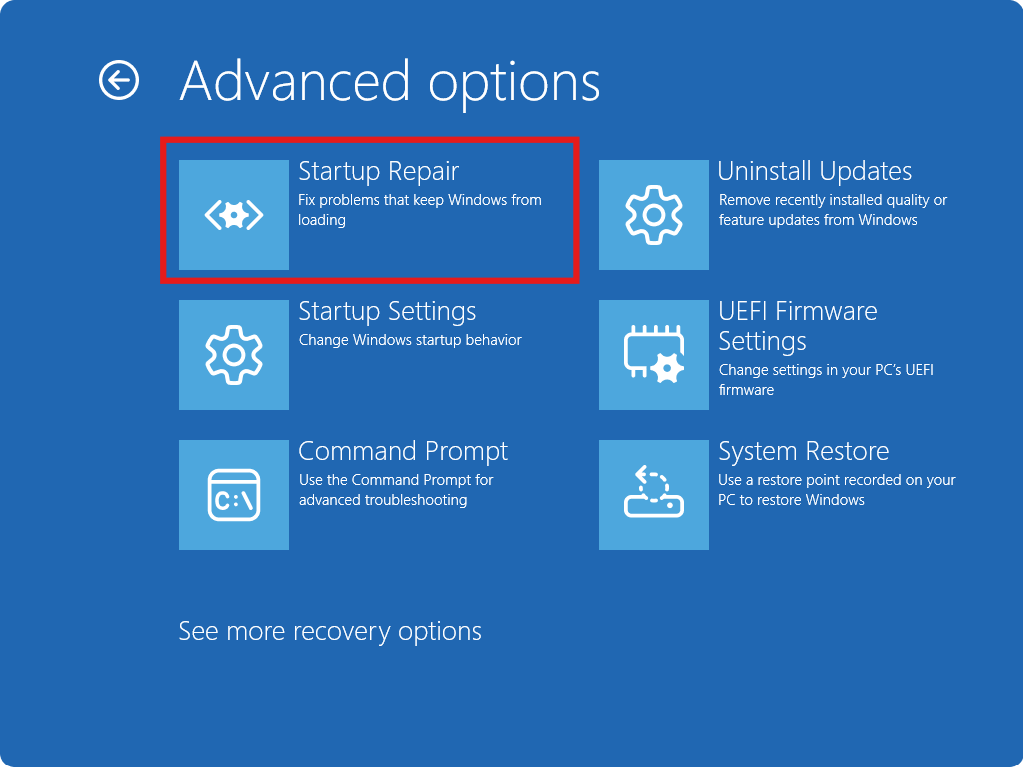
This method uses a built-in recovery process to automatically repair corrupted startup files.
Fix 2: Rebuild BCD the Correct Way for UEFI Systems
On modern Windows 11 systems, the classic bootrec /fixboot often returns “Access denied.” Instead, use the correct UEFI process:
1. Boot into the Advanced Startup Environment (from Fix 1 above or using a Windows setup USB).
2. Open Command Prompt.
3. Type:
diskpart
list volume
Identify the EFI System Partition, it’s formatted in FAT32 and usually small (100–300 MB). Note its volume number.
4. Assign a drive letter (here we use Z):
select volume 2
assign letter=Z
exit
5. Then rebuild the boot files:
bcdboot C:\Windows /s Z: /f UEFI
Replace C: with whatever drive letter actually contains your Windows installation.
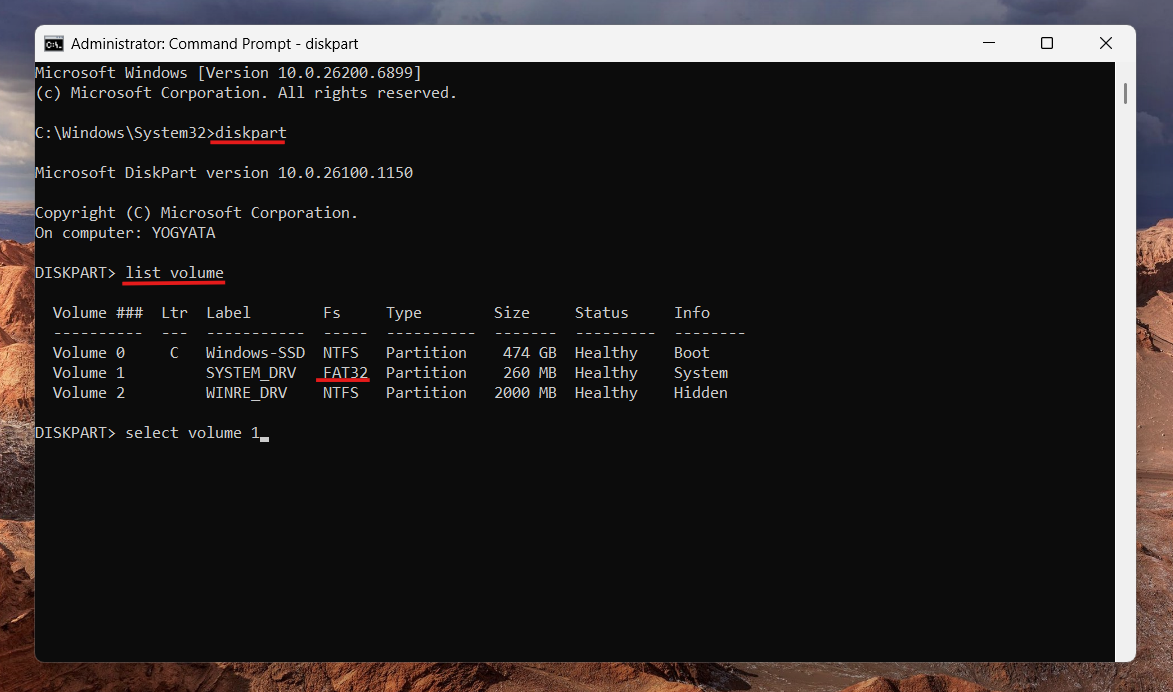
This correctly copies fresh boot files to the EFI partition on UEFI systems.
Fix 3: Verify and Repair Drive
Before running CHKDSK, confirm the actual Windows drive letter, because in Recovery, your letters may shift:
1. In the recovery Command Prompt, type:
dir C:\
dir D:\
2. Look for the drive with the Windows and Users folders.
3. Once identified, run:
chkdsk D: /f /r
(Replace D: with your actual Windows drive letter.)
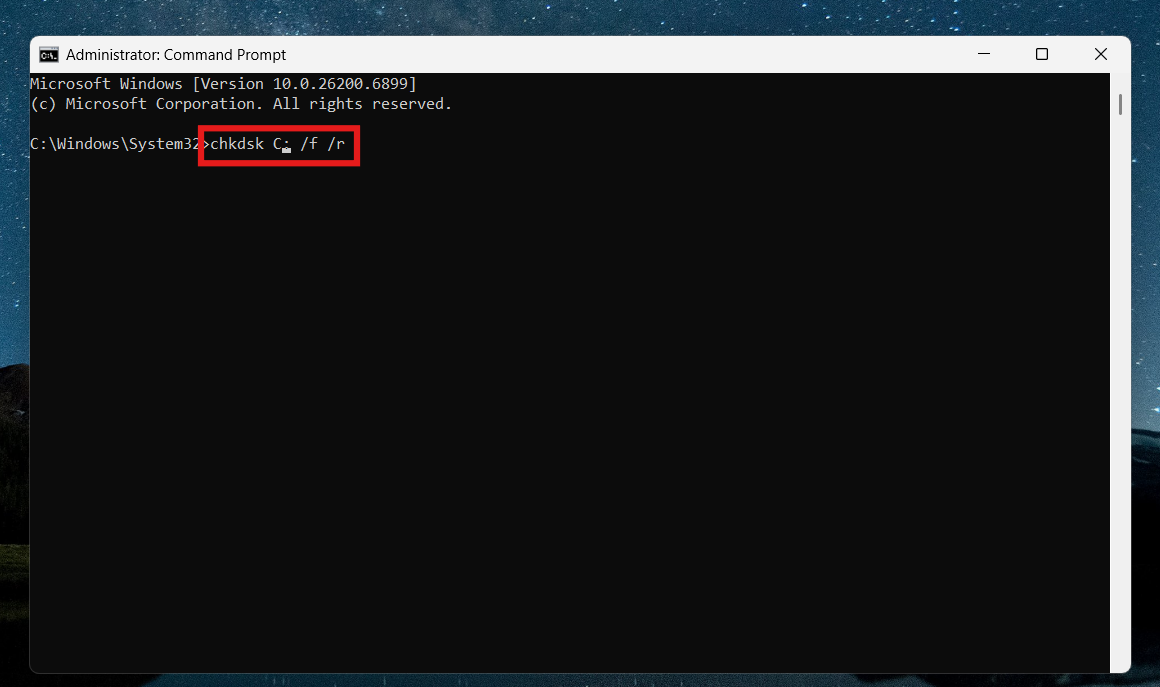
CHKDSK scans the disk for corruption and fixes low-level errors that may prevent booting.
Fix 4: System Restore (Undo Recent Changes)
If the error began after a recent update, driver install, or config change:
1. Enter Advanced options from the recovery screen.
2. Select System Restore.
3. Choose a restore point from before the error began and follow the prompts.
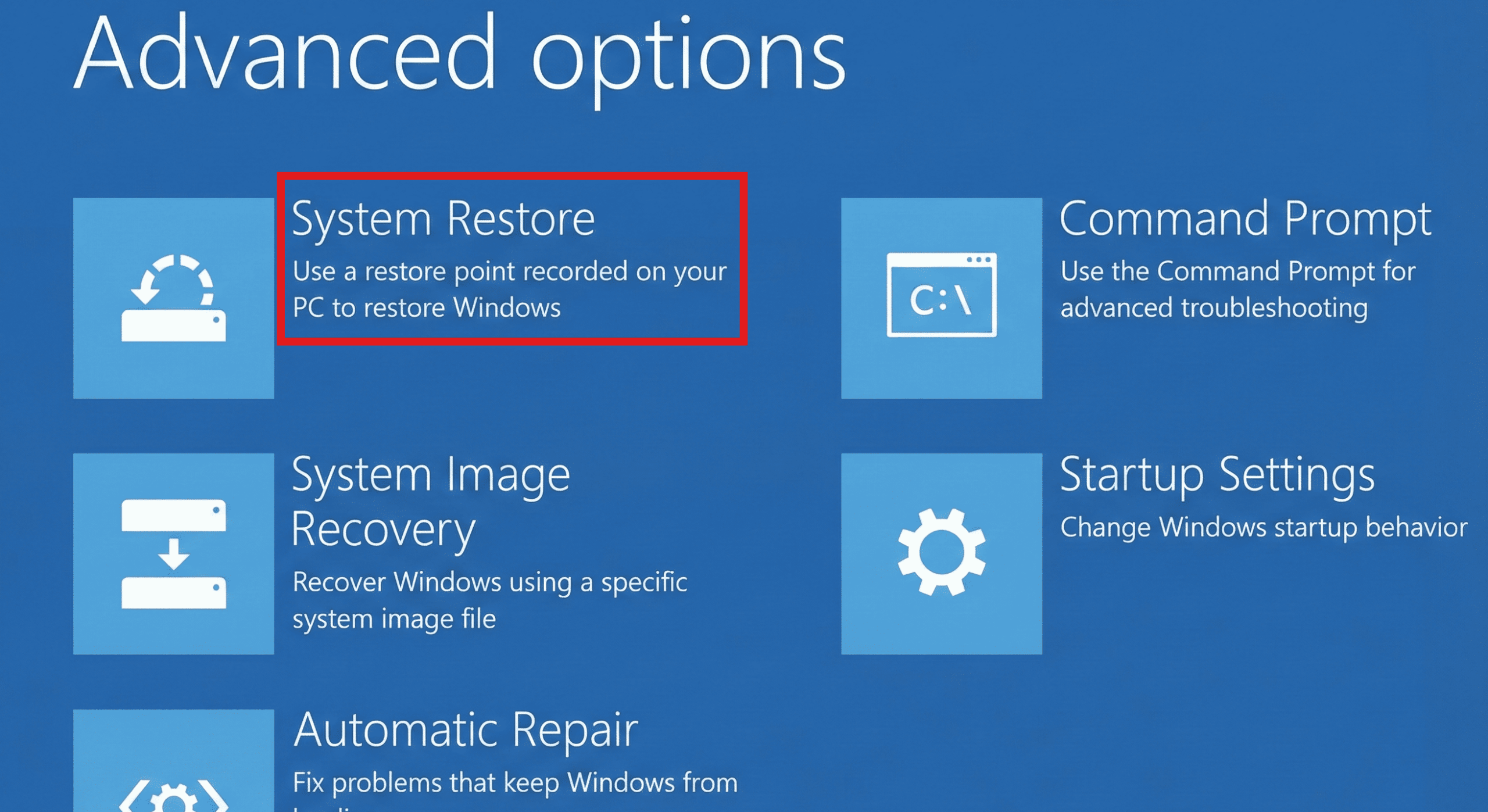
This rolls back system settings without affecting personal files and often resolves BCD-related issues.
Fix 5: Disconnect External Peripherals
Sometimes, USB drives or external media can confuse the boot process:
- Disconnect all USB storage, external drives, dongles, and peripherals.
- Power the system down completely and restart.
This ensures the computer attempts to boot from the internal drive only.
Fix 6: Use Windows Installation Media for Full Repair
If your system never enters recovery on its own:
1. On another PC, create a Windows 11 installation USB.
2. Boot the affected PC from this USB.
3. Choose Repair your computer, then Troubleshoot, and then Advanced options, and use Startup Repair, Command Prompt, or System Restore from there.
This gives you access to all repair tools, even when Windows won’t start normally.
Wrap-Up
Error 0xc0000185 indicates corrupted or missing Boot Configuration Data on Windows 11. While traditional bootrec commands can work, on UEFI systems, the modern bcdboot approach is more reliable, and verifying drive letters for chkdsk is crucial to avoid mistakes. When automatic repair and recovery tools are unavailable, using a Windows installation USB is often the simplest way to reach these tools and fix the issue.




