

Did the Windows 11 25H2 update stuck at the downloading screen? This is a very annoying problem where the update is stuck at a specific percentage, such as 0, 67, or 99 percent. The same happens to most Windows 11/10 users who are left to restart their computers over and over again.

It is frustrating, particularly when it comes to the new features and improvements. Worry not, though, as we have your back! Here in this guide, you will know the simple, effective, and safe ways to resolve the Windows 11 25H2 update stagnation on the download problem once and for all.
Page Contents
How to Fix Windows 11 25H2 update stuck at downloading
Fix 1: Run Windows Update Troubleshooter
The simplest and surest method of correcting update issues in Windows 11 is through the Windows Update troubleshooter. It automatically identifies and fixes the majority of glitches related to updates. The troubleshooter restarts general update-related services and components, and this normally fixes stagnant update downloads in a short period.
1. Click Win + I to access Settings. To access the troubleshooters, go to System > Troubleshoot > Other troubleshooters.
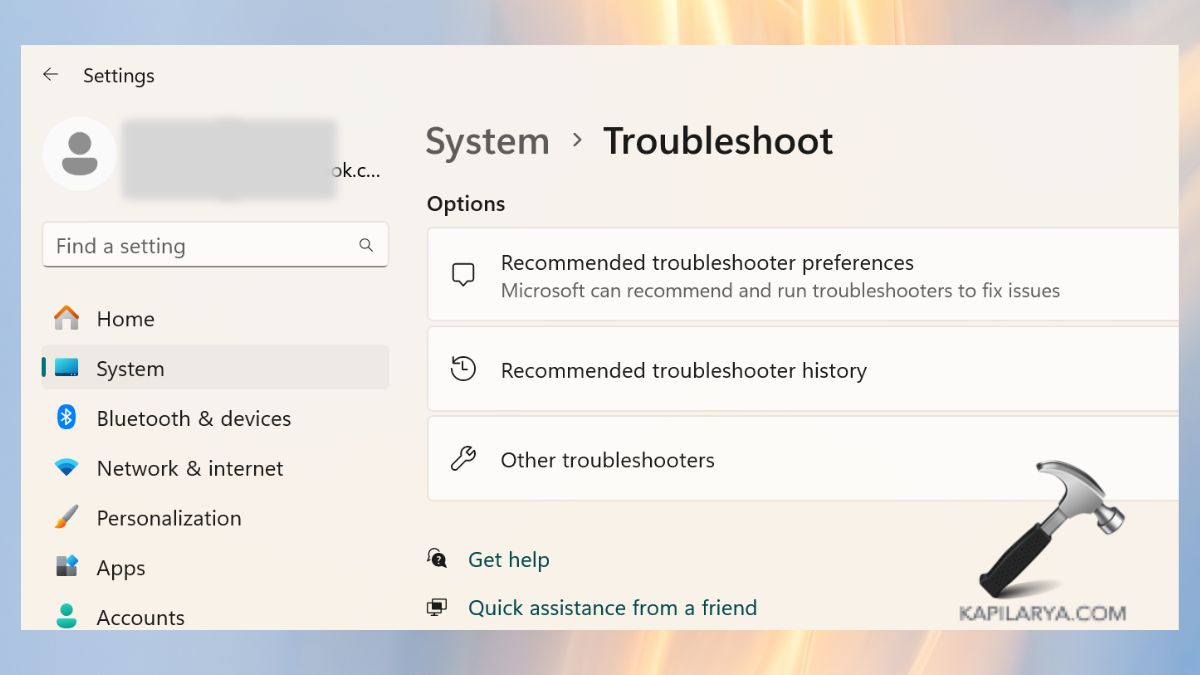
2. Locate Windows Update and click on Run. Wait until the troubleshooter analyses and corrects problems.

3. After that, restart your PC and again, download the update.
Fix 2: Clear Windows Update Cache
The Windows 11 25H2 update may or may not advance or may fail to advance repeatedly due to a corrupted update cache. The emptying of this cache will restart all the temporary update files.
1. Visit the Services application through the Start menu.
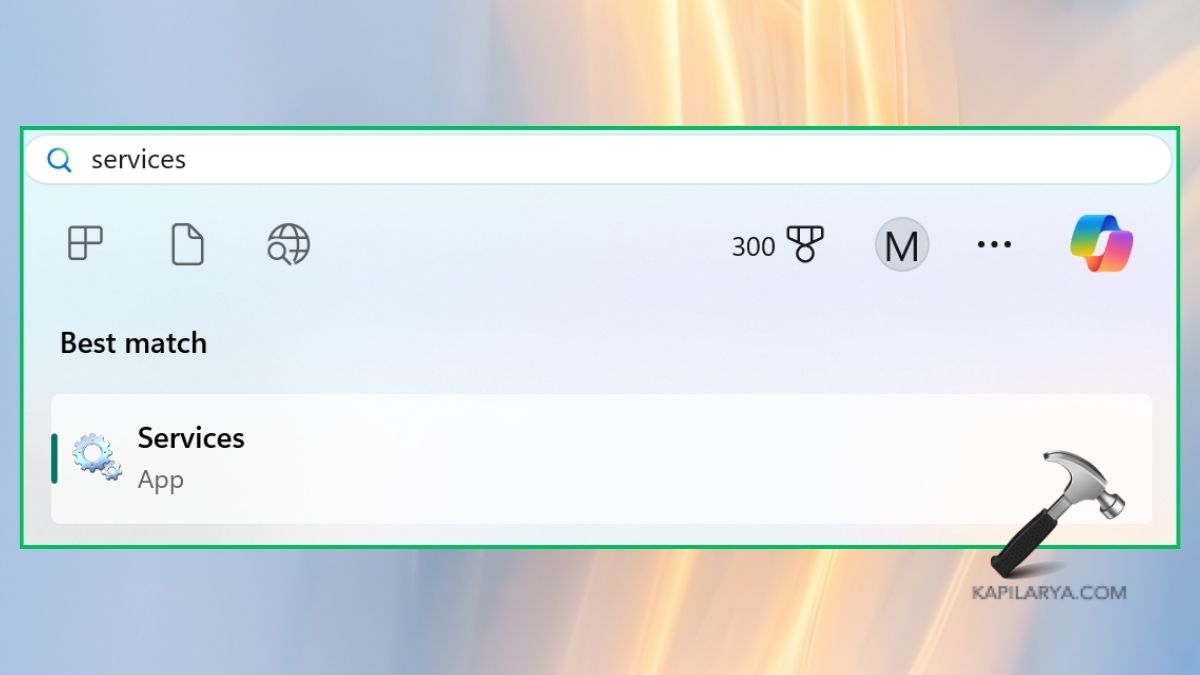
2. Locate Windows Update, Background Intelligent Transfer Service (BITS), and Cryptographic Service.
Click on each of them and select Stop.

3. Then, open File Explorer and access this path.
C:\Windows\SoftwareDistribution
Erase all the files and folders within SoftwareDistribution.

4. Go to the Services window and “Start/Restart” the services that you have stopped it.

Now, you should try downloading the 25H2 update once again. This procedure tends to fix the problem where the update has been stalled because of incomplete or corrupted files.
Fix 3: Enable Windows Modules Installer
Windows Modules Installer is a crucial service that is engaged in the installation of updates. Unless it is enabled, there is a potential for the Windows 11 25H2 upgrade to be stuck at any point.
1. Once again, use the Services application.
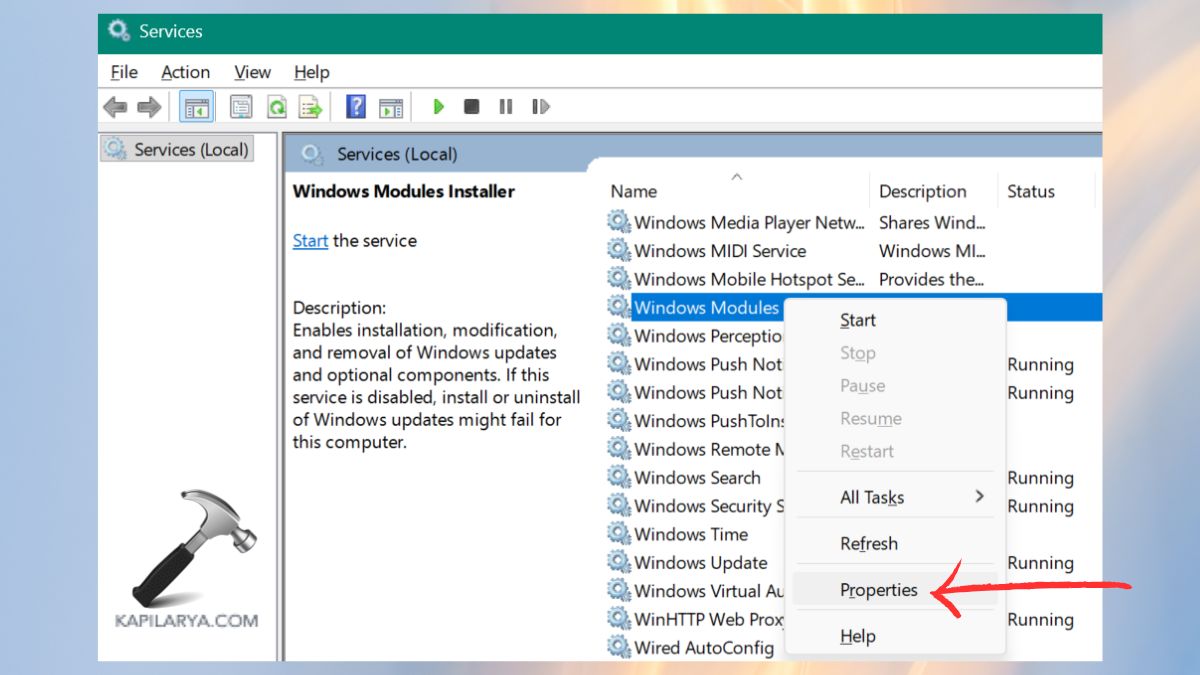
2. From the Extended list, find the Windows Modules Installer. Right-click on it and choose Properties.
3. Set Start-up type to either Manual or Automatic. Click Start, press Apply, and OK.
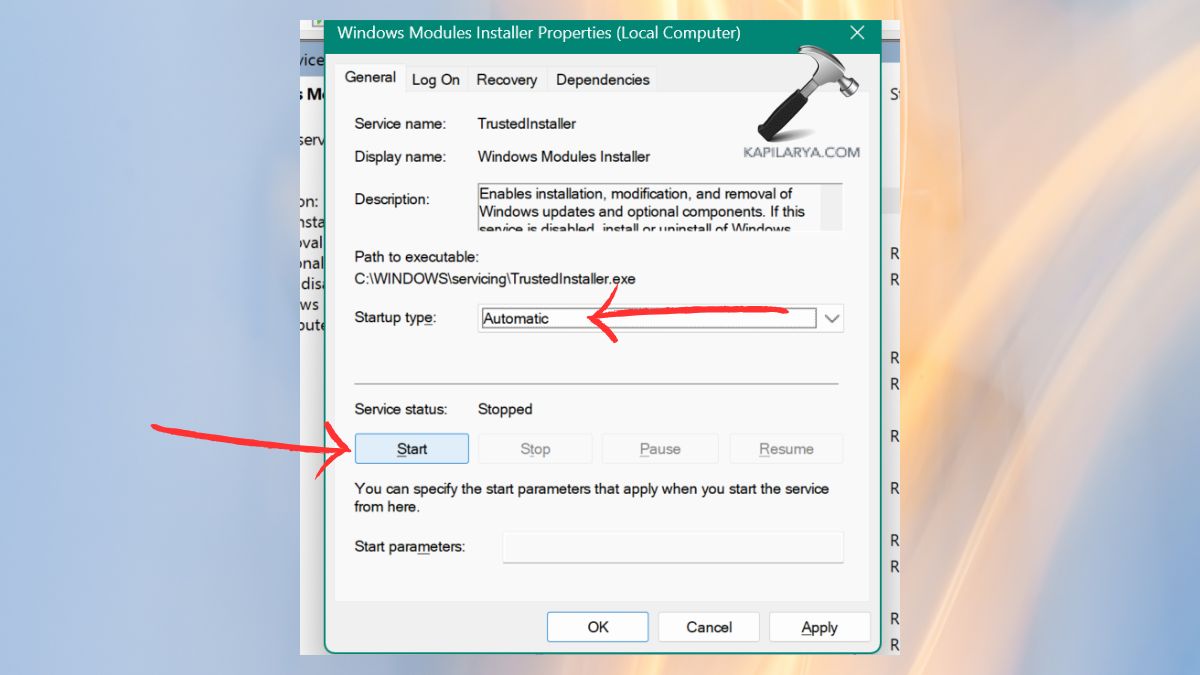
When it has been turned on, restart your computer and attempt an update again.
Fix 4: Download the Update Using Windows 11 Installation Assistant
Lastly, the Windows 11 Installation Assistant comes in as the next good alternative in case your update still does not download normally. It assists you in installing the new version without having to wait till Windows Update corrects itself as it does.
1. Go to the official Windows 11 download page of Microsoft (https://www.microsoft.com/en-in/software-download/windows11). At the Windows 11 Installation Assistant section, click Download now.

2. Open the downloaded tool and comply with the instructions on the screen.
The 25H2 update will be downloaded automatically and installed with the help of the tool.
This trick will make sure you are installed on the latest build of Windows 11, with the exception of an issue where your update service is hung or corrupt.
Fix 5: Use Media Creation Tool to Download ISO
In case the above procedures are not effective, the installation of the Windows 11 25H2 update may be made manually with the help of the Media Creation Tool.
It also enables you to create an offline PC update ISO file in the form of a USB or an ISO file. To download the enablement package, follow the detailed guide on How to install Windows 11 25H2 enablement package?
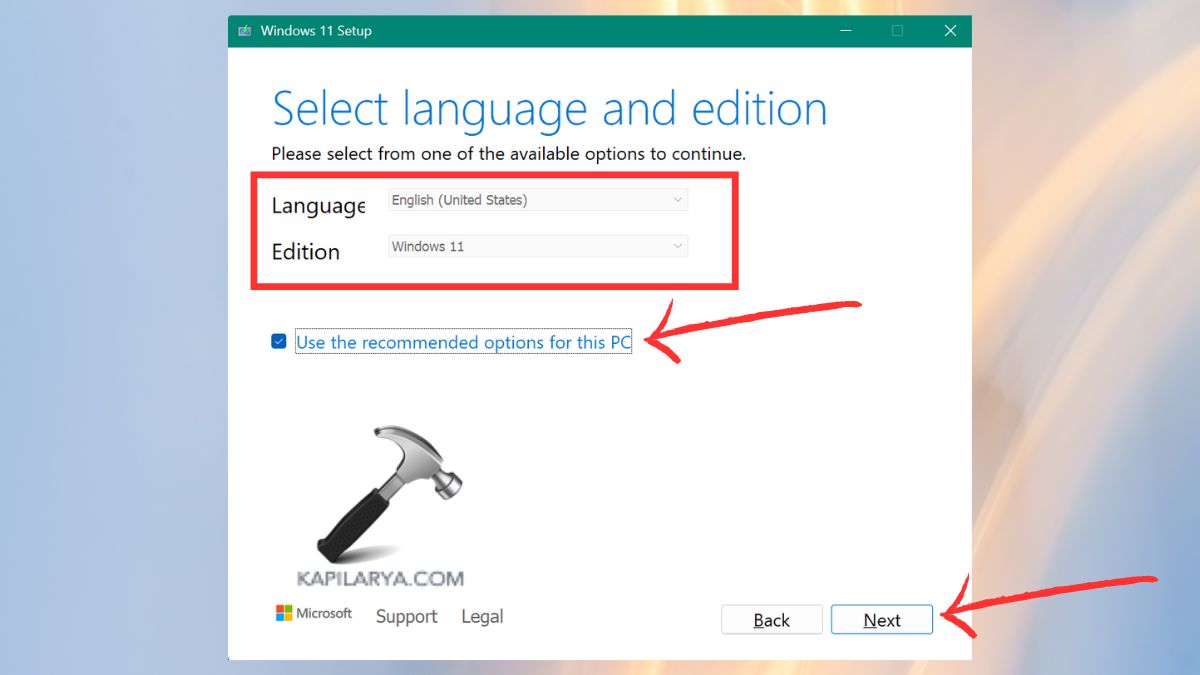
1. Visit the official Windows 11 download site (https://www.microsoft.com/en-in/software-download/windows11). Click on the Create Windows 11 Installation Media and download the tool.

2. Open it and install the Windows 11 25H2 update manually by following the prompts like Language, edition, etc.
Be aware: Uploading the important files in a backup is advisable before doing this because sometimes the manual upgrades may reset the settings.
Frequently Asked Questions (FAQs)
That’s it!


Thank you for this tutorial it fixed my issue completely