

No doubt, there is no best alternative to customize Windows other than Registry Editor. Registry Editor allows us to tweak settings in Windows instantly. We’ve covered a considerable number of registry modification tricks in our past. In this article, we’re giving you the tip to disable Registry Editor.
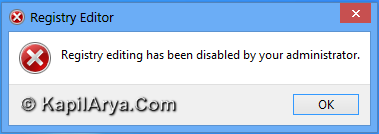
This tip will be beneficial for the administrators, whose users do messing of registry keys without their permissions. If you’re issued that your Windows users performs dummy experiments comprising registry tweaking which are making your Windows broken, then disabling Registry Editor is the only fix. But how to do that? Don’t worry! The solution is here:
How To Disable Registry Editor In Windows 10/8/7
1. Press  + R and put gpedit.msc in Run dialog box to open Local Group Policy Editor. Click OK.

2. Navigate here:
User Configuration -> Administrative Templates -> System
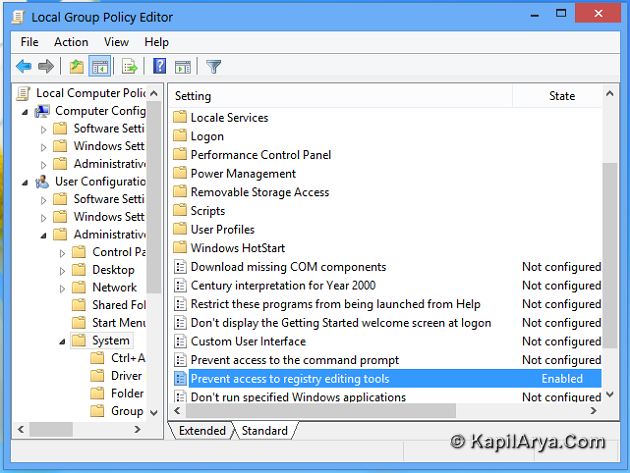
3. In the right pane of this location, look for setting named Prevent access to registry editing tools and click on it. It should show Not Configured status by default. Double click on the setting to modify it. You’ll got this:
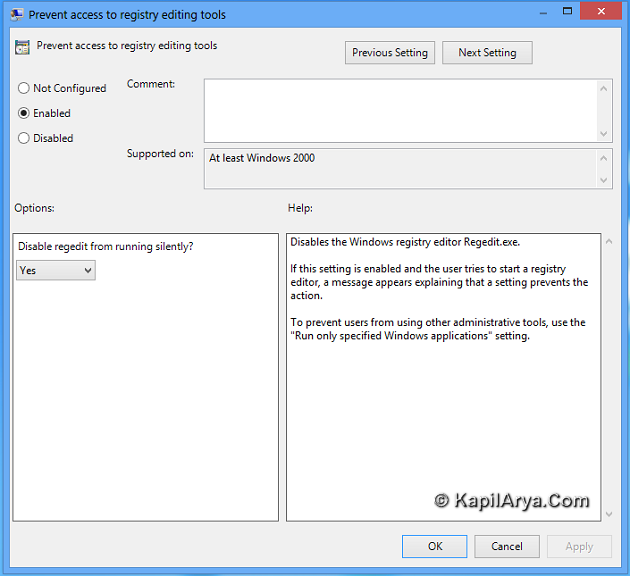
4. Finally, in order to disable Registry Editor, select Enabled in the above shown window. Click Apply followed by OK. That’s it!
Thus you have successfully disabled Registry Editor. Now whenever users on your computer trying to access it, they will get an error message that Registry editing has been disabled by your administrator. If you like to allow access again, click on Not Configured or Disabled in the window shown in step 3.
That’s it!

![[FIX] An Attempt Was Made To Reference A Token That Does Not Exist](https://www.kapilarya.com/assets/Settings-2-768x595.jpg)

When I open my laptop goes straight in to sign in it says type in A1 B2 C3 for ages my 4 number Pin was not working what’s going on I haven’t had any hassles before.
^^ Refer: https://www.kapilarya.com/fix-pin-not-working-in-windows-10.