By default, Windows allows you to set up different ways in order to protect your user accounts. For Windows 8 or later, these ways include password, PIN, picture password. We’ve already seen how to set up, change an remove picture password. Today we’ll discuss about the another option, i.e. PIN. A PIN comprises of a four-digit number like your ATM PIN, which is handy to remember and easy to input as compared to traditional password. Its a bit easy to set up PIN and you can do it from PC Settings -> Accounts -> Sign-in options.
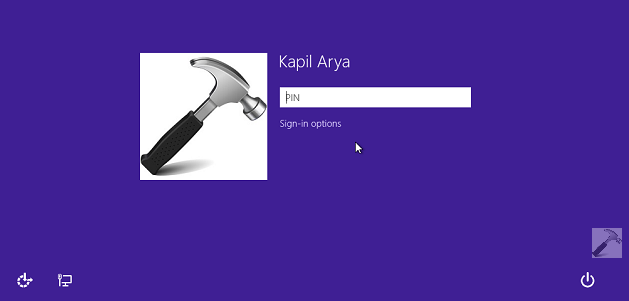
However, you should remember your password as a good practice. Because in crucial conditions, for example, entering into Safe Mode for Windows, you can’t use either of PIN or picture password and you have to proceed with original password only. Hence, use PIN for ease in login but also remember password to avoid excessive troubles. Once you set up your PIN, and if you wish to change it later, then here is what you need to do:
How To Change PIN In Windows 10/8.1/8
1. Press  + I, click Change PC Settings link at the bottom of the Settings charm so open.
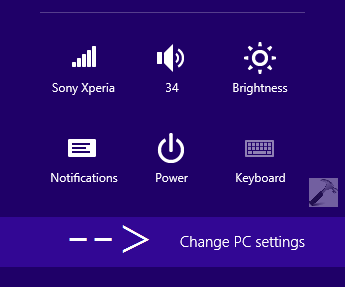
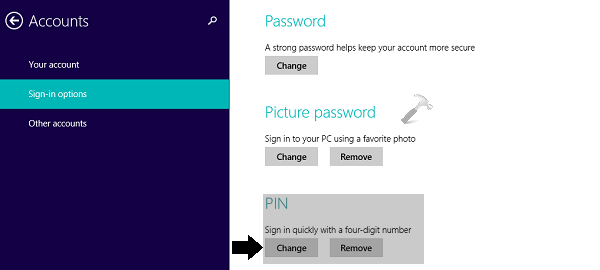
2. In PC Settings for Windows 8.1 or later, in left pane, navigate Accounts -> Sign-in options. Then in the right pane, click Change under PIN. In PC Settings for Windows 8, you need to navigate Users (left pane) -> Sign-in options (right pane).
3. Next, verify – type your user account password and click OK.

4. Finally, in the below shown screen, enter your new PIN and confirm it. Click Finish then.
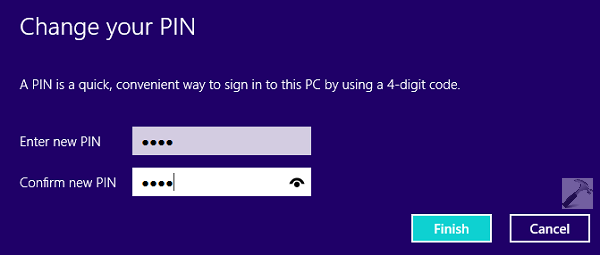
Thus in this way, you’ve successfully changed your existing PIN. You can now close PC Settings, sign out and sign-in using new PIN.
That’s it!