

We all know that Windows 8 is primarily focused on Metro UI and thus has introduced Start Screen comprising Metro tiles to the table. One of the best thing about this Start Screen is that you can move the tiles from here to there without any hitch. Moving of tiles let us to arrange them according to our need and preferences. Also, by making a right click over these tiles, we get bottom screen options to perform various operations regarding tiles like pin to taskbar, uninstall etc.
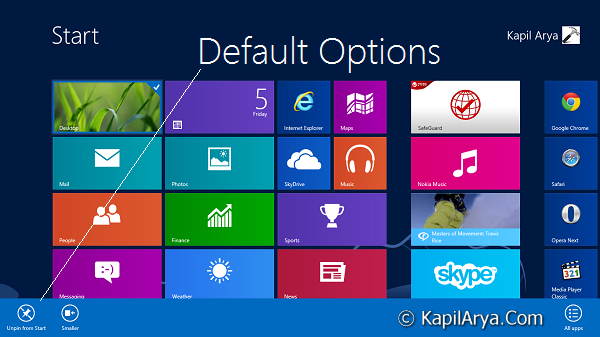
Consider the scenario of multi-user PC having yourself as admin of the system. If the users on your system moves the tiles for your user account oppositely to your preferences and if it irritates you, then you may want to prevent modifications to be made on your tiles. Meet “Tile Locker”, a freeware tool developed by our friend “Paras Sidhu“, which helps you to prevent manipulation of App tiles and blocks right click options for the same.
Tile Locker : Prevent Manipulation Of App Tiles In Windows 8
“Tile Locker” can be a pioneer tool to block the rearranging of Metro tiles on Start Screen. We have tested this utility on Windows 8 Pro and it impressed us with its strict operation. To get this utility, download zip file at https://www.thewindowsclub.com/downloads/TLW8.zip, unzip the zip file so that you can get the executable file.
Right click on the executable and select Run as administrator, you’ll got this:
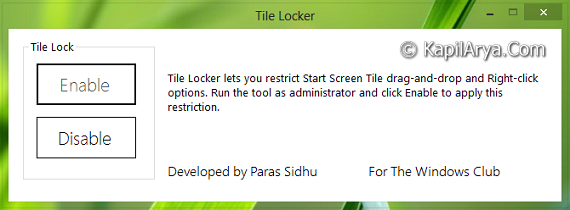
There are two options only and in order to implement a blockage on tiles, click Enable. As soon as you click Enable, you’ll meet this below shown dialog. Click OK.
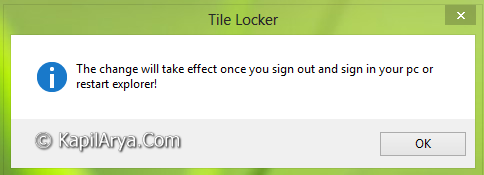
Now restart the Explorer and point yourself to the Start Screen, try dragging of Metro tiles. You’ll observe that the dragging has been disabled by the tool. So far, there is no rearrangement of tiles is possible now. Moving on, do a right click on any Metro tiles, you won’t be able to see the bottom options as shown in first image of this article. Instead you’ll see the All apps option:
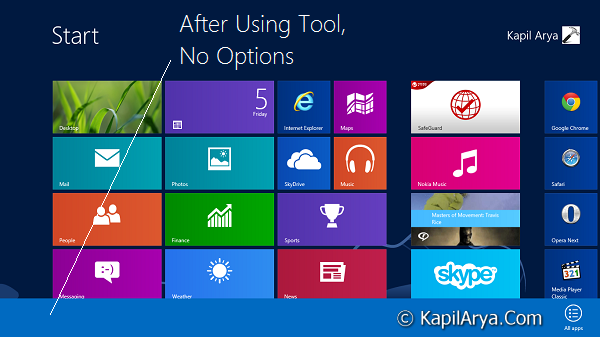
In this way, tool works tightly to block the Metro tiles. If you want to restore the default behavior of the Metro tiles, run the utility again and select Disable this time. Click OK for the dialog so appears then and restart Explorer to get the results.
NOTE : The only requirement this tool want is to run it as administrator. If you directly run the executable file, you’ll got this error:
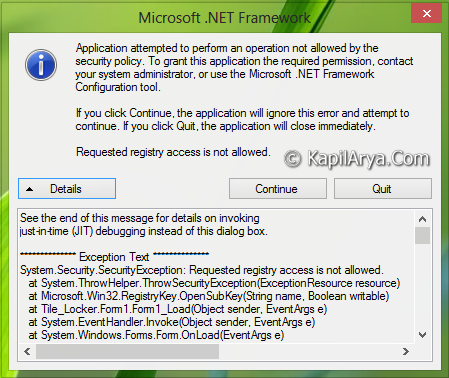
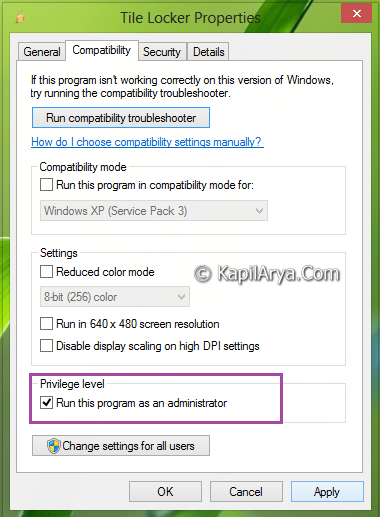
So always before running this tool, you need to select run as administrator. However, you can configure it permanently to run as administrator by navigating right click on executable file -> Properties -> Compatibility, select Run this program as an administrator. Click Apply followed by OK.
Enjoy the tool and find it useful!

Cool pick! Works fine :)
Thanks for sharing this good software. I wud like to try this :-P Bt I m aware will it mess my system :?:
^^ Create a System Restore point first before trying the tool 8)