

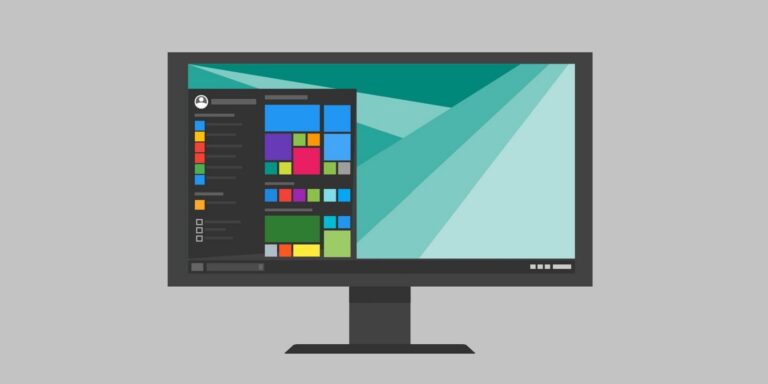
By restoring Start Menu to Windows 10, Microsoft has tried to increase productivity of upcoming Windows. Using Start Menu, users can easily access their required apps, search for them, and also can shut down the system, like what they did with it in Windows 7. But the Start Menu in Windows 10 mainly includes Modern Apps. So if you’re not satisfied with this, and if you want to have only Desktop Apps listed in Start Menu, then read on.
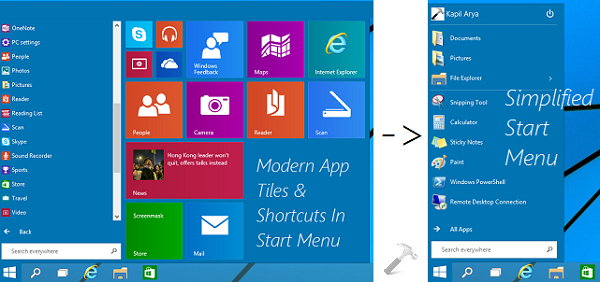
By removing the Modern UI elements, you can have a simplified Start Menu which enlists only Desktop or classic UI apps. To make this possible, you have to unpin every Modern App tile by right clicking over and selecting Unpin from Start. Also to remove the listed Modern Apps shortcuts, you have to follow same process.
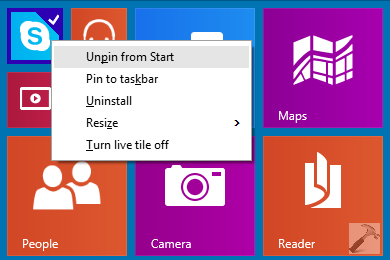
This is little bit time consuming and I’m going to share you a fast way to remove Modern UI entries very easily:
How To Make Start Menu Simplified In Windows 10
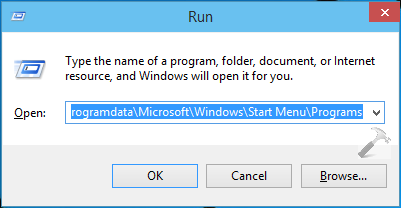
1. Press  + R and type following folder locations one by one and hit Enter key:
C:\Users\<USER NAME>\AppData\Local\Microsoft\Windows\Application Shortcuts
C:\Programdata\Microsoft\Windows\Start Menu\Programs
C:\Users\<USER NAME>\AppData\Roaming\Microsoft\Windows\Start Menu\Programs\System Tools
Substitute <USER NAME> with your system user account name and C: with your system root drive.
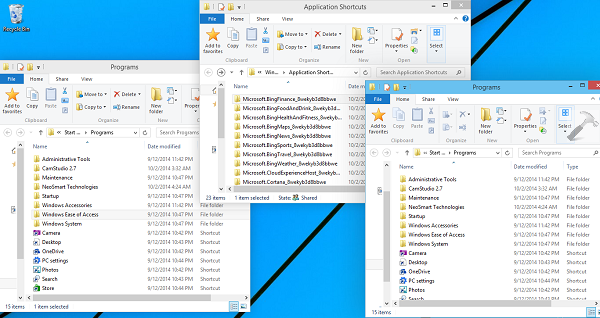
2. So you now have three folders opened that contains all the shortcuts and pinned tiles information for Start Menu. First of all backup them to convenient location. Then from Application Folders, delete all the app folders and make it empty. From rest of two Programs named folders, remove all the shortcuts that led you to Modern Apps.
When you’re done with removing all the Modern UI shortcuts from earlier mentioned folders, you’ll find that Start Menu is now simplified and handy to use.
Hope you find the tip useful. Go here to learn how to create Shortcuts for Modern Apps.


how about making it opaque like w7 i’m sure you will have sone tricks on thatvtoo :-D
Three folder mentioned are empty on my system, or do not have all the tiled applications that show in the start menu