

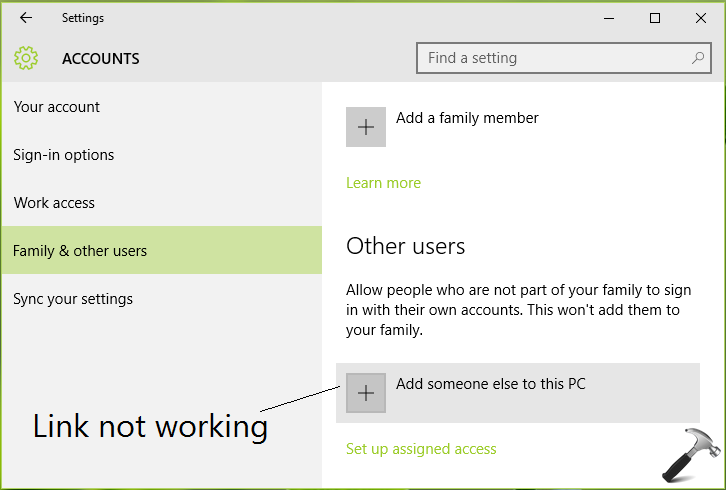
Earlier, we’ve seen how to allow or prevent users to log in locally in Windows 10. Now, this article address a different problem in which administrators can’t add new users to Windows. For adding new users or other family members to the system, you’ve to go Settings app > Accounts > Family and other users and then click Add someone else to this PC link. However, we’ve found that many administrators got this link not working. According to them, when they click the link, nothing happens.
The cause behind this problem may be miscellaneous, depending upon your system usage and availability of crucial factors such as network, dependency services etc. If you’re also victim of this issue, you can try out the ways mentioned below to overcome this.
Page Contents
FIX: Cannot Add Users To Windows 10
We’ve got two methods for you, try them as per your convenience.
Method 1 – Using NETPLWIZ
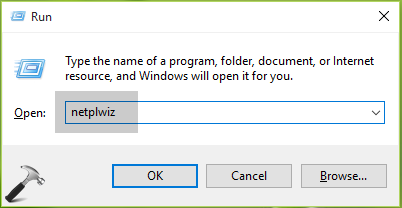
1. Press  + R and put netplwiz in Run dialog box. Click OK or hit Enter key.
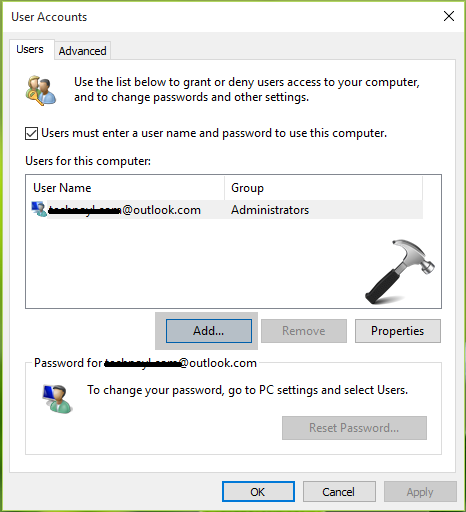
2. In the User Accounts window so appeared, click Add button.
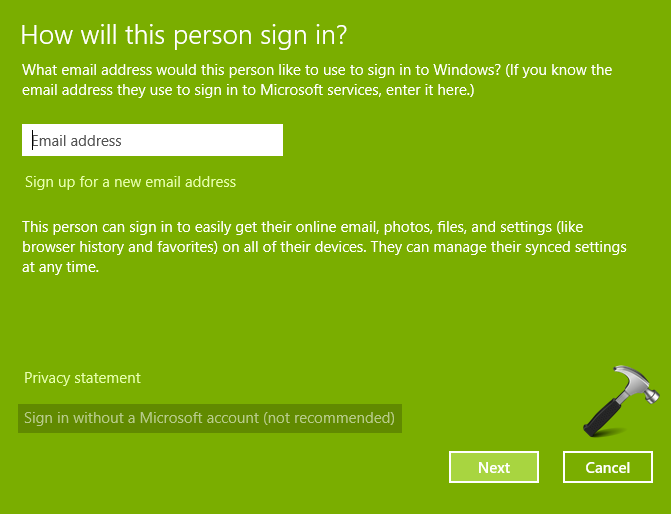
3. Then in next screen, type the Microsoft account email address of the person – whom you want to add. The account created by this way will be Microsoft account. So if you want to add new user with Local account, click Sign in without a Microsoft account (not recommended) link.
Recommended: How to switch to Microsoft account from Local account and revert back
4. In the next screen, click Local account. If your decision is changed after reading benefits of Microsoft account, you can opt for Microsoft account.
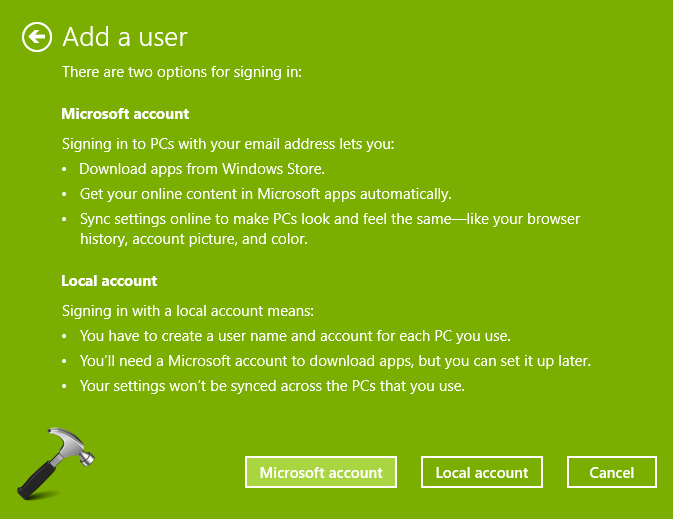
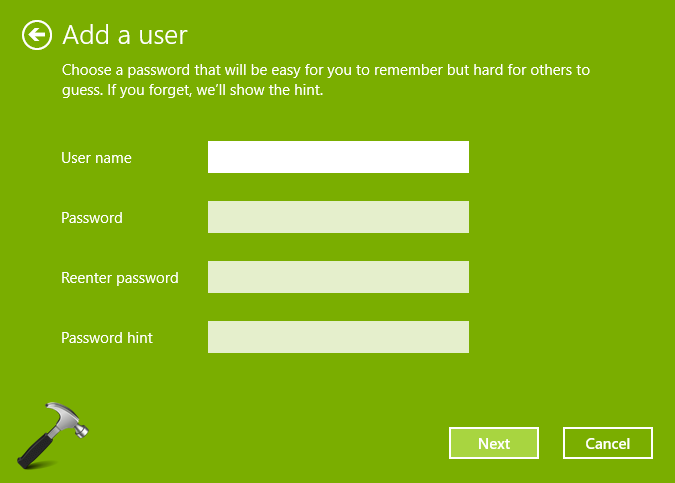
5. Finally, on the next screen as per what you’ve chosen above, you can add the user to the machine by providing required details.
Method 2 – By Hiding Interrupting Services
We strongly believe that you may face this problem due to some interrupting background service. So using this “hit and trail” method we’ve to spot and disable that service, such that we can then add user account. Try these steps:
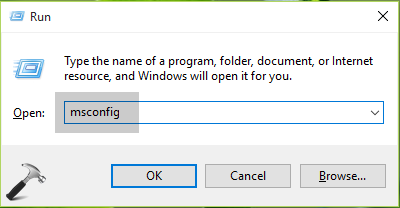
1. Press + R and put msconfig in Run dialog box. Click OK or hit Enter key.
2. Next, in System Configuration window, switch to Services tab. Check Hide all Microsoft services option here. Now the services you’re seeing, uncheck all of them and verify the status of problem. If you can add user account, then we conclude that one of these services was causing the hiccup.
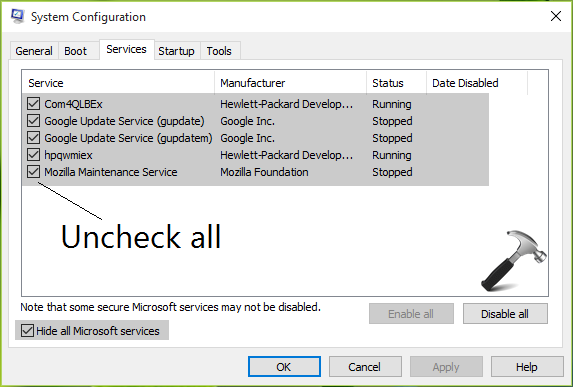
3. Once you’re done with adding new user, you can restart these services back.
Hope something helps, feel free to write us back if issue still persists!
Related: “We can’t add a user to the device right now” message in Windows 10.







Hi Kapil !
I tried the method 2 but the problem still persists
Sarabjeet
^^ Have you tried adding local user as directed in method 1?
Method 1 worked for me.
^^ Glad we could help :)
Method 1 was really helpful. Thank You!
^^ Thanks for your feedback 😊
Awesome thank you
^^ 😊
WIN 10 Home.
New, clean install.
Was unable to add new standard local user.
Method 1 (netplwiz) worked to add a new standard local user.
Thank You!
^^ Happy to help ☺️
It works thk very much omid from iran
^^ Glad it worked 😊
using ‘control userpasswords2’ from the run command window works for me. I get the right pop-up. But when i go to the Settings window > accounts > other people and try to add someone else to this PC, i get the ‘old’ Local Users and Groups dialog (lusrmgr). Almost like the link is pointing to the wrong place. This version of Windows 10 doesn’t support lusrmgr to make user changes. would like to get the link working. Searched for something in the registry – comparing to a working Win 10 system. nothing. searched for maybe a CPL file to edit. no luck. Any ideas?
^^ Simply upgrade to Pro edition and unlock lusrmgr: https://www.kapilarya.com/how-to-upgrade-windows-10-home-to-pro
Thanks :)
^^ Welcome!
Method 1 worked for me. I was getting ready to reinstall win10.
Just a side note – If your adding more than 1 person, you need to close out that “window” that you just used and re open for each additional person.
So, is this issue something Mighty MS overlooked in design and creation or did it get wiped out by some other program? I got my system that someone else gave up on, but only had thier email acct as the user.
So, should I have created the acct’s before I deleted the old user to avoid this?
Hi there. I have unchecked services and was then prompted to restart. Now I cannot get to login. I am stuck at the login page with no login prompt.. help!!
^^ I believe you don’t checked ‘Hide all Microsoft services’ option first. Well, try booting from recovery Command Prompt, and run this command: net user administrator /active:yes. See if you’re able to login then.
HI I tried this fix https://www.kapilarya.com/youve-been-signed-in-with-a-temporary-profile-in-windows-10 when I was unable to access my hotmail profile on my pic. I found out that I was only able to create a local account and still could not sign in with my hotmail buttons. The create new account buttons were not responding. I finally created my hotmail account using the steps above . However when I sign into my pc I still can’t see any of my files. My disk size shows the files are there but I can’t see them. Pls help
^^ Try Activation Troubleshooter and see if it helps you: https://www.kapilarya.com/your-windows-license-will-expire-soon-for-windows-10
Brilliant. This did it!!!!
^^ Glad to hear that 😊
method 1 is a good work around to add a user without fixing the button not working but does not actualy solve the problem fo the button not working. Method 2 is a way to find the problem, but it could be mentioned that a proper fix may still be needed from the provider of the service software if the problematic service is needed by the user.