Windows Insider Program (WIP) allows users to get access to pre-release software i.e. Insider preview builds. All you need to sign up for WIP and then you can follow our guide to receive preview builds:
How to get Insider Preview builds in Windows 10
You can also change the ring level to adjust the quality of preview builds you want to receive. After receiving a number of preview builds, you may reach a stage when you believe that current build is working with perfection. And if there are no issues on the present build which can interrupt its usage, you might want to stay with that build. For this, you’ll need to command the WIP settings in your system to stop providing newer builds.
Here’s how you can stop getting preview builds in Windows 10 operating system.
How To Stop Getting Preview Builds In Windows 10
1. Right click Start Button or press  + X keys and select Settings.
2. In the Settings app, navigate to Update & Security > Windows Insider Program.
3. Now in right pane of Windows Insider Preview, under Stop getting preview builds heading, toggle Opt this device out of flighting when the next major release of Windows 10 is installed option to Off.
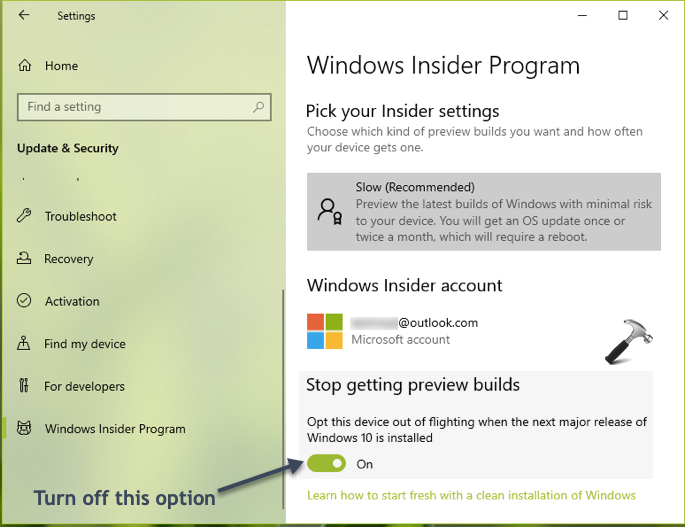
4. The setting should be applied immediately. You can now close Settings app.
This will stop preview builds but you can still report issues (if found) and provide suggestions via Feedback hub app.
If you change your mind later, you can simply restore back the Opt this device out of flighting when the next major release of Windows 10 is installed option to Off state and you’ll be re-enrolled to WIP again.
In case if you’re looking forward to completely erase preview builds from your system, you can make clean install. If you’ve retail license, you may need to reactivate your system. Users having OEM license will not need to bother about activation. Before making clean install, check the type of license installed on your system.
That’s it!