If you’re looking forward to enable encryption for your drive in Windows, obviously BitLocker is the dedicated feature. BitLocker allows full volume encryption (FVE) for operating system volumes, plus fixed and USB drives/volumes. However, BitLocker is not available in Windows 10 Home edition.
So this means Windows 10 Home users can’t enjoy encryption on their device? Well, here’s the catch and that is Device encryption feature. The feature covers a wide variety of devices and is available on all editions of Windows 10. Microsoft says, the Device encryption feature is designed to protect users data. This data can only be accessed by people, whom the user has given authorization.
When the Device encryption feature is On, any new files created will be automatically encrypted. And the feature will encrypt older files, when the device is not being used.
Page Contents
How To Enable Device Encryption In Windows 10
Requirements For Device Encryption Feature
Although Device encryption is available on every Windows 10 edition, there are some hardware requirements for this feature. If these requirements are not meet by your system, the Device encryption option will not be present in Settings app. For such devices, you can instead use BitLocker standard encryption.
Requirements are:
- BIOS must be enabled in UEFI mode.
- Trusted Platform Module (TPM) 2.0 or higher, and should be enabled
- SecureBoot must be enabled
- Modern standby support.
If all of above ones are present on your device, Device Encryption Support in System Information must be saying Meets prerequisites and you can enable Device encryption. You can check it with these steps:
1. Press  + R and type
 msinfo32 in Run dialog box to open System Information.

2. Under System Information, for Device Encryption Support, if the Value mentioned is Meets prerequisites, then only you can go ahead and enable Device encryption.
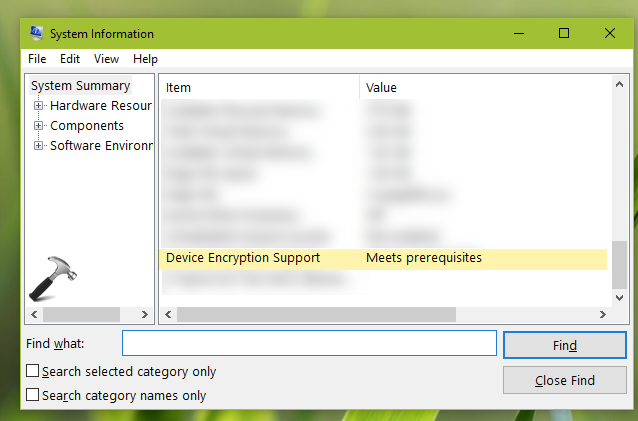
For any other Value mentioned, you would not be able to enable Device encryption.
Steps To Enable Device Encryption Feature
1. Right click Start Button or press + X keys and select Settings.
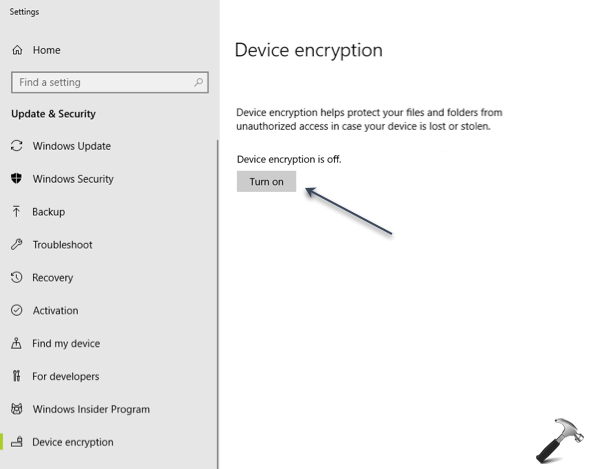
2. In the Settings app, navigate to Update & Security > Device encryption.
3. In right pane of Device encryption, click on Turn on button.
4. Close Settings app and return to Desktop, if you like.
So finally, Device encryption should be turned on for your system.
That’s it!