In the beginning of this year, Microsoft released the Chromium based Edge browser. The browser was developed with Chromium open source project and other open source software. It is available for Windows 10/8/8.1/7/Server and MacOS. In this article, we’ll see how you can update Microsoft Edge Chromium browser.
The Microsoft Edge Insider program is actively releasing new builds of Chromium Edge to different channels. You can join this program to get latest development builds of Edge. The program releases the new build of browser in Dev, Beta and Canary channels. Dev channel is updated weekly, while you can get daily updates for Canary build. In Beta channel, the browser gets a major updates in every 6 weeks. If you want to change the channel of your browser, simply download the channel’s latest build from Edge Insider website.
For legacy Microsoft Edge browser, shipped with Windows 10, the updates were provided with Windows Updates. So when you install latest updates, legacy Edge browser gets automatically updated. You never needed to manually update it. Also, Microsoft is about to retire legacy Edge browser and replace it with new Chromium based Edge.
The new Microsoft Edge have ability to search and install latest updates automatically. However, if you need to update it manually, here’s how to do that.
How To Update Microsoft Edge Chromium Browser
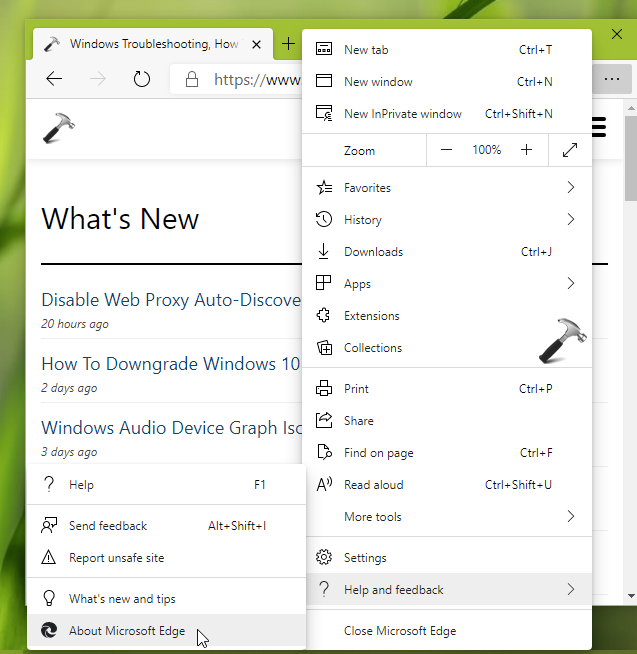
1. Open Microsoft Edge. Click on triple dots to open fly-out menu and select Help and feedback > About Microsoft Edge. You can alternatively type/paste edge://settings/help in the URL bar.
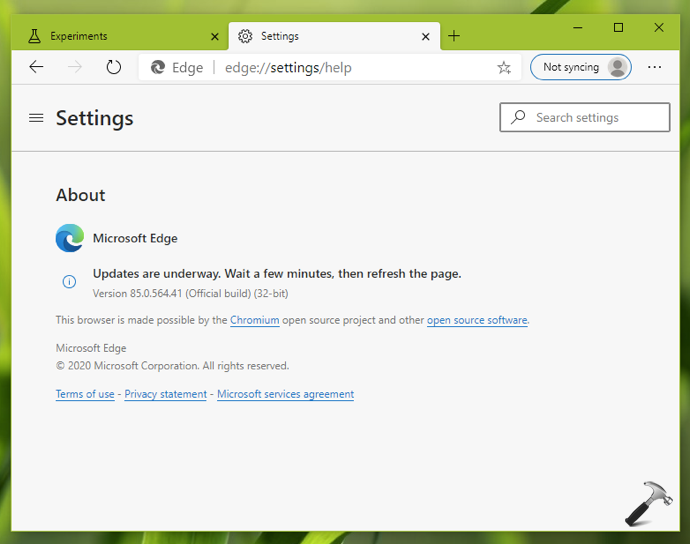
2. Microsoft Edge will now automatically check for updates. So wait for few minutes and refresh the page.
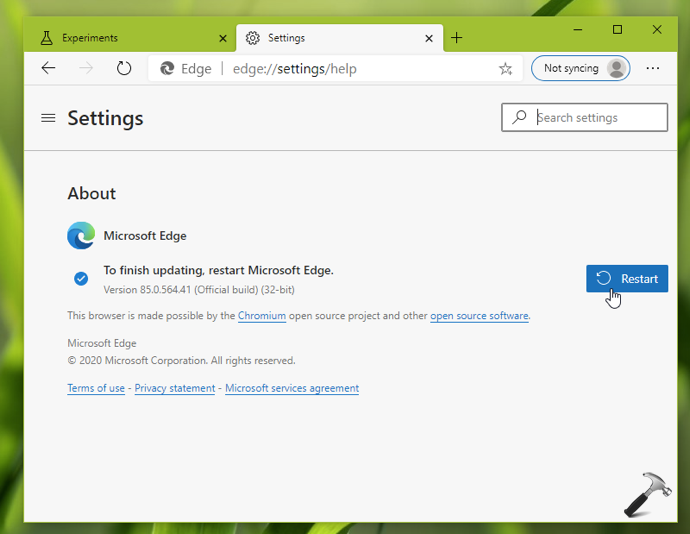
3. Once Edge has downloaded the new update, to finish installing it, click Restart.
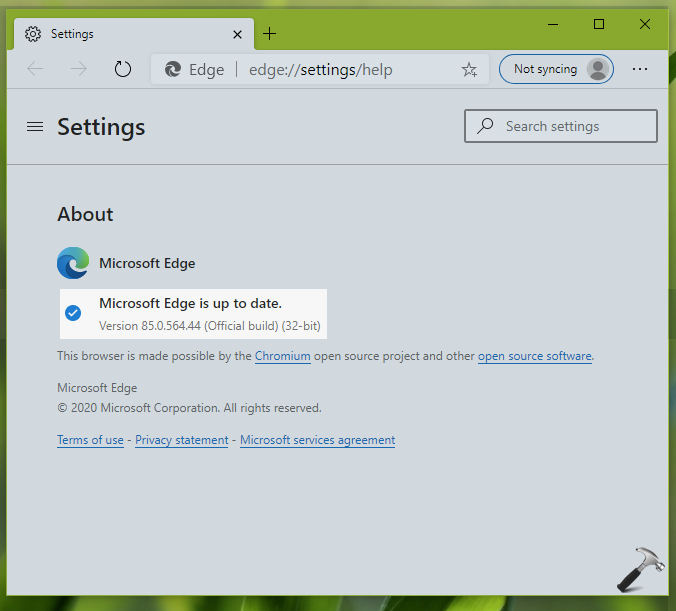
4. After restarting Edge, you should be on the latest version. You can go to About Microsoft Edge page to confirm.
That’s it!