Microsoft released the Chromium based Edge browser last year. And now this browser is the default browser in Windows 10 operating system. Whether you are downloading using a preview build, or a new Windows 10 version, you’ll find the new Microsoft Edge pre-installed. It is also available on Windows Server preview builds. Microsoft has added many new features and abilities to this browser. If on your system, Microsoft Edge not saving passwords, this article should help you.
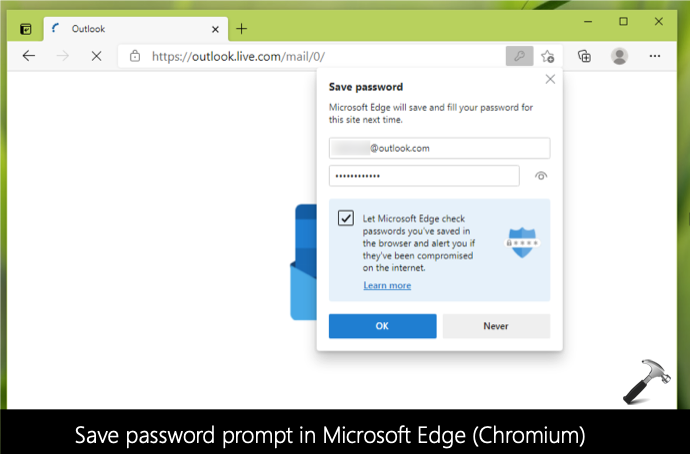
So whenever you visit a website that requires you to login, there is an option to keep signed in. If you check that option, your browser will save your login details for that website. Same applies to the new Microsoft Edge browser. In the above screenshot, you can see the ‘Save password’ prompt in Edge. However, sometimes clients may report that Edge browser is not saving their passwords. Due to this, they have to login each time they visit a website, for which they’ve saved a password. If you’re also facing this problem, here’s how to fix it.
Page Contents
Fix: Microsoft Edge not saving passwords
FIX 1 – Check Microsoft Edge settings
1. Open Microsoft Edge Chromium browser.
2. Click on ⋯ and select Settings. In Settings, click on ☰ and select Privacy, search and services. Then click Clear browsing data on close.
3. Under this screen, make sure you’ve Cookies and other site data option is turned Off. Also, ensure that Passwords, Autofill form data is set to Off.
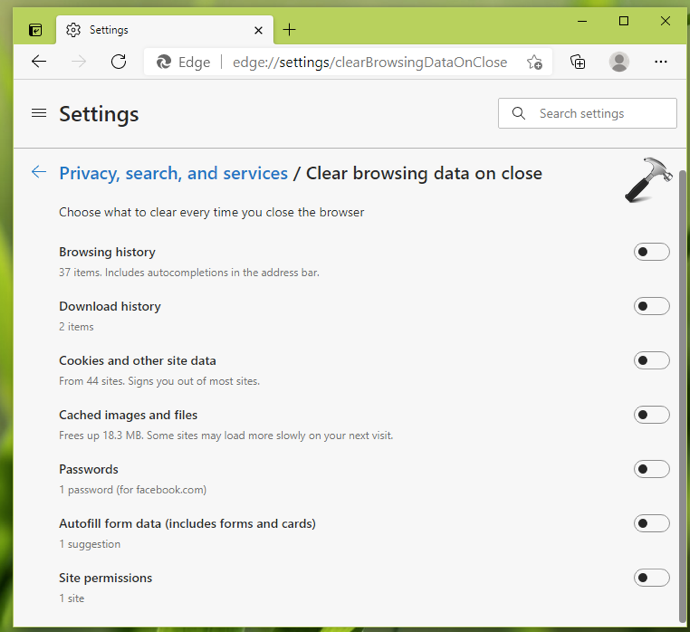
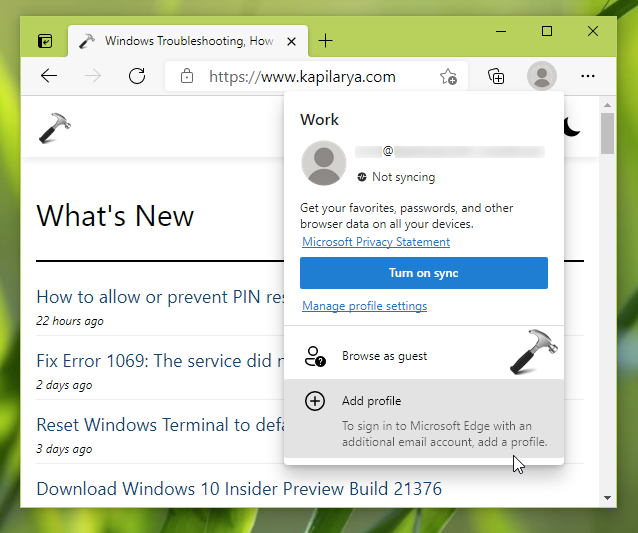
This should fix up the problem. In case if you continue to see the issue, try creating new profile and see if that helps.
FIX 2 – Repair Microsoft Edge
If FIX 1 doesn’t helped you, try repairing your Microsoft Edge Chromium browser. Follow these steps:
1. Right click Start Button or press  + X keys and select Settings.
2. In the Settings app, go to Apps > Apps & features.
3. In right pane of Apps & features, hit Microsoft Edge and click on Modify.

4. Under Repair Microsoft Edge, click on Repair. Keep your system connected to the Internet. Microsoft Edge will be reinstalled, rest assured, your data with the browser will not be affected.
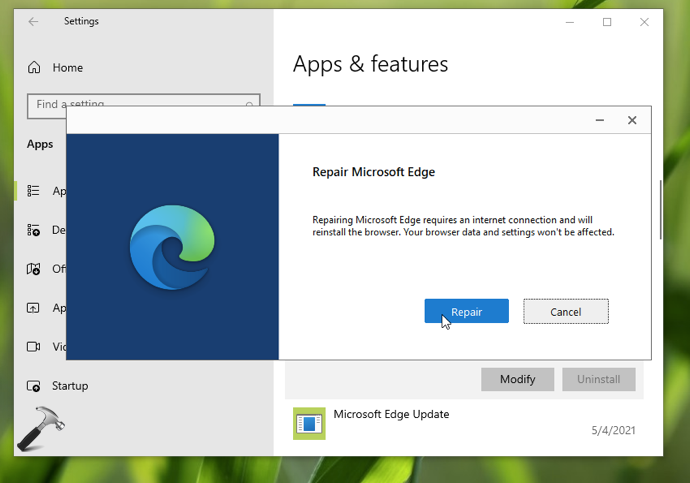
After trying above steps, the issue will be resolved.
Hope this helps!
Read next: Enable or disable sync in Microsoft Edge (Chromium).