

Recently, I came across an issue where the client tries to join device to Azure Active Directory but gets The Mobile Device Management (MDM) server failed to authenticate the user error. The client do not have any subscription to Intune so MDM and MAM options are ruled out. So how to fix this issue? If you’re the IT admin and want to fix this for your client, this article will surely help you.
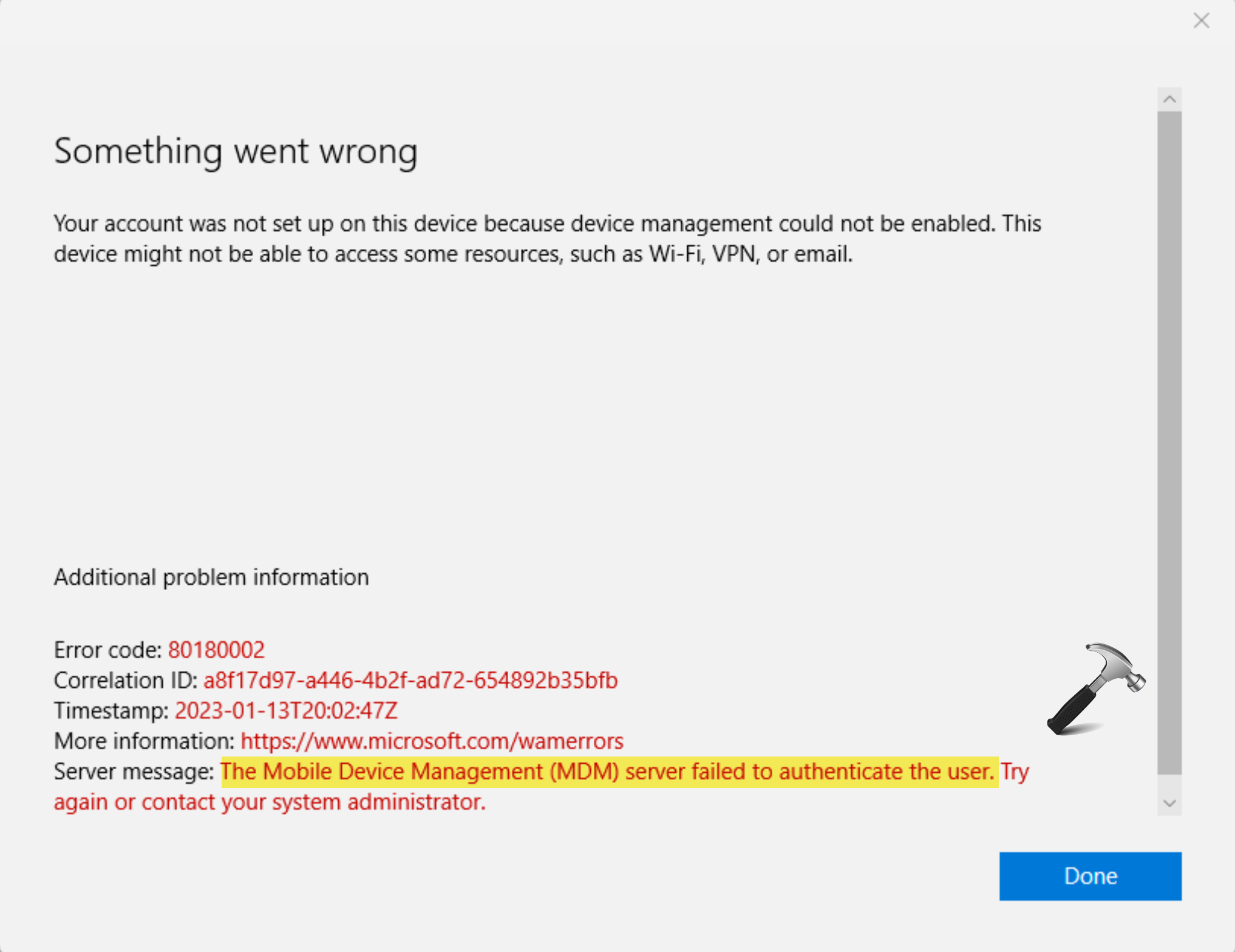
Here is the complete error message:
Something went wrong
Your account was not set up on this device because device management could not be enabled. This device might be able to access some resources, such as Wi-fi, VPN, or email.
Additional problem information:
Error code 80180002
The Mobile Device Management (MDM) server failed to authenticate the user. Try again or contact your system administrator.
So if you’re getting this a client, you need to revert to your IT admin or system administrator to fix this issue. In case you’re the IT admin or if you’ve subscription to Intune, you can try below fix. Note that if you don’t have any subscription to Intune, you won’t be able to fix because of Automatic MDM enrollment is available only for Azure AD Premium Subscribers error.
Fix: The Mobile Device Management (MDM) server failed to authenticate the user
Here is how you can resolve this issue.
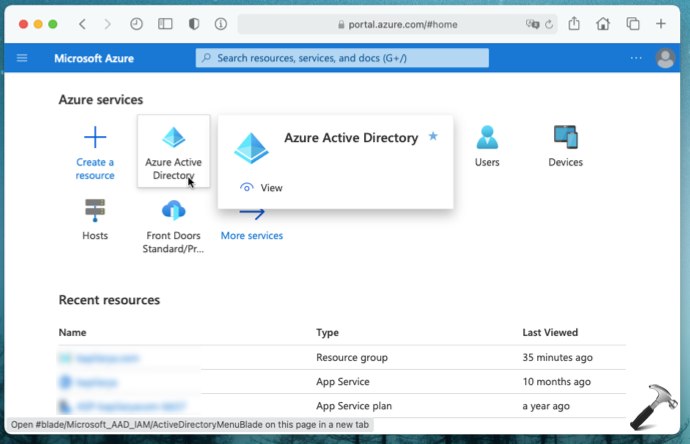
1. Go to https://portal.azure.com and sign in with your global admin account. After sign-in, click Azure Active Directory under Azure services.
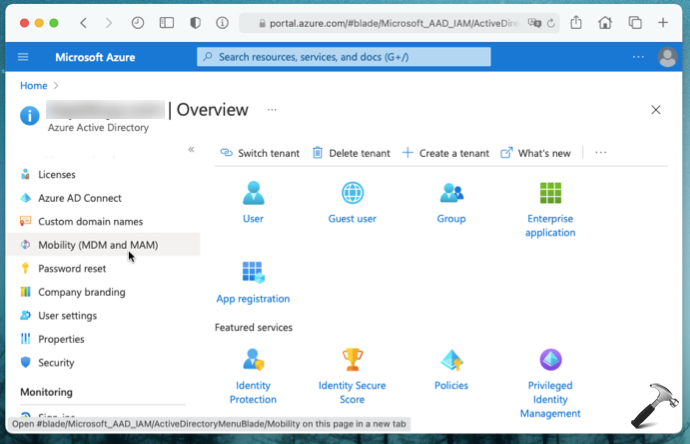
2. Then in the next window, click Mobility (MDM and MAM).
3. Under Mobility (MDM and MAM), click on Microsoft Intune.
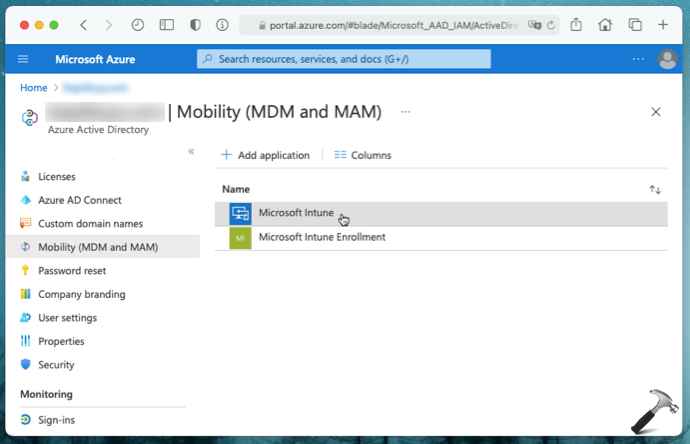
4. Now in Microsoft Intune configuration, MDM user scope and MAM user scope to None. Click Save then.
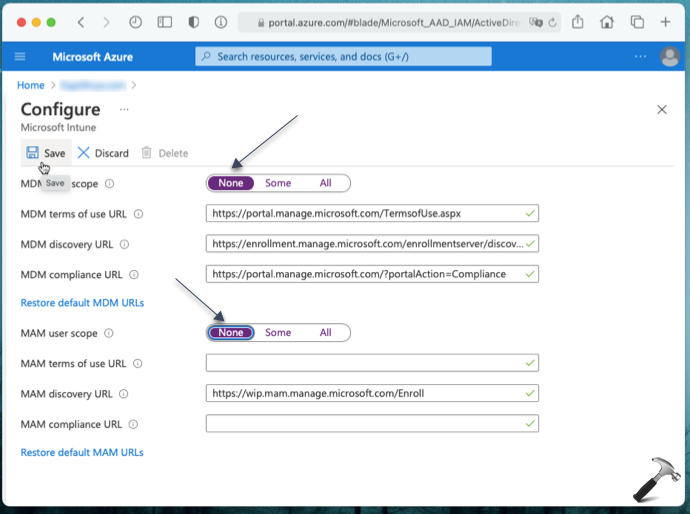
Once you perform above steps, the affected clients should be able to join their devices to AAD without this error.
That’s it!




Thanks Kapil. This is exactly the issue I’d been having!
^^ Glad to help Matt!
can i reapply MDM and MAM later after the effected user can able to join his device? will it effect again?
Excellent fix
This does not help the issue. I cannot push policies if these are set the way you are describing. I urge everyone to go to their microsoft profile within accounts and look at “info” to see what policies are allowed to be pushed. If you have pre-login messages or any personalization it will not be pushed. This is simply just to get a device to show for the user within the entra admin console, that is it. Quite useless.