One of the common problems faced by Windows 11 users is Windows Security not working. Windows 11 is the latest version of Microsoft’s popular operating system that offers a range of features and improvements over its predecessors. However, like any other operating system, Windows 11 is not immune to security issues. This can be a serious issue as it can leave your system vulnerable to various cyber threats. In this context, it is important to understand the steps to fix Windows Security not working issues to ensure your system’s security.
Page Contents
Fix: Windows Security not working in Windows 11
Fix 1: Update Windows 11
- Press the Win + I key to open Settings.
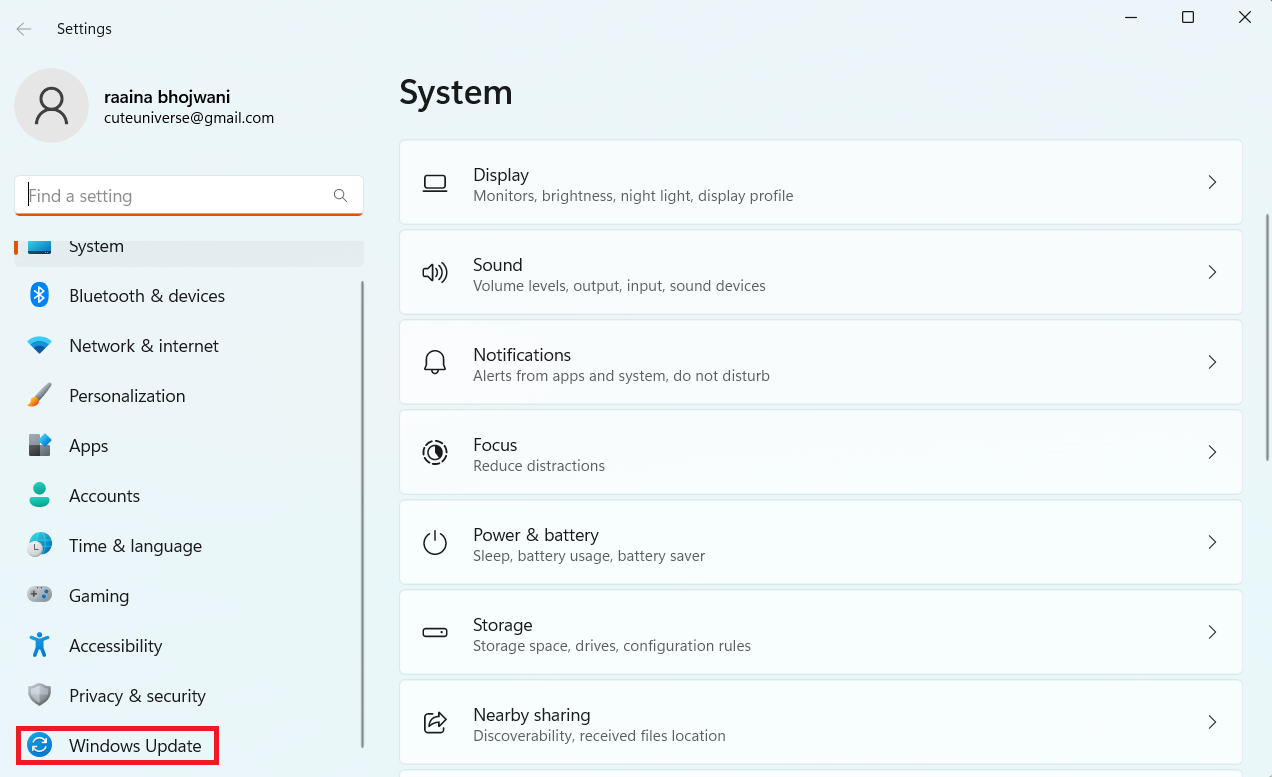
- Then select Windows Update.
- Next, click on Check for Updates.
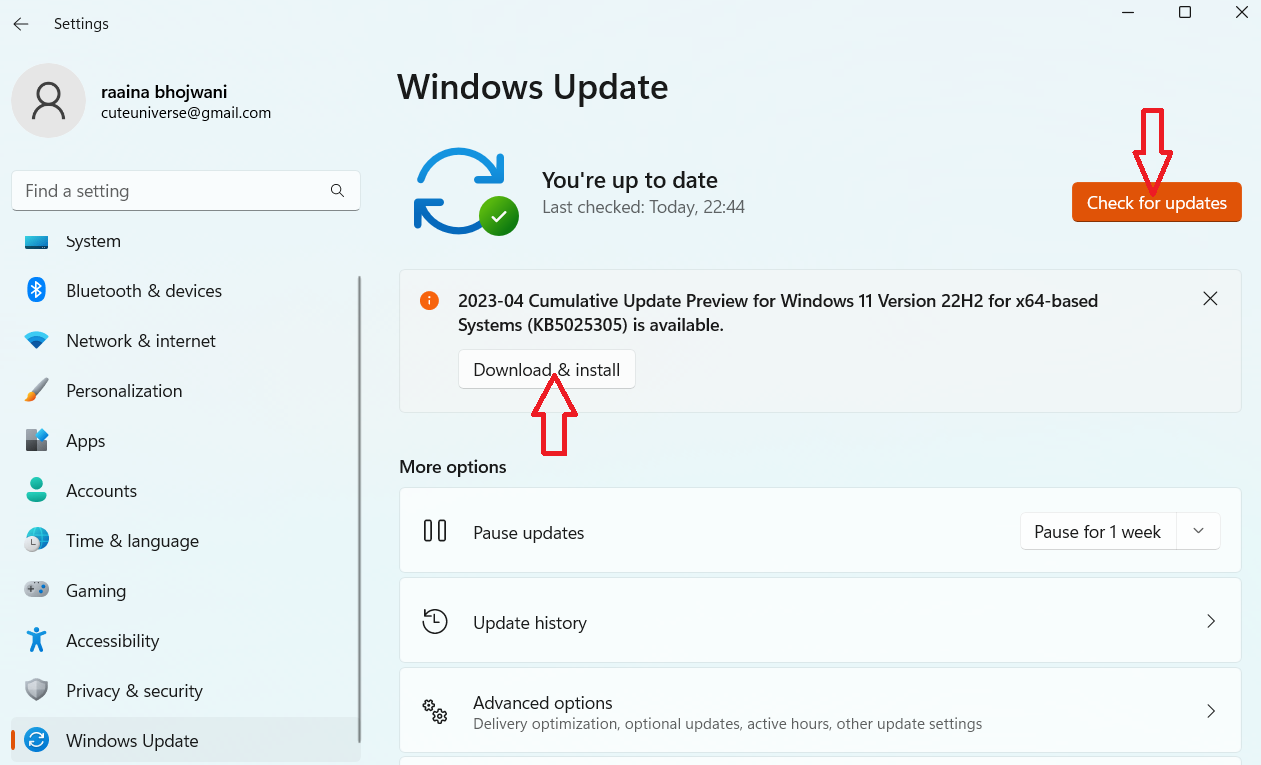
Now, Windows 11 will start checking for updates. If there are any updates then they will be displayed and you have to click on Download & Install.
Fix 2: Reset the Windows Security app
- Open Settings by pressing the keys Win + I. Then click on Apps.

- Next, click on Installed Apps. Search Windows Security in the search bar.
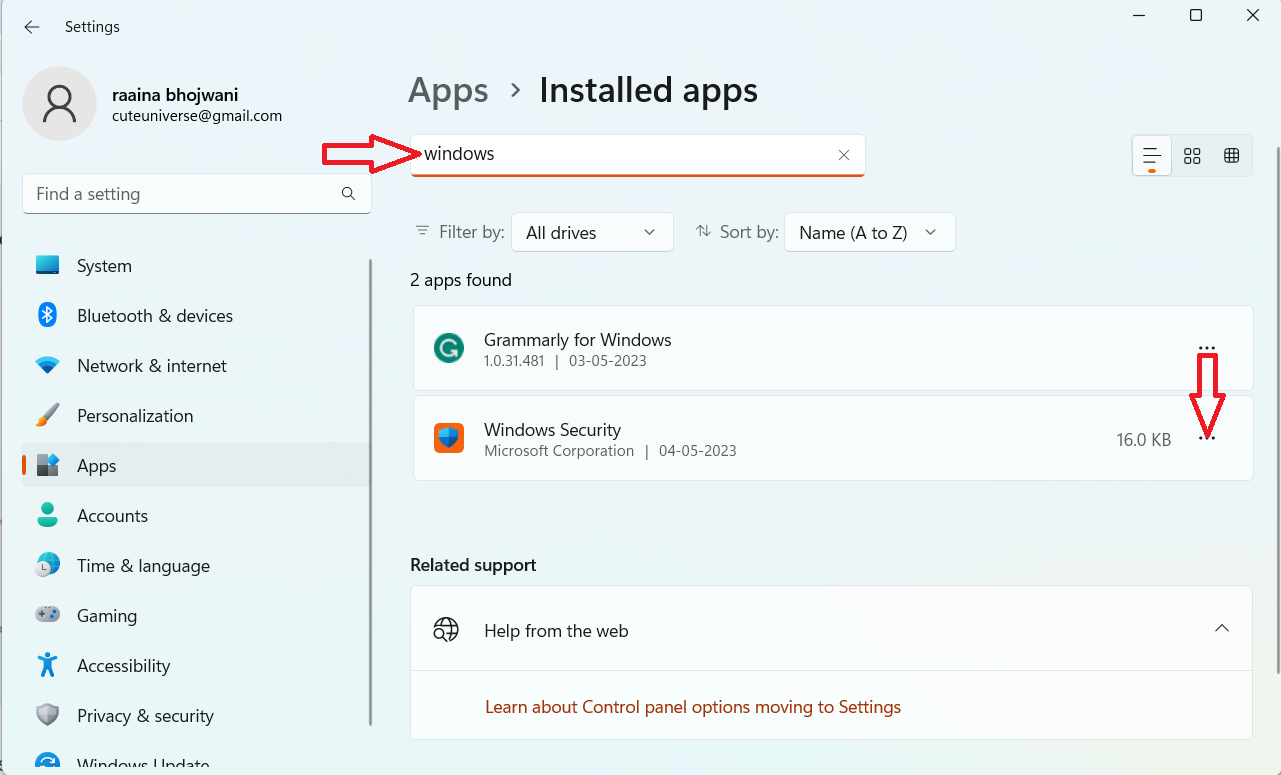
- Then click on the three dots in the Windows Security option and select Advanced options.

- Next, click on Reset.

This will fix Windows Security not working issue in Windows 11.
Fix 3: Reset your PC
- Open Settings by pressing Win + I key together.
- Select System and then click on Recovery.
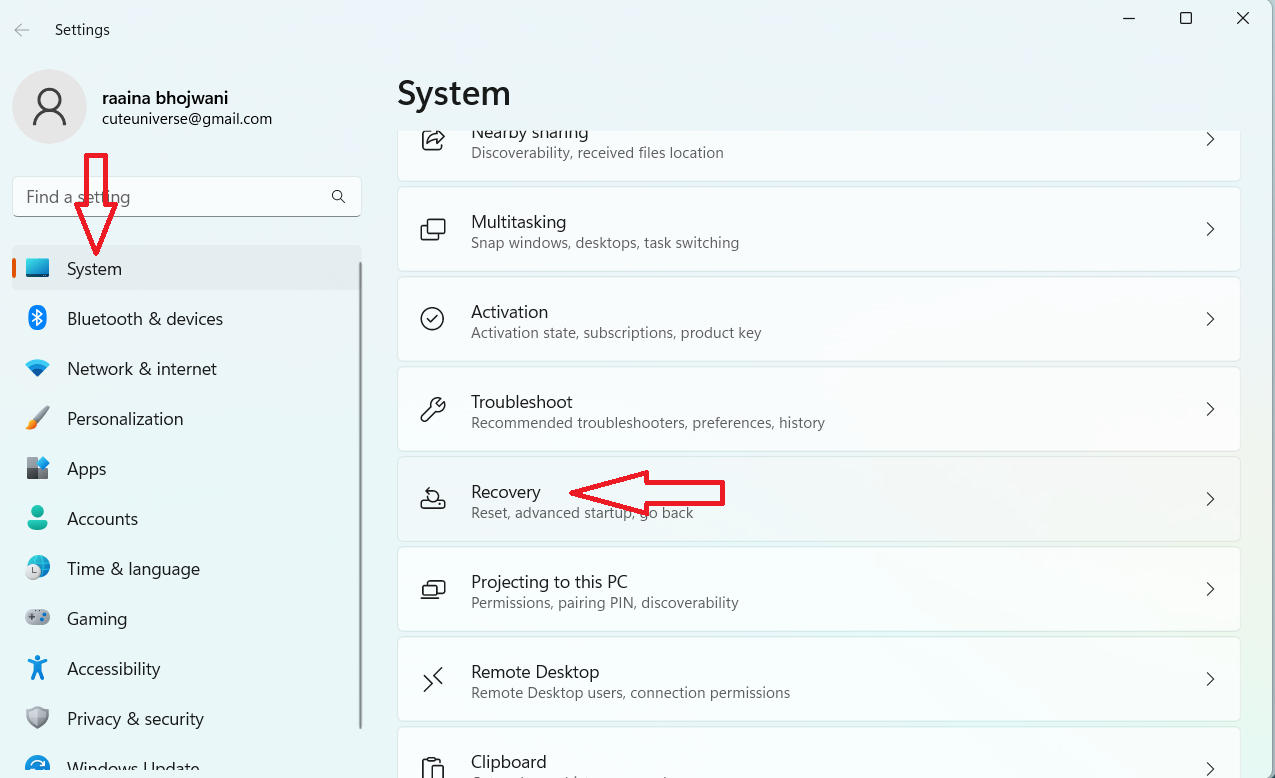
- Next, click on the Reset PC button.
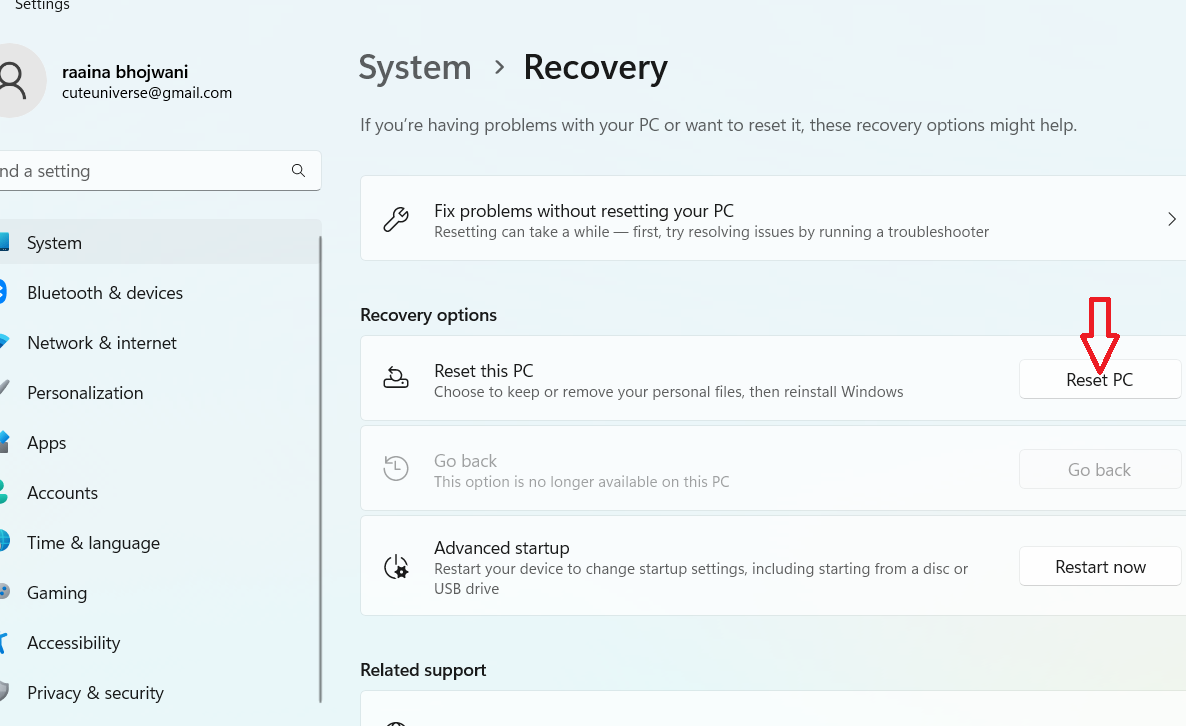
- Then click on Keep my files > then Local reinstall > and Next.
Fix 4: Turn on Windows Security
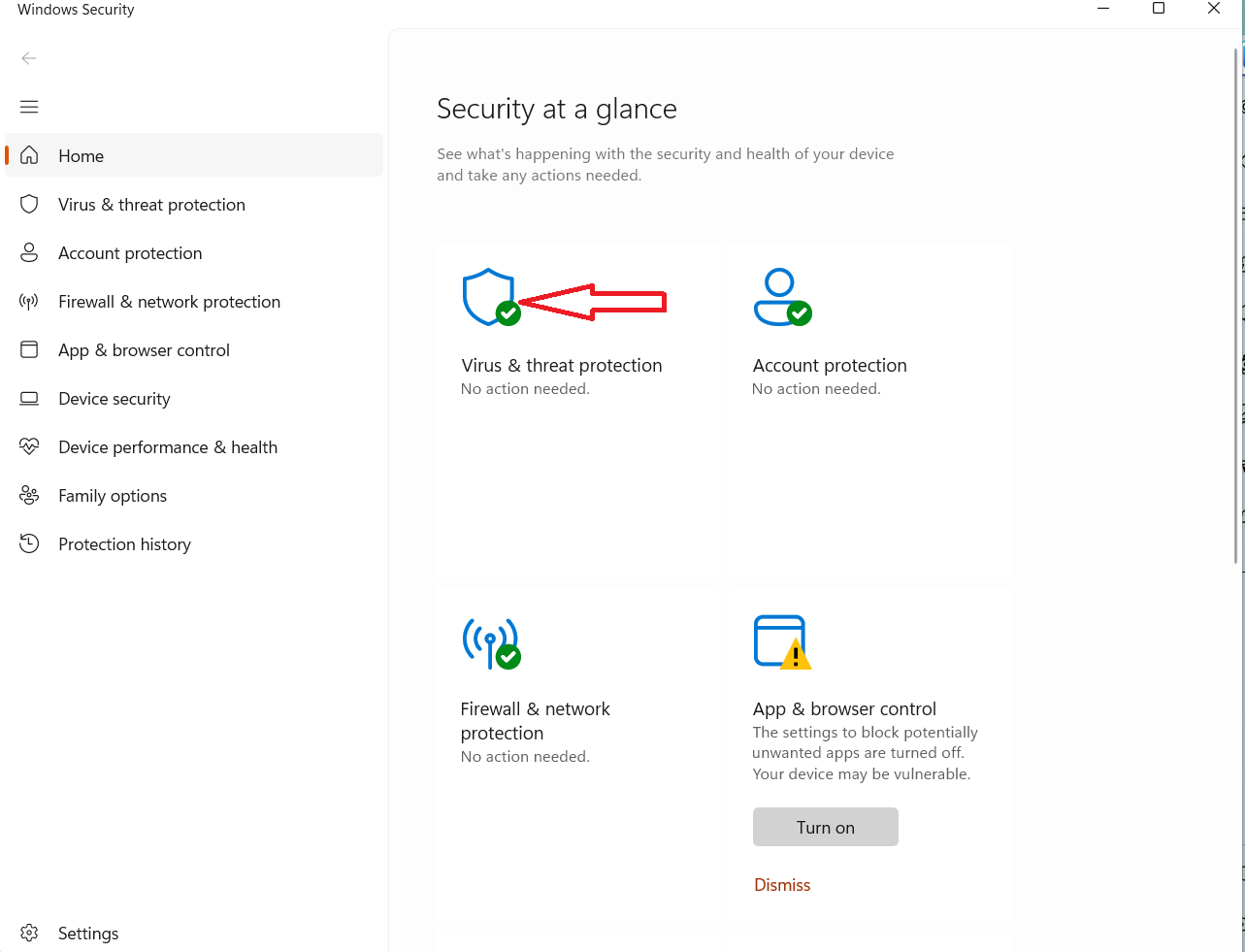
Sometimes Windows Security may not work because of malicious attacks. To fix this issue turn on Virus and threat protection option.
- Type Security in the Search bar and then click on Windows Security.
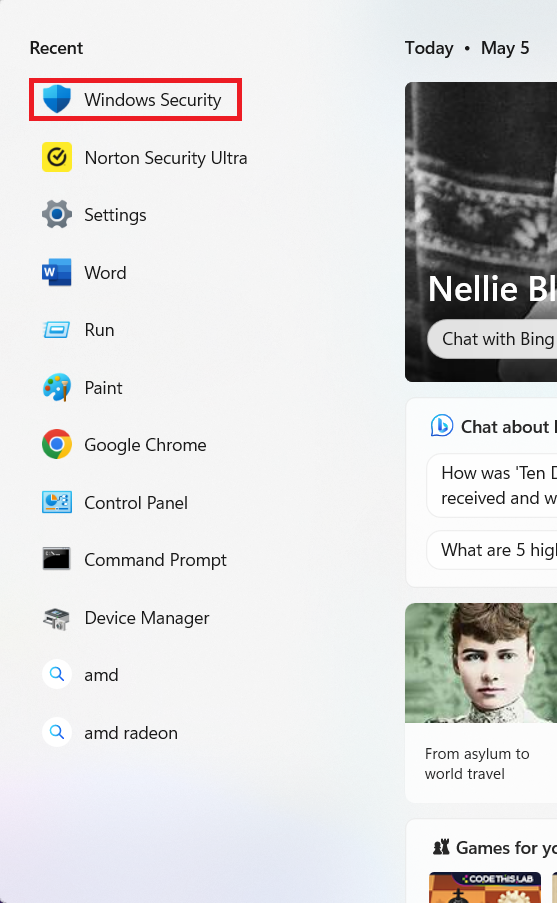
- Enable Virus & threat protection.
Fix 5: Uninstall third-party Antivirus
- Open Settings by pressing Win + I key.
- Next, Click on Apps > Installed Apps.
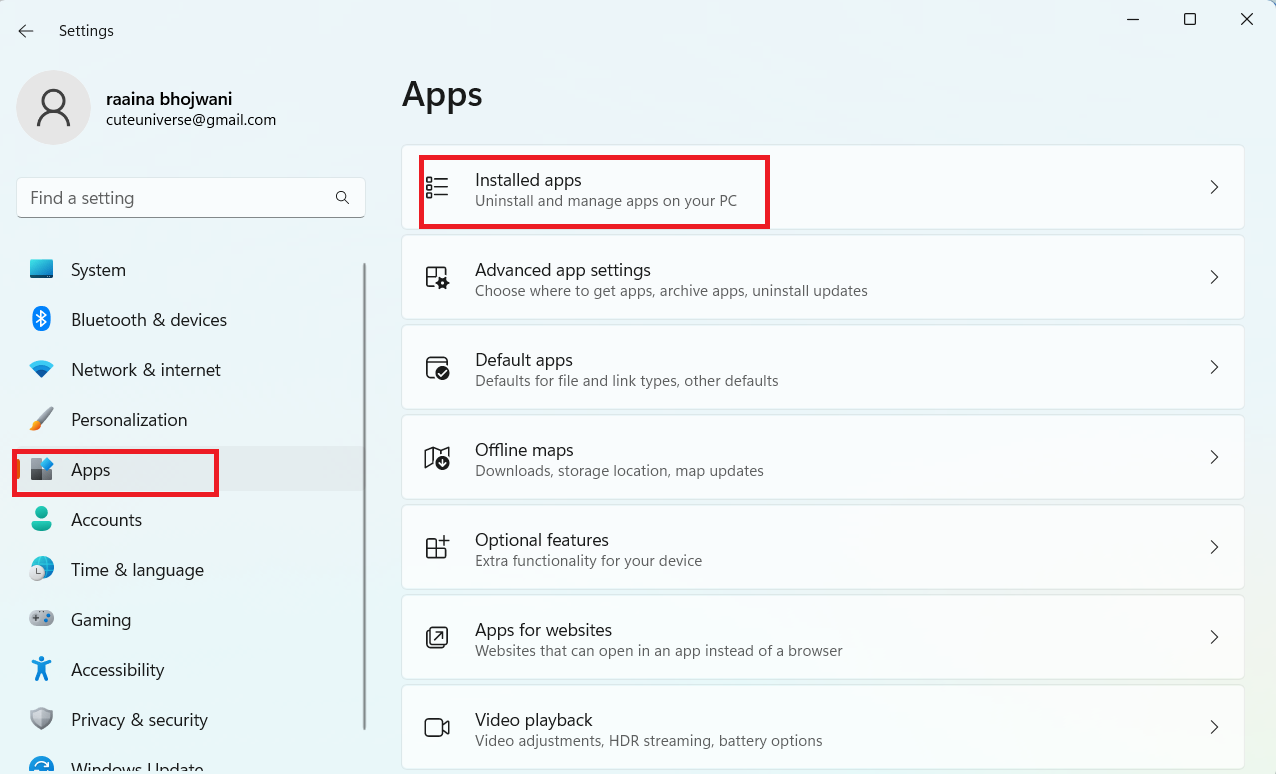
Then find the antivirus and click on three dots and select Uninstall.
Video fix
For more methods, you can also refer this video fix:
Hope this helps!