If you can’t open Microsoft Clipchamp on Windows 11, the problem is usually corrupt app files, a bad update, missing permissions, or a browser/security setting blocking the web app. Because Clipchamp relies on web technologies, network or account issues can also stop it from launching correctly.
Page Contents
Can’t open Microsoft Clipchamp on Windows 11 – 6 Fixes
Fortunately, there are several reliable ways to get Clipchamp working again when it refuses to open, crashes, or gets stuck while loading projects. Below are the most effective fixes you can try. Work through them one by one and restart your PC after each solution.
Fix 1: Repair or reset Clipchamp
Windows allows you to repair the app without removing your projects. If that fails, resetting the app reinstall its core files.
1. Open Settings and select Apps.
2. Choose Installed apps and search for Clipchamp.
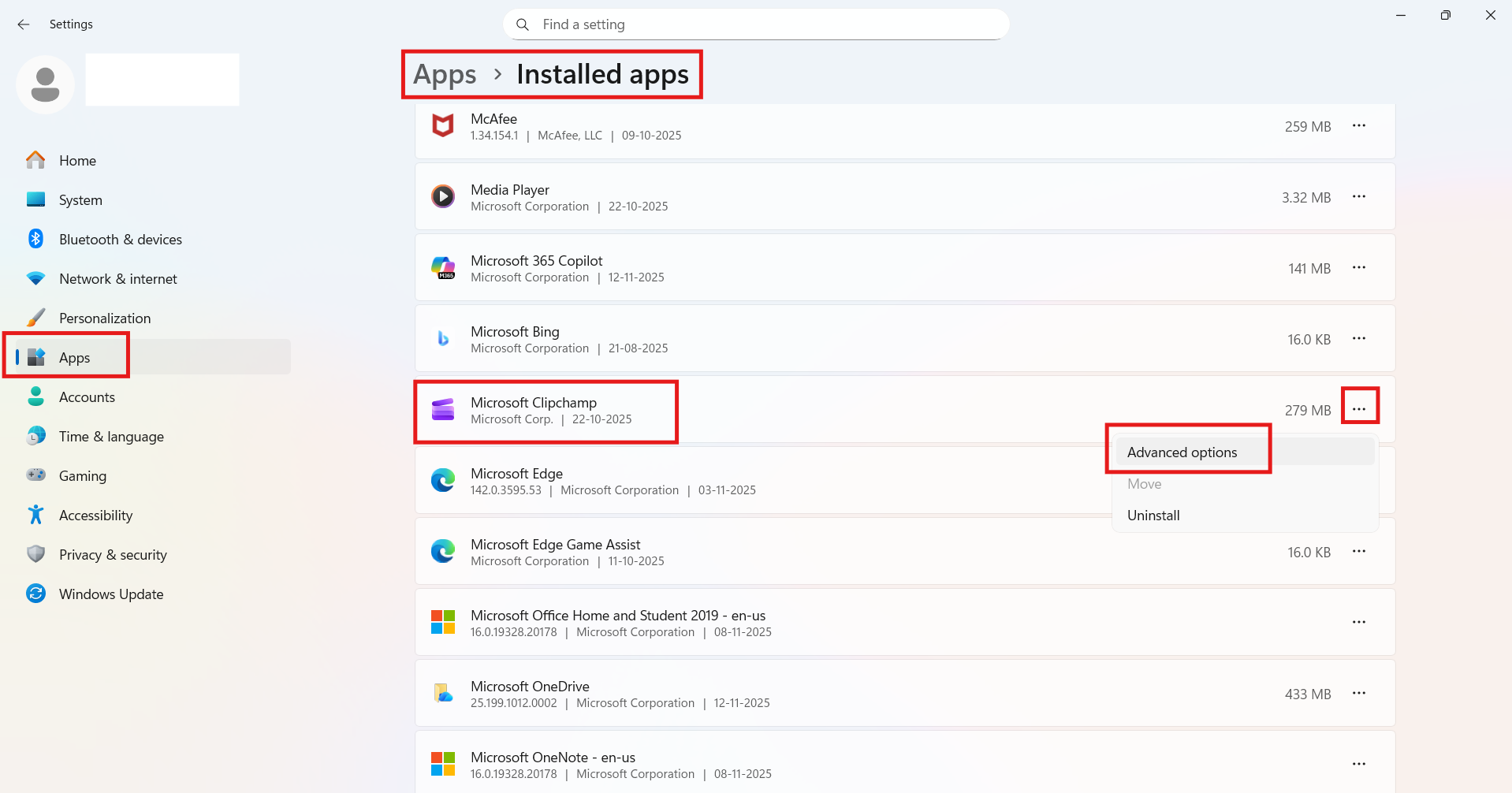
3. Open Advanced options, then click Repair.
4. If it still does not open, click Reset to reinstall its core files.

Fix 2: Run System File Checker (SFC)
Corrupt system files can prevent bundled apps from running. SFC repairs missing or damaged files.
1. Open Command Prompt as administrator.
2. Run:
sfc /scannow
And wait for completion.
3. If SFC finds and repairs files, reboot and test Clipchamp.

Fix 3: Clear Clipchamp’s temporary data folder
Corrupted local data can stop the app from loading.
1. Press Windows and R and type %localappdata%\Packages.
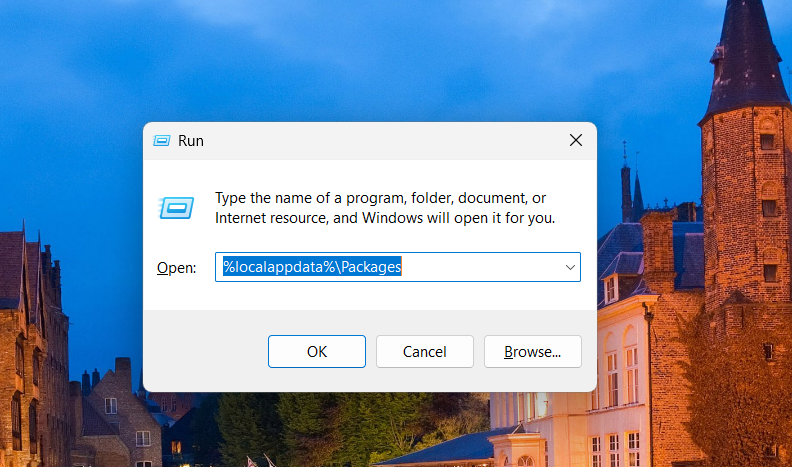
2. Open the Clipchamp folder and delete the Temp or Cache folders.
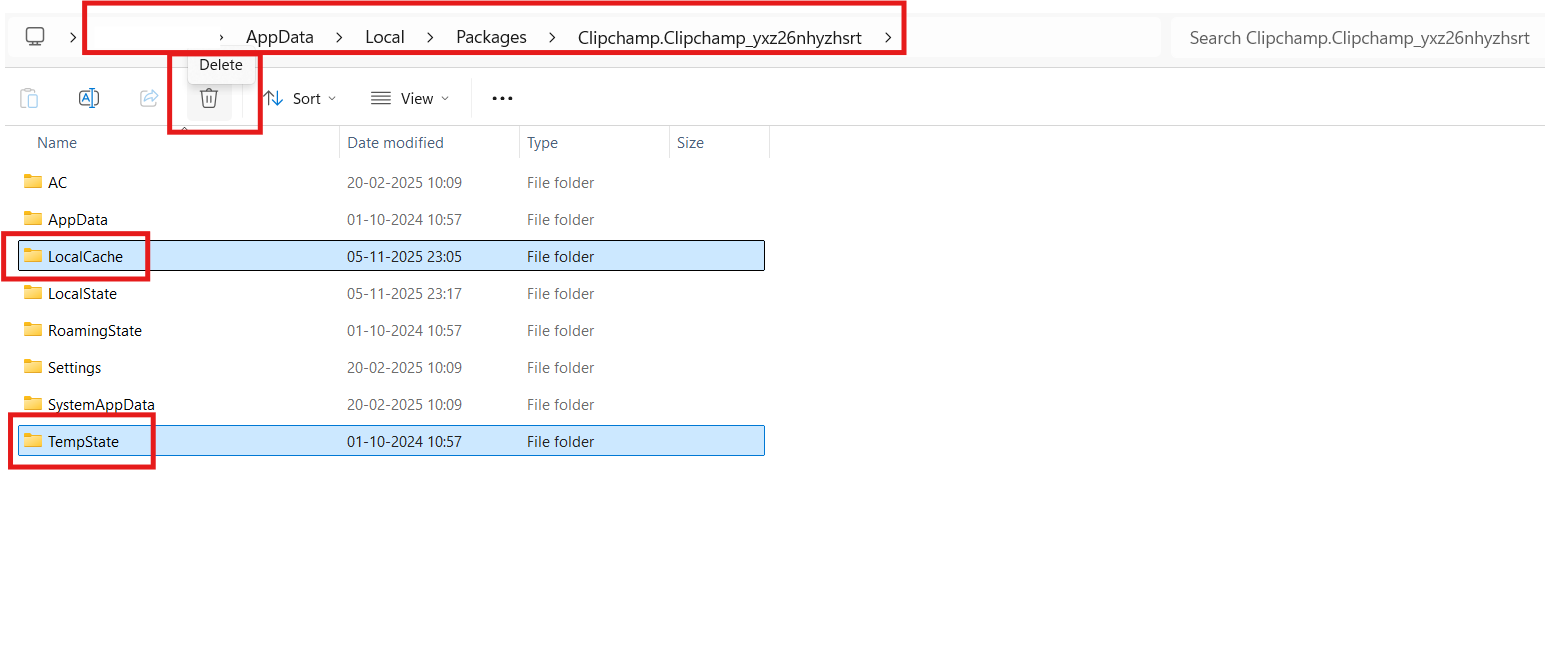
3. Restart Clipchamp.
Fix 4: Reinstall Clipchamp from the Microsoft Store
A complete reinstall replaces broken components.
1. Open Settings and go to Apps. Click on Installed Apps.
2. Search for Clipchamp and choose Uninstall.

3. Install it again from the Microsoft Store and try opening it.
Fix 5: Verify hardware and resources
Clipchamp needs adequate RAM, disk space, and GPU support to load and export projects.
1. Ensure you have at least 8 GB (16 GB recommended) of free disk space for temporary files.
2. Update your graphics drivers and use the 64-bit version of your browser or app.
Fix 6: Check the browser web security settings
Edge and Chromium-based browsers may block features Clipchamp needs.
1. In Edge, open Settings, go to Privacy, search, and services.
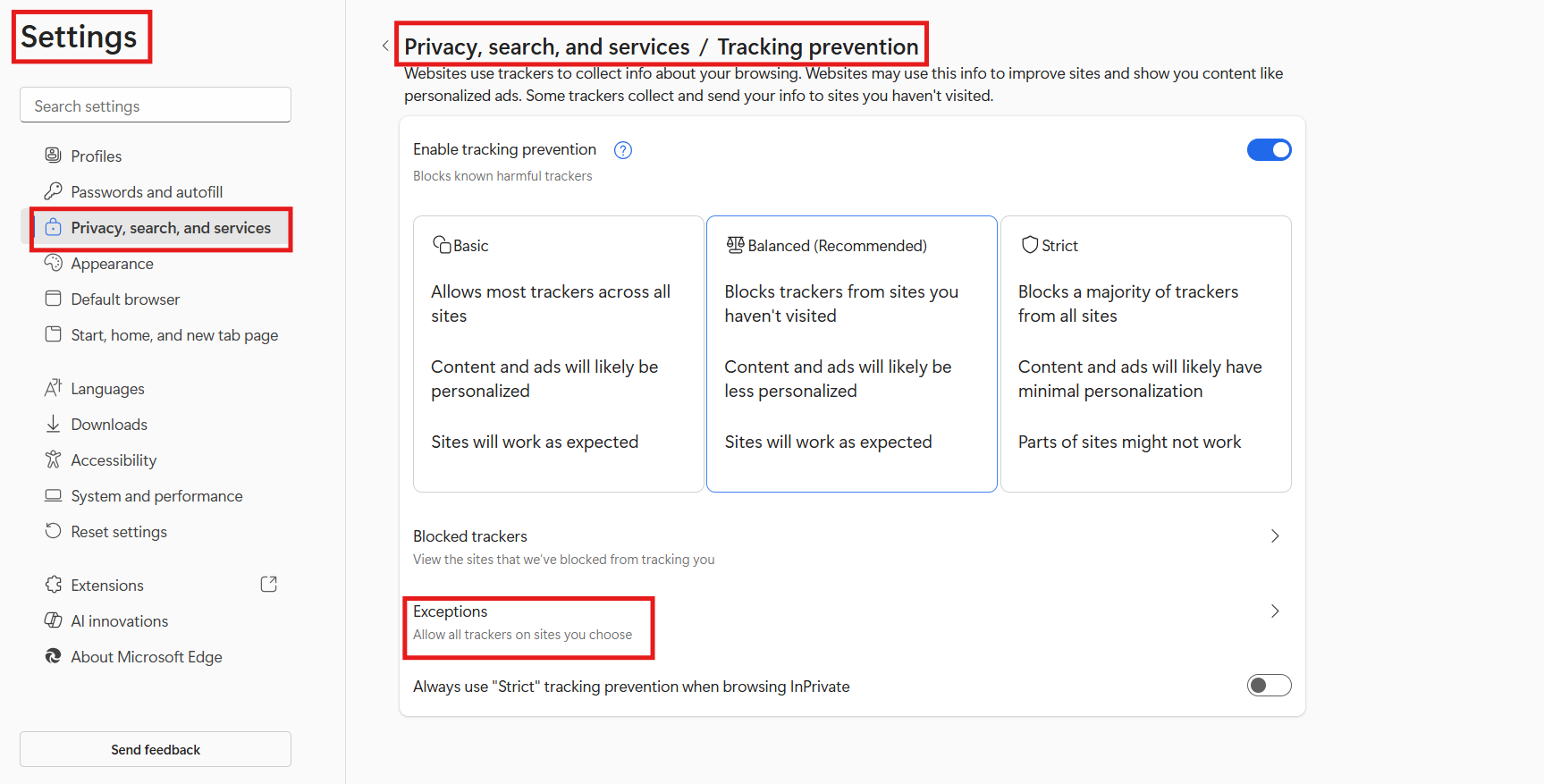
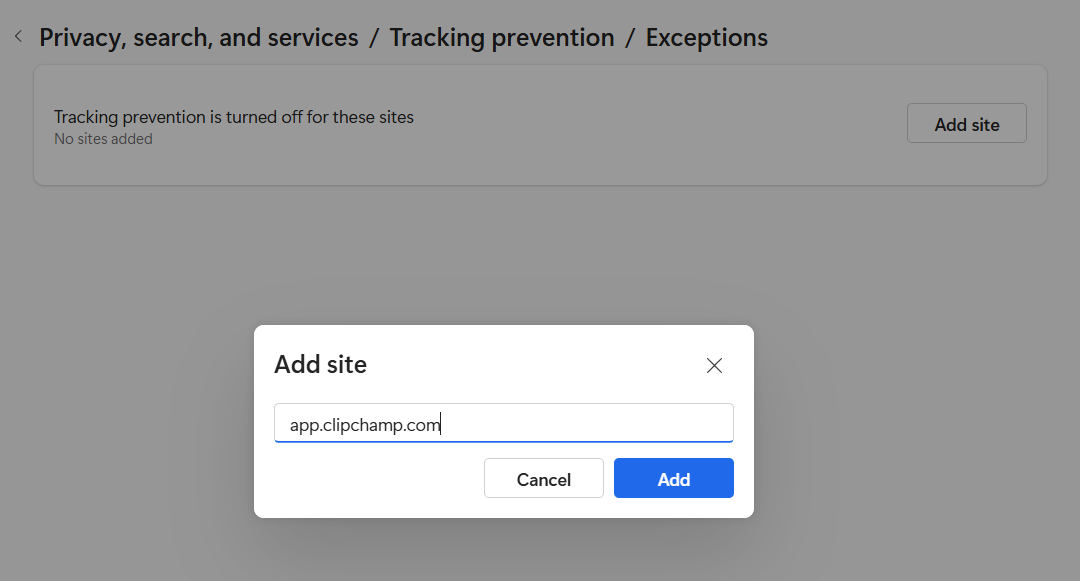
2. Click on the Tracking Prevention settings. And then, add app.clipchamp.com to Exceptions.
3. If using Brave or similar, temporarily allow fingerprinting or disable strict shields for Clipchamp.
Quick tips
1. Restart your PC after each fix.
2. Use smaller media files when projects don’t load.
3. Keep Windows and your browser up-to-date.
4. If exports fail, try lowering the project resolution or exporting locally.