When Windows 11 shows the message A device which does not exist was specified it usually means that a hard drive, external drive, SSD, or USB device cannot be properly accessed. This error can result from faulty connections, wrong drive letters, corrupted drivers, permissions issues, or partition problems.

Page Contents
Fix: A device which does not exist was specified in Windows 11
The solutions below help you restore access. Try each of them one by one, and stop when access returns.
Fix 1: Restart PC and retry to fix
1. Fully shut down your PC or power off the external device.
2. Wait about 30 seconds, then power on again.
3. Reconnect the drive if external, and check whether the error persists.
Fix 2: Give full permission to the drive
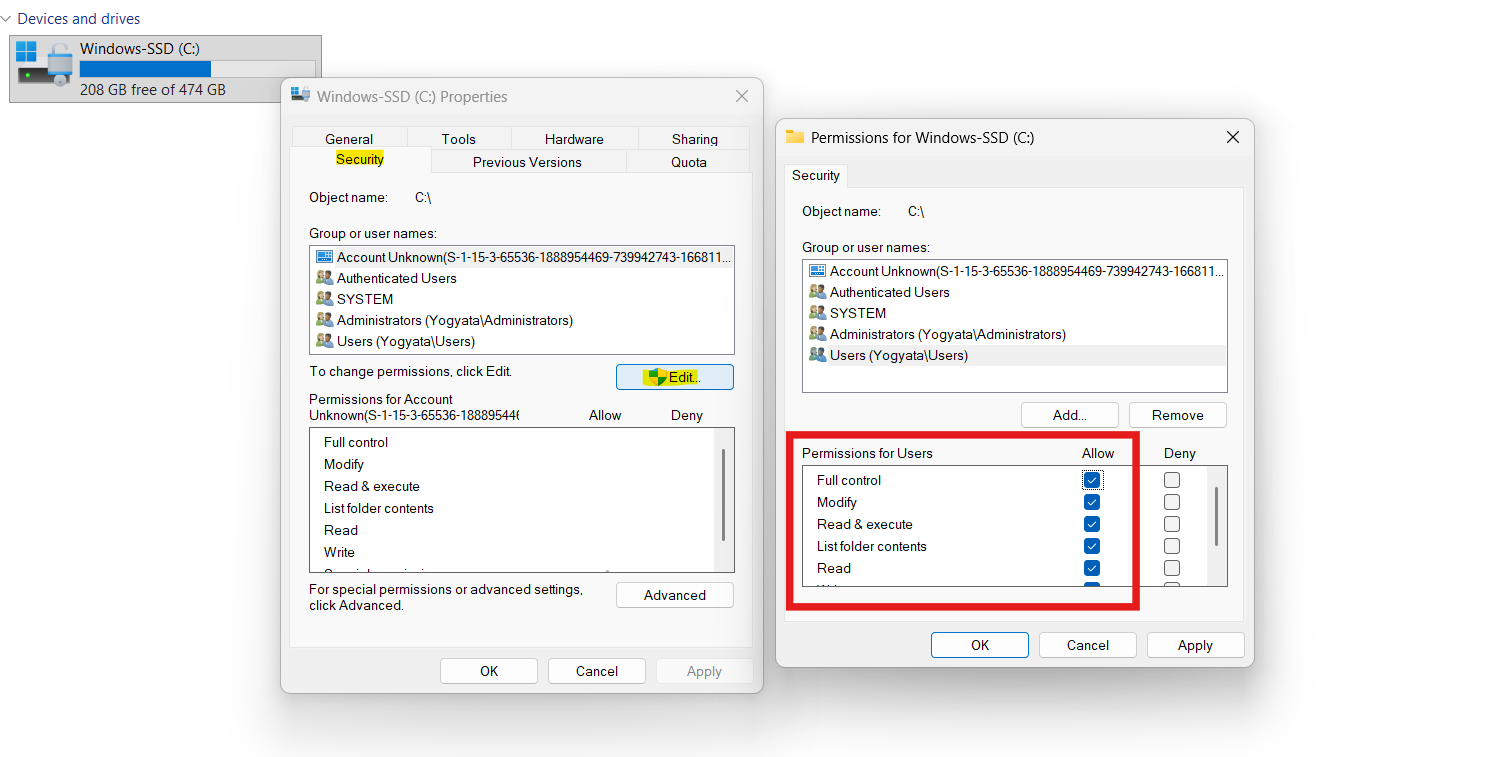
1. Open File Explorer and right-click the drive you cannot access.
2. Select Properties, then Security, and then Edit.
3. Select your user account under Group or user names.
4. Tick all boxes under Allow, including full control.
5. Click Apply and then OK.
6. Try accessing the drive again.
Fix 3: Reassign a drive letter
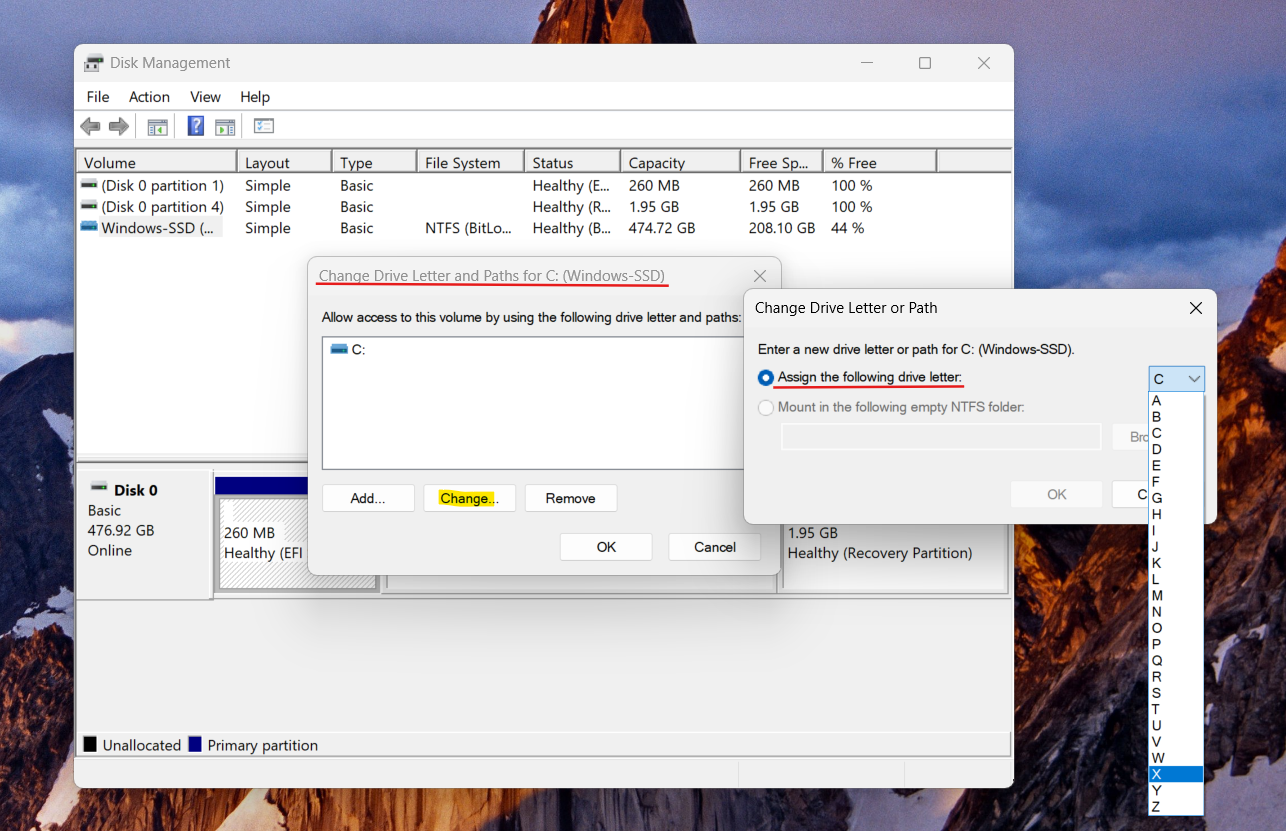
1. Press Windows + X, choose Disk Management.
2. Locate the problematic drive, right-click it and choose Change Drive Letter and Paths…
3. Click Change, then pick a different, unique drive letter.
4. Click OK and confirm.
5. Open File Explorer to see if the drive now appears correctly.
Fix 4: Update or reinstall the disk driver
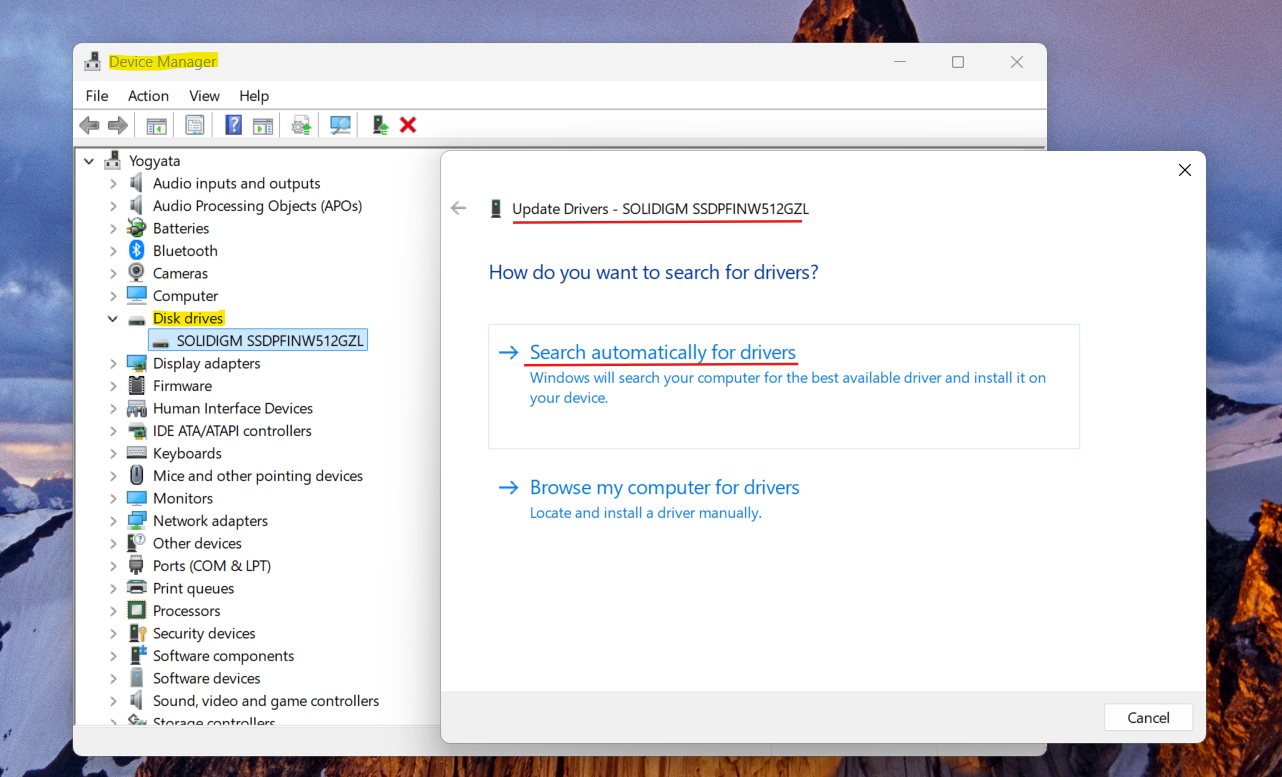
1. Open Device Manager.
2. Expand the Disk drives section and find your drive.
3. Right-click it and choose Update driver, then Search automatically for drivers.
4. If that fails or the error persists, choose Uninstall device, then restart your PC.
5. After reboot, Windows will reinstall the driver automatically.
Fix 5: Rescan disks or reconnect the device
1. If it’s an external drive, unplug it safely, wait a few seconds, then reconnect.
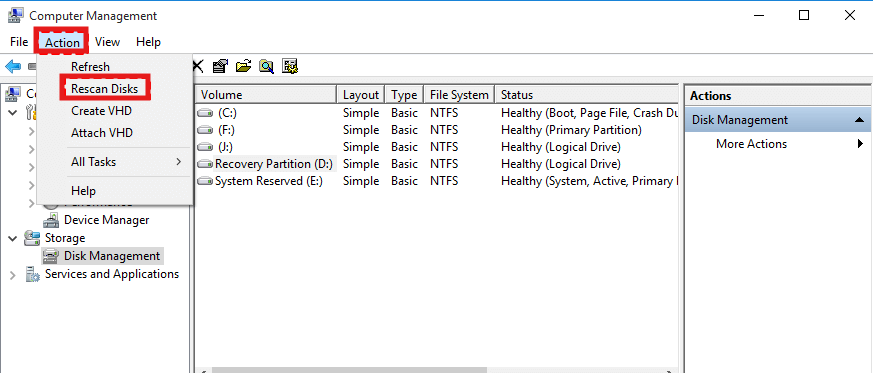
2. In Disk Management, click Action, then Rescan Disks to force Windows to re-detect attached drives.
3. After rescan, check if the drive becomes accessible.
Fix 6: Repair possible disk errors or bad sectors
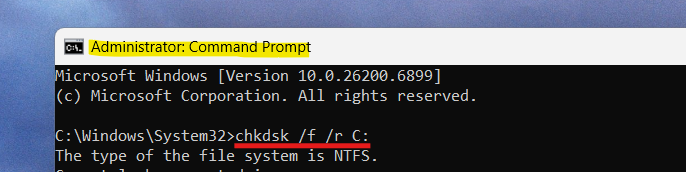
1. Open Command Prompt as administrator.
2. Run chkdsk /f /r X: (replace X with the drive letter).
3. Wait while the scan completes. This can take time if the drive is large.
4. After the scan, reboot or reconnect the drive and test access again.
Quick tips
1. Avoid using faulty USB ports or cables. Try a different port/cable.
2. If it’s a USB drive, test it on a different PC to rule out hardware issues.
3. Always back up important data. If the drive shows signs of corruption or frequent errors, consider copying out files before further tests or formatting.
![Add the Recovery Partition in Windows 11 [2026 Guide]](https://www.kapilarya.com/assets/Disk-768x494.jpg)