

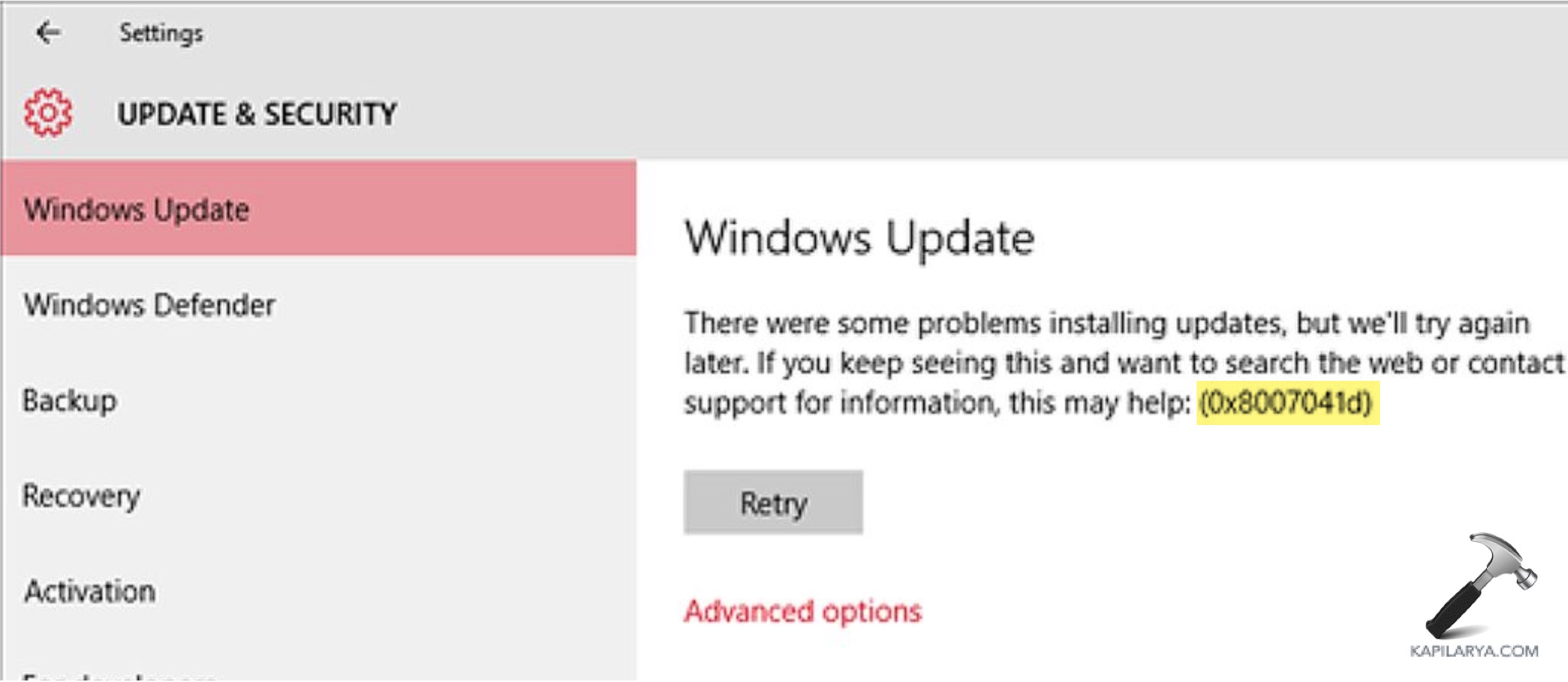
Windows Update error code 0x8007041d appears when the update process cannot complete because required services are not running, components are stalled, or system files are corrupted in Windows 11/10. This stops new updates from downloading or installing and can leave your PC vulnerable or missing key improvements.
Page Contents
Fix Windows Update error code 0x8007041d
Try the solutions below one by one and restart your computer after each attempt to see if the error is resolved.
Fix 1: Reset Windows Update Components
Corrupted update files in the cache can prevent updates from installing. You can reset Windows Update components with these steps:
1. Open Command Prompt as administrator.
2. Stop update services by running these commands one by one:
net stop wuauserv
net stop cryptSvc
net stop bits
net stop msiserver
3. Rename the update folders so Windows creates new ones:
ren C:\Windows\SoftwareDistribution SoftwareDistribution.old
ren C:\Windows\System32\catroot2 catroot2.old
4. Restart the services:
net start wuauserv
net start cryptSvc
net start bits
net start msiserver
5. Restart your PC and try updating again.

You can also refer this video guide to reset Windows Update:
Fix 2: Run the Windows Update Troubleshooter
Windows has a built-in tool that can scan and automatically fix update problems.
1. Open Settings and navigate to System, then Troubleshoot, and then click on Other troubleshooters.
2. Find Windows Update and click Run.
3. Follow the on-screen prompts and restart your computer when finished.

Fix 3: Repair System Files
Damaged system files can disrupt the update engine.
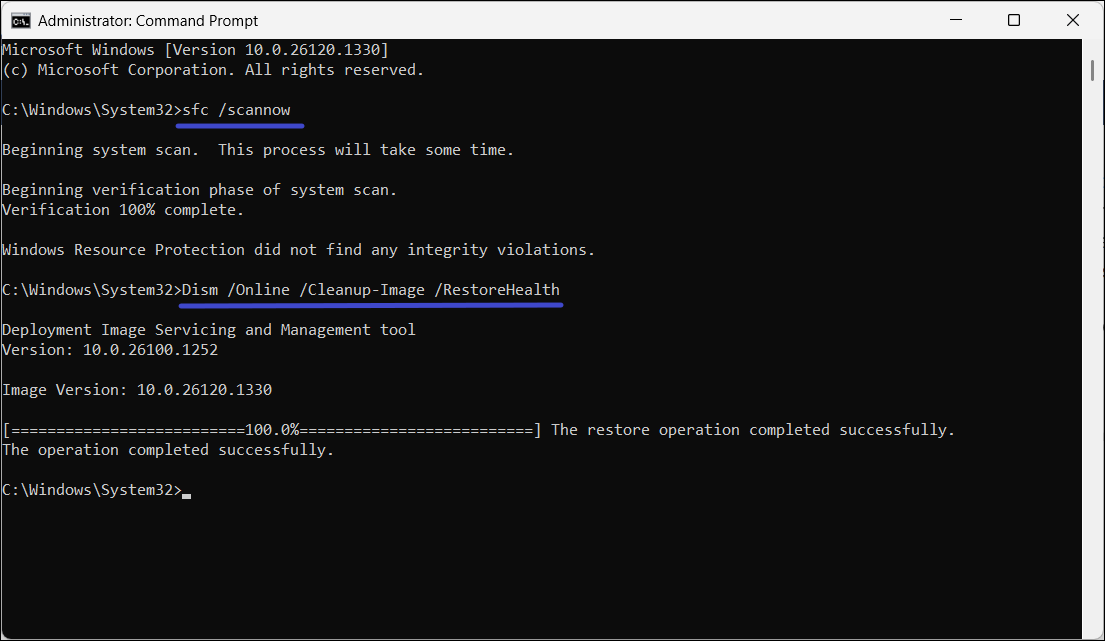
1. Open Command Prompt as administrator.
2. Run:
sfc /scannow
3. Once done, run:
DISM /Online /Cleanup-Image /RestoreHealth
4. Restart your PC and check for updates again.
Fix 4: Check Relevant Update Services
If the core update services are stopped, Windows Update can’t work.
1. Press Windows + R, typeservices.msc, and press Enter.
2. Make sure the following services are set to Automatic:
- Windows Update
- Background Intelligent Transfer Service (BITS)
- Cryptographic Services
3. Restart them one by one by right-clicking.
4. Restart your PC and retry updating.

Fix 5: Try a Clean Boot
Other apps at startup can conflict with update operations. You can perform clean boot with these steps:
1. Press Windows + R, type msconfig, and press Enter.
2. Select Services and check Hide all Microsoft services, then click Disable all.
3. Go to Startup and then Task Manager and disable startup apps.
4. Restart your PC and try the update again.

Fix 6: Manually Install the Update
If the automatic update fails, you can install the patch yourself.
1. Open the Microsoft Update Catalog (https://catalog.update.microsoft.com) in your browser.
2. Search for the specific update that keeps failing.
3. Download the correct package for your system and run it.
4. Restart your PC once the installation finishes.

Quick Tips
1. Restart your PC after each fix before testing again.
2. Ensure your internet connection is stable during updates.
3. Temporarily disable third-party antivirus or firewall tools while updating.





