On Windows 11, driver installation failures are usually caused by security features like Memory Integrity (Core Isolation) blocking incompatible drivers, strict driver signature enforcement, outdated components, or software conflicts. If you’re unable to install drivers in Windows 11, you’ve landed the right page for the solution.
Page Contents
Fix Unable to Install Drivers on Windows 11
Below are comprehensive methods to fix installation failures and get your hardware working without errors.
Fix 1: Turn Off Memory Integrity (Core Isolation)
Windows 11’s Memory Integrity, part of Core Isolation, is a security feature that prevents low-level drivers from loading if they aren’t fully compatible. On many systems, it’s enabled by default and can block older or unsigned drivers.
1. Open Settings and go to Privacy & Security and then Windows Security.
2. Select Device security.
3. Click Core isolation details.
4. Set the Memory Integrity option to Off.
5. Restart your PC and try installing the driver again.
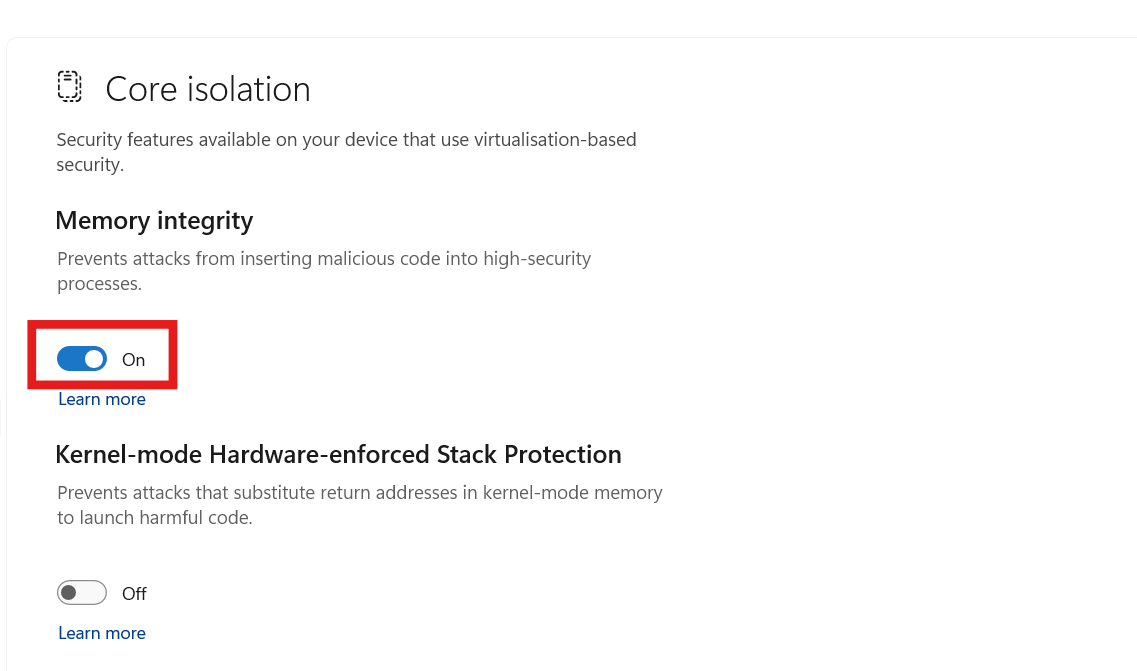
Only disable this temporarily; leaving it off may reduce system protection. Re-enable it once the driver is installed.
Fix 2: Temporarily Disable Driver Signature Enforcement
If a driver is unsigned or blocked by signature checks, Compatibility Mode won’t help. Instead:
1. Go to Settings and go to System. Then go to Recovery.
2. Click Restart now under Advanced startup.
3. In the blue menu, choose Troubleshoot and then Advanced options. Then go to Startup Settings and then Restart.
4. After reboot, press 7 (or F7) to Disable driver signature enforcement.
5. Install the driver immediately, then reboot normally.
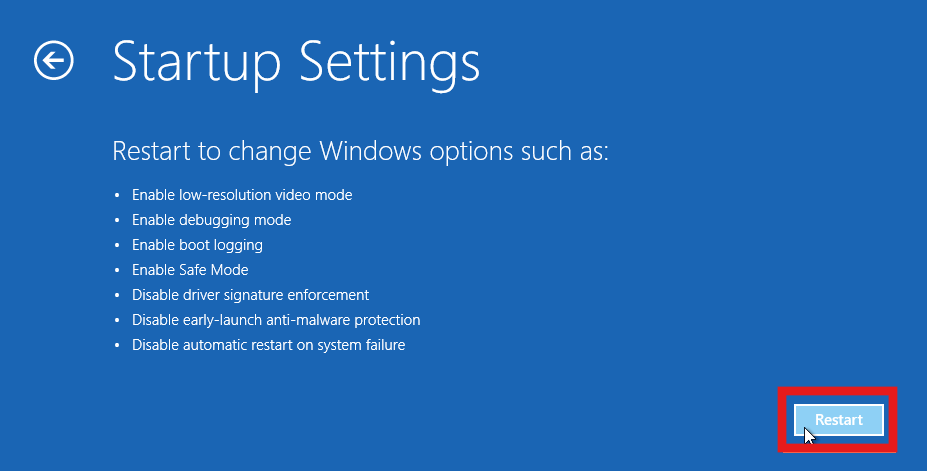
This temporarily allows drivers that are not signed by Microsoft to be installed. Only do this when absolutely necessary.
Fix 3: Install in a Clean Boot
Software conflicts, like background utilities or security apps, can block driver setup programs from running properly. Performing a clean boot may help.
1. Press Win + R, typemsconfig, and hit Enter.
2. Under Services, check Hide all Microsoft services.
3. Click Disable all and restart your PC.
4. Install the driver.
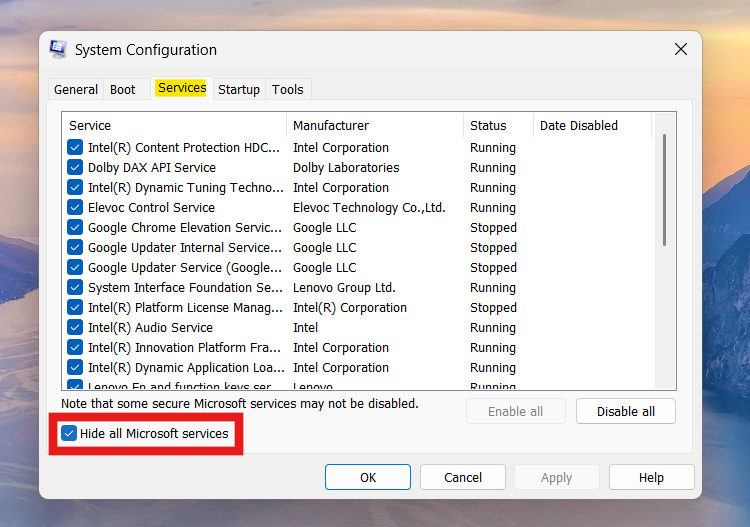
After installation, re-enable the services to get your system back to normal.
Fix 4: Update Windows & Optional Driver Updates
Windows Update often delivers verified drivers:
1. Go to Settings and then Windows Update.
2. Click Check for updates.
3. Once updated, expand Advanced options, then Optional updates.
4. Under Driver updates, pick and install any listed drivers.
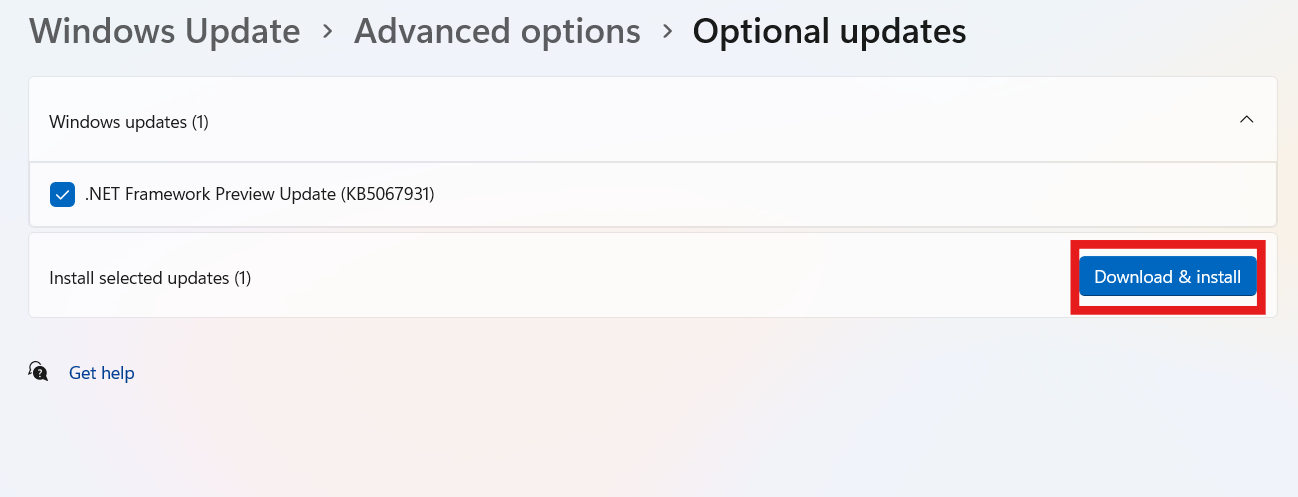
This ensures your system has the latest hardware support and reduces compatibility issues.
Fix 5: Manually Install driver via Device Manager
If the vendor’s installer fails:
1. Open Device Manager (right-click Start and go to Device Manager).
2. Find the device with the failed driver.
3. Right-click and select Update driver.
4. Choose Browse my computer for drivers and point to the downloaded driver folder.
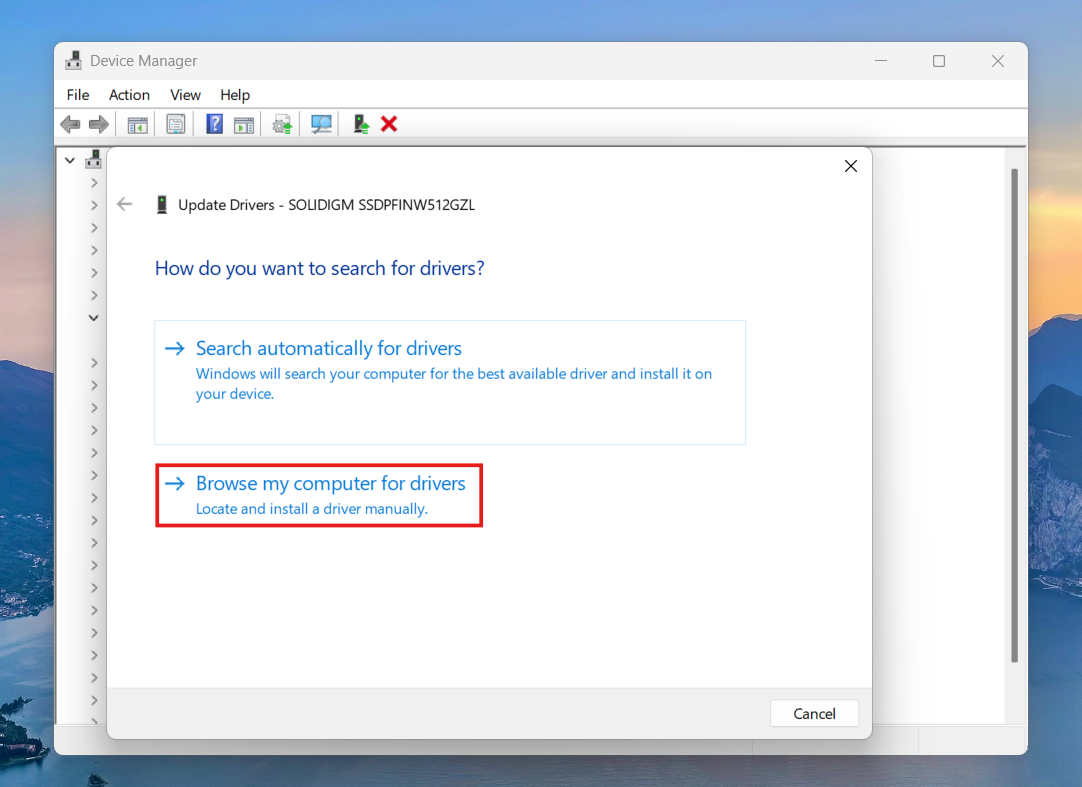
This method often succeeds where automated installers can’t.
Fix 6: Temporarily Disable Antivirus or Security Tools
Security utilities, including Microsoft Defender real-time protection, can interfere with driver installs. Before attempting installation:
1. Open Windows Security and go to Virus & threat protection and then Manage settings.
2. Turn Real-time protection off temporarily.
3. Install the driver, then turn protection back on immediately.
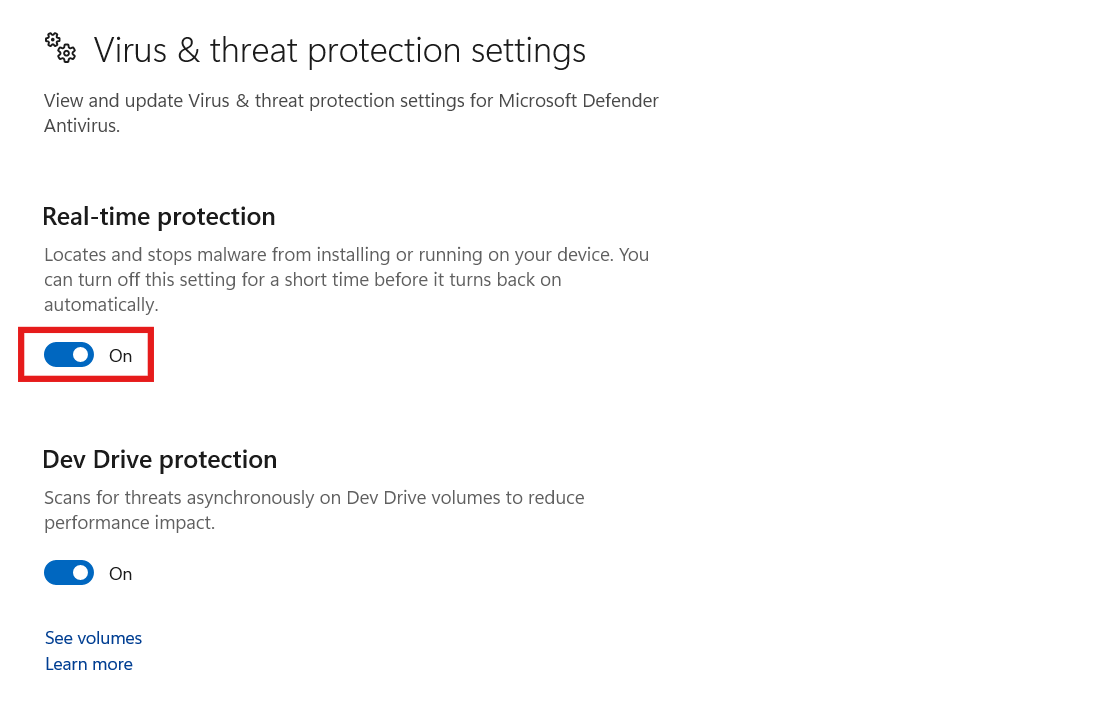
Only disable security when you trust the driver source.
Wrapping Up
Driver installation failures on Windows 11 are frequently due to strong security layers like Memory Integrity and driver signature enforcement. By turning off these temporarily in Advanced Startup and Windows Security, checking for updates, and manually installing through Device Manager, most driver installations can be completed successfully. Always re-enable protections afterward and use official or WHQL-signed drivers when possible.