If downloads from the Microsoft Store feel painfully slow on Windows 11, even when your internet is fast for everything else, you’re not alone.
Page Contents
Fix Slow Download Speed in Microsoft Store on Windows 11
Slow app downloads or updates from the Store can be caused by corrupted cache files, delivery optimization limits, proxy or VPN interference, or background network conflicts that throttle download bandwidth. Here are effective ways to speed up downloads on Windows 11.
Fix 1: Clear Microsoft Store Cache
Corrupted temporary data can slow or stall downloads:
1. Press Win + R.
2. Type wsreset.exe and press Enter.
3. Wait, and the Store will reload once the cache is cleared.
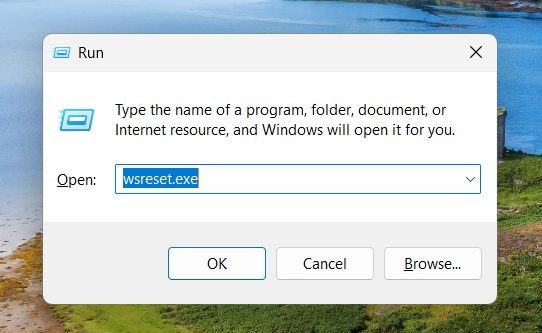
This removes old data that can prevent the Store from downloading efficiently.
Fix 2: Adjust Delivery Optimization Bandwidth
Windows may throttle Store downloads if bandwidth limits are set:
1. Open Settings and click on Windows Update. Click on Advanced options and then Delivery Optimization.
2. Under Download settings, remove bandwidth limits or set them close to 100%.
3. Enable Allow downloads from other PCs only if needed.
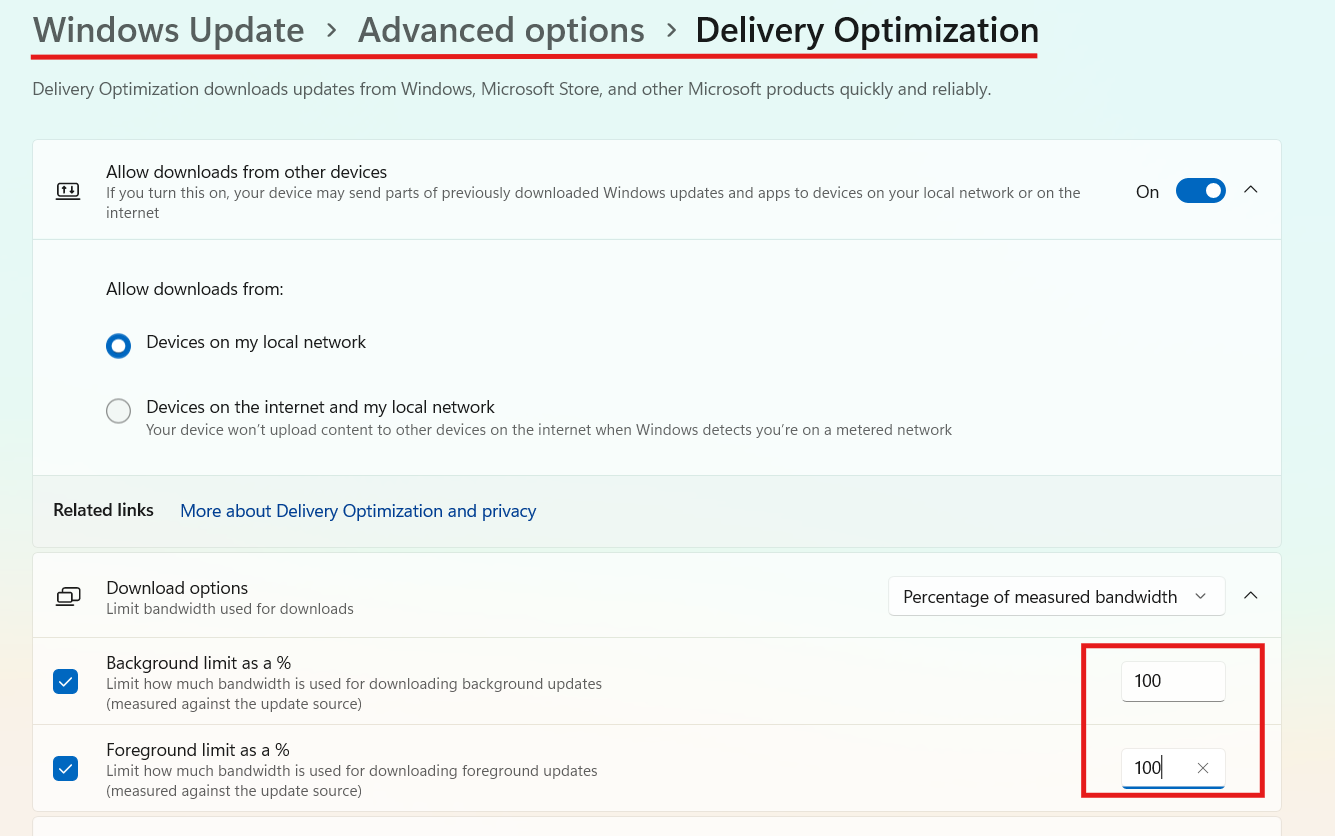
Removing caps lets the Store use more of your available internet speed.
Fix 3: Turn Off VPN
If you’re using a VPN or proxy, it can slow down or block communication with Microsoft servers:
1. Go to Settings and click on Network & Internet. Then go to VPN and switch the VPN off.
2. Go to Proxy settings and ensure Use a proxy server is OFF.
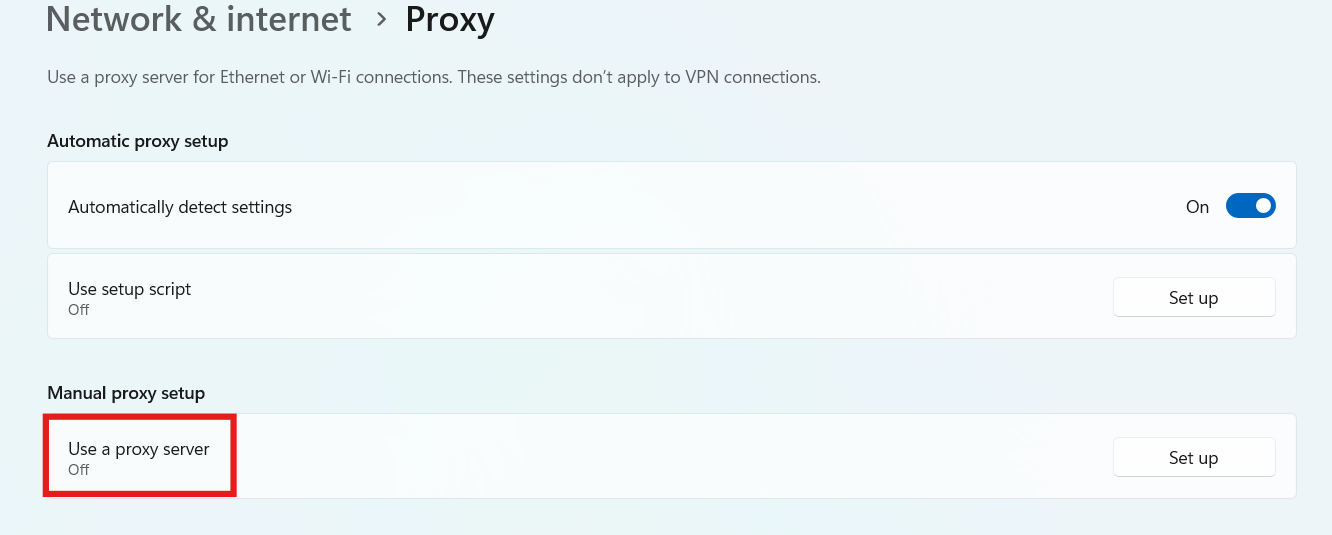
Disabling these temporarily often restores normal download rates.
Fix 4: Repair or Reset the Microsoft Store App
Corrupted app files might throttle performance. Repairing the app, or even resetting the app could help.
1. Go to Settings and click on System. Then go to System components.
2. Find Microsoft Store and click Advanced options.
3. Choose Repair; if that doesn’t fix it, choose Reset.
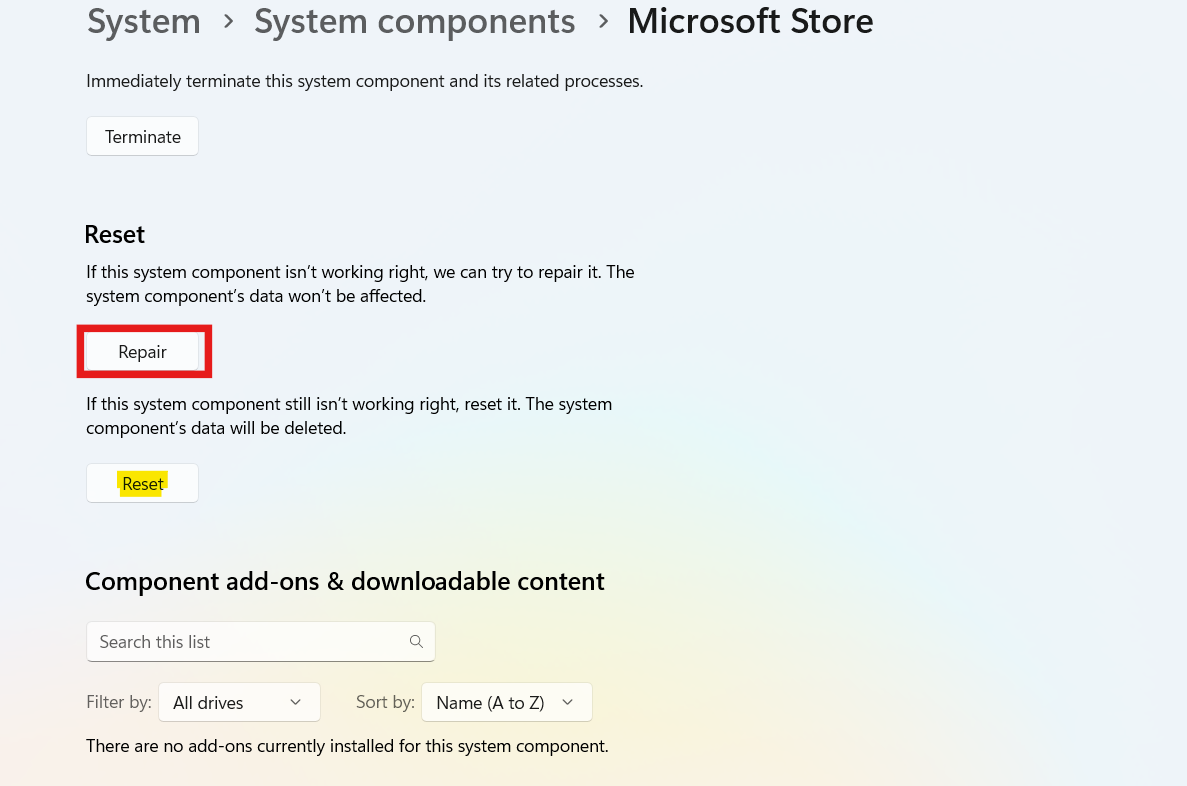
Repair fixes minor issues, while Reset restores everything to defaults.
Fix 5: Run the troubleshooters
Windows has built-in diagnostics that can fix download problems:
1. Search Troubleshoot settings.
2. Under Other troubleshooters, run Windows Store Apps and Network & Internet troubleshooters.
3. Apply any recommended fixes and test again.
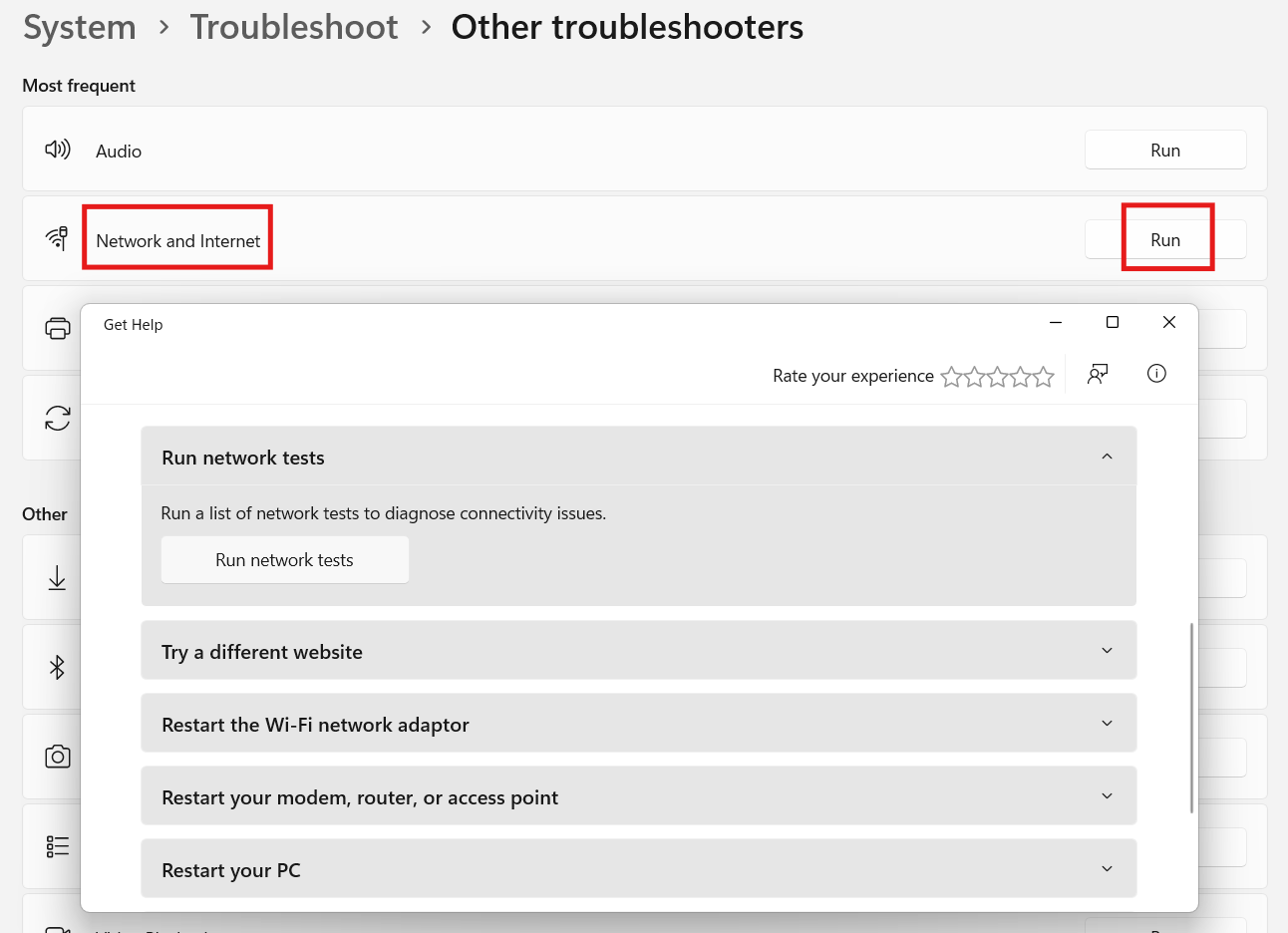
These tools automatically resolve common issues blocking downloads.
Fix 6: Use a Different Internet Connection
Sometimes the issue is with your ISP or local network hardware:
1. Connect using a mobile hotspot.
2. Try a different Wi-Fi network.
3. For best results, switch to a wired Ethernet connection.

If downloads become faster on another network, you know the issue is local to your router/ISP.
Summary
Slow Microsoft Store downloads are usually caused by cache issues, bandwidth limits, or network configuration. Clearing the cache, adjusting Delivery Optimization settings, disabling VPN/proxy, repairing the Store app, and running troubleshooters will typically restore normal download speeds on Windows 11.