

If Windows 11 security update not installing and it shows messages like Your device is missing important security and quality fixes, it usually means something is blocking the update process. This article will help you to get rid of this issue,
Page Contents
Fix: Windows 11 Security Update Not Installing
This issue might be due to corrupted update files, broken update components, incorrect system settings, or interference from third-party software. Try the steps below to restore update functionality.
Fix 1: Run the Windows Update Troubleshooter
Windows includes a dedicated troubleshooter that automatically diagnoses and repairs update failures:
1. Open Settings and click on System. Go to Troubleshoot and then Other troubleshooters.
2. Click Run next to Windows Update.
3. Follow the on-screen suggestions and then retry the update.

This tool targets the most common causes of update issues and often fixes them without further steps.
Fix 2: Repair Corrupted System Files (SFC & DISM)
Damaged system files can block security patches from installing:
1. Open Command Prompt as Administrator.
2. Run:
sfc /scannow
3) And then run:
DISM /Online /Cleanup-Image /RestoreHealth
4) Restart your PC after that.
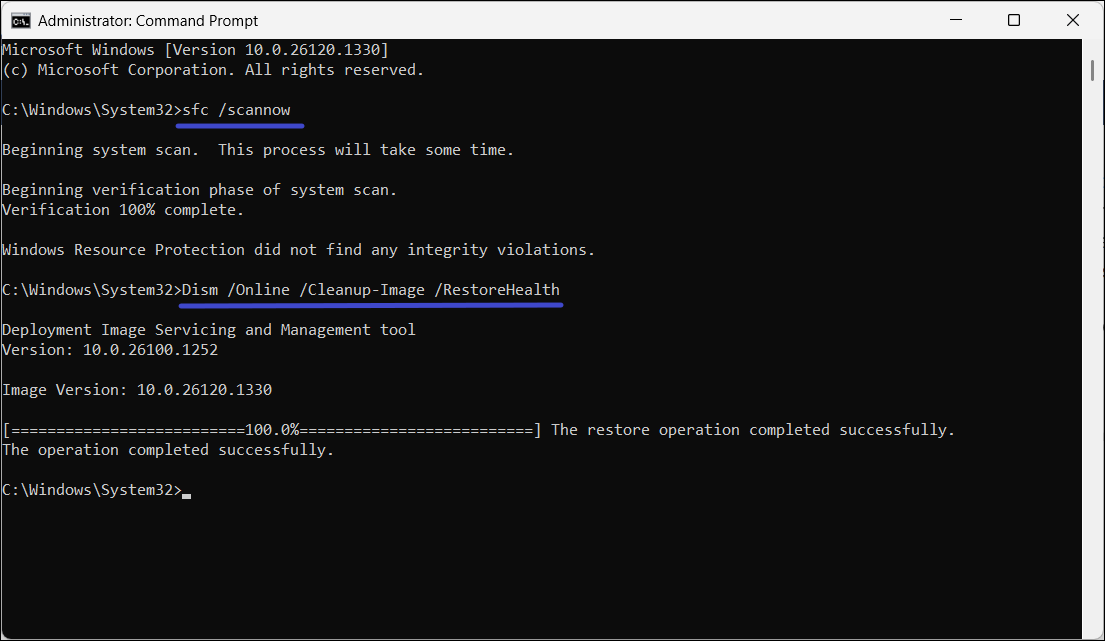
This checks your system for corruption and repairs missing or damaged files.
Fix 3: Reset Windows Update Cache
Corrupted cached update files can prevent installations. Fix them with these steps:
1. Open Command Prompt (Admin).
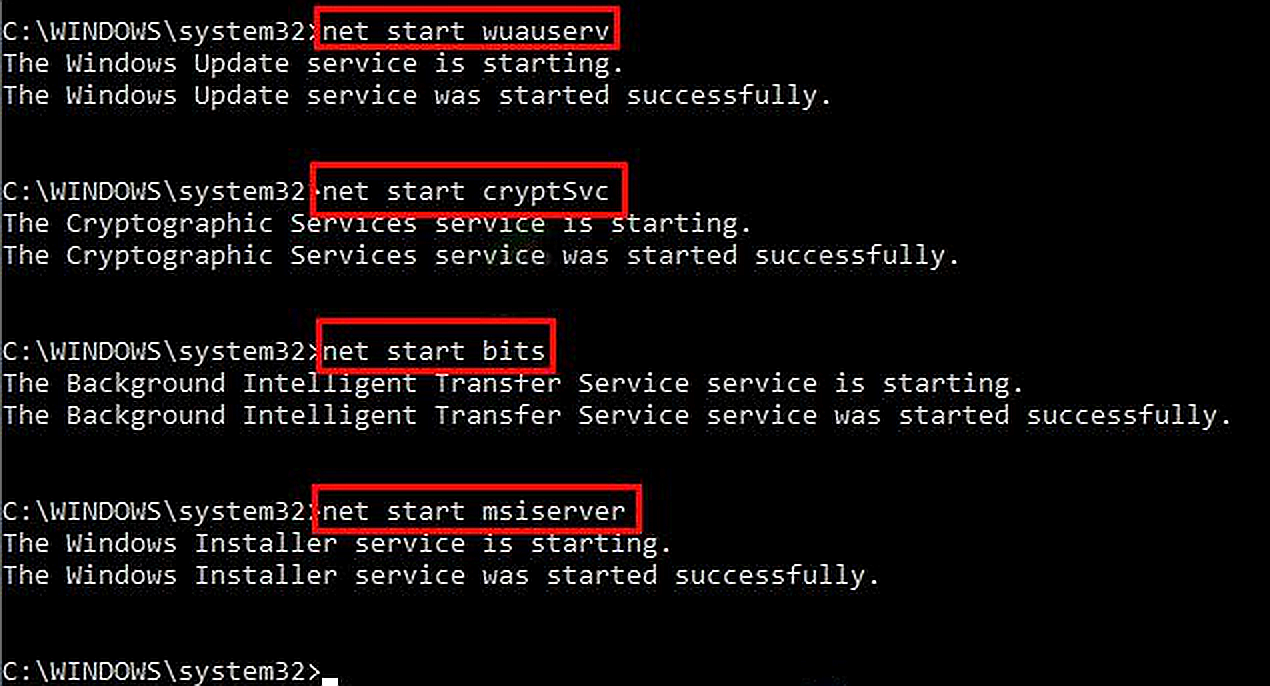
2. Stop services by using these commands one by one:
net stop wuauserv
net stop cryptSvc
net stop bits
net stop msiserver
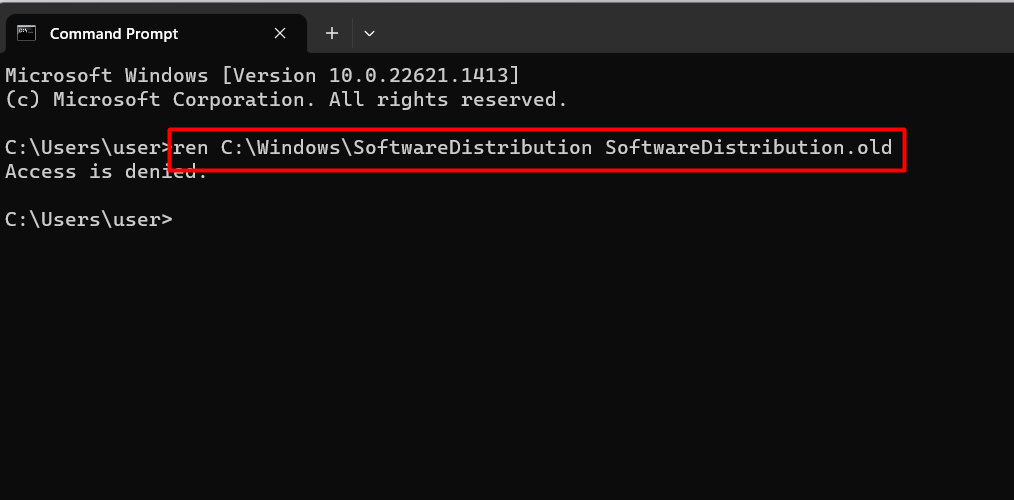
3. Then, rename cache folders by running these commands:
ren C:\Windows\SoftwareDistribution SoftwareDistribution.old
ren C:\Windows\System32\catroot2 Catroot2.old
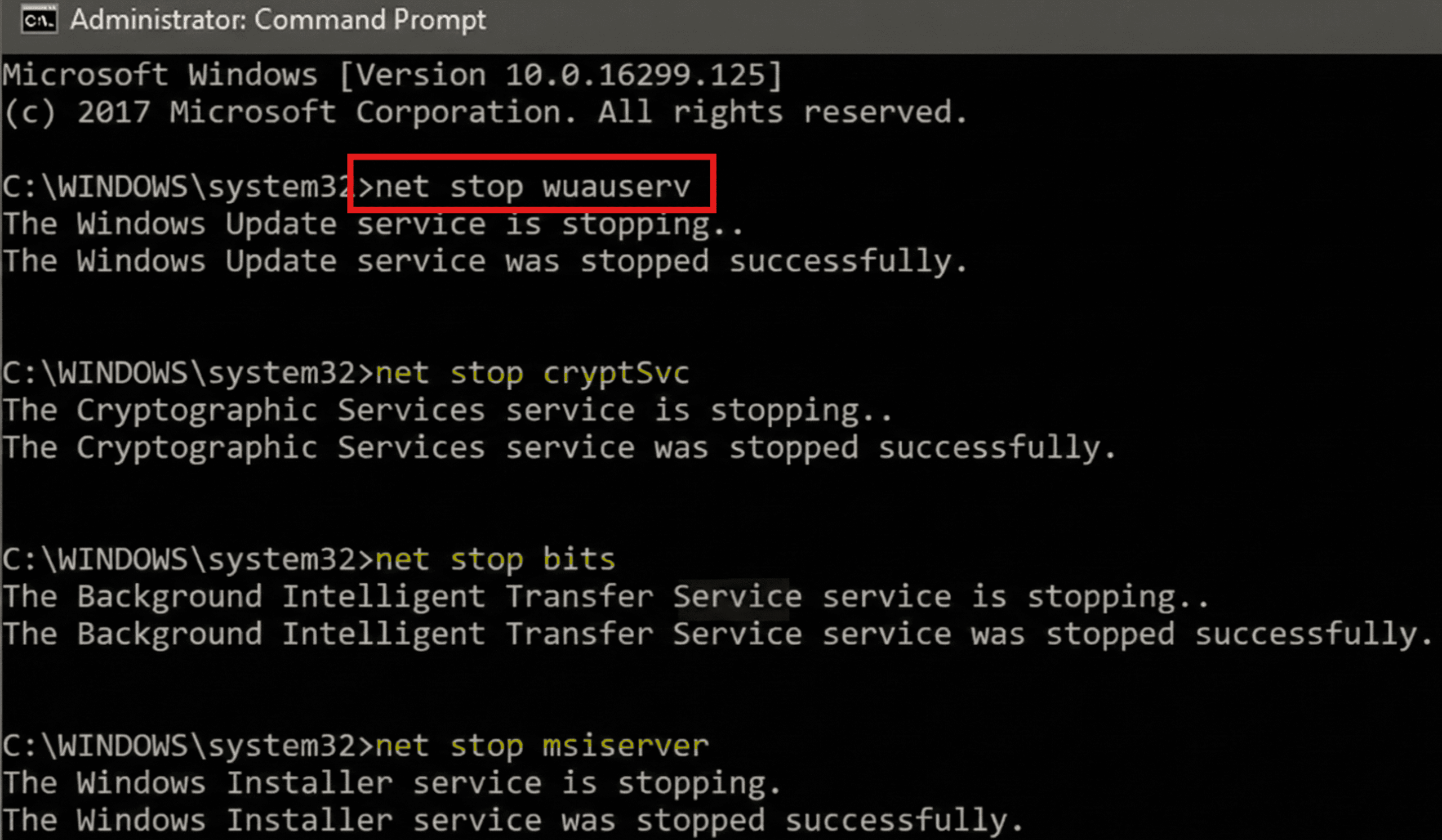
4. Restart the services again:
net start wuauserv
net start cryptSvc
net start bits
net start msiserver
5. Now, retry the update.
This clears the old update data so Windows can re-download fresh files.
Fix 4: Use ‘Fix Problems Using Windows Update’ recovery option
For stubborn update errors, Windows 11 provides a built-in recovery feature that reinstalls the current system while keeping apps, files, and settings intact.
1. Go to Settings and click on System. Then go to Recovery.
2. Under Fix problems using Windows Update, click Reinstall now.
3. Let the process complete and reboot when prompted.
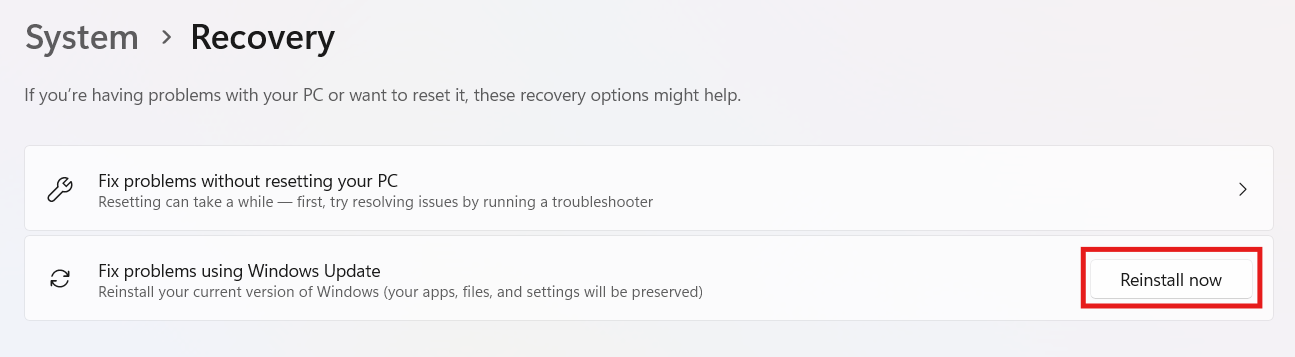
This refreshes core update components and often resolves persistent security update failures.
Fix 5: Install the Update Manually
Sometimes manual installation bypasses issues that block automatic updates:
1. Visit the Microsoft Update Catalog (https://www.catalog.update.microsoft.com/Home.aspx) and search for the KB number of the failed patch.
2. Download the package that matches your Windows 11 build.
3. Run the installer and reboot when finished.
4. This ensures the patch is applied even if the automatic process struggles.

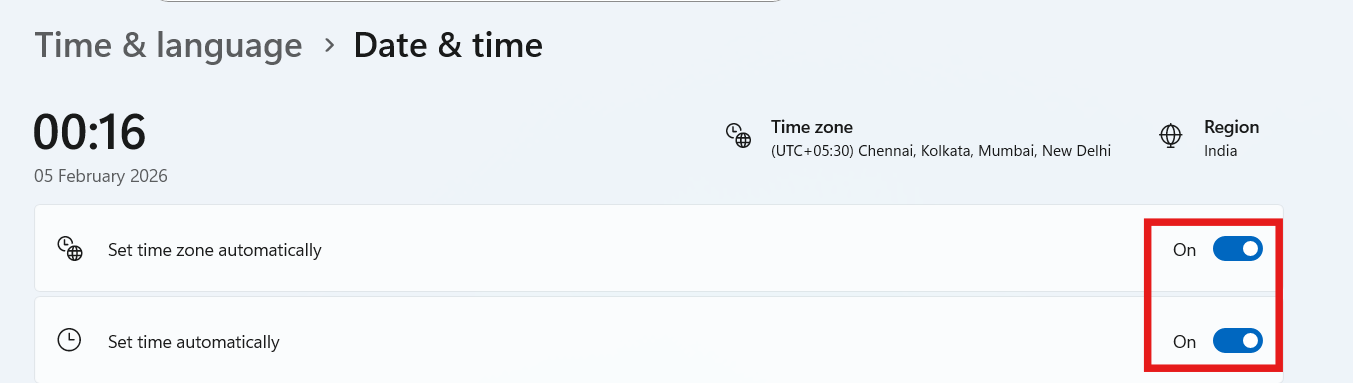
Quick Tip: Check System Clock & Disable Third-Party Antivirus
1) System Date/Time: Make sure your clock is accurate. An incorrect time can make update servers reject connections.
2) Antivirus: Some security suites block update components; disable or uninstall them temporarily, then retry the update.
Summary
Security updates can fail due to corrupted caches, broken services, system file issues, or even overly aggressive antivirus software. Running the Windows Update troubleshooter, repairing system files, resetting update components with the correct renaming commands, using the Fix problems using Windows Update feature, and manually installing the patch usually resolves the problem and restores normal update behavior in Windows 11.




