If you forget your password or enter the wrong PIN too many times, or if there is something wrong with your account, you may find yourself locked out of the Windows 11 login screen. One reason this may happen is that Windows may not recognize the correct password because it is having trouble locating either your profile or your sign-in method.
Page Contents
Fix Locked Out of Windows 11 Login Screen
Fortunately, there are several built-in recovery methods to help you regain access without reinstalling Windows. Here are five effective fixes to unlock your Windows 11 PC.
Fix 1: Reset Your Microsoft Account Password
Resetting your Microsoft account password is an easy way to quickly regain access to your account if you have forgotten your login information. All that is required for this option to work is to have access to the Internet from another device.
Once you have successfully reset your password through these steps, the new credentials for your Microsoft account will be updated immediately through the Internet connection established from your computer at the login screen.
1. Open another device and visit:
https://account.live.com/password/reset
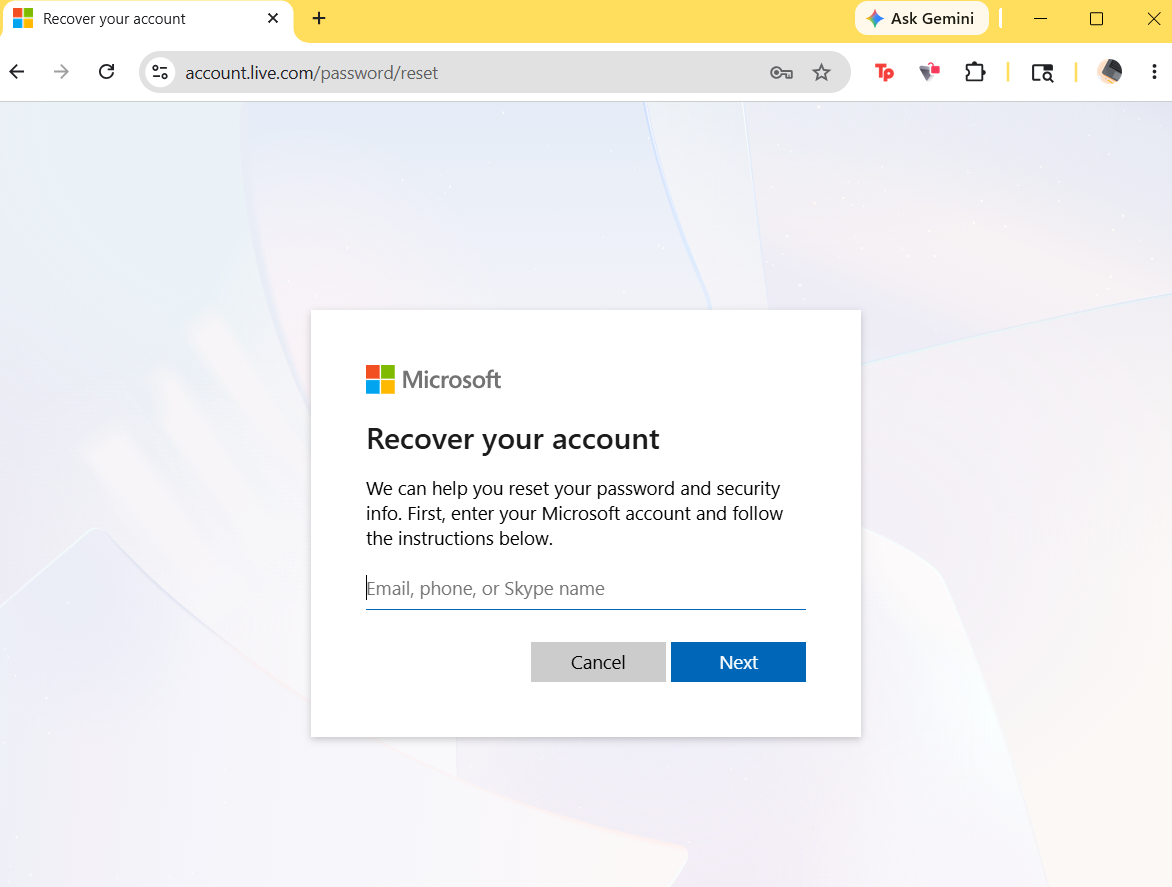
2. Enter your Microsoft account email, phone number, or Skype name and click Next.
3. Follow the steps and create a new password.
4. Use the new password on your Windows 11 PC.
Fix 2: Use Safe Mode to Regain Access
Safe Mode starts Windows with minimal services, making it easier to troubleshoot. It can help when login issues are caused by corrupted startup apps or account problems. Once you’re in Safe Mode, you can remove problematic apps or create a new account.
1. On the login screen, hold Shift and click Restart.
2. Go to Troubleshoot and click on Advanced options. Select Startup Settings.
3. Click Restart.
4. Press 4 or F4 for Safe Mode.
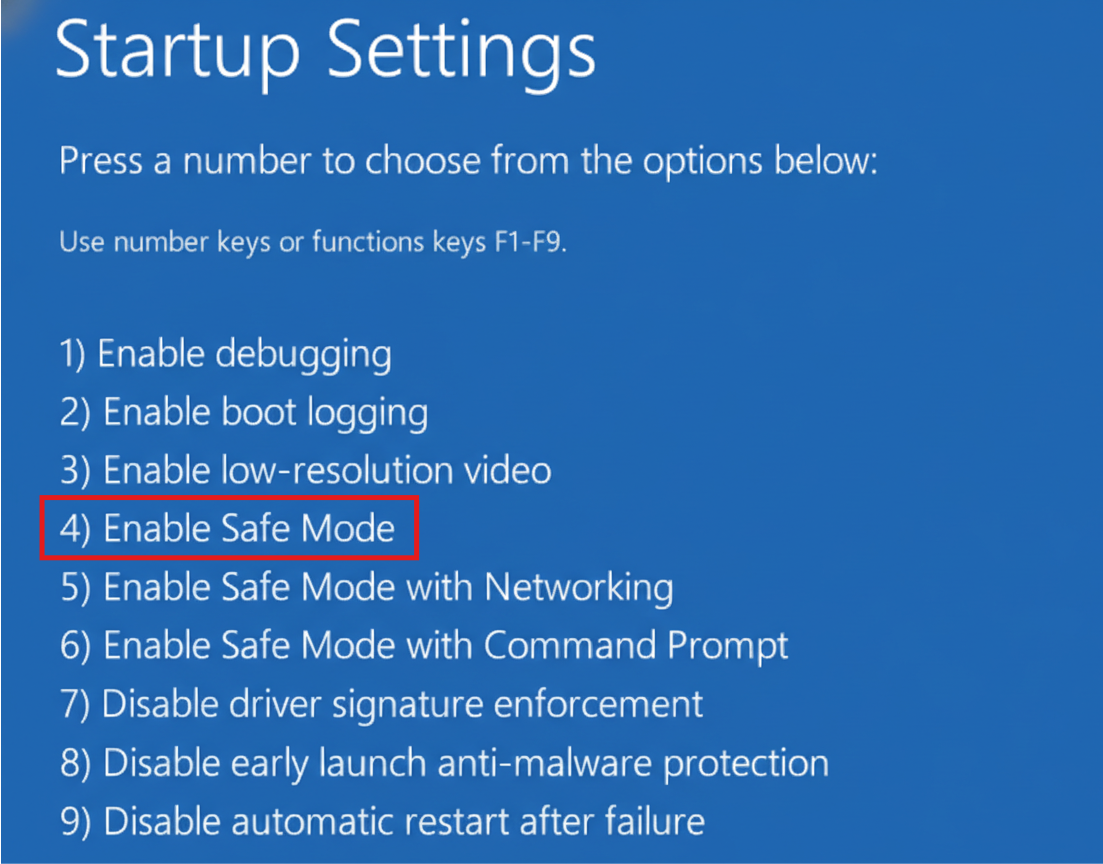
This method is especially useful if the lockout started after updates or software installation.
Fix 3: Enable Hidden Administrator Account
Windows has a hidden Administrator account that can be activated using Command Prompt. This gives you emergency access when your main account fails.
1. Boot into Advanced Startup.
2. Open Troubleshoot and click on Command Prompt.
3. Run:
net user administrator /active:yes
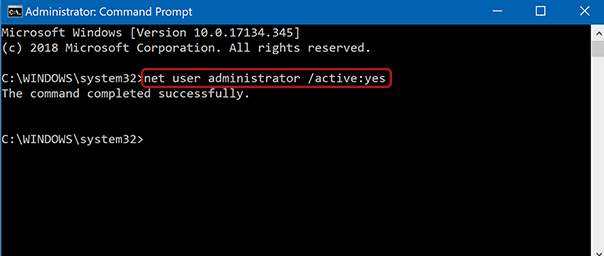
4. Restart your PC.
You should now see the built-in Administrator account on the login screen. After logging in, you can reset passwords or repair accounts.
Fix 4: Use Password Reset Disk
If you created a password reset disk in the past, this is another way to quickly regain access to your computer. However, this option will only work for local accounts created on your computer and does not use your Microsoft account.
If you are able to create a new password using your password reset disk, you will not lose any data from your local account. The password reset disk is also one of the safest ways to obtain access to your local account.
1. Insert the password reset USB/disk.
2. Click on the Reset password link on login screen.
3. Follow the Password Reset Wizard.
Fix 5: Reset Windows While Keeping Files
If nothing else works, resetting Windows without affecting files can restore access. This should be your last option because it reinstalls core system components. This removes apps and settings but keeps personal files intact. You’ll be able to create a new administrator account afterward.
1. On the login screen, hold the Shift key and click Restart.
2. Go to Troubleshoot and select Reset this PC.
3. Select: Keep my files.
4. Follow the on-screen steps.
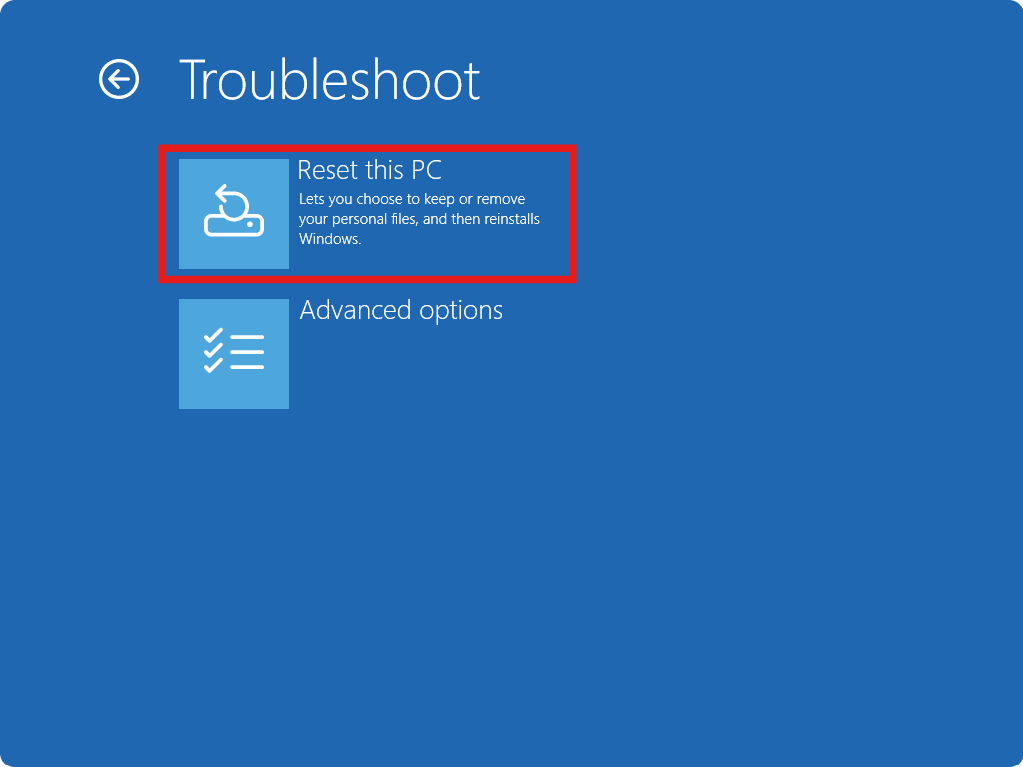
Video fix
Here’s a video fix to help you more on this:
Summary
If you’re locked out of the Windows 11 login screen, you can usually regain access through Safe Mode, password reset options, or the hidden Administrator account. Recovering a Microsoft account is the easiest way to access online accounts, while resetting Windows should be your last option if other methods don’t work.
![Windows needs your current credentials [Fix]](https://www.kapilarya.com/assets/password_icon_1783831080.jpg)