

UPDATE : In Windows 8.1, follow PC Settings -> PC and devices -> Corner and edges -> App switching . However, below shown trick is still valid and in fact force the way to do for what it is.
With the introduction of Start Screen and Metro Apps, Windows 8 is is really impressive for fast fluidity work experience. There are a lot of hidden possibilities lies in Windows 8 to configure it as per your need. Today, in this article, I’ll show you how you can disable the app switching in Windows 8.
As you can see in below screenshot, app switching is enabled by default:

Now lets see the ways to disable it…
Page Contents
How To : Disable App Switching Using Registry Editor
1. Press  + R and put regedit in Run dialog box to open Registry Editor (if you’re not familiar with Registry Editor, then click here). Click OK.
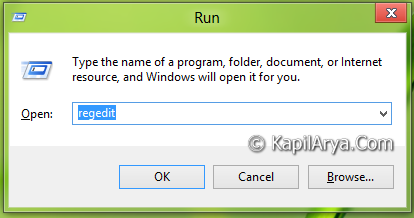
2. Navigate here:
HKEY_CURRENT_USER\Software\Policies\Microsoft\Windows\EdgeUI

3. In the right pane of this location, create a 32-bit DWORD named TurnOffBackstack. Double click on it to configure. You’ll get this:

4. Put its Value data equals to 1 to disable app switching. Else let it remain as 0 to enable app switching. Close the Registry Editor and reboot to see results.
From PC Settings, we’ve disabled app switching:

How To : Disable App Switching Using Local Group Policy Editor
1. Press + R and put gpedit.msc in Run dialog box. Click OK.
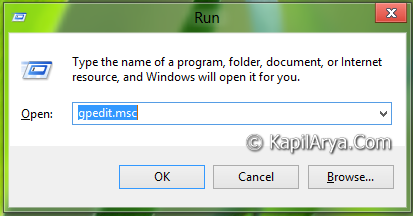
2. Navigate here:
User Configuration -> Administrative Templates -> Windows Components -> Edge UI

3. In the right pane, double click on policy named Turn off switching between recent apps and you’ll get this:

4. Set following parameters for the app switching:
To Allow App Switching – Not Configured / Disabled
To Disable App Switching – Enabled
5. Close the Group Policy Editor and reboot get the results.
That’s it!



great tip ahead
It shouldn’t be this complicated to turn off a setting that functions erratically and makes using a laptop frustrating. I am really disappointed/frustrated with Windows 8 and can’t believe this is supposed to be an “improvement”. I was excited at first to see an interesting integration of features and what seemed to be enhanced usability, but quickly realized this approach was not well-thought and there are too many glitches to make this “fluid” or even remotely user friendly. Hate it. Trying to repress the urge to throw my laptop.
I’m totally frustrated as well with Windows 8. I received the HP Pavilion Notebook last week for a gift, which I’m very grateful & appreciative, However I don’t like the screen sliding, while trying to check email, or doing any task, the screen slides, it’s something that’s very agitating too me. I agree with you Cristina.
^^ Relax girls! Actually app switching is intended to make your navigation easy and faster, so don’t get frustrated with it. Just keep in mind that you don’t need to swipe from that area (which brings app switcher) until you need to switch between apps :)
Thanks for the info. The default swapping action was truly frustrating.
This didn’t work for me at all. I’m running 8.1 and found nothing titled EdgeUI.
Further, I agree with Cristina, above, that a simple gesture adjustment/removal shouldn’t need this level of manipulation.