

In Windows 8, Refresh and Reset are the most useful while tools in repairing the Windows copy. But if you’re using Windows that you have installed yourself or that is not came pre-installed from OEM, then you may need the installation disc to use these tools. While using any of these tools, you may be stopped with the following message:
Page Contents
Some files are missing. Your Windows installation or recovery media will provide these files.
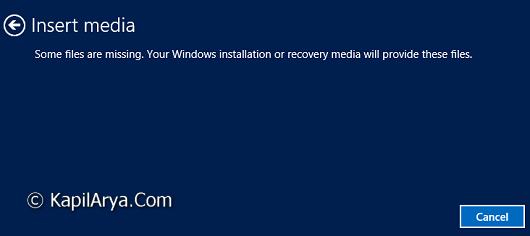
As you can see in the above image, you need Windows installation disc or recovery media to proceed further. But what if you don’t have either of them? Well, a simple workaround will made your Windows 8 to Reset or Refresh without using either of installation disc.
In this article, we will provide this solution to you. Before proceeding, you will only need setup or ISO image of Windows 8. We hardly suggest you to create System Restore point prior to making any changes. Now lets see the how to part:
How To Reset Or Refresh Windows 8 Without Installation Disc
1. Refer to the system root drive, on which Windows is installed, usually its C: drive. Create a new folder there and name it Refresh. Provide the necessary administrative privileges if asked.
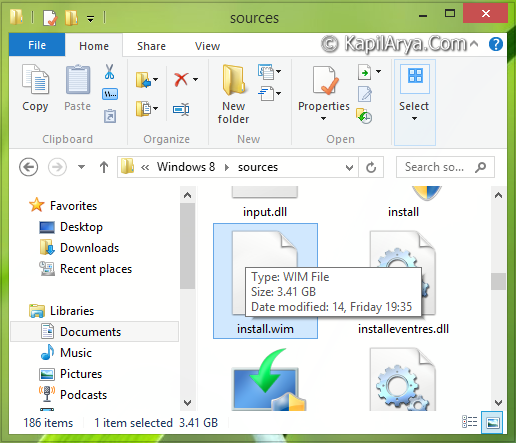
2. Now, go to the Windows 8 setup and locate the Sources folder there. Inside this folder look for install.wim file. Copy this install.wim file to Refresh folder created in previous step.
3. Moving on, open the administrative Command Prompt, copy and paste the following command followed by Enter key:
reagentc /setosimage /path C:\Refresh /target C:\Windows /index 1
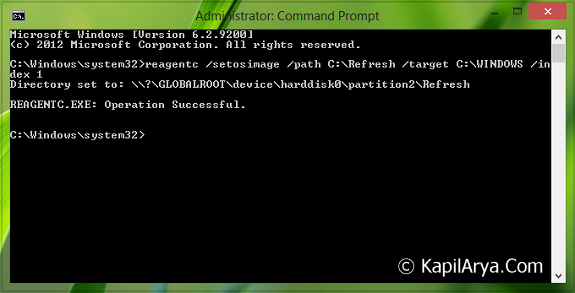
That’s it! Now you can try to Refresh or Reset Windows 8 without installation disc. If you want to make Windows 8 to set its default property that is to do Refresh or Reset with installation disc as in case you are able to arrange it, then follow these steps:
Revert To Refresh Or Reset With Installation Disc
1. Navigate here:
C:\Windows\system32\Recovery
2. Inside this location, you’ll find the ReAgent.xml file, right click on it and select Open with -> Notepad.
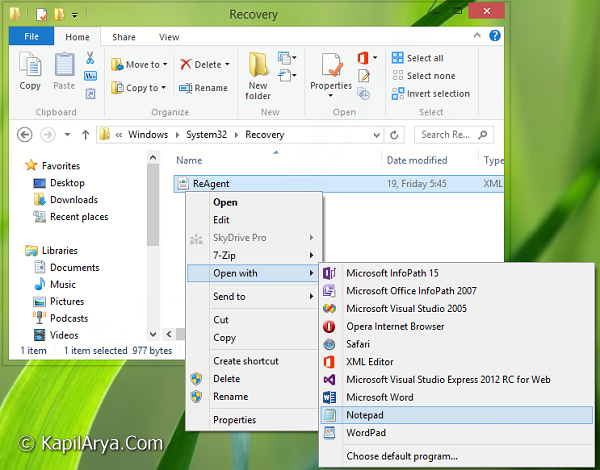
3. In the Notepad, catch the word OsInstallLocation. Replace it with following string and save the ReAgent.xml file.
In this way, you have reverted the changes you have made using previous method. So now you can Refresh or Reset Windows 8 with installation disc, which the default setting.
NOTE :
1. Using this way, you’ll need to enter the product key while Resetting Windows 8 only.
2. Please make the back up of ReAgent.xml file before modifying it.
3. This tutorial won’t work if you have upgraded online to Windows 8 using Upgrade Assistant and if you are trying to use install.esd folder rather than install.wim since the ESD folder automatically gets registered by Windows while upgrading.
Hope this helps! See these also if you’re unable to Refresh:
1. There was a problem refreshing your PC. No changes were made.
2. The drive where Windows is installed is locked. Unlock the drive and try again.





good info, thAnks.
I’m using Windows 8 Enterprise came from HP. Dont know why it is giving the error to insert media. Do I follow your method?
^^ Try it and let me know how this goes :)
Was looking for the same thread and googled it. Thank god I found the exact way, credit goes to you :P
Worked like charm, thanks a lot :D
I need help, cant find the sources folder nor windows 8 setup thingy
^^ How do you installed Windows 8? The sources folder is in the same package you’ve used for installation :)
hi kapil …i bought samsung new series 5 ultrabook with windows 8 but it does not came with the backup cd…the shop from where i bought the ultrabok said me to backp windows myself and i did it on my external hdd …now i want to refresh but it says insert media and when i insert my hdd it does nothing …and my hdd has a widows 8 backup in a partition …plz help as soon as possible …Thanks :)
please help,can’t find sources folder
^^ It should be there in the setup, please recheck :)
kapil plz reply to my question …
^^ Did you tried out the steps mentioned in this article? Let me know which step not worked for you, so that I can help you further :)
Dear Kapil,
I have uploaded windows 8 to my windows 7 home and after that updated to 8.1 pro.
i have tried all options but nothing works. i have problem of no app working, no windows update taking place with error code 0x80072f8f for both the problems.
now i have to refresh the windows 8.1. as I do not have back up cd how to get install.wim or other means. in short how to refresh to reset my windows 8.1 for “missing some file” message.
regards
r b vaidya
^^ You would at least need the setup to proceed for this.
Please elaborate the same or explain step by step if possible.
Rb
^^ When you have setup with you, you can proceed as mentioned above. Inside the setup, look for install.wim file :)
I do not understand what you are saying.
Rv
I bought a PC with WIN8 installed. No installation discs came with it. Followed prompts to upgrade to 8.1. Since then my metro apps don’t work, as well as PC Settings and other problems. Same happened to my husband and he Reset back to WIN8 (also no discs, but his is a Dell and mine is HP). I can’t even do a system restore on mine. Have been using the internet from the desktop, but I want full use of my new computer.I have tried every “fix” I have found on various “forums” including Microsoft Support, to no avail. Many times I am met with complications preventing me to complete the suggested steps. My frustration is growing to the point of considering taking a sledge hammer to the cussed PC. Can’t afford a replacement, though. I was glad to find your article on how to reset w/o discs. Not too surprised to run into another complication :The “sources” file was found in $WINDOWS.~ BT and there is no install.wim there or anywhere on my PC. There is a recovery image on E: drive. I also was unable to create recovery discs on several attempts over the last year. HELP ?!
^^ Refer this to create System Recovery drive:
https://www.kapilarya.com/create-system-recovery-drive-in-windows-8-1
Then you have to Reset or Refresh manually using System Recovery drive. Else you’d at least need the setup file to proceed according to this article.
Hi, not sure if this thread is still active as it seems fairly old but I’ll give it a shot and see if someone can help me. I want to restore my old PC which I originaly bought with Windows 7. I upgraded to Windows 8 upon it’s release then later to Windows 8.1. I do not have any physical discs for the installation, so I tried to follow the tutorial but I at step 3 I got stuck, I found the setup folder under C:/Windows/ but it was almost completely empty it only had one file in it called state, which then contained a document saying: [State] ImageState=IMAGE_STATE_COMPLETE
Does anyone know what this means or what I can do? please respond as fast as possible and thanks
^^ You need to go Sources folder under Windows setup, not in system root drive.
Would I need the product key?
^^ Most probably, yes.
Hello sir can i use windows 8 setup file with windows 8.1. Pls help me..
when i computer turn on black screen how to fix
I dont have dvd only
U give me install.wim file as email
Please
My all friends also dont have dvd
Hi. My hp 15 notebook keeps error 0XC000000f. I ran. Extensive Hard drive test and it gave me the following.
SMART Check : PASSED
Long DST : FAILED
FAILURE ID : UC10RF-75R7MK-MFKR61-61B503
PRODUCT I’d : F5D73EA#ACQ
Kindly help me.
What could be the problem?
^^ Please refer: https://www.kapilarya.com/how-to-fix-error-0xc000000f-the-boot-selection-failed-because-a-required-device-is-inaccessible
I have Aspire VN7-591G laptop for a week now, and when I got it, it has a lot of pre-installed software and games and such, at first I played with them a little bit, but before receiving this laptop I have been reading a lot of review on it saying how a clean install or reinstalling windows should be done to get rid of what they called “bloatware”, so I blindly decided to do so cause it sounded kinda bad.
What I did was I click the “remove everything and reinstall windows”
After doing so, my laptop restarted and start to show those 0xc000000f error.
I tried the reset and refresh, but I get the locked drive message and missing partition. I tried creating media provided by microsoft along with steps I see here and there, but there was not even an option to install them.
Is it suppose to pop out or do we need to locate them ourself when we plug in the USB. I need more instructions, I’m such a noob in this kind of stuff, and I am super lost. One last try is by asking, I wanna try to fix it myself, if it still doesn’t work, guess I’ll have to make a trip back to the store for a fix.
^^ For “The drive where Windows is installed is locked. Unlock the drive and try again”, refer this:
https://www.kapilarya.com/fix-the-boot-configuration-data-file-is-missing-some-required-information
sir i cant find the install.wim in source folder when i tried to makme recovery drive in my usb
^^ If you’ve ISO file, extract it, you’ll get the folder.
so I tried this but all I see is a install.esd file? where do I get the .wim file?
^^ Google ‘esd to wim converter’! There are lots of option :D
I have a preinstalled laptop so i have no clue where the Source folder should be
hi I’m getting a message saying my Boot Configuration Data is missing or has errors. My error code is Oxc0000185. what can I do.
Hi,
after i do this step this message appear:
‘
Directory set to: \\?\GLOBALROOT\device\harddisk0\partition4\Refresh
REAGENTC.EXE: Operation Successful.
‘
thin i type:
‘
C:\windows\system32>REAGENTC /info
Windows Recovery Environment (Windows RE) and system reset configuration
Information:
Windows RE status: Disabled
Windows RE location:
Boot Configuration Data (BCD) identifier: 40b8020f-5074-11e8-bb5d-e87f4d655b31
Recovery image location: \\?\GLOBALROOT\device\harddisk0\partition4\Refresh
Recovery image index: 1
Custom image location:
Custom image index: 0
REAGENTC.EXE: Operation Successful.
C:\windows\system32>REAGENTC /enable
REAGENTC.EXE: Unable to update Boot Configuration Data.
C:\windows\system32>
‘
so maybe problem from this (partition4) ?
and how i change this ?
Hi,
please help me on my windows 10 problem. when I’m restarting my system, it won’t start the blue screen came up and the automatic repair not working as well .I tried troubleshooting to reset with keep the files and deleted all it won’t work either. i did try kapil arya’s both method it won’t helped me to resolve the issue .Is there anything I can try please suggest.