

Few days ago, we fixed the issue concerning weird characters for Modern UI options at Start Screen which you can find out here. Today, we are going to fix same kind of issue for classic UI. Actually, in Windows 8, if you use other language than English (United States), you can expect such kind of problems concerning non-readable text. Here is a screenshot illustrating the issue when Russian language is used:
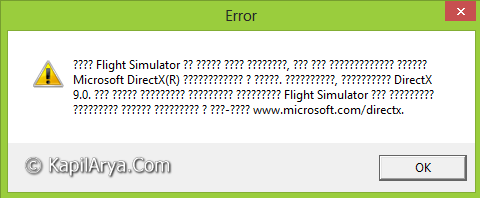
As you can see in the image above, the error message contains questions marks where prominent information is appeared. You can’t fix an error without knowing the cause. So, in order to fix the issue of non-readable text, you should follow this procedure:
FIX : Unable To Read Error Messages Due To Invalid Characters
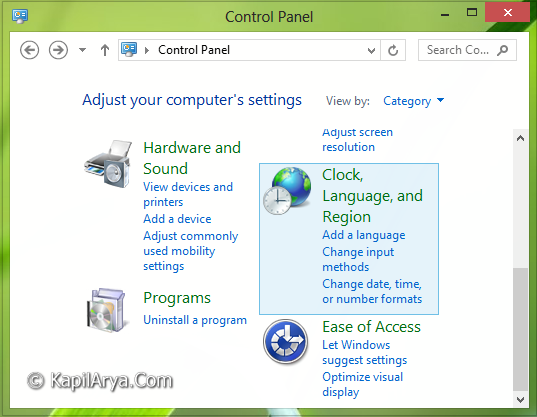
1. Open Control Panel by pressing  + I and then clicking Control Panel. Here, click on Clock, Language, and Region.
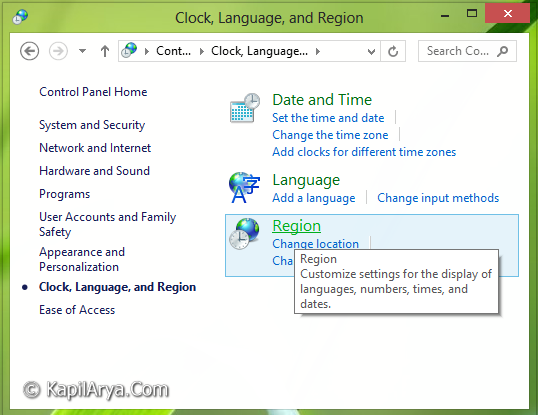
2. Moving on, click Region in following window:
3. Next, come to Region window and switch to Administrative tab. Now, under the hood of Language for non-Unicode programs, select Change system locale. If you are prompted for an administrator password or confirmation, type the password or provide confirmation.
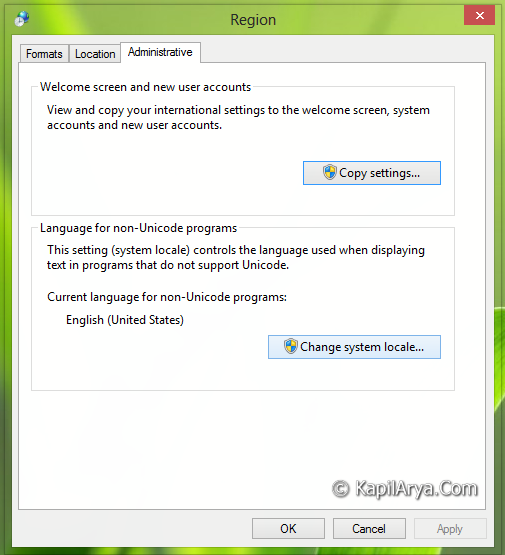
4. Finally, pick your preferred language here. By default, the language is English (United States).
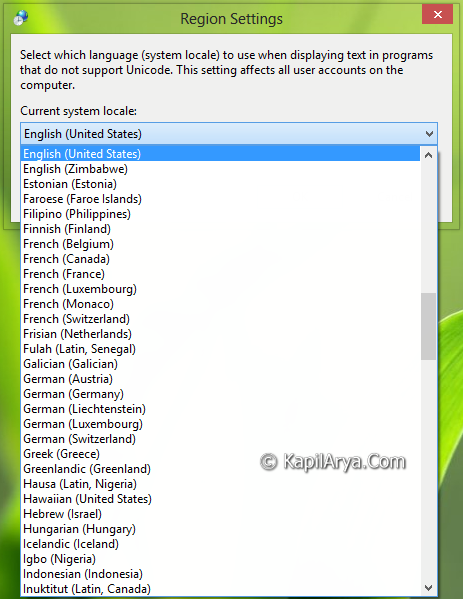
Click OK then. Reboot the system to make changes effective. After restart the problem should be fixed up.
Hope this helps!

Nice find and thanks for share. I had this problem on my Windows 8.1 and finally solve it