

Windows 8.1 is the best of Windows you can get. There is no need to doubt in the fact that start up of Windows 8.1 is few times faster to that of old good Windows XP. The reason behind the fast startup is the presence of Hybrid Boot feature; which saves every session into a system file and this file contributes to load Desktop speedily.
Well, while using Windows 8.1, I came around a strange issue that I faced in Windows 7 a long time back, as far as I could remember. It was the requirement of num lock feature to be enabled. Actually the problem is that num lock configuration doesn’t becomes active or got enabled till you reach sign-in screen. As a result of which you have to press the num lock key additionally to login which could be irritating to you.
If you’re too the victim of this problem, a selective registry modification approach will help you to fix this, which is as follows:
FIX : Num Lock Not Active At Windows 8.1 Startup
Registry Disclaimer: The further steps will involve registry manipulation. Making mistakes while manipulating registry could affect your system adversely. So be careful while editing registry entries and create a System Restore point first.
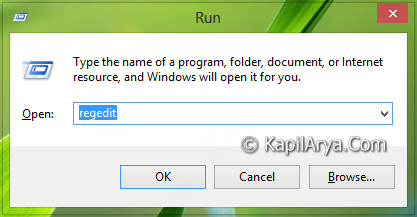
1. Press  + R and put regedit in Run dialog box to open Registry Editor (if you’re not familiar with Registry Editor, then click here). Click OK.
2. Navigate here:
HKEY_USERS\.DEFAULT\Control Panel\Keyboard
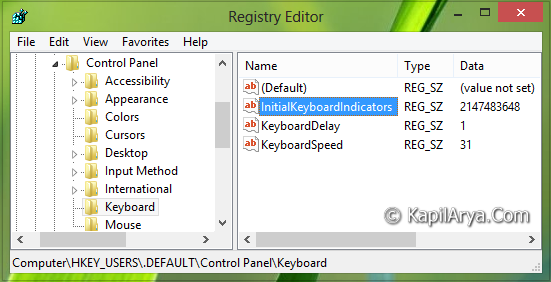
3. In the right pane of this location, look for the registry string named InitialKeyboardIndicators (REG_SZ). Double click on this string to modify its Value data:
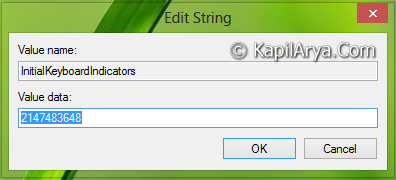
4. In the above shown box, you have to input the Value data equal to 2147483648 or 2. Since you’re facing the issue, you might find a 0 Value data here, so simply change the value. Click OK. You may close the Registry Editor now and reboot to get results.
That’s it!
Bonus Tip : Alternatively, you can disable the Hybrid Boot to solve this issue. (Thanks to Microsoft MVP; Shyam Sasindran for this tip).



The value was already set, and this changes nothing. Try again, please…
^^ Try disabling Hybrid Boot and see if that helps.
This fixed it for me!! I appreciate you providing a step by step, screen shot view (I’m not completely computer illiterate but messing with registry stuff worries me sometimes). The value you said I needed to have entered was already there so I just deleted it and entered 2. Restarted and PRESTO!! No more need to hit Num Lock before entering my password! Thank you so much for a solution to what seems like a simple inconvenience but was a complete and total pain in my arse!!! Thank you, thank you, thank you!
^^ Glad we could help :) Thanks a lot for your valuable feedback!
This helped for the reboot, but when I return from sleep mode it still disables my num lock. I want my num lock always on! How do I apply these changes to sleep mode as well?
Thanks.