

Snipping Tool freezes on your screen. You click the X button or press Alt+F4, and still, the Snipping Tool is not closing on Windows 11. Sometimes it even opens again by itself. This usually happens because of the Print Screen shortcut. Or a stuck background process. Or a broken app update. Thankfully, a few quick fixes below can stop it.
Page Contents
Fix Snipping Tool Not Closing On Windows 11
Fix 1: Disable The Print Screen Shortcut
The Print Screen key often causes the Snipping Tool to keep reopening in the background. Below are the steps:
1. Press Windows + I to open Settings.
2. Go to Bluetooth & devices > Keyboard.
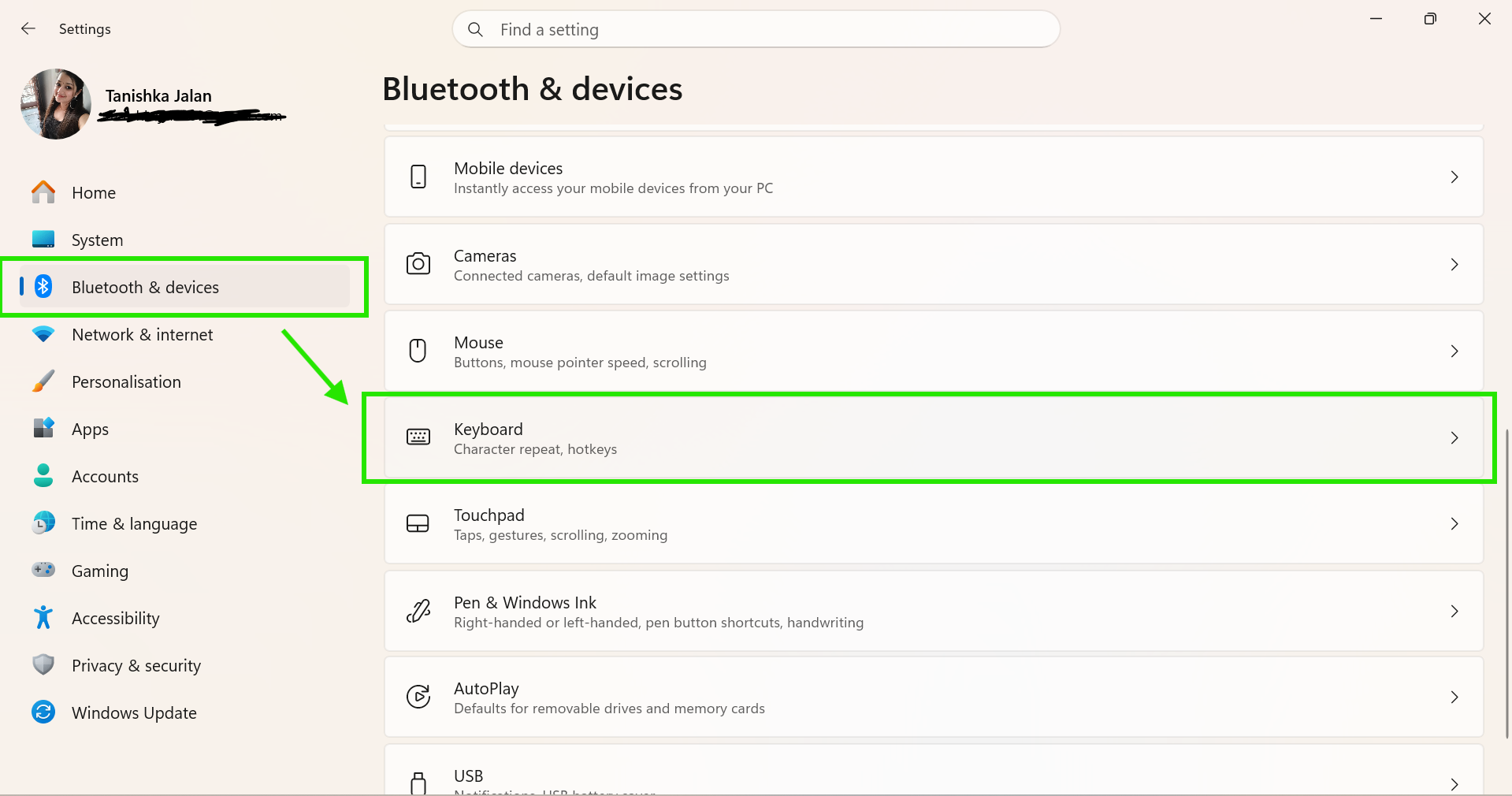
3. Find Use the Print Screen key to open screen capture.
4. Turn the toggle OFF.
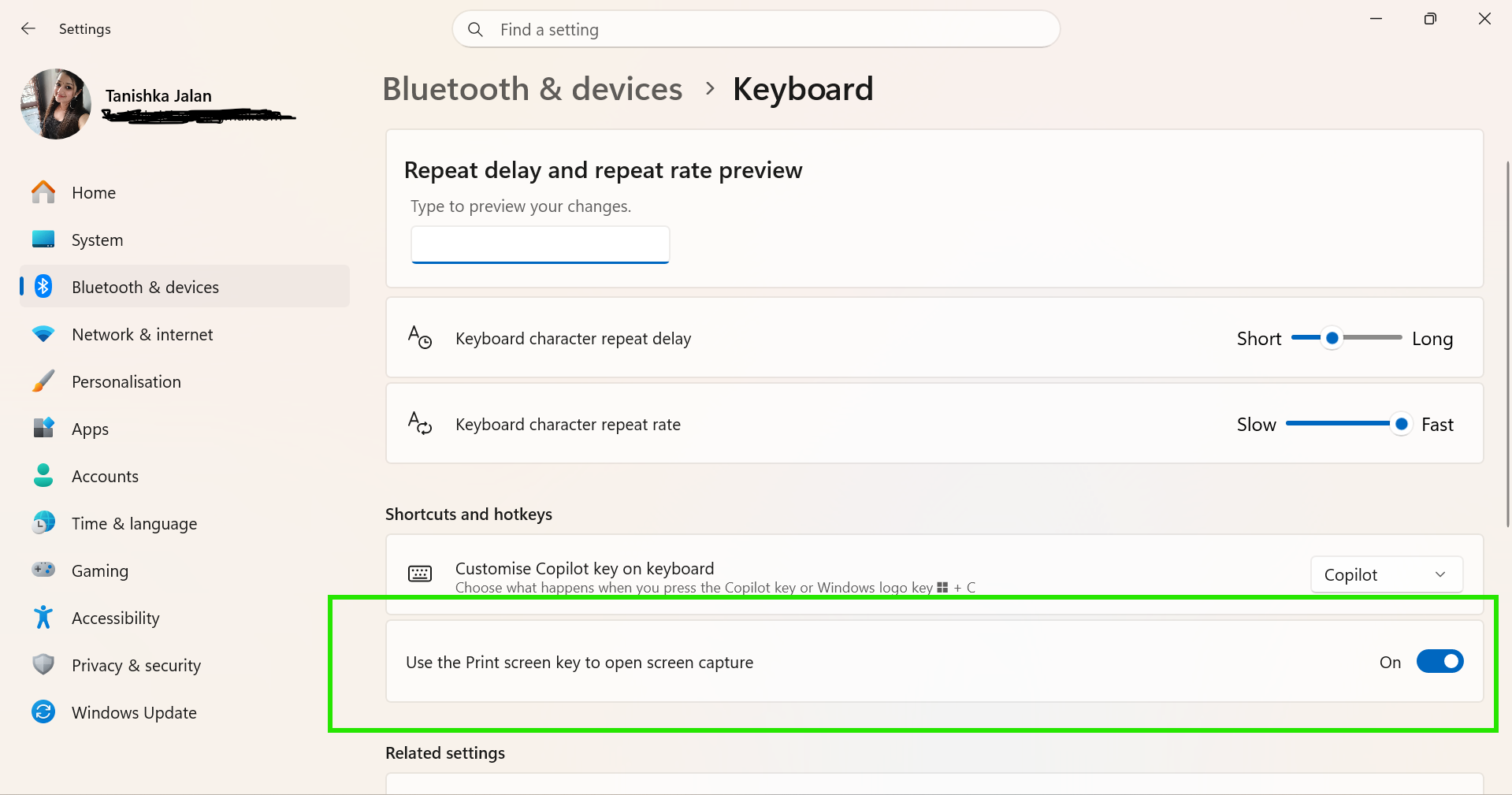
5. Restart your PC.
This is the most effective fix if the Snipping Tool doesn’t close on Windows 11.
Fix 2: Force Close Snipping Tool
Sometimes the app keeps running in the background even after the window closes. Here is how you can stop it:
1. Press Ctrl+Shift+Esc to open Task Manager.
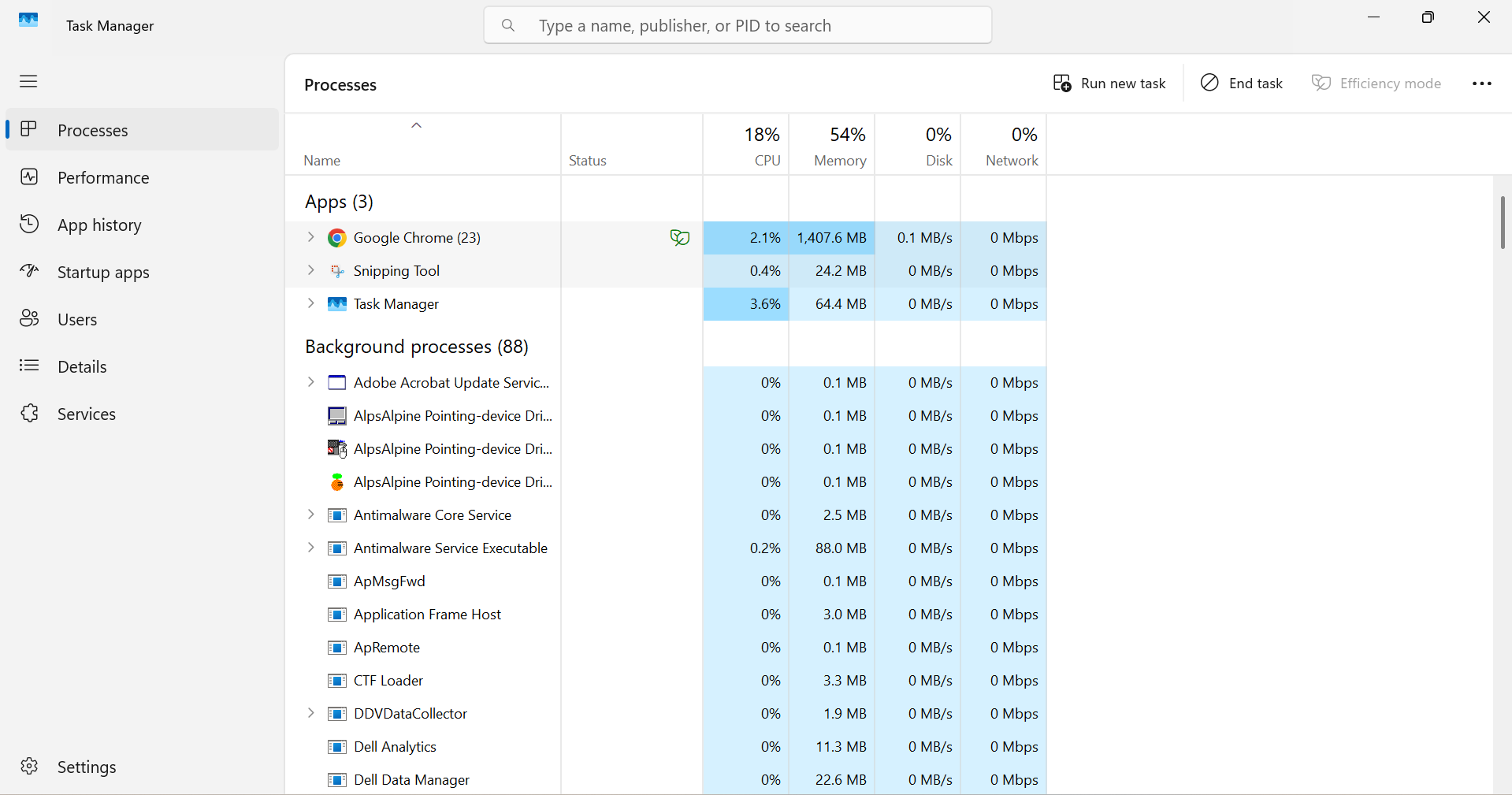
2. Search for Snipping Tool.
3. Right-click it and choose End task.
You can also open Windows + G and end the task from the Game Bar Resources panel.
Fix 3: Repair Or Reset The App
Corrupted app files can cause the tool to hang. So, to close it:
1. Press the Windows key and search for Snipping Tool.
2. Right-click it and select App settings.
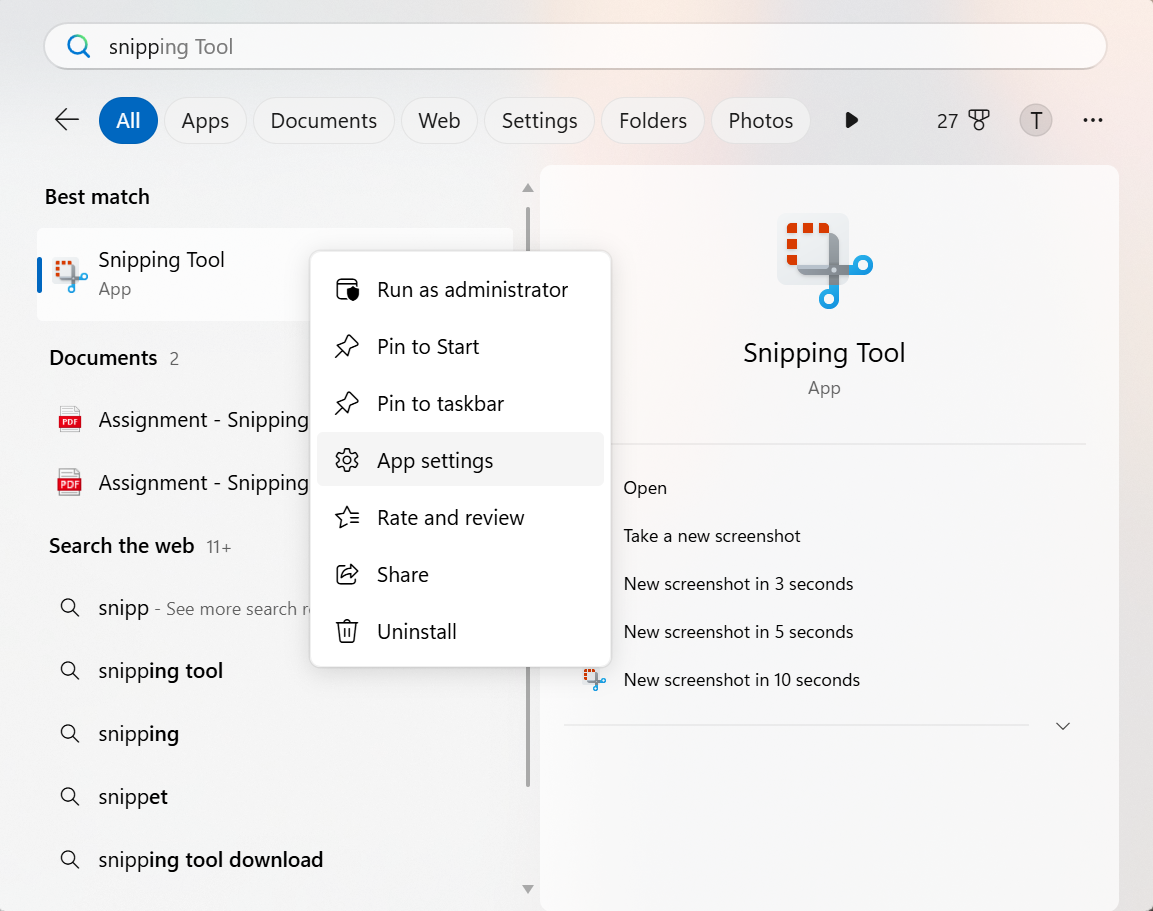
3. Click Terminate first.
4. Select Repair.
5. If the issue continues, click Reset.
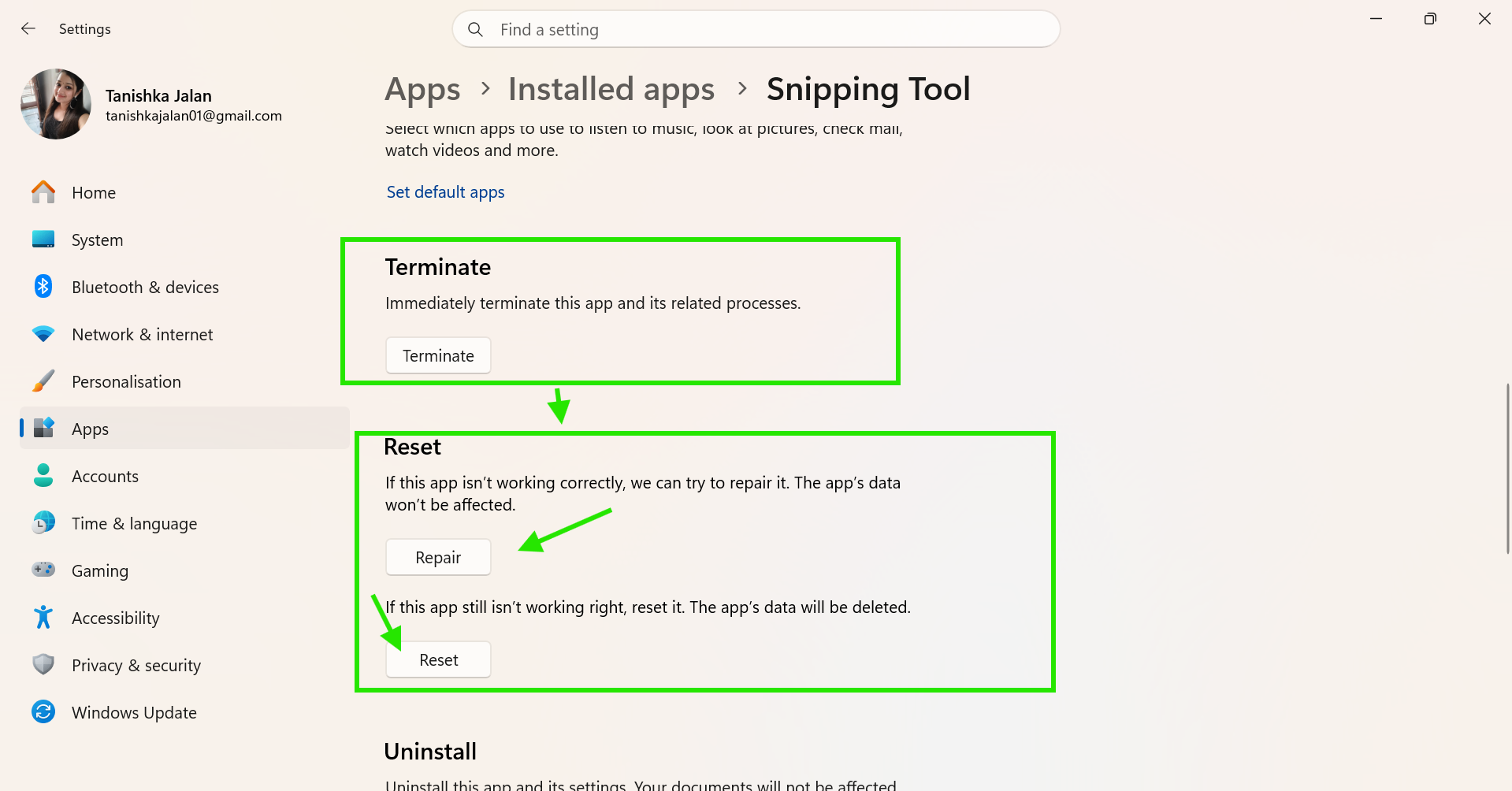
Reset removes broken settings but keeps your screenshots safe.
Fix 4: Remove Startup Entries
Try disabling launch of Snipping Tool automatically during startup.
1. Press the Windows + R.
2. Type shell:startup and press Enter.
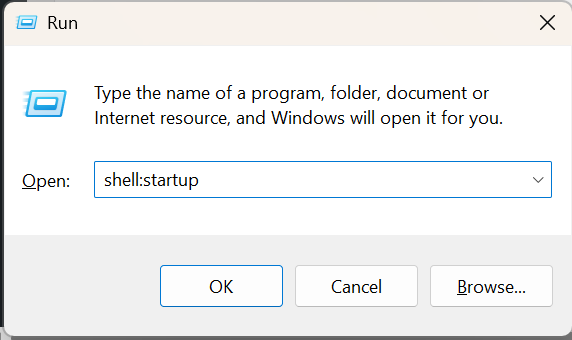
3. Delete any Snipping Tool shortcut.
4. Open Task Manager and disable Snipping Tool under Startup apps.
Restart your computer afterwards.
Fix 5: Reinstall Snipping Tool
If nothing works, you can try to reinstall the app.
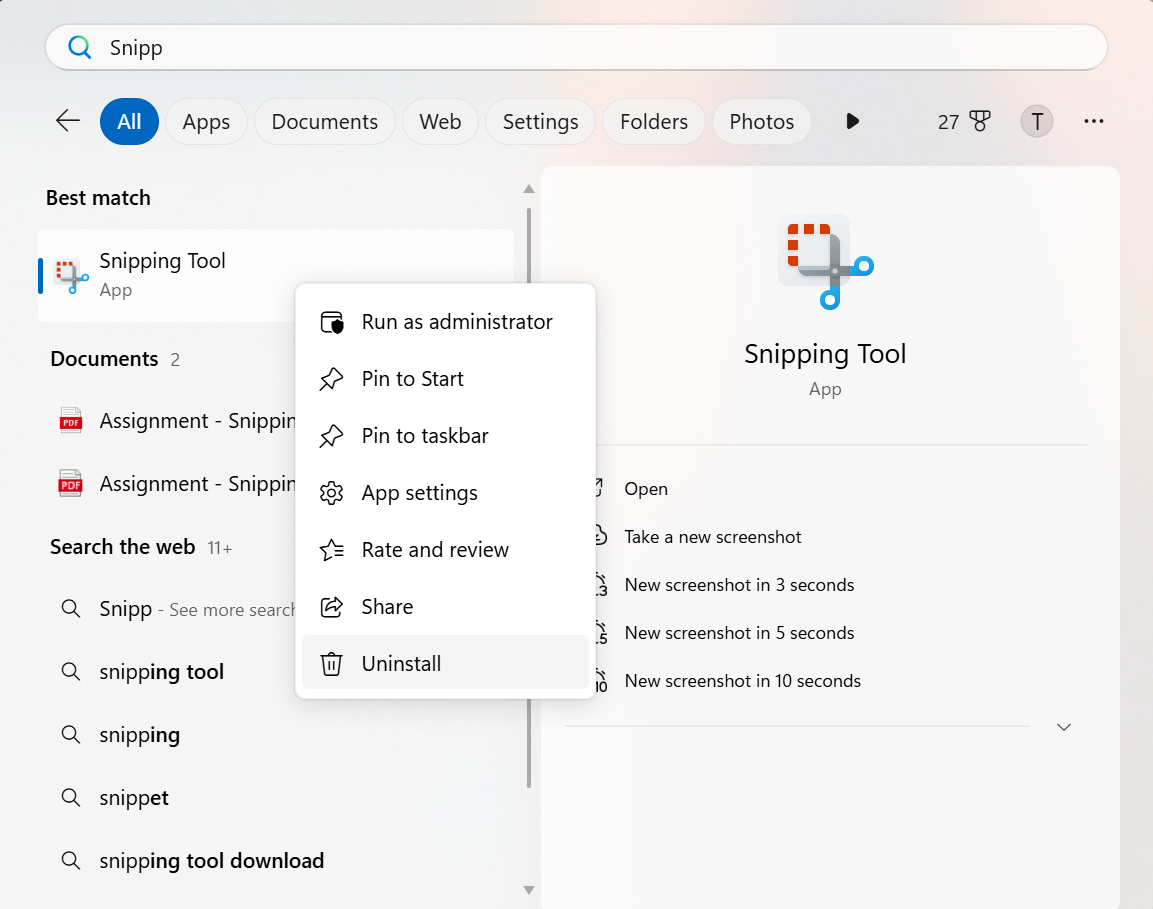
1. Search for Snipping Tool from Start.
2. Right-click it and choose Uninstall.
3. Open the Microsoft Store.
4. Install Snipping Tool again.
5. Restart your PC.
A clean reinstall of the app usually fixes stubborn closing issues on Windows 11.




