

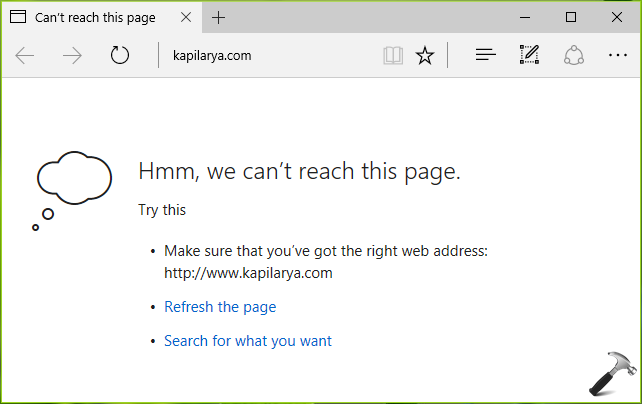
When all of your apps and other browsers can detect that you’re connected to the Internet except Microsoft Edge, then you may need to perform some extra troubleshooting. Today, we’re going to share you the steps to fix this problem of Edge, in this article. When you can’t load pages in Edge, the following message appears:
Page Contents
Hmm, we can’t reach this page.
Everyone knows that Edge is default browser in Windows 10 builds and it is baked into the operating system. Hence it is not possible to reinstall it. As soon as you realize that the problem only happens with Edge, your first step should be to run Network Adapter troubleshooter. You can also try updating your network drivers, if upgrades are available for them. If you still face the problem, try fixes mentioned below.
FIX : “Hmm, We Can’t Reach This Page” Error In Microsoft Edge
FIX 1 – By Setting Preferred and Alternate DNS
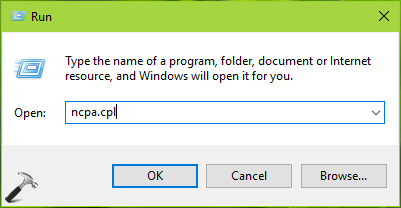
1. Press  + R to open Run, type ncpa.cpl and click OK.
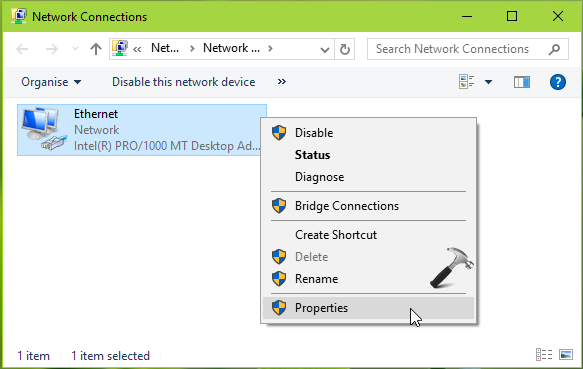
2. In Network Connections window, right click on the your currently used network adapter and select Properties.
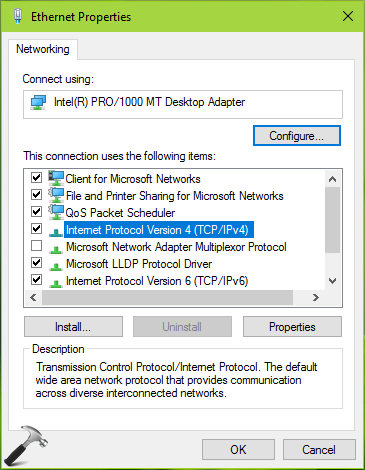
3. Next, under Ethernet Properties window, double click on Internet Protocol Version 4 (TCP/IPV4).
4. Moving on, in Internet Protocol Version 4 (TCP/IPV4) Properties, select Use the following DNS server addresses. Then type Preferred DNS Server value as 8.8.8.8. And set Alternate DNS Server value to 8.8.4.4. Click OK.
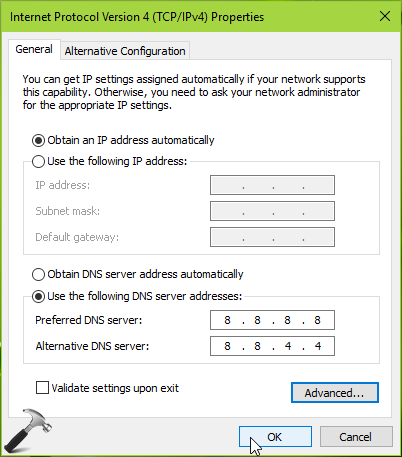
Close Network Connections window and reboot. Now check the status of issue and it should be resolved.
FIX 2 – By Changing Network Connection Type
This issue can also be resolved by changing your network connection type. Results have shown that when you change your network status to Private from the Public one, this problem gets solved. You can use link mentioned below to change your network status:
Steps to switch your network type to Private from Public
I hope after changing network type, the issue wouldn’t not encounter again.
Hope this helps! Still have problem? Go ahead and reset Microsoft Edge to default.





Kapil. I changed the preferred and alternative settings to: 8888 and 8844 about 2 weeks ago and this has completely solved the problem (so far!). Thanks a lot. Very grateful.
Jim.
^^ Glad we could help 😎
Using to Google DNS does not solve the problem. I’m very disappointed to see that that three years on the problem remains
^^ Try using Cloudflare DNS: 1.1.1.1 and 1.0.0.1 or Cisco OpenDNS: 208.67.222.222 and 208.67.220.220.
Thanks Mr. Kapil
It really helped to resolve the issue
^^ Glad to help!