In Windows 11, you can have multiple sign-in options. In addition to password, you can add Windows Hello PIN, Face and Fingerprint login. These options make the login process super fast. After setting Windows Hello PIN, you can set Windows Hello Face and Fingerprint logins. But if your PIN is not working on Windows 11 and you received The dictionary attack mitigation is triggered and the provided authorization was ignored by the provider error, this fix can help you.
Recently, I see this error message on one of my system:

Here’s how you can fix this error on your system.
Page Contents
Fix The dictionary attack mitigation is triggered in Windows 11
Fix 1: Re-setup PIN
You can easily fix this problem by re-setup of Windows Hello PIN manually. This worked for me. Follow these steps:
1. Open the Settings app.
2. In Settings app, go to Accounts > Sign-in options.
3. Under Sign-in options, expand Windows Hello PIN, click Remove. Confirm this operation if prompted.

4. Once PIN is removed, you can re-setup it from same Windows Hello PIN section.
If re-setup of PIN doesn’t helps, read on to Fix 2.
Fix 2: Delete NGC Folder contents
If your PIN is not working, then first fix it with this solution.
1. Open File Explorer and then go to this path:
C:\WINDOWS\ServiceProfiles\LocalService\AppData\Local\Microsoft
2. Take ownership of Ngc folder. Then Replace owner on subcontainers and objects option under Owner in Advanced security settings window. You need to check that option to continue. Click Apply, OK.
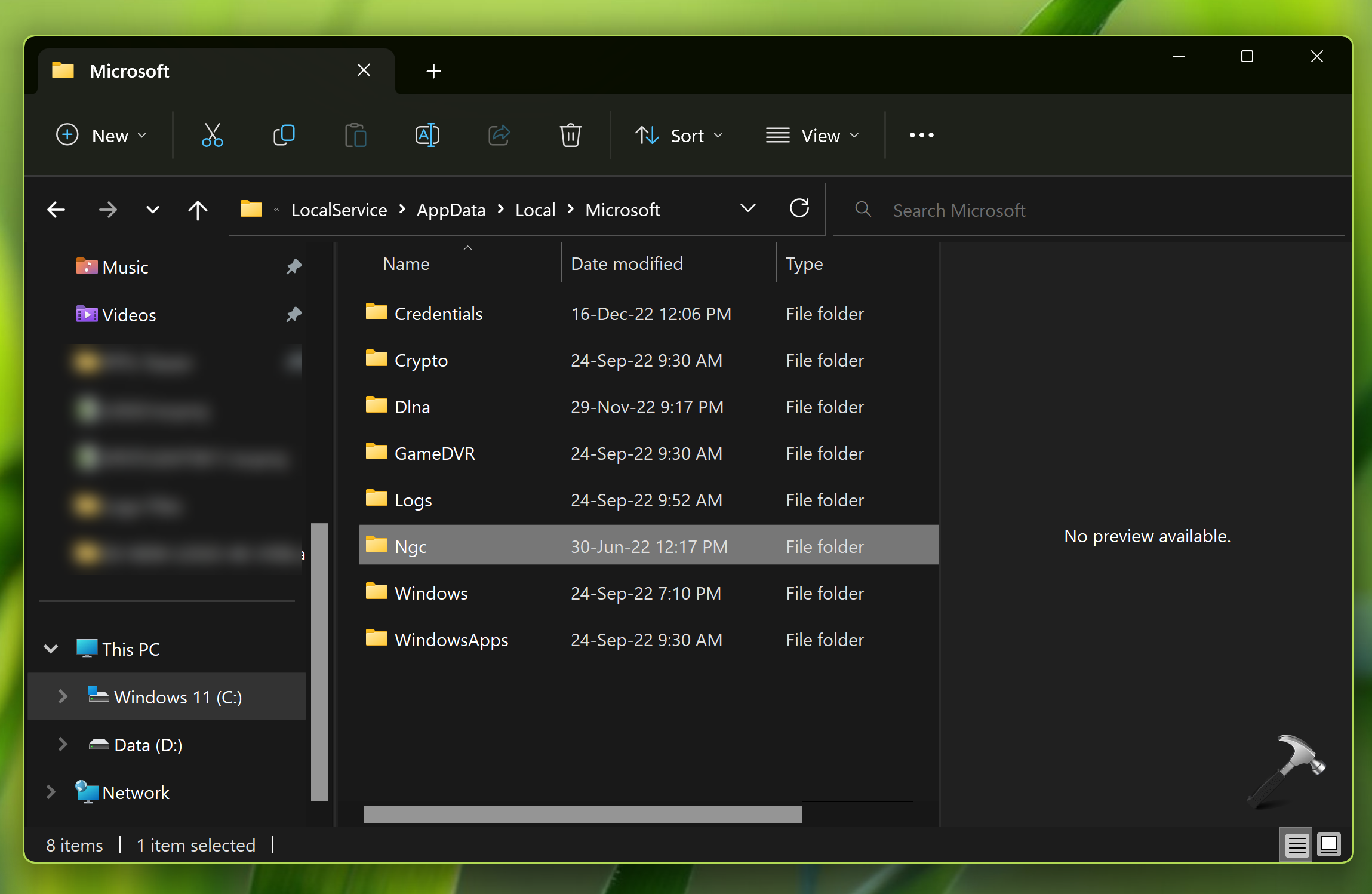
3. Now rename the Ngc folder to Ngc.old.
4. You can now again try setting up your Windows Hello PIN, followed by face login, fingerprint login.
Fix 3: Resetting ACLs On Ngc Folder
This problem might also occur, if Access Control Lists (ACLs) on Ngc folder are corrupted. Thus you must reset ACLs for Ngc folder to make PIN working again.
1. Right click on Start Button and select Command Prompt (Admin).
2. In the Command Prompt window, type following command (replace C: with your system root drive) and press Enter.
icacls C:\Windows\ServiceProfiles\LocalService\AppData\Local\Microsoft\Ngc /T /Q /C /RESET
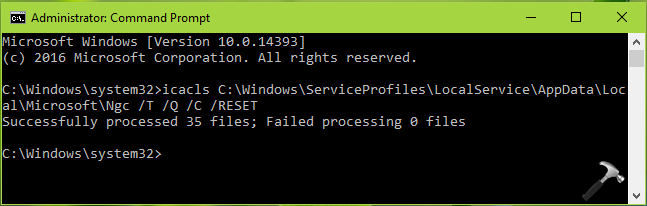
3. Close Command Prompt.
You might need to add a new PIN or re-setup it now and it should work as expected.
Hope this helps!