Windows 11 users can now interact with Copilot hands-free using the new Hey Copilot voice activation feature. It lets you open, ask, or control Copilot simply by saying the phrase aloud; no keyboard or mouse is needed. However, not everyone finds it useful, and some may prefer to keep it off to save resources or prevent accidental triggers.
Page Contents
Enable or disable Hey Copilot on Windows 11
Hey Copilot is Microsoft’s voice-activated assistant feature that lets users wake up and interact with Copilot through voice commands. When it is on, you can say Hey Copilot to open the assistant and ask it to perform tasks like changing settings, drafting text, or looking up information. This article will show you how to enable or disable Hey Copilot in Windows 11 using a few simple methods.
Use the Copilot Settings Panel
- Open Copilot by pressing Windows + C or selecting it from the taskbar.
- Click on the three dots in the bottom left next to your email.
- Go to Settings (gear icon).
- Scroll down to find Listen for ‘Hey, Copilot’ to start a conversation and toggle it on or off as desired.

If you turn it off, Copilot will still work, but only when you open it manually.
Change Microphone Access via Settings
You can change microphone settings to adjust Hey Copilot.
- Open Settings and go to Privacy & security, then Microphone.
- Under Let apps access your microphone, locate Copilot in the list.
- Turn the toggle off to stop Copilot from listening for the wake phrase.
- You can turn it on again anytime to re-enable voice access.
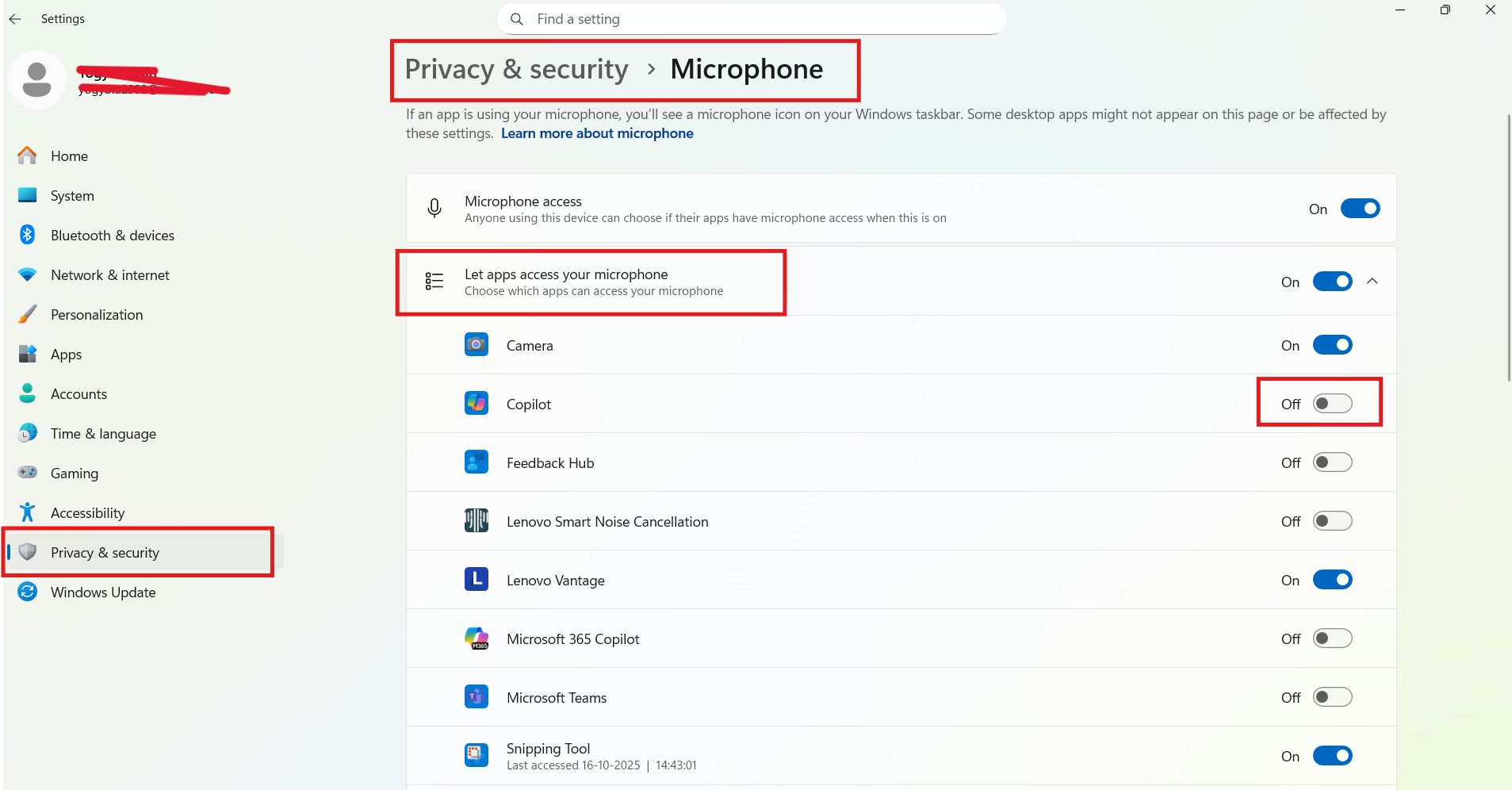
This is the easiest method for most users who want a quick way to control the feature.
Enable or Disable Hey Copilot via Registry Editor
If you prefer a more technical approach or need to apply the change system-wide, you can modify the Windows Registry.
Warning: Editing the registry incorrectly can cause system issues. Back up your registry before making changes.
Press Windows + R, type regedit, and hit Enter.
Navigate to the following key:
HKEY_CURRENT_USER\Software\Microsoft\Copilot/VoiceActivation
Find or create a DWORD (32-bit) value named VoiceActivationEnable.
Set its value to 1 to enable Hey Copilot or 0 to disable Hey Copilot.
Restart your PC to apply the changes.
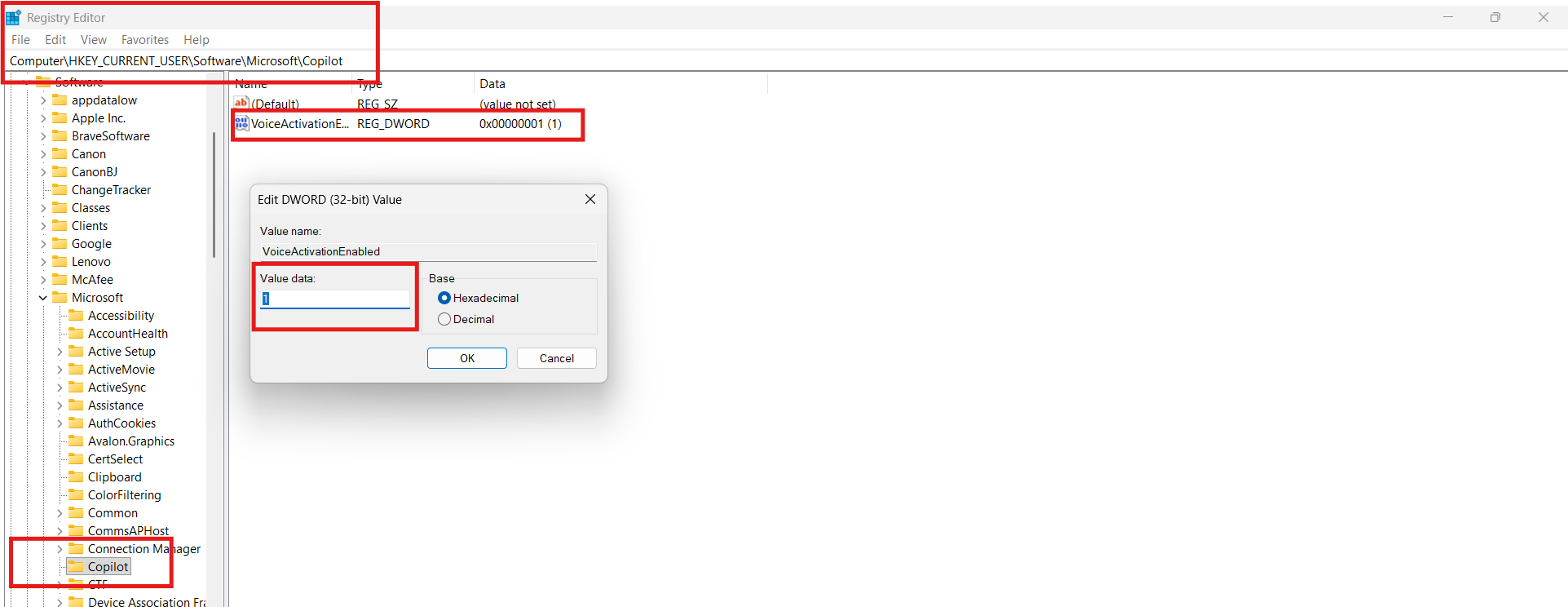
This method is ideal for IT admins or users who want precise control over the feature.
Why You Might Want to Disable Hey Copilot?
These may be the reasons why want to turn off or disable Hey Copilot:
- Privacy concerns – Voice activation can keep your microphone partially active.
- Performance – Turning it off can slightly reduce background system usage.
- Accidental triggers – Avoid unintended activation when speaking near your PC.
Wrapping Up
“Hey Copilot” makes Windows 11 more conversational and hands-free, but it’s not for everyone. Whether you want quick access or a quieter desktop, you can easily enable or disable “Hey Copilot” using the methods above.