An endless Windows 11 sign-in loop happens when it keeps asking you to sign in over and over you enter your credentials, and it jumps right back to the login screen again.
Page Contents
Fix: Endless Windows 11 Sign-In Loop
This usually stems from account authentication glitches, corrupted credentials, or misconfigured sign-in options in the OS. Below are reliable methods to break that cycle and restore access. Use fix 1 to 4 if you can still get to your desktop and methods 5 to 7 if you are completely locked out.
Fix 1: Switch to a Local Account
Windows 11 often pushes Microsoft account sign-ins by default. Switching to a local account can stop repeated prompts:
1. Open Settings and then Accounts.
2. Select Your info.
3. Click Sign in with a local account instead and follow the steps.
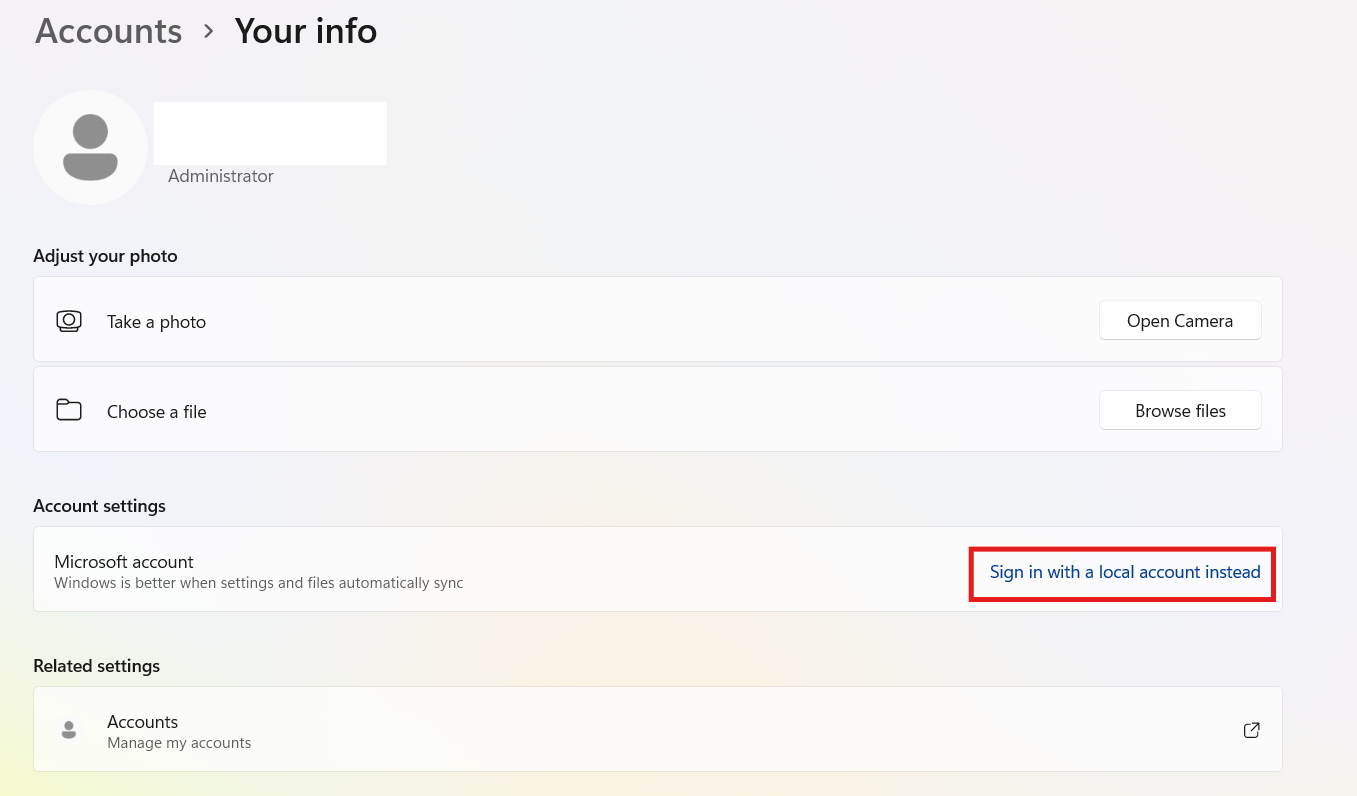
Using a local account removes constant Microsoft authentication checks that can cause loops.
Fix 2: Adjust Sign-In Options
Sometimes Windows keeps demanding credentials simply due to sign-in lock settings:
1. Open Settings and click on Accounts. Go to Sign-in options.
2. Toggle OFF the switch for For improved security, only allow Windows Hello sign-in…
3. Under If you’ve been away, when should Windows require you to sign in again?, select Never.
4. Toggle OFF the option to Use my sign-in info to automatically finish setting up after an update.
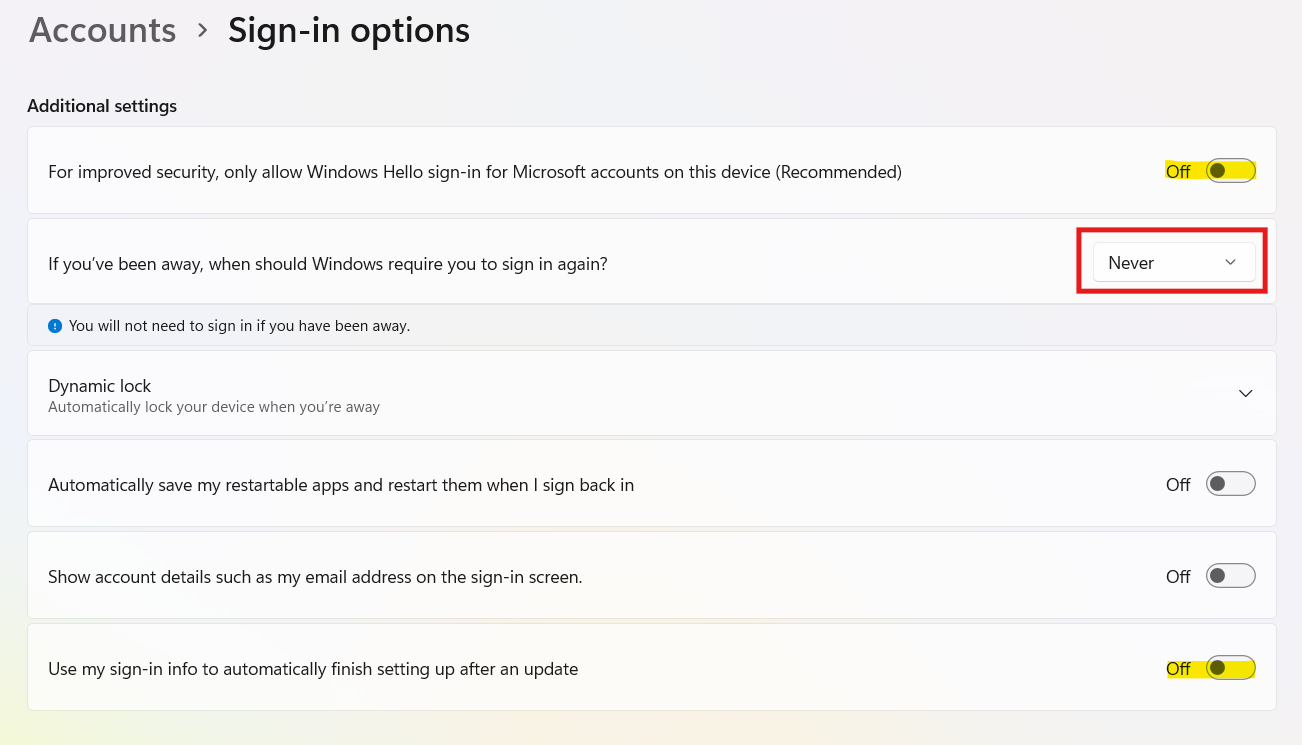
This stops Windows from asking you to authenticate when waking or after updates.
Fix 3: Sign Out and Back Into Your Microsoft Account
Refreshing your Microsoft account session often breaks a loop caused by stale tokens:
1. Click the Start button, select your Profile icon/name in the bottom-left corner, and click Sign out.
2. Restart your PC and sign in again.
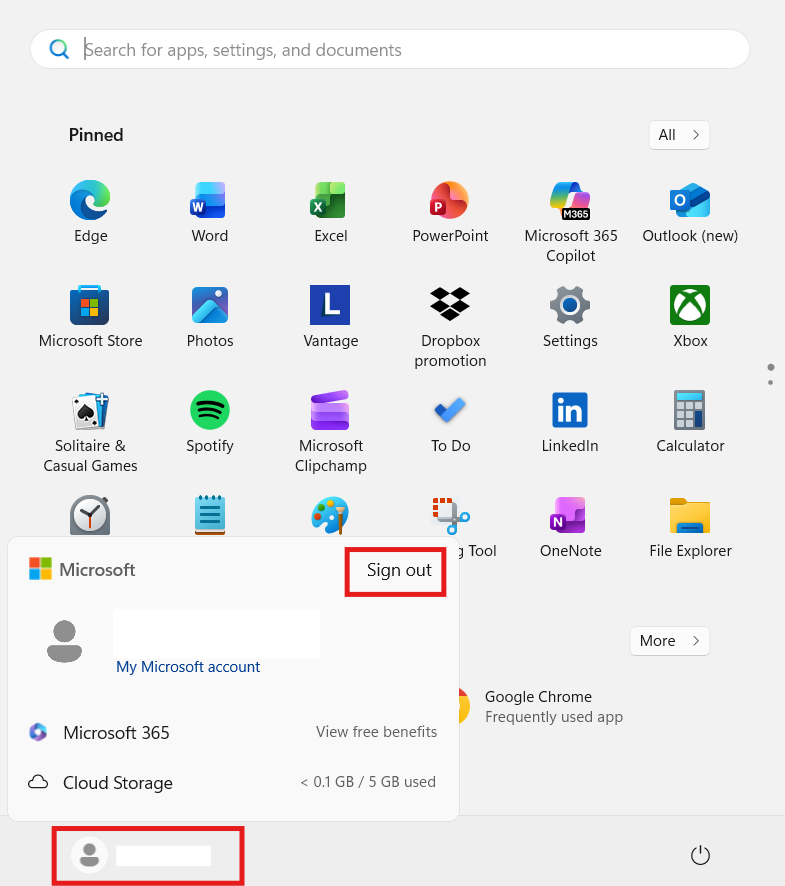
Doing this forces Windows to revalidate your credentials cleanly.
Fix 4: Clear Cached Credentials
Old or corrupted credentials stored on your device can stop authentication:
1. Search Credential Manager in the Start menu.
2. Choose Windows Credentials.
3. Delete outdated or conflicting Microsoft account credentials.
4. Restart and try signing in again.
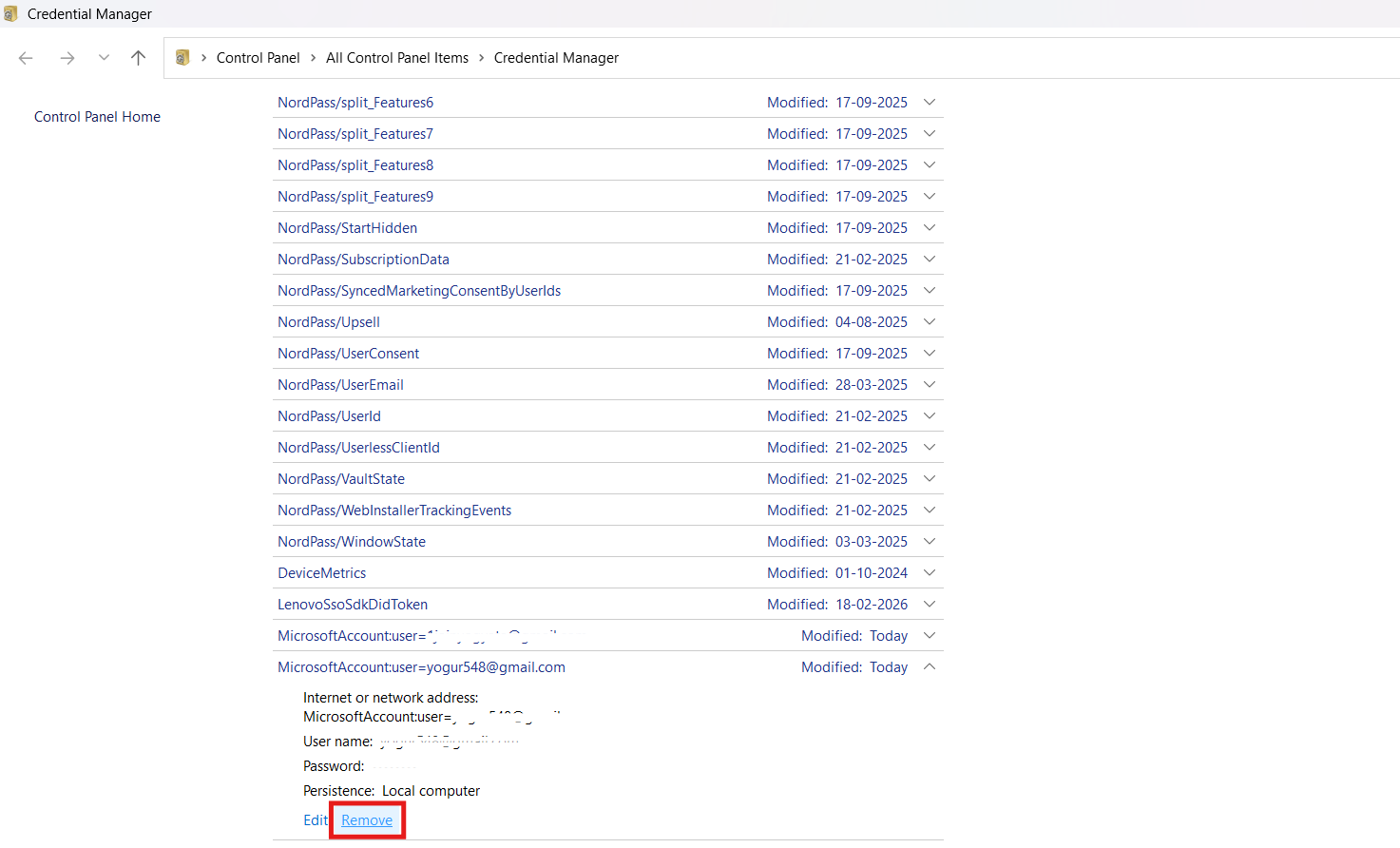
This removes saved log-in tokens that could be causing the loop.
Fix 5: Use Safe Mode to Reset Sign-In Options
If you can’t break the loop from the login screen:
1. Hold Shift while selecting Restart from the power menu.
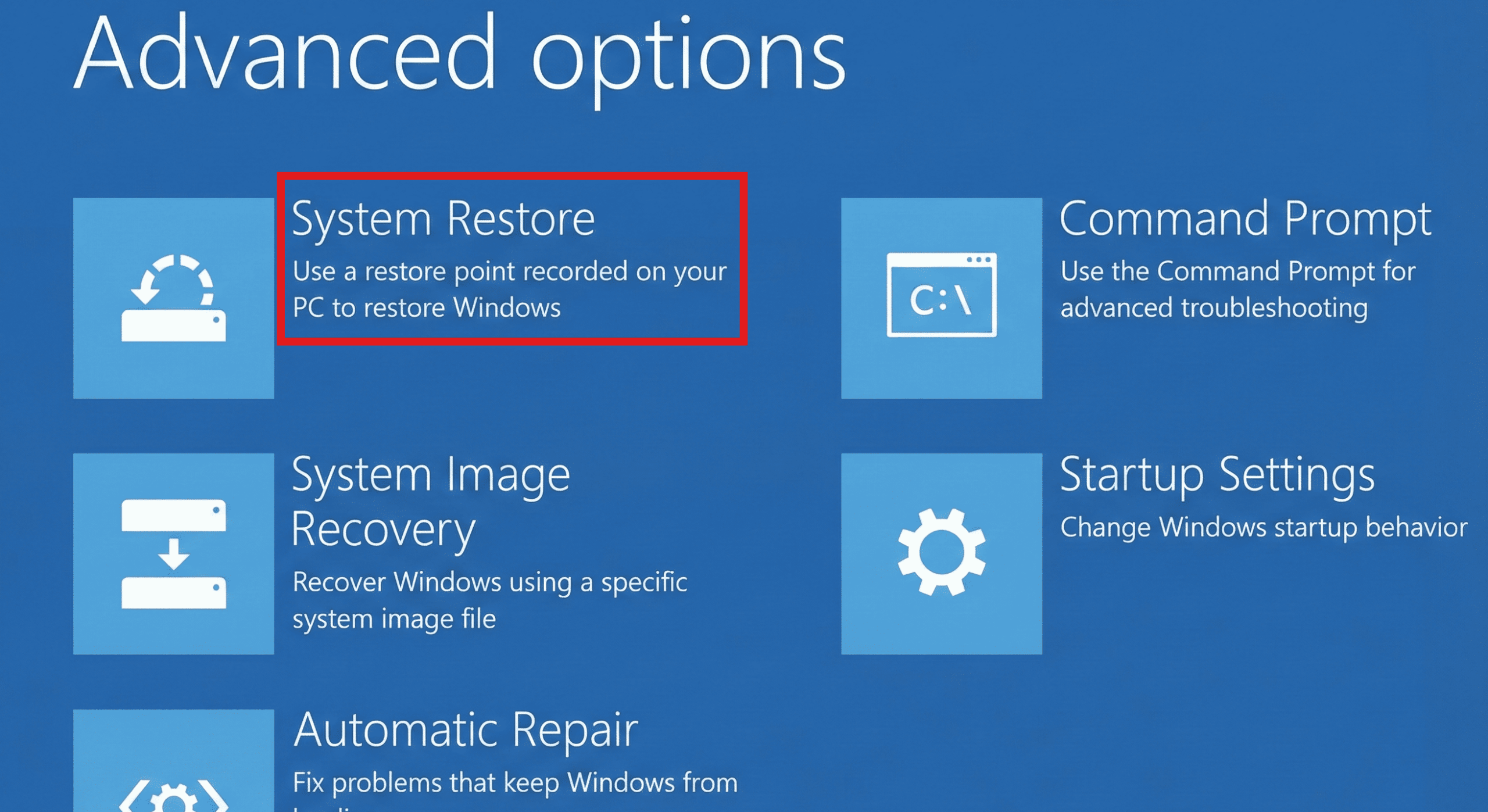
2. Choose Troubleshoot and then go to Advanced options. Choose Startup Settings and then Restart.
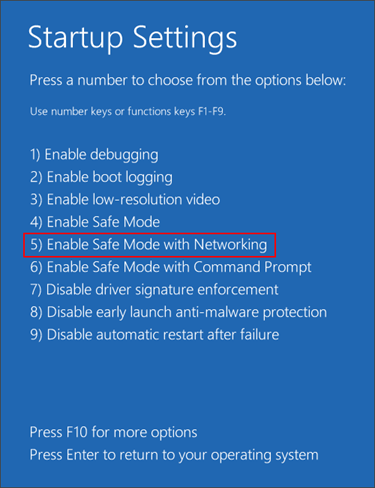
3. Press 5 (F5) for Safe Mode with Networking.
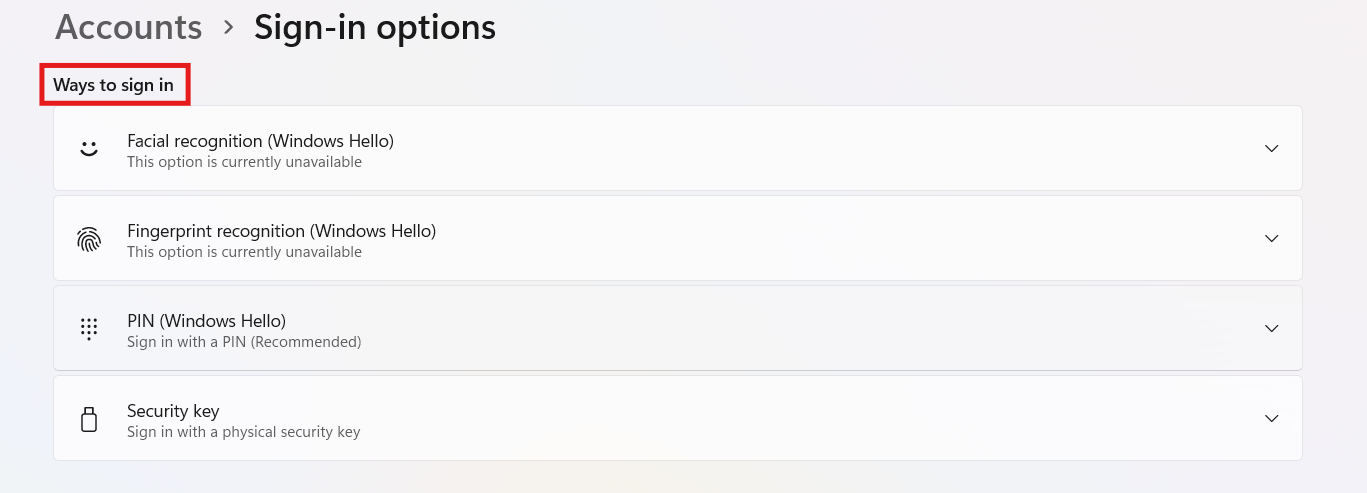
4. Once in Safe Mode, open Settings and go to Accounts. Then, Sign-in options and correct your login preferences.
Safe Mode lets you fix settings without the loop interfering.
Fix 6: Repair corrupted system files
Corruption in system sign-in components can trigger loops:
1. Boot into Safe Mode or Recovery Environment.
1. Open Command Prompt (Admin).
2. Run:
sfc /scannow
And then run:
DISM /Online /Cleanup-Image /RestoreHealth
3. Restart and try signing in again.
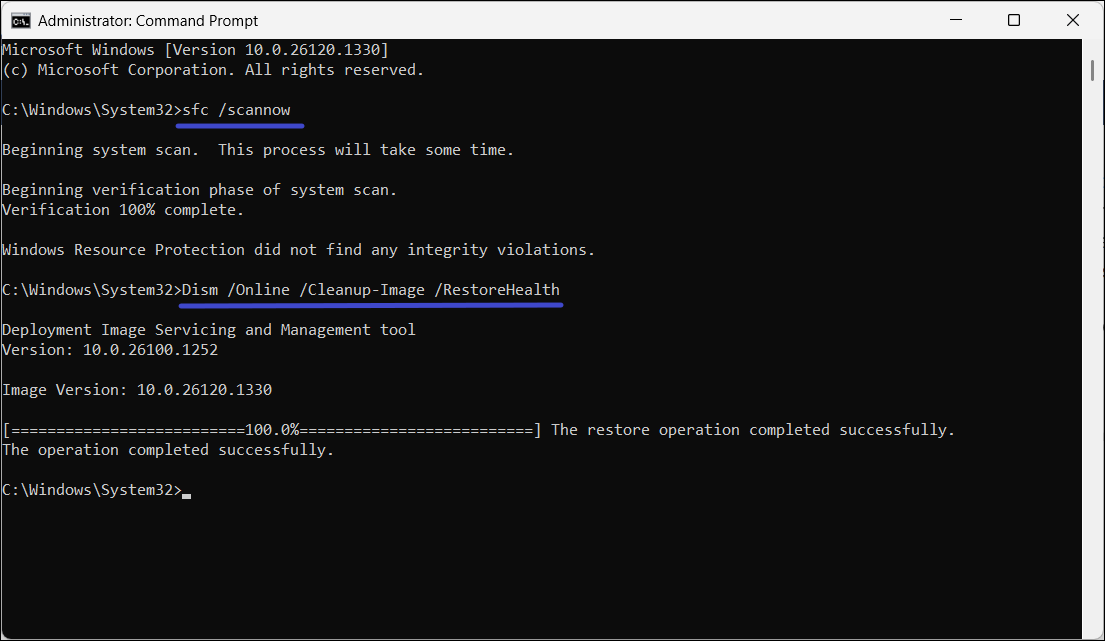
These scans fix corrupted core files that may be blocking login.
Fix 7: Use System Restore / Reset as Last Resort
If nothing else works, restoring your system to an earlier point can roll back problematic updates or changes.
1. Boot to Advanced Startup (hold Shift + Restart).
2. Choose Troubleshoot and then choose Advanced options. Go to System Restore.
3. Pick a point before the login loop began.
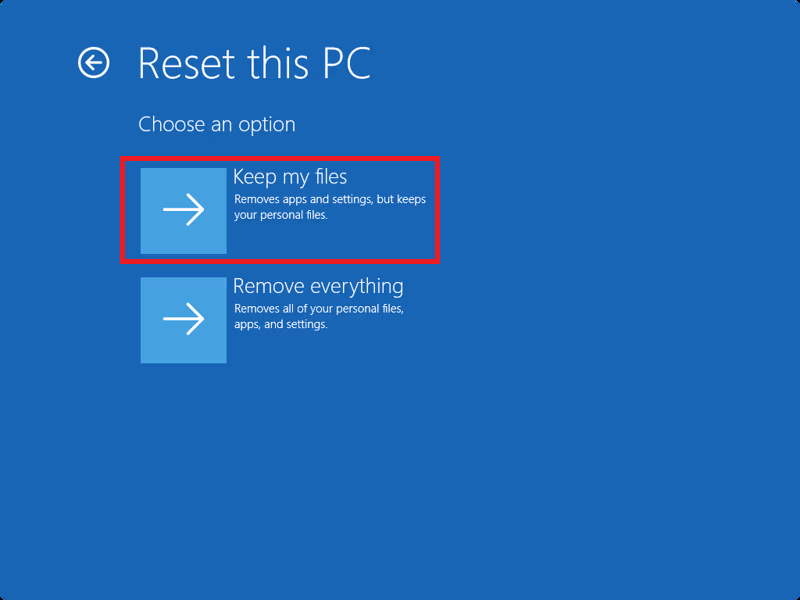
Alternatively, if restoration fails, go to Troubleshoot again, then select Reset this PC. After that, select Keep my files to reinstall Windows while preserving your personal photos and documents.
Summary
An endless sign-in loop usually comes from stale credentials, sign-in settings, or system corruption. Switching to a local account, clearing credential caches, adjusting sign-in policies, and repairing system files typically resolves it. If issues persist, using Safe Mode or performing a System Restore can break even stubborn loops.
![Windows needs your current credentials [Fix]](https://www.kapilarya.com/assets/password_icon_1783831080.jpg)