

Using various sign-in options available for your Windows 10, you can enhance the security of your account. One of these sign-in options available to us is setting up a PIN. We’ve already seen how to set up, change or remove your PIN in Windows 8 or later, in following guide:
How to set up, change PIN in Windows 8 or later
Now recently one of the reader emailed me a query in which he was not able to change his existing PIN on a Windows 10 running machine. Whenever he tries to change the PIN, following error message appears:
Page Contents
Something Went Wrong. Try Again Later.
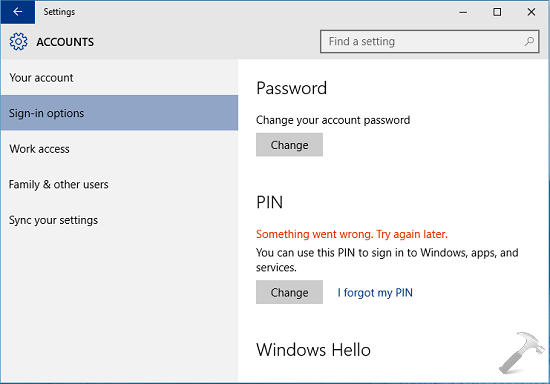
In this case, he was able sign in as usual using the traditional password and Picture password. I suggested him to following ways to solve the issue:
1. Asked to change the Microsoft account password and verify the identity again on the system
2. Switch to local account from Microsoft account and vice versa
3. Try creating a new user account and set up a PIN for that.
Of these suggestions, only third point worked for him. But he was not satisfied with that since he don’t want to create another account and move stuff for just to let PIN sign-in working. Also he was able to logon perfectly using other sign-in options available.
So in case, if you’re also facing this issue, here is how you can solve it:
FIX : “Something Went Wrong. Try Again Later.” While Changing PIN In Windows 10
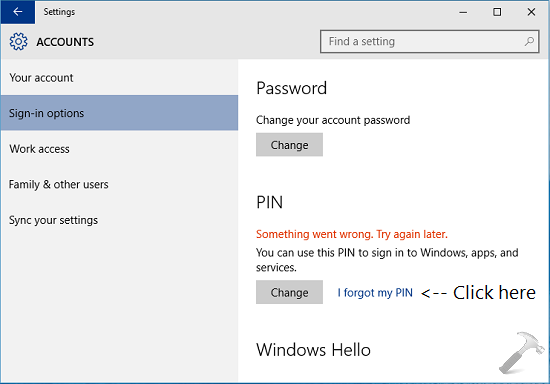
1. Navigate to PC Settings -> Accounts -> Sign-in options. Click on I forgot my PIN link.
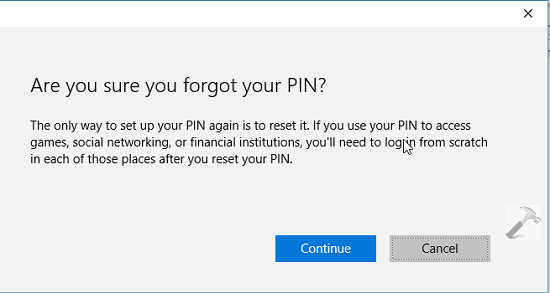
2. Next, click on the Continue button in the Are you sure you forgot your PIN? screen.
3. You can now add a new PIN and click OK.
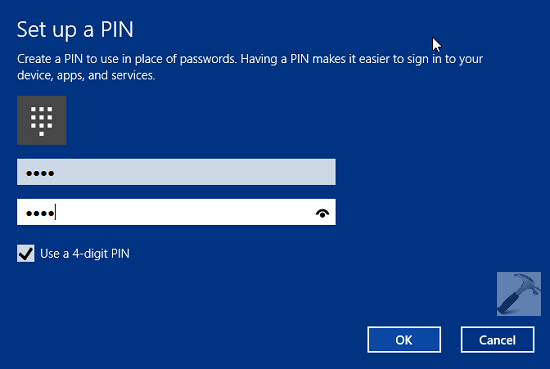
After adding new PIN, restart the machine to verify, and you’ll find that everything is working fine, consequently the error would disappear as well.
Hope this helps!
Also check: PIN not working in Windows 10.


There is no change option in PIN my dear. here shows add option. when i tried to add, it asks password to verify and then generates same error.
^^ Until you add your PIN, how you can suppose the Change option there :) If you have added the PIN, you must get I forgot my PIN link :D
Wrong, I have the same issue. And, on one tablet I have the PIN option and also on my laptop, but on a new tablet using the same Microsoft account I don’t get the PIn option and when I try to set one up I get the error message that something went wrong try again later.
That may work for some but my computer doesn’t give me the “I forgot my PIN” option. It just gives me the red “Something went wrong. Try again later” error message. There is no “I forgot my PIN” option. I can sign in with my password but not a PIN. Any suggestions?
Same here…….upgraded to win 10 and wanted to set up a PIN so i can use “hello”.
But everytime i set a PIN using 6 numbers, its saying “something went wrong” I also have no “i forgot my PIn” (maybe cos i couldnt create a PIN in the 1st place……..
I wish id never upgraded now !!!
Also just to add……ive now had 3 live chats with remote help with microsoft lasting nearly 2 hours in total.
The first adviser done some sort of command prompt scan which found a couple of errors and were automatically fixed, but after i restarted, it still wouldnt let me create a PIN.
The second adviser eventually done a “in place install”…..he told me that if we done that, i would not be able to go back to windows 7, and he also said that doing the “in place install” WOULD solve my issue, so i agreed that we proceed…….and yes you guessed it, after a restart, i still could not create a PIN !!!!!
By this stage i was pretty fed up after being told it WOULD work.
Finally the 3rd operator tried several different things and was in control of my pc for over an hour including creating a new user account and many other things which were beyond my limited knowledge.
So im now in the same position as i was before the 3 sessions of “remote” help with a windows 10 that wont let me create a PIN.
The adviser finally told me that if i had a win 7 disk, i could do a clean install of win 7 but many many of my apps/programs would have to be re-installed……and as i have lots and lots of things on my pc and would be a nightmare for me with my very limited know how.
Really really fed up already with win 10, and ive only had it 2 days !!!!!!!
^^ Refer: https://www.kapilarya.com/fix-pin-not-working-in-windows-10