

Previously, we told you about INACCESSIBLE_BOOT_DEVICE Blue Screen of Death (BSOD) error in Windows 10. Today, we’re back with yet another BSOD error faced by many users on Windows 10. Like other BSOD errors, with this stop error, system interrupts the session and reboots on its own, else you may require to restart it.
The blue screen received in this case may mention following error message:
Your PC ran into a problem and needs to restart. We’re just collecting some error info, and then we’ll restart for you.
If you’d like to know more, you can search online later for this error: PAGE FAULT IN NONPAGED AREA
Specifically see: [FIX] Your PC Ran Into A Problem And Needs To Restart
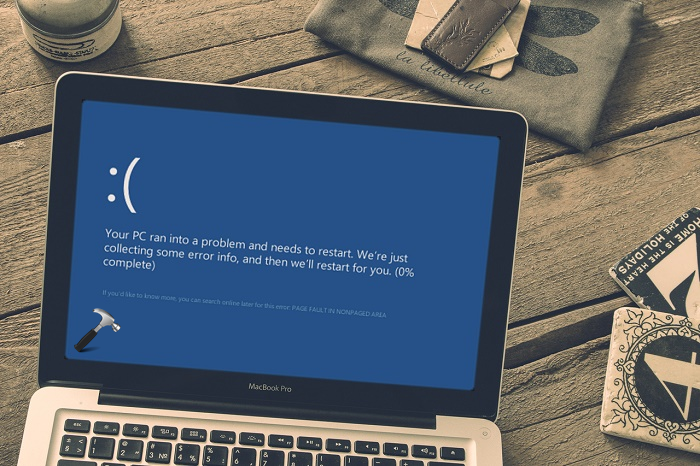
Generally, the root cause of this blue screen error may be size of paging file. The paging file aka pagefile.sys is something on which Windows moves least used pages of memory, when you’re running lots of programs with heavy memory consumption. If the size of paging file is not handled by Windows, this blue screen may came into play. Other factors dominating to this error can be faulty drives or system programs. If you’re getting this BSOD frequently, you need to act and try following fixes to solve the problem:
Page Contents
FIX : PAGE FAULT IN NONPAGED AREA BSOD In Windows 10
FIX 1 – Prevent Windows From Automatically Managing PAGEFILE.SYS
1. Follow steps 1-3 of this article.
2. In the Virtual Memory window shown below, uncheck Automatically manage paging file size for all drives option. If you uncheck the option, you must define Custom size for the paging file. You can input the values according to your system specifications. Click Apply followed by OK, when you’re done.
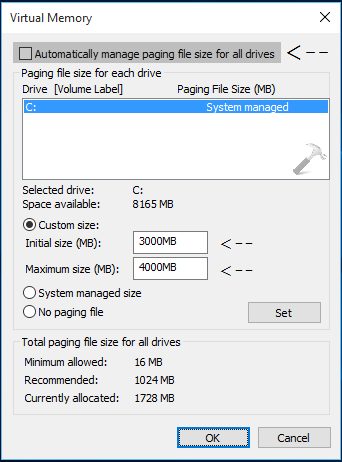
You have to reboot you system in order to make changes effective. After restarting the machine, you’ll find that the problem no longer persists.
FIX 2 – Boot Into Safe Mode
We all know that in Safe Mode, the system uses minimum set of resources. Hence if a faulty driver is causing this problem, the issue shouldn’t occur in Safe Mode. So boot into Safe Mode using following steps, to verify if a driver is culprit or not.
How to boot Windows 10 into Safe Mode
If you find that problem can’t be reproduced in Safe Mode, then update your system drivers. For that, go to Device Manager (by running devmgmt.msc command) and right click on device drivers and select Update Driver Software.
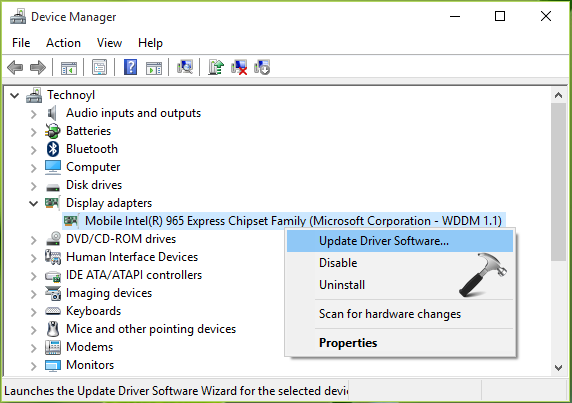
In case, if you’re still facing the issue, you may need to reinstall Windows 10 without affecting your personal files and apps. This may be taken as permanent fix for the problem.
Let us know if something help you!




Hi Kapil, I just got a new Lenevo u41 laptop with Windows 10. Everything works fine unless I start downloading from torrent. I always get the page fault in non paging area error. It never happened in any of my previous laptops with Windows 7 and above. I tired all your above options and all the drivers are updated. Still I am facing the issue. Wondering if you can help.
^^ Can you reproduce the problem when you’re in Safe Mode?
I’m having the same problem with Saumya, and the same model of laptop lenovo u41.
anyone has found a fix for these?
^^ Please check if booting in Safe Mode works for you!
Same problem with me while downloading through utorrent showing me the problem on dell 3543 laptop
Having this problem upgrading 10.0.17618.rs_prerelease.180302-1651 => 10.0.17623.1002.rs_prerelease.180310-1600 (RS5 – Skip Ahead Build Feed). We’ll see if this fixes the page fault at reboot – attempting another recovery, as I type.
Nope, still getting the PAGE FAULT IN NONPAGED AREA stop code – likely bugs.
I’ll report it. Thx anyway!
^^ Yes, report it to Feedback hub 😊
I have a problem with my Windows 10 computer. This morning when I tuned on my computer it started but it gave me a blue screen with a page fault: saying ” PAGE FAULT IN NONPAGED AREA” and it shut down and restarts again and it keeps on dowing that.
I don’t know what happend but I can’t use my computer any more. Please help me if you can
^^ Access Safe Mode using Advanced Recovery Options screen: https://www.kapilarya.com/how-to-access-advanced-recovery-options-in-windows-10
hii kapil aarya this same problam is my laptop pleass replay me
my gmail.. *Email removed for privacy*
Hi kapil this error comes when I connect to my Internet and I tried everything and it didn’t work at all please contact me :(
^^ Please run Network Adapter troubleshooter and let me know what it reports back: https://www.kapilarya.com/how-to-use-built-in-troubleshooters-in-windows-10
I have same problem just when I update windows 10
can anyone help me please ..
I am having this issue on my older PC. I have tried other ram and Hard drives without success. I noticed that it happens only after I or Windows 10 update installs the drivers for the IMEI (Intel Management Engine Interface). The PC will run fine until this driver is installed. Ruling out RAM, page file or HDD IMHO. Can we get a real solution for this problem please.
what does it mean “You can input the values according to your system specifications.”?
I reinstalled window10 from scratch and the problem persist. I am trying to remove RAM modules. Next candidate is the SSD
^^ Paging file size is not a constant value and varies machine to machine. You can refer this documentation to determine file size: docs.microsoft.com/en-us/windows/client-management/determine-appropriate-page-file-size.