

When your system’s Internet Protocol (IP) configuration miss matches, then you may experience some frustrating problems in network connectivity on Windows. This article addresses one of those network connectivity issues, that has troubled many users till date. When your web connection is limited and you run Windows Network Diagnostics tool or perform Network Adapter troubleshooting, following error appears:
“WiFi” doesn’t have a valid IP configuration (Not fixed)
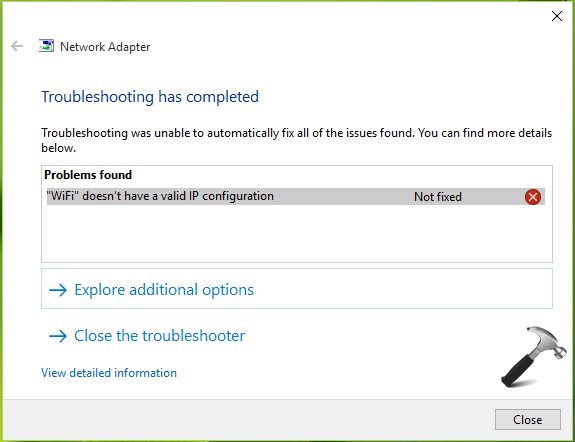
If you’re connected via wired cable or Ethernet, the message is:
“Ethernet” doesn’t have a valid IP configuration (Not fixed)
For Hyper-V or other virtualization running systems, the error may include both “WiFi” and “Ethernet” terms with slash (/) in between (just like the title of this article). So if you’re also victim of this problem, you might have also observed that:
- Resetting the wireless router doesn’t help.
- Resetting the modem makes no differences in situation.
- Restarting the computer doesn’t fixes it.
Here are some advanced suggestions that you may try. They can individually or collectively solve the issue for you:
Page Contents
Fix: WiFi/Ethernet Doesn’t Have A Valid IP Configuration In Windows 10
Fix 1: Using Device Manager
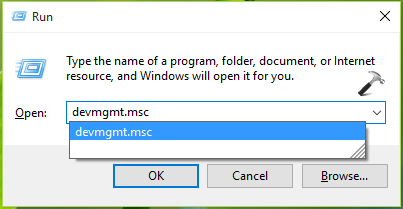
1. Press  + R and type devmgmt.msc in the Run, hit Enter key to open Device Manager snap-in.
2. In the Device Manager window, expand Network adapters, right click on network adapter for which you’re facing issue and click Uninstall.

3. Then provide you’re confirmation by clicking OK here:

4. Finally, click Action > Scan for hardware changes. Close the Device Manager window.

If the issue is resolved, you’re good to go. Else, see FIX 2.
Fix 2: By Resetting Windows Sockets Or By Reinstalling TCP/IP Settings
1. Open administrative Command Prompt.
2. Type following commands one-by-one and hit Enter after each:
netsh winsock reset
Ignore the message to restart computer for a while.
netsh int ip reset

Close the Command Prompt and reboot, check the status of issue. If problem persists, try FIX 3.
Fix 3: By Using IPConfig Command Line Tool
1. Open administrative Command Prompt.
2. Type following commands one-by-one and hit Enter after each:
ipconfig /release
ipconfig /flushdns
ipconfig /renew
See this fix, if you can renew IP configuration.
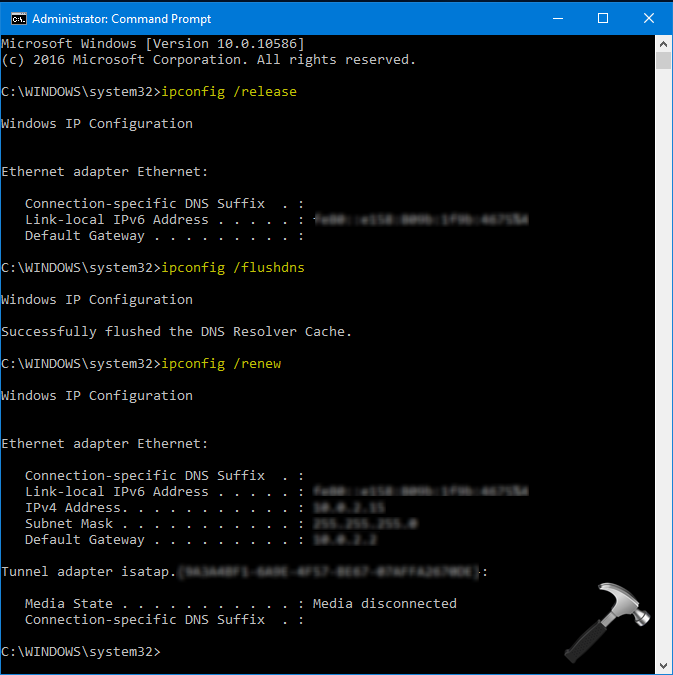
Close Command Prompt window and verify the status of issue. It must be fixed by now.
Video fix
Checkout following video to demonstrate this fix:
If the problem still persists, let us know via comments!






Thanks Kapill !!
I was experiencing this issue since last few days.. I had to manually assign IPs to get the Internet Work.
I was aware of ipconfig /flushdns stuff but not the about the socket part.
I will apply it if the same issue appear in future..
Now onward I will try to share the pics that I am facing issues about so that other may also get benefited..
^^ Thanks for feedback, I hope it helps you!
Hi Kapil I found your article very interesting when I used the command
netsh int ip reset
I got an error ( so did you when I look at the pictures ) I found a way to get rid of the error, It seems that there is a permission problem
int reset
and it must changed in the registry, This is the location
HKEY_LOCAL_MACHINE/SYSTEM/CurrentControlSet/Control/Nsi/{eb004a00-9b1a-11d4-9123-0050047759bc}/26
Just right click on the 26 folder and give “Everyone” (the group, that is) full permissions. Then run the netsh command again, and everything should be good!
^^ Glad to hear you liked the post :) And yes, I didn’t mind that resetting failed error as in the next attempt Windows was successful in reset ;) But thanks a lot for your time and inputs, we also already shared that method long time back in this post: https://www.kapilarya.com/limited-wifi-problem-in-windows-8. Great to know it could help in this case as well!
This doesn’t work at all.
It did not resolve the issue on my computer. I’ll kep trying.
^^ Suggest you to try additional suggestions mentioned here: https://www.kapilarya.com/windows-sockets-registry-entries-required-for-network-connectivity-is-missing
Well, after trying all that, I got my ethernet connection working but I’m back to the WiFi problem I had after 1511 installed. It refuses to recognise the valid network security key for either of my wireless access points even though these worked yesterday and continue to work for iPad, iPhone, TV, and other devices. The fix I found after 1511 installed itself doesn’t work. Any suggestions?
Reverting to the saved Winsock and Winsock2 registry settings has restored my wifi but I am back to the problem connecting ethernet via Devolo IP Over Mains. Ethernet only with a cable across the floor to another room direct to my router which isn’t safe.
^^ Richard, you may try forgetting the connection and then re-connect, if key not recognising is the only issue!
I still got the error while running the commands ipconfig /release and ipconfig /renew.
Can you give me a solution for my problem?
^^ Have you executed all commands successfully?
I HAVE TRIED EVERY LAST ONE OF SUGGESTED FIXES BY YOURSELF AND OTHERS AND STILL UNABLE TO GET INTERNET CONNECTION. THIS IS NOW OVER 3 WEEKS OF FUTILITY, FRUSTRATION, AGGRAVATION, DEPRESSION, ANGER , ANXIETY, SLEEP DEPRIVATION AND DEEP AND INTENSE HATRED FOR WINDOWS 10, MICROSOFT AND FILTHY RICH BASTARDS.
THIS IS HOPELESS. THESE ARE VERY BAD PRODUCTS DEVELOPED BY AN INCOMPETENT COMPANY WITH INCOMPETENT LEADERS AND STAFF. RHIS FIASCO REVEALS THE SHOCKING LACK OF UNDERSTANDING THE PRINCIPLE OF CUSTOMER SERVICE. I SUPPOSE CONSUMERS SHARE SOME OF THE BLAME BY ACCEPTING THE IDEA THAT NEW SOFTWARE WILL UNDOUBTEDLY CONTAIN GLITCHES THAT WE HOPE WILL EVENTUALLY BE FIXED. SO THIS BECOMES THE NEW NORMAL
SCREW THAT. WHY SHOULD WE HAVE TO SETTLE FOR AN AWFUL AND BADLY FLAWED PRODUCT? DOES MS THINK THAT OFFERING WIN 10 FOR FREE, MAKES IT ACCEPTABLE TO DELIVER A DEFECTIVE PRODUCT. I’M MAD AS HELL AND I’M NOT GOING TO TAKE IT ANYMORE.
I tried fixes 1, 2, and 3 multiple times, after running through the “Windows Sockets Registry Entries Required For Network Connectivity Are Missing” fix steps, fixed using Kapil’s Windows 8 registry keys, I think. I say “I think” because I ran into every problem anyone was having in the comments section: the group policy problem prevented fix 2, and fix 1 didn’t work.
Now, the windows troubleshooter gives me the “valid IP configuration” error. Fixes 1, and 2 behave as normal, but don’t fix the problem, and Fix 3 fails at [ipconfig /renew]. It stalls immediately after running, with the prompt “No operation can be performed on Local Area Connection* 11 while it has its media disconnected” After unplugging my ethernet cable, it tells me “An error while renewing interface Ethernet : The operation was canceled by the user”
Only my ethernet is having this problem.
^^ Have you tried resetting modem/router? Also check your drivers and update them, if possible.
This is really getting annoying… I’ve been back and forth between this error and https://www.kapilarya.com/windows-sockets-registry-entries-required-for-network-connectivity-is-missing for over a month now. Windows update yesterday prompted me to try the fixes again, still no joy.
This motherboard provides two Ethernet adapters and one WiFi adapter. WiFi works fine (just frustratingly slow), and both Ethernets simultaneously report either ‘unidentified network’ or ‘missing socket entries’, depending attempting the various fixes.
First thing I did was try restoring the system to a point prior to the issue occurring, which bafflingly didn’t fix the issue.
Then I tried all of the suggestions for ‘Windows Sockets’ error, with the uploaded reg files bringing me here.
Sadly, none of the suggestions here resolve the new ‘invalid IP’ issue (also tried setting static IP, and binding IP by MAC on the router side, too).
ipconfig /renew returns the error: unable to contact DHCP server (timeout).
I’ve tried updating ethernet drivers, rolling them back, updating router firmware, alternative cables (no other ethernet-connected devices on the LAN are having any issues, and other devices can connect using the ethernet cable usually plugged in to my PC).
Thanks for all your suggestions thus far!
Same here, none of the fixes worked. I started with the “One Or More Network Protocols Are Missing On This Computer”-error, but I could not use “Fix 2 Delete Winsock Registry And Reinstall TCP/IP” to the end, due to the dreaded group police error. I tried importing the winsocket-registrey keys from another Win10 machine and also the ones provided by Kapil in the other thread. Both did not work. Somewhere along the way the error switched from the missing protocol error to the “Ethernet Doesn’t Have A Valid IP Configuration”-error, I did not check the error after every step, so I can’t tell which of the steps caused the error to switch.
I can’t use Fix 3 here as well, since the last command “ipconfig /renew” doesn’t finish and the command prompt gets stuck at “Windows IP configuration” – maybe I haven’t waited long enough, but it was over one minute which was above my patience threshold ;)
I also tried using an Ubuntu LIve CD to check, if the network adaptor is still working (Asus P5E-VM HDMI onboard), with no success. But I read that Ubuntu is messing up the BIOS on some boards, which I assume was correct, since my switch LED turned from Gigabit to 100MBit or even completely off when Ubuntu ran. After a BIOS reset (battery removed), the switch turned green (Gigabit) again when I booted to Windows. So I’m not quite sure what that means, my guess is still that it’s a software problem, but I’m not so sure anymore. Re-Installing or resetting Windows is not a desireable option, so, any further tips would be greatly appreciated.
Well, this is embarrassing. It was in fact the switch that was broken. I recently bought a new one and did not check all the devices connected to it. And the other PC, with a wired connection that worked fine, was not connected to the switch, but to the router directly. So, I never came to the conclusion that the switch might be involved, because I thought the other machine used the switch as well. So I needed my consoles to complain about no network as well to find the culprit.
Sorry for wasting everybody’s time. But maybe this will encourage some people to check their network devices a bit more thoroughly. Also, maybe a less misleading error message might help as well.
I have run into similar issues as well as the missing Winsock protocols. I appreciate all the tips that were presented as I was forced to pretty much try them all. Unfortunately I was not able to resolve my issues and downgraded back to Windows 7
Thanks Kapil, fix 2 got it working after hours of troubleshooting. Windows 10 off to a rocky start lol.
^^ Glad it helped! :)
JESUS!! WHAT IS MICROSOFT DOING ABOUT THIS?!
I’ve tried everything.
All the fixes from the “Network protocols missing” fiasco.
Didn’t work.
Now stuck with this “Ethernet doesn’t have a valid IP configuration” crap.
Tried everything here.
Didn’t work.
Changed the CAT5 cable.
Didn’t work.
The router/modem is fine. Others are connected to it either via cable or wi-fi.
The WORST part about all of this is that it’s intermittent!!
One day I’ll start my pc and I have a connection…go all day and it’s fine…then I lose it.
Sometimes it comes back on…for a while.
It has been down now for almost a week and I’m at the end of my patience and resources!!
If anyone in here as an idea that hasn’t been posted, PLEASE go ahead and post it!!
I don’t want to revert back to WIN7…and don’t want to switch to MAC…God forbid!!
There’s cases all over the web dating all the way back to November / December of last year…the fact that Microsoft hast fixed this yet is appalling!!
Thanks for listening to me rant!
Having this same prob like everyone else. This morning I fixed the winsock issues using Kapil’s registries, but now getting this issue. I have updated drivers, reset modem, reset router to no avail. All other devices are working fine, just not my PC with Ethernet connection. Tried all of the above fixes. When I try /Renee I get this error -“unable to contact your DHCP server. Request has timed out” I’m lost here, any ideas?
I was able to fix the problem with the missing protocols problem which lead me to this issue. I ran into the same error as David did above where /renew gets me this – unable to contact DHCP server (timeout). Please help, I am in the middle of summer classes and have lots to do!
Still no frickin’ fix for this fiasco?? I’m tired of browsing on my phone!!
Anyone?
Let’s say I have the worst scenario here. Network diagnosis tells me it is winsock case, so I tried resetting. Does not help. Tried deleting registry values and everything. When I try to reset ip config I get access denied damn it. It is often getting connected and then loosing in minutes. Windows 10
^^ If the case is of ‘missing protocols’ or ‘Windows sockets registry’, you may want to try all suggestions available here: https://www.kapilarya.com/windows-sockets-registry-entries-required-for-network-connectivity-is-missing
Im having the same problem as rob. Please help! Just want to get my new computer build working already. Ive got lots of work i need to do.
^^ If you’re on a Windows Insider build, try upgrading to a newer one, see if it helps.
Thank you. FINALLY.
^^ Awesome 😊
Thnx … :) its working very helpful…
^^ 😎
Your PC is offline. Use last password to login……Well, it’s been over three weeks, speaking with numerous Microsoft support reps on the phone, locked out of my computer, nothing suggested has worked.
1) YES – my PC is offline because I ALWAYS DISABLE THE ADAPTER BEFORE SHUTTING DOWN. NOW- -SUDDENLY, Windows 8.1 has locked me out completely!
I CANNOT ACCESS ANYTHING on my system, All that appears is the screen with my name, email address, bar to enter my password which SUDDENLY DOES NOT WORK???
2) There is a notification at the bottom right of the login screen that an UPDATE is available and to download it. DOES THIS HAVE ANYTHING TO DO WITH THE LOGIN PROBLEMS??
Thanks this worked and the instructions were great. I was lucky to have a desktop to figure this out.
^^ Glad we could help 😎
We had problems with WiFi doesn’t have valid IP configuration, my husband was trying all last night. I decided to search and your instructions came up and were easy to follow. The matter is now resolved so thank you for your help.
^^ Thank you for your feedback 😊
Kapil Arya, everything youve posted here and on other subjects linked with this issue have been the most helpfull thing i can find on google trying to fix this. Unfortunately i am still having no luck on connecting. Every time i reset winsock and int ip reset, my ip gets changed to a 169.xxx.xxx.xxx address and that brings me further into the pit. After that id have to follow your winsock registry deletion/replacement post. After that, my ip returns back to its original 192.xxx.xxx.xxx. Anyhow ive also tried all of the known cmd tricks and even tried manually entering ipv4/default gateway in ethernet properties, which leads me to a dns server error. I am really starting to get frustrated with all this. Do you think a wireless adapter would fix this problem? I’m on the brink of giving up.
^^ Is your wireless adapter up-to-date? If it is outdated, no matter how many tricks you apply, nothing would work. Check it and install its latest version.
It worked! Fix 3 did the trick, thank you
^^ Glad it worked ☺️
My problem was fixed by just using the first line in step 2 and restarting. Thanks for the help!
^^ Awesome 👍 😊
Thank you problem solved with fix 2 :-)
Thank you !!!!!
^^ Welcome!
Fantastic! You solved my problem with very clear instructions.
Thanks very much!
Thank you, Kapil! The first two netsh commands and reboot just solved this issue on my machine with the Win 10 Anniversary update.
^^ Happy to help ☺️
I found a fix for my situation [on Win 10 ver. 1607 build 14393.479] . For both ethernet and wi-fi I had no internet access , invalid ip configuration, plus I screwed up and froze out my primary wi-fi by clicking something while trying to cure my problem. — My fix was: Left click on Start\Settings\Network & Internet\Status – then do “Network reset” at bottom of page. Then restart the computer if it is not done automatically.
This fixed mine after two days of frustration, but now I had to re-enter my network keys. If you had other special settings, they will have to be re-done. Good luck!
I am unsure how I can reinstall or update drivers without internet connection???
^^ Here, the steps mentioned to uninstall and reinstall driver is purely dependent upon hardware changes. You can perform it without having web connectivity.
Thank you, it’s help alot ;)
Tried all three options with no joy. I got an interesting error message when I did the ipconfig /renew. “An error occurred while renewing interface Ethernet 2 : an attempt was made to access a socket in a way forbidden by its access permissions. …” There was a similar message for renewing the wi-if. Not sure what to make of that. I’m responding on my IPad which uses the same router and wi-if internet connection that is not connecting on my Lenovo laptop with Windows 10. Let me know if there are other options available. I’ve always been a PC person, but these interfaces issue make Apple products look good.
^^ It seems your network drivers are outdated, try upgrading them and see if it helps.
Super thanks! I’m totally clueless about this kind of stuff but fix #2 took care of it. I have never used command prompts before and all the pictures helped make it a little less scary. I’m so clueless I did have to google how to get to command prompts.
^^ Glad you sorted it finally 😊
Tried 3 fixes twice and still no improvement.
Many thanks, fix 2 sorted out my problem. Not sure what the cause was but most problems seem to derive from Windows 10 updates.
Thanks for help! It solved my problem! Fantastic!
^^ Perfect 😎
Thank you very very much. After searching through a lot of websites. At last, this ‘fix2’ method solved my problem. Fantastic! 👏🏼👏🏼
^^ Thanks a ton for your feedback!
hi i have tried eveything and still no joy this is driving me mad
I have the same problem as Rob. unable to contact DHCP server when running ipconfig/renew. All was OK until the WINDOWS 10 automatic update KB3211320. Help!!!
^^ Please verify that DHCP Client service is ‘Running’ and set to ‘Automatic’ startup type in Services snap-in.
thanks kapil arya for your guide i have bought new notebook in which this error occurs thanks again
that seems to have did the trick. I had to use fix #3
^^ Thanks for your feedback Clarence!
It works thank you! !!
^^ Very cool 😊
Hi
I have been facing this issues since 2 weeks. Earlier, I had connected to the router using Ethernet cable. As I had to relocate to a new city, dismantled and assembled at the new place. Now, I am using the wireless option of the modem. The modem is working and all my other devices are connected by wireless. Only the desktop which was connected earlier using the Ethernet is failing to connect to internet. I have tried all the three (3) fixes..
Fiz(3): The message is “No operation can be performed on ethernet while it has its media disconnected”..
Would you please help?
^^ Go ahead with suggestions mentioned in following thread, see if they helps you: social.technet.microsoft.com/Forums/office/en-US/7beb0ff1-5c5a-4922-b1ed-49d9ef0a84f7/please-help-ipconfig-release-no-operation-can-be-performed-on-local-area-connection-while-it-has?forum=w7itpronetworking
Following the fixes through command prompt did not help me. However, unplugging my router and removing the cable from the modem DID help. Thanks for your help anyway.
^^ Thanks for sharing this 😊
I uninstalled the wifi network, and now I’m unable to reset it… What should I do??!? This is really urgent
^^ Try: https://www.kapilarya.com/how-to-reset-network-settings-to-default-in-windows-10
Thank you Kapil!! Your solution (the 2nd one) took care of my problem. If you’re ever in Atlanta, I owe you a beverage of choice.
^^ Sure Steve 😊 Will surely catch you if I would be in Atlanta!
Hey kapil
Thanks for the article. When I wrote ipconfig /release i got the message “the operation failed as no adaptor is in the state permissible for this operation”
What should I do?
^^ Try Network Reset: https://www.kapilarya.com/how-to-reset-network-settings-to-default-in-windows-10
I had updated to the new creaters update of Windows and now am facing the similar issues can’t able connect to any networks . The wifi doesn’t have a valid
Ip configuration. I had tried all the methods and still it doesn’t works.
^^ See, if Network Reset helps you (link in previous comment).
I have tried all the fix’s and none of them work. I’m posting this on Android. This problem has cost me time and money and enough is enough! I have used Windows since 1998 but no more!
We deleted Google Drive and the problem is gone! !!!!
^^ Sounds interesting!
Hi, Kapil:
Could you please help me? I bought a new PC for my daughter as birthday gift and suddenly cannot go to some website, like amazon.com, but Google is fine. I searched online for solution and no lucky.
I have updated drivers, reset modem, reset router.
All other devices are working fine, just my daughter’s new PC with wifi connection, window 10.
Tried all of the above fixes. When I try /Renew I get this error -“unable to contact your DHCP server. Request has timed out” . I checked, DHCP client is running and set to automatically.
Thanks in advance.
^^ Have you tried Network Reset?
Yes, I did.
After I did Network Reset according the article your post. I tried to connect to WiFi and IPv4 and IPv6 are no internet access.
^^ Unfortunately, you need to Refresh Windows 10: https://www.kapilarya.com/reinstall-windows-10-without-affecting-personal-files
Thanks a lot! command Prompt worked for me. Saved my day!
^^ That’s awesome, Bianca!
Hello, I’ve been going crazy about this “Wi-Fi doesn’t have a valid IP configuration”. I tried all three fixes and none would work.. I keep having the “no internet, secured” Text on the connected network, and yellow warning triangle on the bottom right Wi-Fi logo on the task bar. If there’s any other fix apart from these previous three I would really appreciate it! Cheers, mariano
^^ Network Reset is something that you can try atm: https://www.kapilarya.com/how-to-reset-network-settings-to-default-in-windows-10
God bless you for your help!
We have implemented your suggested fix #1 and all is well here now.
We will save this so the next time we have problems we can come back with confidence that we will get the help we need.
Thank you!
Sincerely,
RB&MEHyde
After reading some of the other messages above I am wondering if after making the changes they failed to re-boots. I almost forgot to do that and I don’t think it would have worked with out the re-boot. Just a thought.
RB
^^ Glad it helped, Richard 😎
Sorry but all 3 fixes didn’t work. Tomorrow I am performing a bak on the hard drive and sending my laptop to the lap tops in the sky – don’t worry it’s been shaky for a while with other issues! Google earth Sheffield for the additional bonfire!
I followed all the instructions regarding ‘wifi doesn’t have valid ip configuration’. Problem still persists. I am using a sony vaio laptop with windows 10. This problem started about a week ago. Wired ethernet is working.
Hi Kapil, unfortunately all 3 fixes failed. I thought fix 3 was going to work but then after entering ipconfig /renew, nothing happened for a couple of minutes and then I got the message “An error occurred while renewing interface local Area Connection ; unable to contact DHCP server. Request has timed out. I have also restored the previous build of Windows 10 but this also hasn’t worked. I’m beginning to despair of ever resolving this problem….
Hi
Firstly, thank you Andre and E for your help, but none of these worked, I ended up in a situation were my computer could not find my Wireless, Router connection, Panic stations for a while then I connected an Ethernet cable to my computer got onto my Hub Helpline and though they didn’t get me back onto the Internet , my Computer recognised my Router again.
I don’t know what fix screwed things up, but I then tried Fix 3 on this page and I am up and running again. Hopefully this will not be a short term fix as I was ready to bounce Lap Tap off wall.
Thank you once again, Fix 3 worked for me.
Regards.
Brian
Count Down
N Ireland
None of the suggestions worked for me. I’d seen all of them before in my search for a fix and have tried all of them multiple times. I’ve also tried the obvious such as getting a new cable and switching ports. I suspect that there is a latent defect in the Windows 10 platform. I tend to agree with many of the other posters who decry MS for releasing a fairly defective product – actually releasing is a bit benign – forcing upon is probably a more apt term.
Both fixes aren’t resolves my pc problems
None of these fixes solved my problem that “wi-fi” doesn’t have a valid IP configuration
My wife’s laptop had this problem which was eventually fixed only by a reinstall.
^^ Glad you sorted it!
Tried all this and nothing worked. As a last resort I changed the ethernet cable. Fixed! For whatever reason it won’t work on a cat 5e cable but as soon as I connected a standard cat 5 cable it came straight up.
Please help! I have tried everything suggested here and resetting the network and still no internet access.
^^ Try repair upgrade: https://www.kapilarya.com/how-to-repair-windows-10-using-in-place-upgrade
Awesome!!!! #2 worked for me – you rock!!!
^^ Glad to help Arlene 😊
Hi. I tried all your fixes but ended up with the following message on the admin command prompt …
No operation can be performed on Ethernet while it has its media disconnected.
No operation can be performed on Local Area Connection 12 while it has its media disconnected.
An error occurred while renewing interface WIFI : unable to contact your DHCP server. Request has timed out.
No operation can be performed on Bluetooth Network Connection while it has its media disconnected.
I’m no computer expert so what do I do now please?
I have read all of the posts here for “problems with WiFi doesn’t have valid IP configuration” and “Ethernet while it has its media disconnected”. But have yet been able to fix the issues. Any other ideas? Or should I just give in and reformat the drive or reinstall the OS that came with the laptop? At a lost, thanks.
^^ Try Network Reset first. If that doesn’t works, go for repair upgrade. Links for both are shared in previous comments.
What if I am not the administrator.
Because my laptop won’t let me connect to anything?😣😥
^^ Please refer: https://www.kapilarya.com/fix-lost-administrative-rights-in-windows-10
Tried all 3 steps how ever no joy at all. Third step saying an error occurred while releasing interface Ethernet : An Address has not yet been associated with the network end point.
:(
Hi
I am struggling with this too. Fix1 did not work. Fix 2 needs Admin rights. Fix 3 tells No operation can be ….while it has its media disconnected. This is for ethernet Wi-Fi and LAN. Please help.
After using this command (ipconfig /release) “an error occurred while releasing interface ethernet : and address has not yet been associated with the network endpoint.”
Now what should i do?
^^ Try Network Reset once from Settings app interface.
Doesn’t work it says no adapter is in the state permissible for this operation
It’s 2024. I’m on Windows 10. Your FIX #3 above worked a charm. THANK YOU!
^^ Glad it helped 😊