We all know that PIN is much better sign-in option as compared to traditional password for your Windows 10. On a standalone machine not part of any network, PIN can be set without any restriction. However, when you join your machine to your organisation’s (work or school) account, some of the policy restrictions may be applied on PIN. In case if you are receiving Sorry, this PIN isn’t working for your organization’s resources on such a machine, this article is for you.
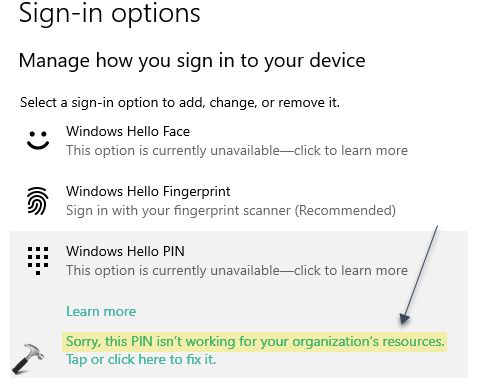
You may receive this message when your machine does not comply with organizational policies. Due to this error, you may not be able to remove the pin or even set it up or change it. To fix this problem, you can try either of the solutions mentioned below.
Page Contents
Fix: Sorry, this PIN isn’t working for your organization’s resources
FIX 1: Using File Explorer
1. Press  + E to open File Explorer.
2. For these steps, I assume Windows is installed on C: drive. Hence, we can navigate to C:\Windows\ServiceProfiles\LocalService\AppData\Local\Microsoft folder. Note that here, AppData is hidden folder.
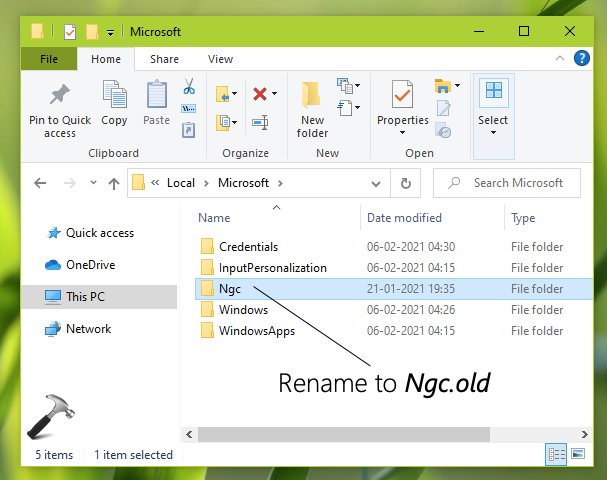
3. Inside Microsoft folder, you’ll find a folder named Ngc. You’ve to simply rename that folder to Ngc.old.
4. Close File Explorer and re-setup your PIN.
FIX 2: Disconnect work or school account
You FIX 1 does not solve your problem, you can try this alternative method. This problem usually occurs when your system is connected to your work or school account. When you are sign in with organization account, your system is actually connected to Azure AD (AAD) or Active Directory Domain Services (AD DS). In such cases, most of your system settings are controlled by your IT administrator. So if you’re using the machine only for your personal use, you can disconnect from AAD or AD DS to fix up this problem. Once you disconnect machine from your work/school account, your PIN should be working fine as expected. You will no longer receive error mentioned on the title of this post.To disconnect your system from AD DS, refer this step-by-step guide:
How To Disconnect Windows 10 From AD DS Domain
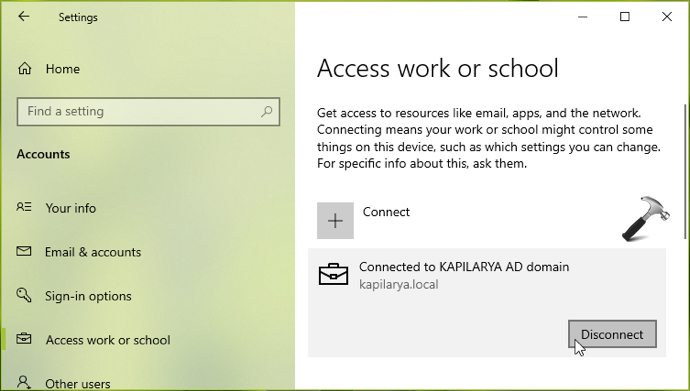
To disconnect from Azure AD, see this guide:
How To Disconnect Windows 10 From Azure AD
If you need any assistance in disconnecting your machine from either of the AD DS or AAD, drop me a comment and I’ll help you accordingly.
Hope this helps!
Related: FIX: Something Happened And Your PIN Isn’t Available.