

Windows 11 Version 24H2 is scheduled to arrive this fall, bringing a range of performance and security enhancements along with exciting new AI features. As of now, the 24H2 update is only available for testing on Windows Insider PCs. However, if you’d like to upgrade to Windows 11 24H2 now, this guide will show how.
Page Contents
How to upgrade to Windows 11 24H2
Upgrade to Windows 11 24H2 using the Windows Insider Program
1. Open the Windows Settings app with Windows + I.
2. Navigate to “Windows Update” and select “Windows Insider Program” on the right.
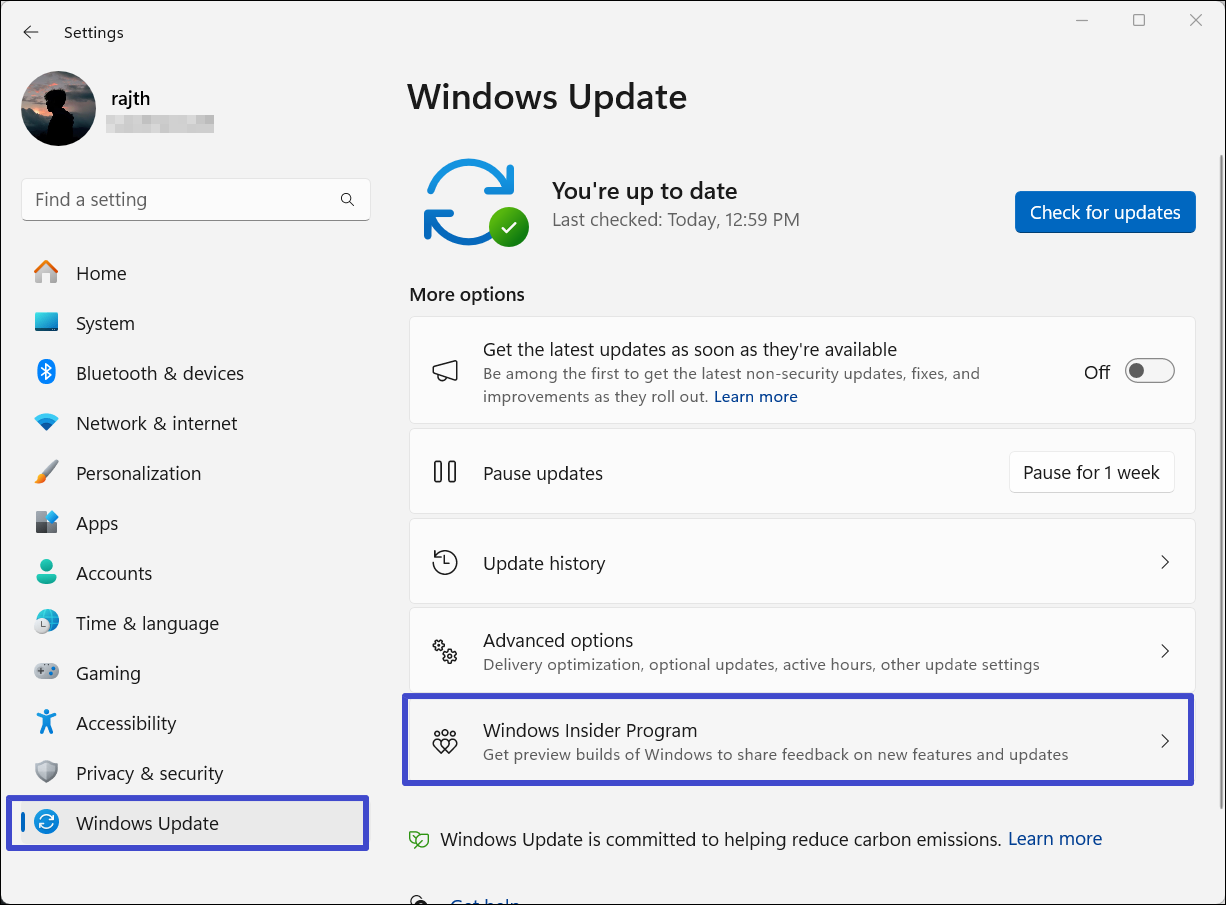
3. On the next page, click “Get started“.

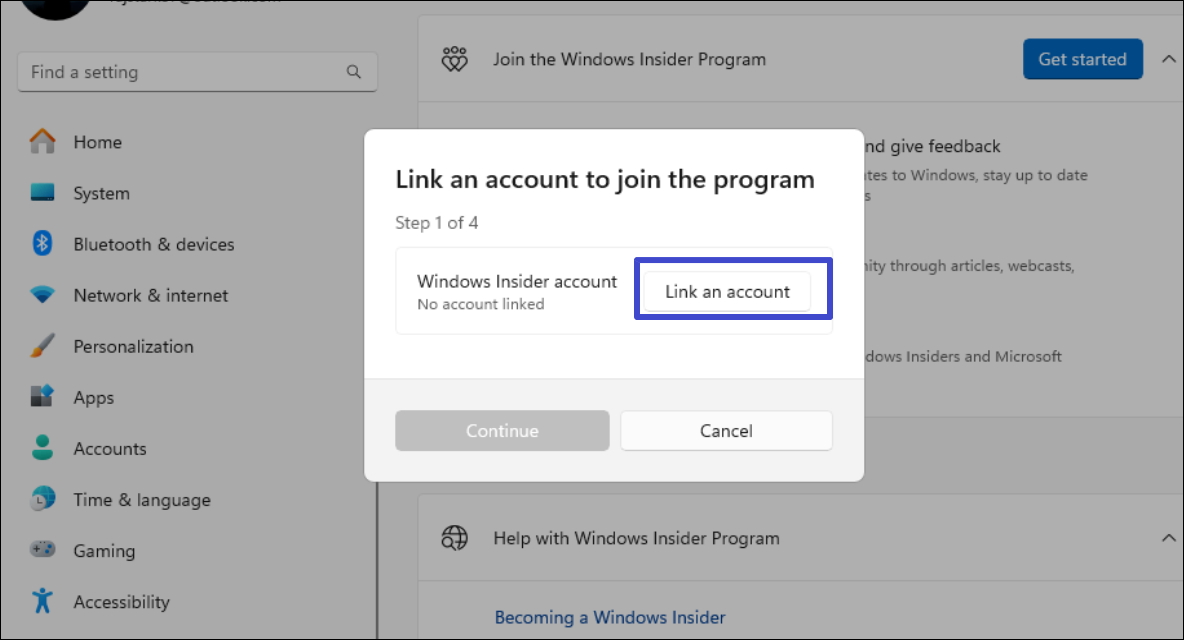
4. When the pop-up window appears, click the “Link an account” button.
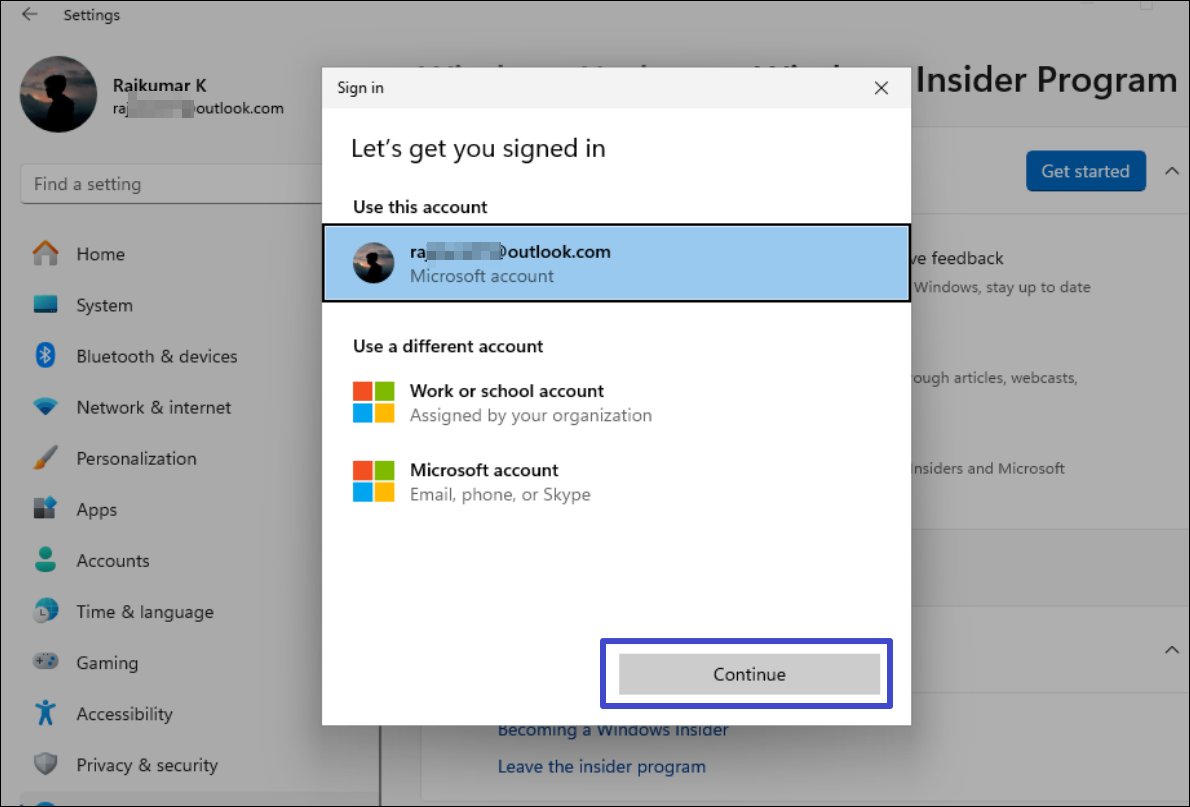
5. If you haven’t already, sign in to your Microsoft account. Then, select the account and click “Continue“.
6. Select the “Release Preview” Channel option under the Choose your Insider Channel and click “Continue“.

7. Click “Continue” again to accept the terms and conditions.

8. Finally, click “Restart now” to reboot your PC and apply the settings.

9. Once the system reboots, Windows will automatically try to download and install the 24H2 version.
10. You can also manually check for preview builds by going to “Windows Update” settings and clicking “Check for updates“.
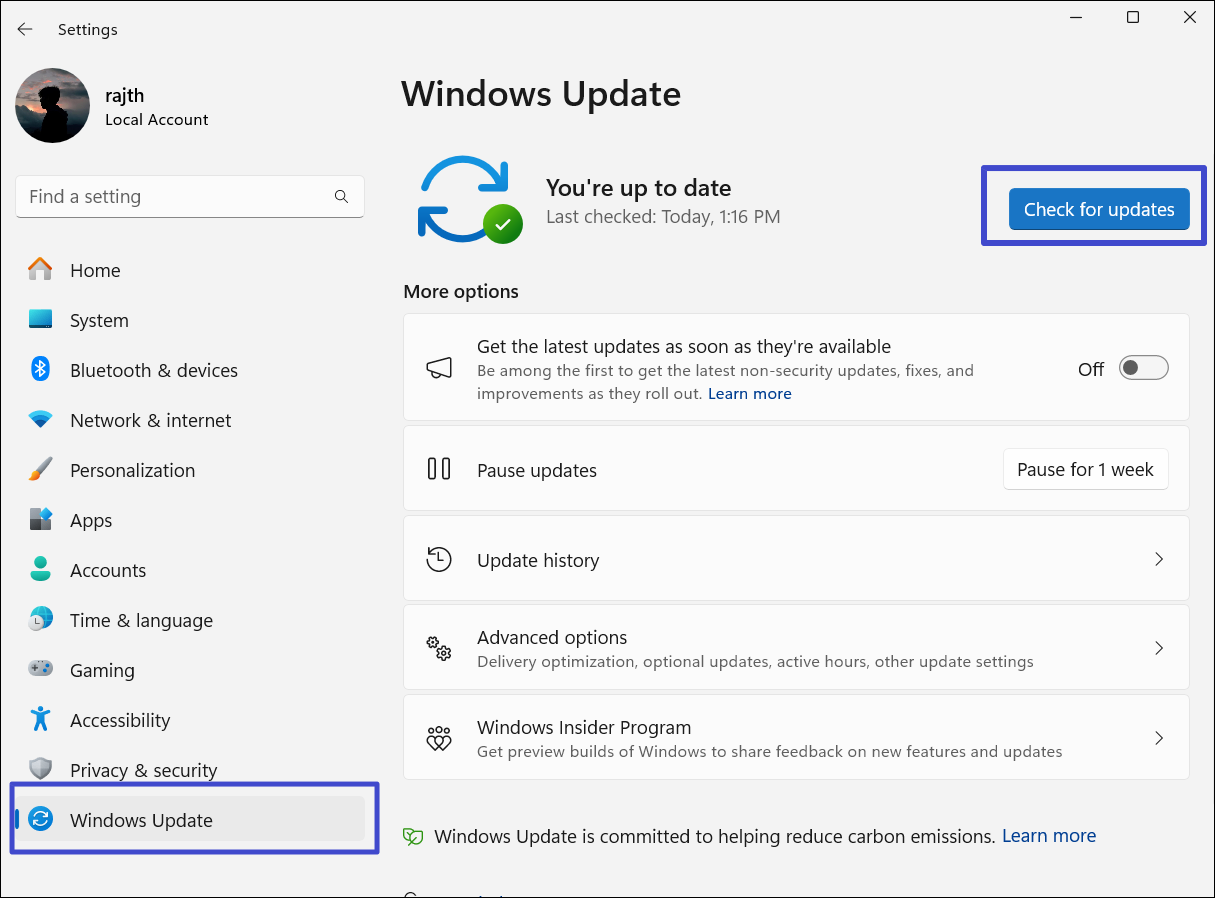
11. Then, you should be able to spot Windows 11, version 24H2 is available.

12. click “Download & install” for the Windows 24H2 preview update.
13. It will take a while to download and install the latest build. So, keep your PC turned on and plugged in.
Once Version 24H2 is available, you can start testing out its features. Since the Version 24H2 is under development, you can submit your feedback to Windows team. Your feedback would help team to rectify known issues and resolve the before the version is rolled out to everyone. You can also up-vote already submitted feedback, if you’re also facing same issue or having same suggestion for improvement.
That’s it!


