

Few days ago I came around a weird problem regarding mouse pointer or cursor in Windows 8.1 running system. Actually this system has Windows 8 installed previously, which was working fine but after upgrading it to Windows 8.1, the issue came into light. In this case, the cursor disappeared only when your system was booting to Start Screen instead of Desktop. In other words, when the system boots to Desktop, the cursor worked just fine.
But I don’t have any clue about what is causing this problem, since the system didn’t have any third-party tools installed which could mess system files. Moreover, I have already tried the System File Checker (running SFC /SCANNOW in administrative Command Prompt) and it reported back that there is no integrity violations on the system. This issue became more critical when I connect the system output to a TV with HDMI output converter and cursor gone invisible permanently. If you’re also having this problem on your system, you can try the steps mentioned below and see if that helps:
FIX : Cursor Disappears Weirdly In Windows 8.1
Registry Disclaimer: The further steps will involve registry manipulation. Making mistakes while manipulating registry could affect your system adversely. So be careful while editing registry entries and create a System Restore point first.
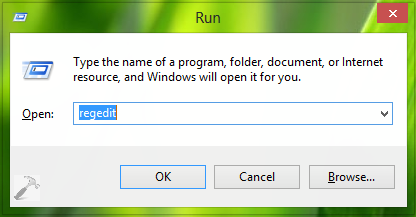
1. Press  + R and put regedit in Run dialog box to open Registry Editor (if you’re not familiar with Registry Editor, then click here). Click OK.
2. In the left pane of Registry Editor window, navigate here:
HKEY_LOCAL_MACHINE\SOFTWARE\Microsoft\Windows\CurrentVersion\Policies\System
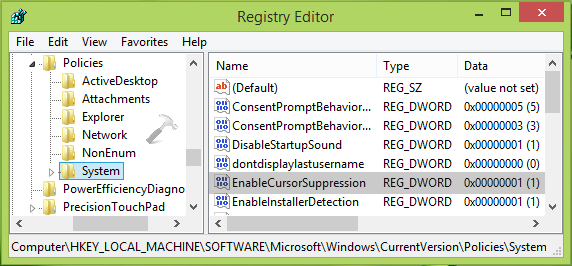
3. In the right pane of System key, look for the registry DWORD named EnableCursorSuppression which must be having its Data set to 1. Double click on this REG_DWORD to modify its Value data:
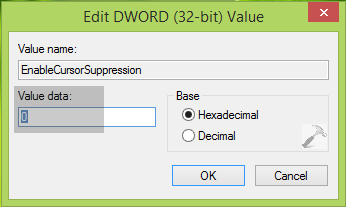
4. In the above shown box, change the Value data to 0 from 1. Click OK and close the Registry Editor, reboot the machine and your problem should be fixed.
That’s it!



Didn’t work. I just went through all the steps.
^^ Please let me know what SFC reported you back. Did it find any integrity violations?
I went through your steps on my “new to me” refurb Dell XPS laptop. The arrow cursor returned, centered. However, now the touchpad is dead. I plugged in a mouse and the arrow cursor moved around with the wired mouse.
So, now I have a laptop without a working touchpad
^^ Suggest you to update touchpad drivers, see if it helps.