Windows 11 version 25H2 is the latest update released by Microsoft few days back. Usually the update should be available to you via Windows Update. However, if Microsoft discovered some issue with the devices with this update, Microsoft may put a safeguard hold on such devices. In these cases, the update won’t be delivered to your system, and you might need to update manually, just after verifying things. In this article, we will be covering those things that you can try get the Windows 11 25H2 update.

Page Contents
Windows 11 25H2 Update not showing
According to Microsoft, “Windows 11 Version 25H2 will be delivered as an enablement package (eKB). This means that it contains all the recently announced features in Windows 11 Version 24H2. Both versions use a shared code base and servicing branch, streamlining the update. It also means that you’ll continue to see new features released to Windows via monthly updates as part of our continuous innovation model”.
Make sure your Windows 11 meets requirements
Usually Windows 11 has a specific set of primary system requirements. If your system meets the primary requirements for Windows 11, you should be able to install and use Windows 11 without any problem. But in case, if your system is not meeting Windows 11 requirements and you somehow by-passed those requirements, it might be possible that this version might not be supported for you.
Check Windows 11 eligibility using PC Health Check app.
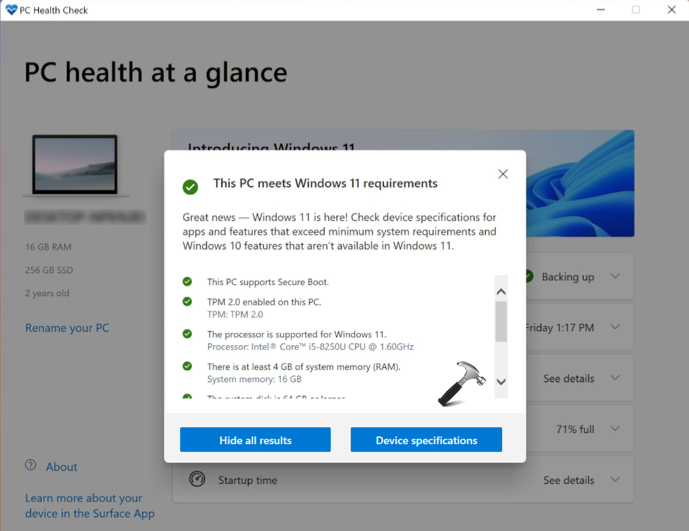
For those systems not meeting Windows 11 requirement, you can stay on the current version, you are having right now. Those systems meeting Windows 11 requirement, refer to the other fixes mentioned next in this post.
Reset Windows Update
If you’re having trouble with Windows Update feature entirely on your system, the update will not be available to you. In this condition, it is highly recommended that you reset Windows Update on your system.
By resetting Windows Update, you can ensure that Version 25H2 update is received. And also other updates would be received as usual. You can follow steps in this video guide to reset Windows Update:
Upgrade to Windows 11 25H2 using Installation Assistant
The Installation Assistant (IA) is a dedicated tool from Microsoft that helps you to manually upgrade to a newer Windows 11 version. This tool is usually used by users when they do not get the update directly in Windows Update. You can download this tool from Microsoft’s official website (https://go.microsoft.com/fwlink/?linkid=2171764).
After downloading a tool, launch it, and it will automatically detect the new version of Windows 11 and start upgrading to it. Just follow on-screen prompts.

Upgrade using Windows 11 25H2 ISO File
One of the most successful method for upgrading Windows 11 is via using ISO file. In this case, you have to simply download the Windows 11 25H2 ISO file directly from the Microsoft’s official website (https://www.microsoft.com/en-us/software-download/windows11).
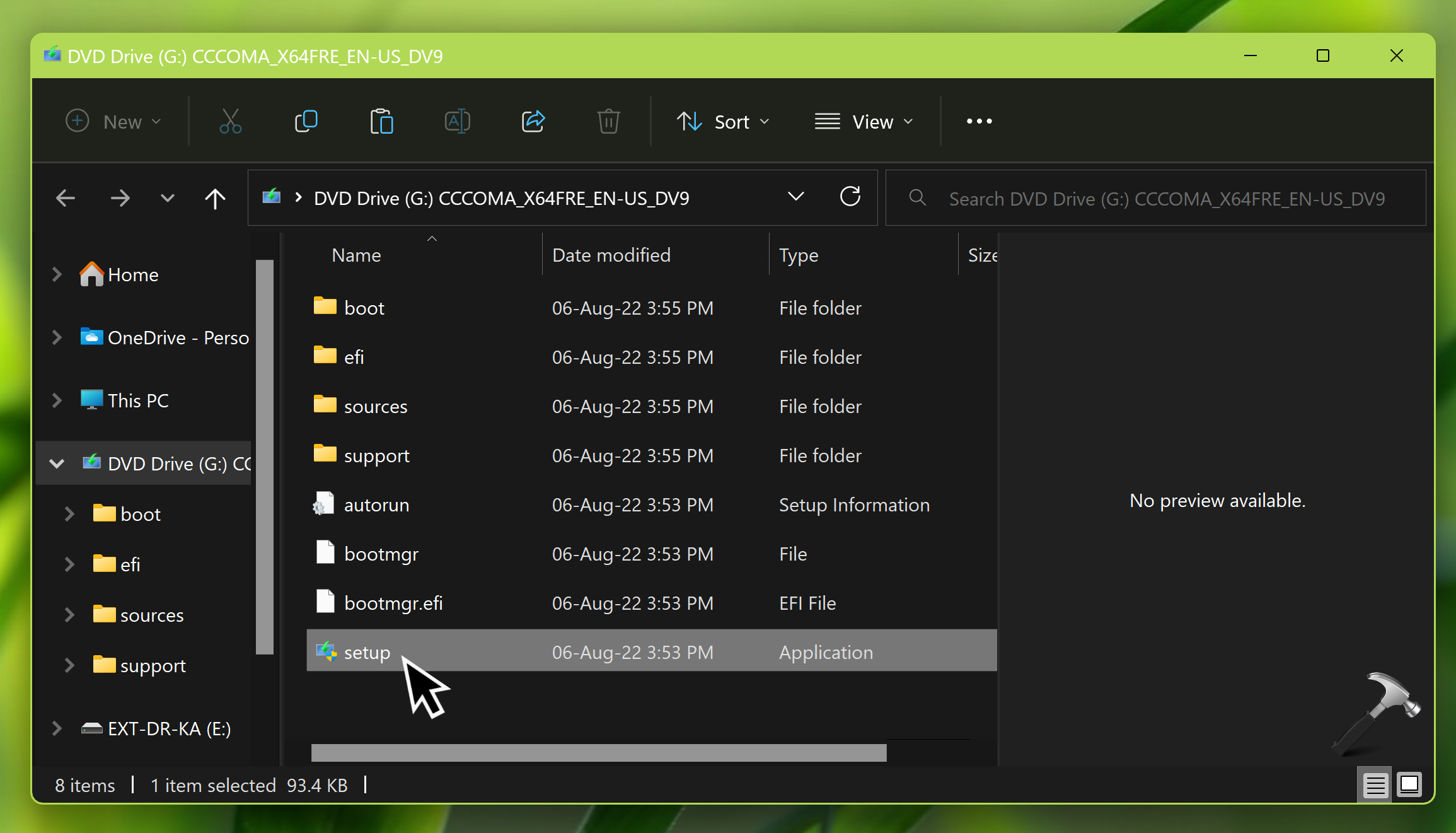
When the ISO file has been downloaded, you can just double click on it and mount it to a DVD drive. Then go to the mounted DVD drive and double click on the setup.exe file to launch the setup for Windows 11 25H2.
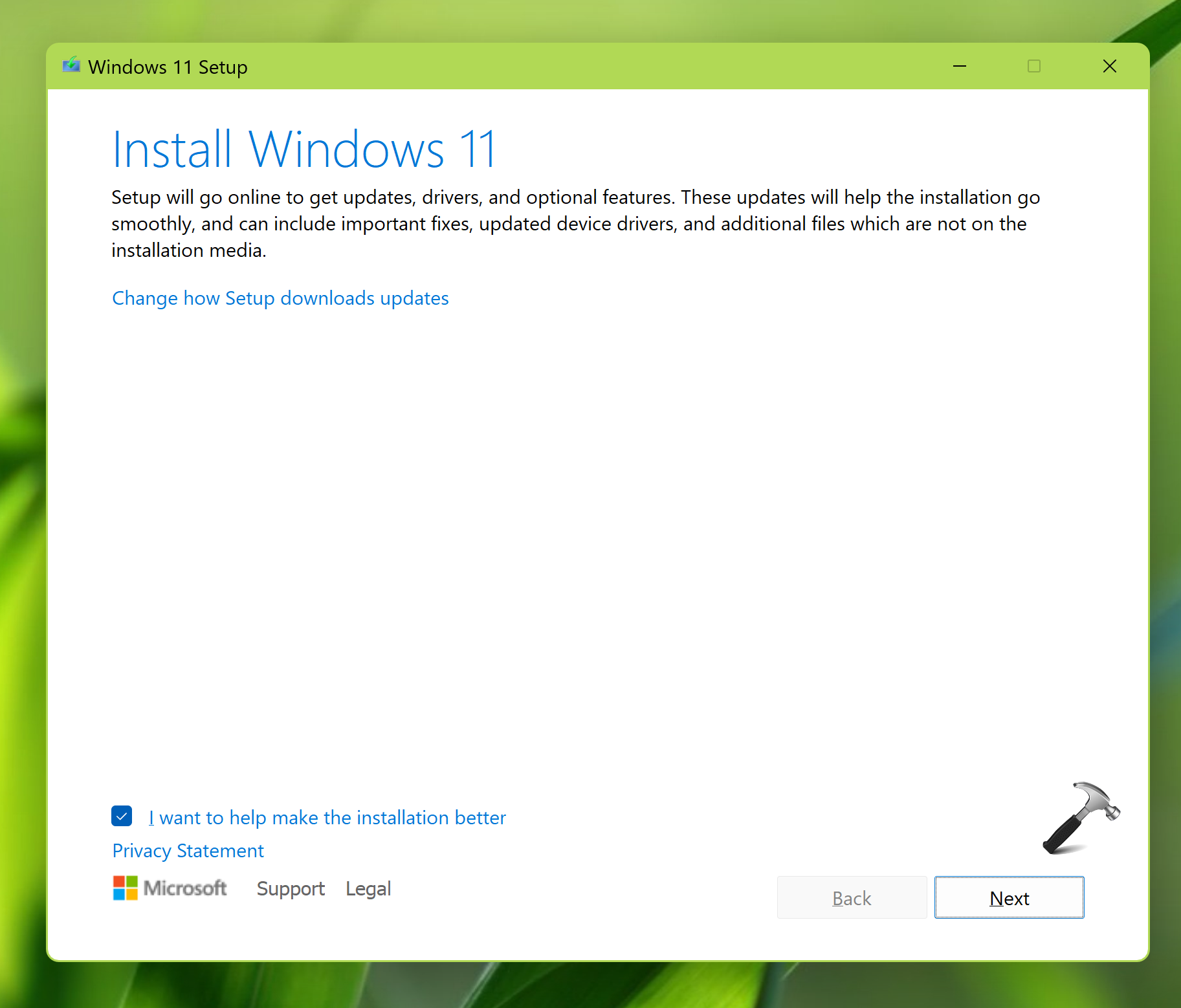
Then follow the on-screen instructions to complete the upgrade.
Video fix
You can also refer this video fix for further assistance:
Hope this helps!