If you’re unable to set a BitLocker password in Windows 11, it’s usually because of TPM settings, Group Policy restrictions, or configuration conflicts. Enabling password options via Group Policy, adjusting TPM settings, and using the Control Panel BitLocker tool are the most effective fixes to resolve this issue. We’ve described them in this guide. Once configured correctly, you’ll be able to secure your drive using a password instead of relying only on TPM or PIN.
Page Contents
Fix: Can’t Set BitLocker Password in Windows 11
In many systems, BitLocker defaults to using a TPM or PIN instead of a password, which can prevent the password option from appearing. Below are the most effective fixes to resolve this issue.
Fix 1: Enable PIN Option via Group Policy
Windows may block PIN usage by default.
1. Press Win + R, type gpedit.msc, and press Enter.
2. Navigate to Computer Configuration then Administrative Templates. After that select Windows Components and then BitLocker Drive Encryption. Choose Operating System Drives.
3. Open Require additional authentication at startup.
4. Set it to Enabled.
5. Check Allow BitLocker without a compatible TPM.
6. Enable PIN-related options like Configure use of pin.
7. Click Apply and then OK, then restart.
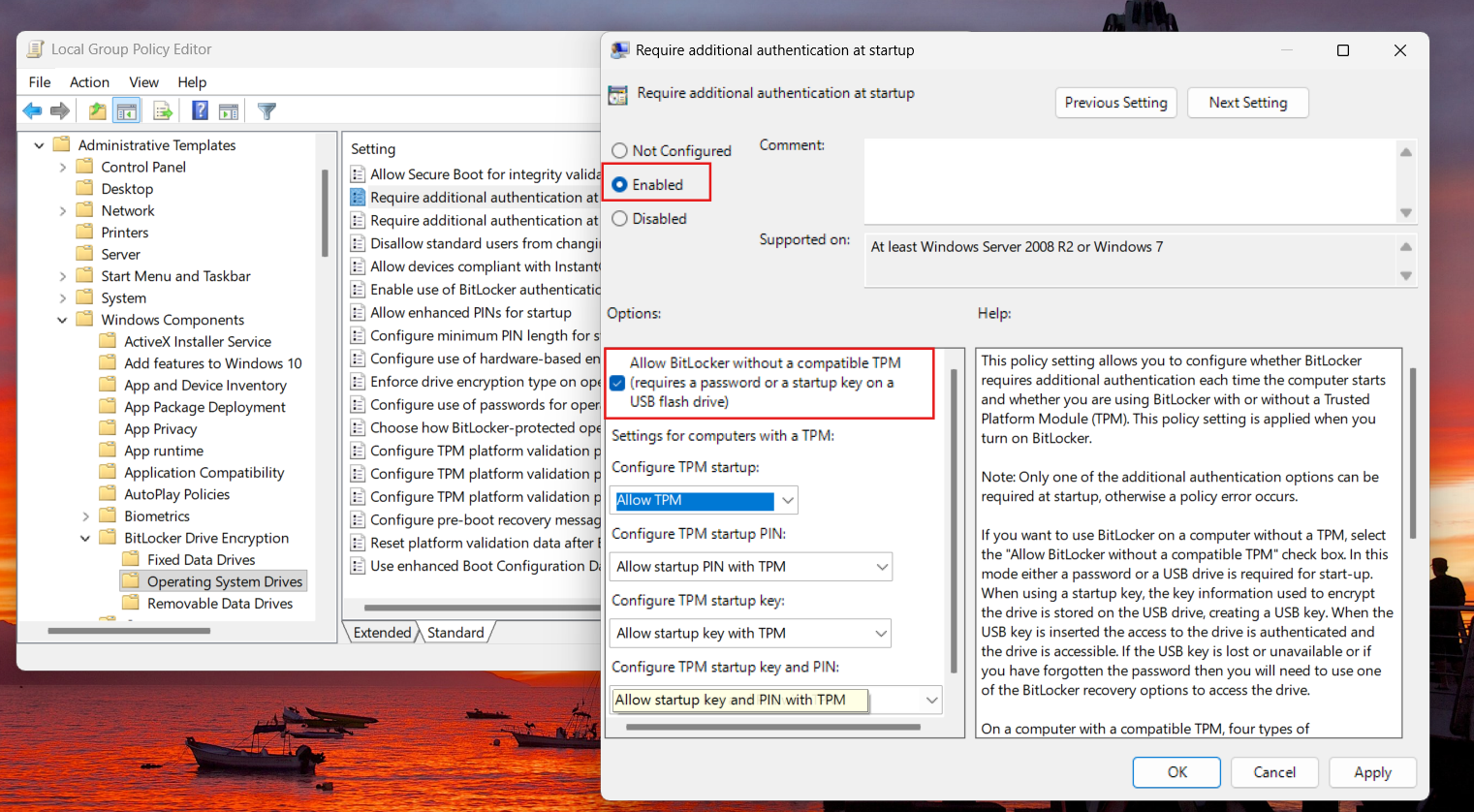
This forces Windows to allow password-based encryption.
Fix 2: Disable or Adjust TPM Settings
On many devices, BitLocker prioritizes TPM and hides password options.
1. Enter BIOS/UEFI settings during startup.

2. Locate TPM/fTPM/PTT settings.
3. Either enable it properly or adjust settings to allow password usage.
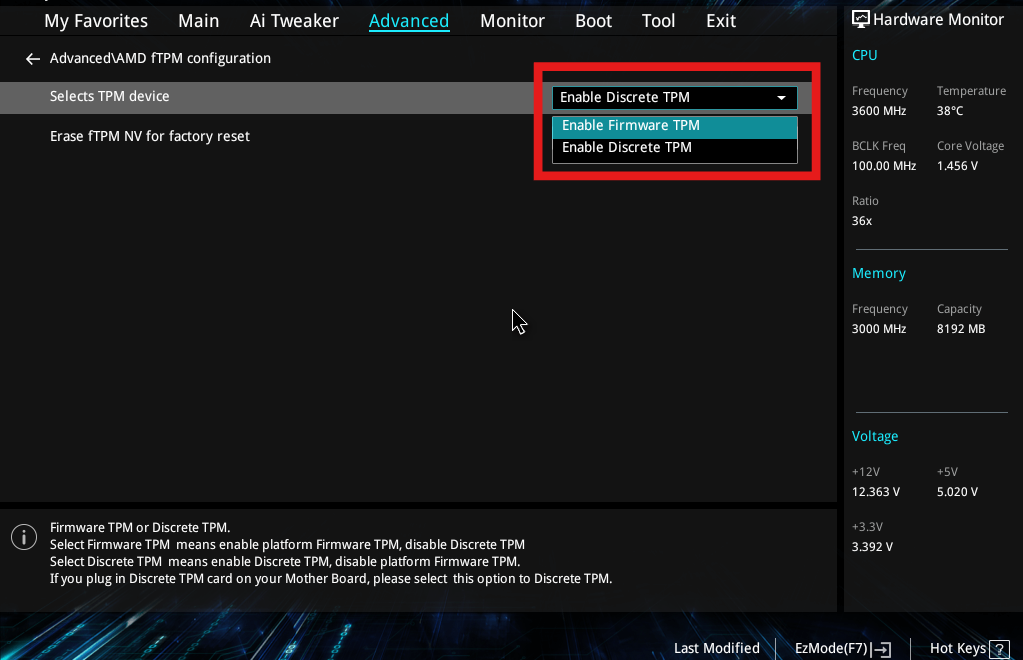
Incorrect TPM configuration can prevent password setup.
Fix 3: Use Manage BitLocker from Control Panel
Sometimes the Settings app doesn’t show all options.
1. Search for Manage BitLocker in Start.
2. Click Turn on BitLocker for your drive.
3. Follow the setup wizard.
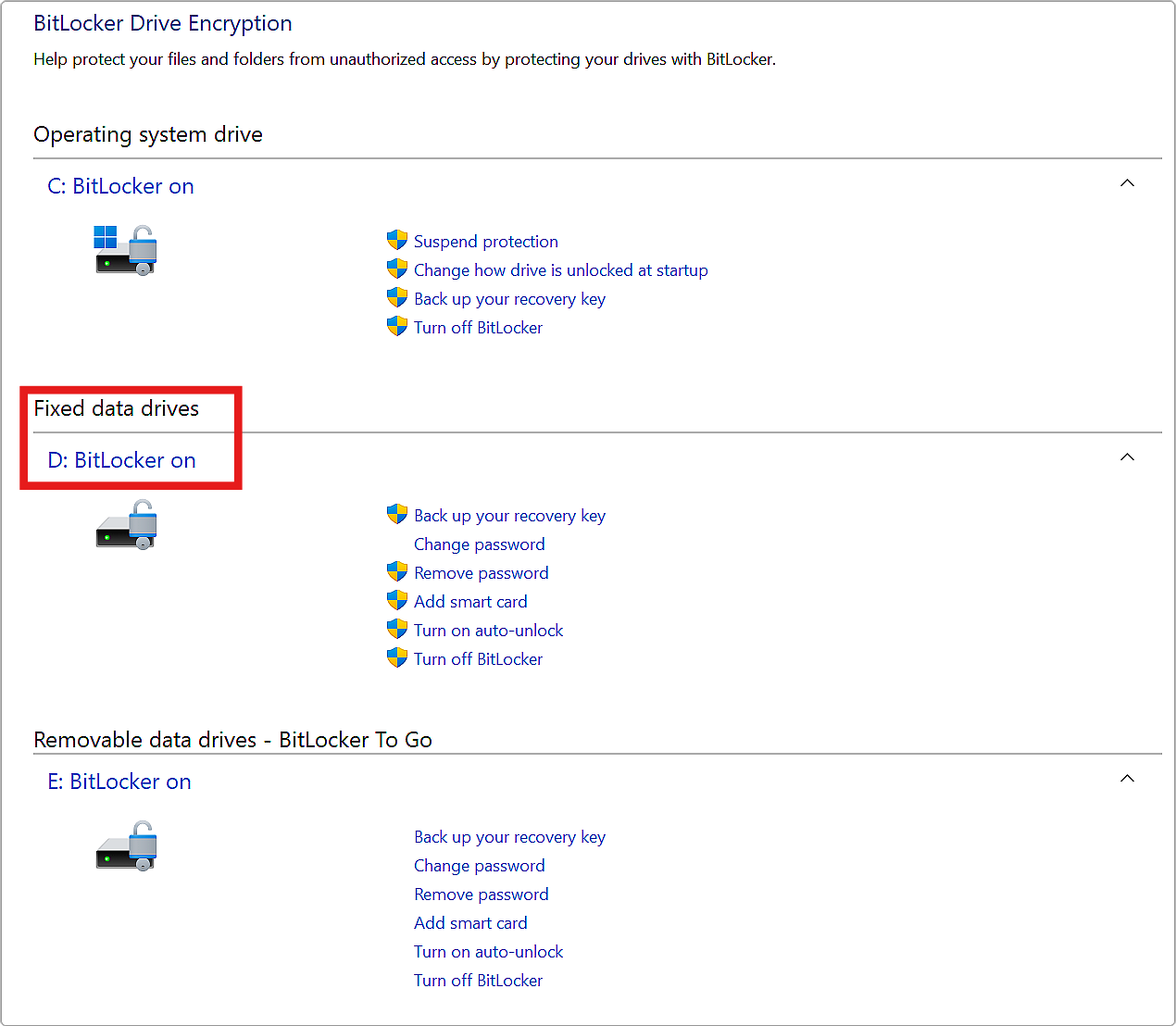
The Control Panel version often provides more configuration options.
Fix 4: Enable Enhanced PIN or Password Policies
Windows may restrict password complexity or type.
1. Open Group Policy Editor.
2. Navigate to BitLocker settings.
3. Enable these policies:
- Allow enhanced PINs for startup
- Configure password usage for drives
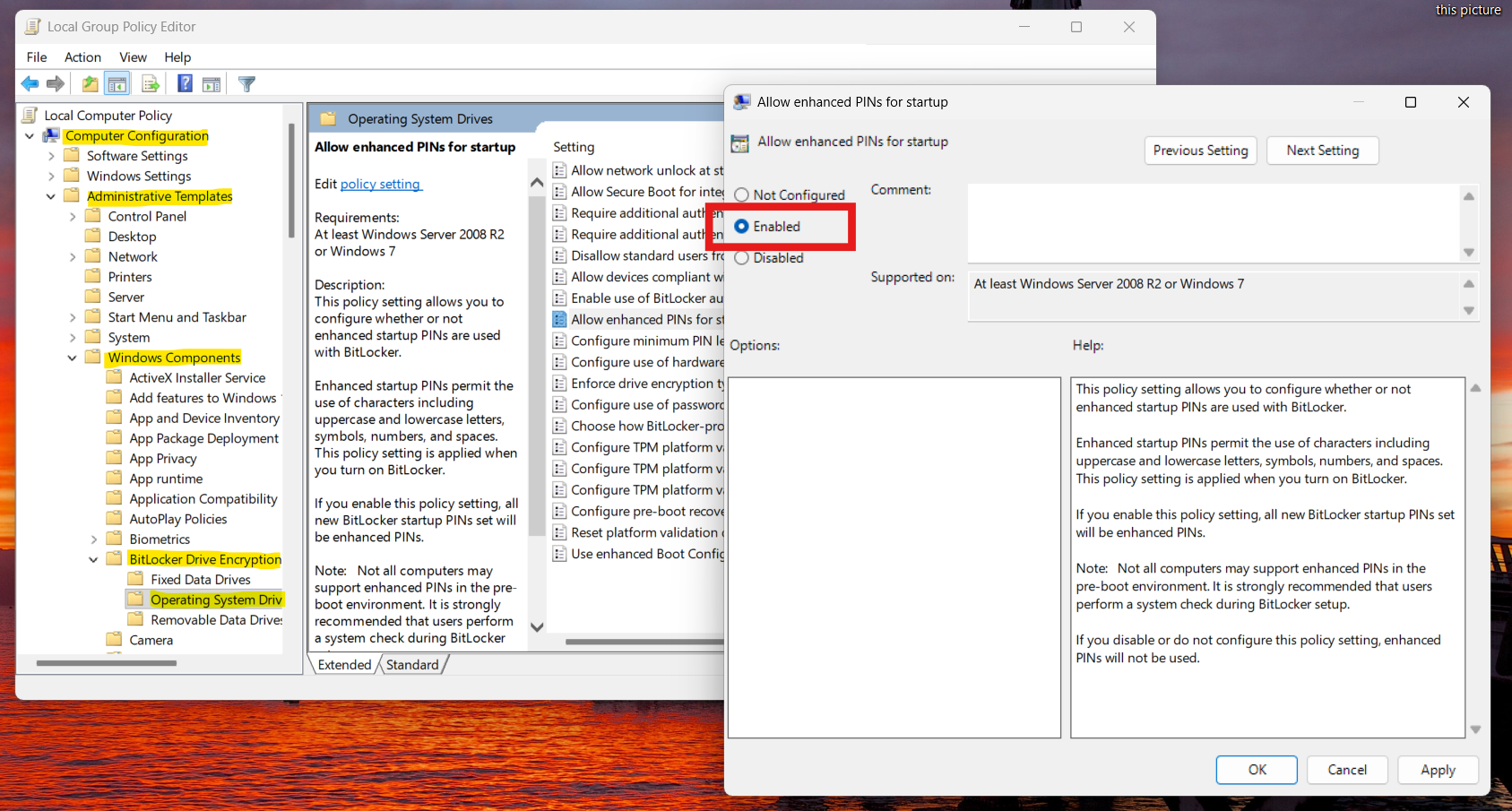
This ensures passwords (not just PINs) are accepted.
Fix 5: Check Windows Edition & Permissions
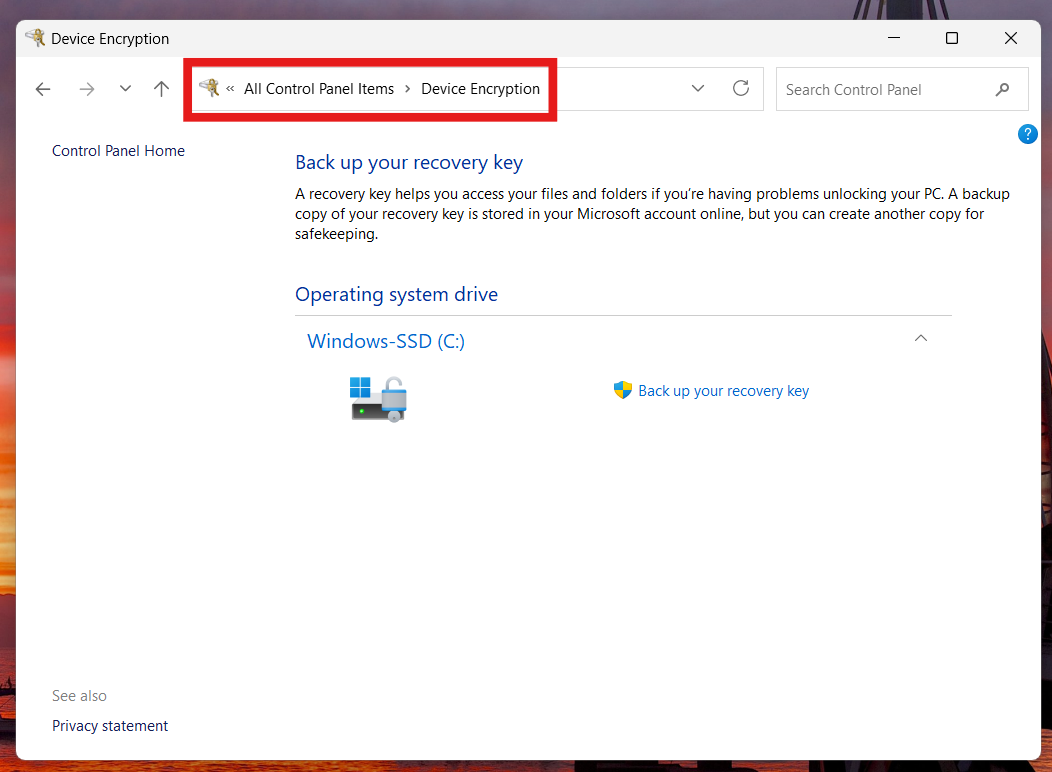
BitLocker full features are only available in Windows 11 Pro / Enterprise / Education.
If you’re using Windows Home, password-based BitLocker options may not be available. In that case, only Device Encryption is supported.
Fix 6: Update Windows and Restart
Sometimes the issue is due to outdated system components.
1. Go to Settings and then Windows Update
2. Check and install all available updates if any.
3. Restart your PC.
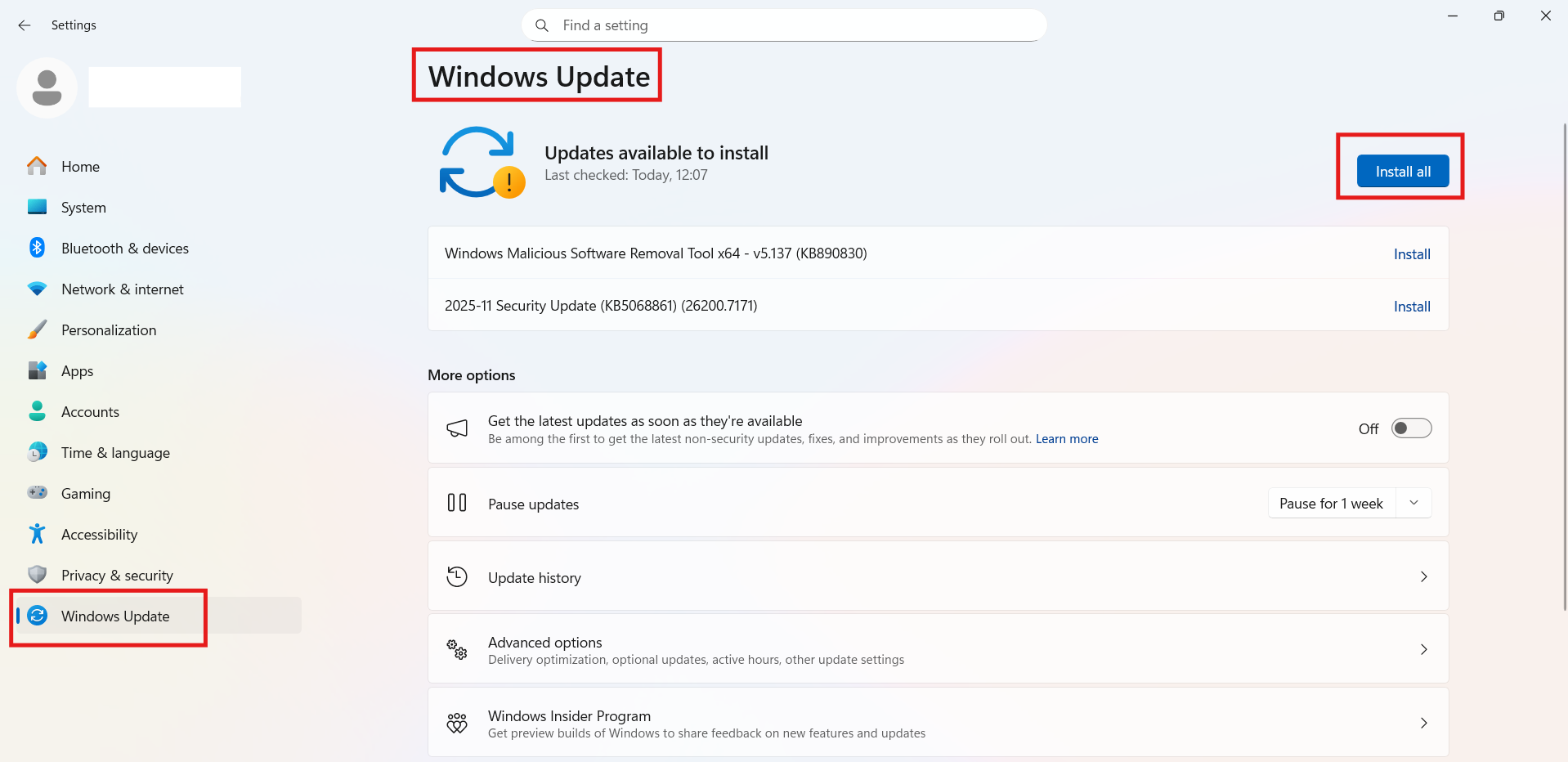
Updates can fix BitLocker configuration bugs.
Hope this helps!