

As per the requirements of users, there are various editions of same Windows OS are available. Each of these editions differs from others – when you compare them technically. You can read this guide, which provides quick comparison between Windows 10 editions. In this article, you’ll read how to upgrade Windows 10 Home into Pro using generic Pro edition key. You can then activate the upgraded Pro edition with your unique and genuine license key.
Windows 10 Home and Windows 10 Professional (or Pro) editions are most used editions of Windows OS series. Generally, Original Equipment Manufacturers (OEMs) prefer to offer Windows 10 Home on new machines they sell. While most of the users wants to use Pro edition, since it has all those features which they’ll need.
Page Contents
Differences Between Windows 10 Home And Pro
Though there are many differences between Home and Pro edition, if you compare technically. The most common differences in terms of features are as follows:
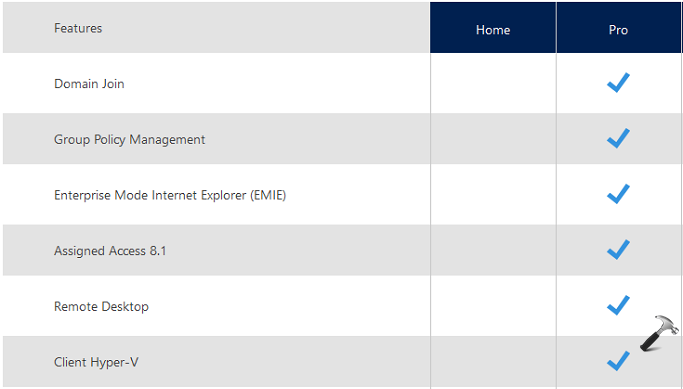
This comparison list gives us the answer to – why a user should consider himself to upgrade for Pro edition? And the answer is – To get more out of Windows 10.
How To Upgrade Windows 10 Home To Pro Edition
There is an older way to upgrade from Home to Pro edition using Windows Store. But in this article, we’re going to share you a new and handy method for same upgrade. Charles, a Microsoft employee, shared a unique product key in his reply on a community thread. Using this product key you can easily convert your Windows 10 Home to Windows 10 Pro (see below picture for his reply on a Microsoft Community thread).

We used the same product key and it worked perfectly. Here are the complete steps for upgrading:
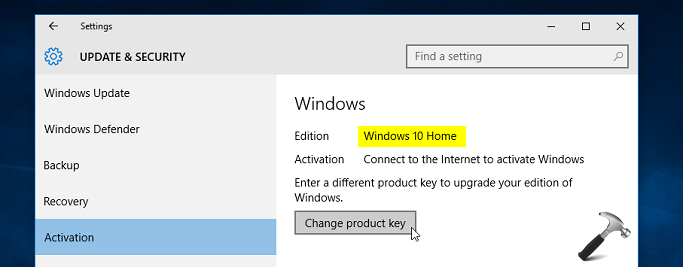
1. On your Windows 10 Home, open Settings app and go to Update & security > Activation. In the right pane of this window, click Change product key.
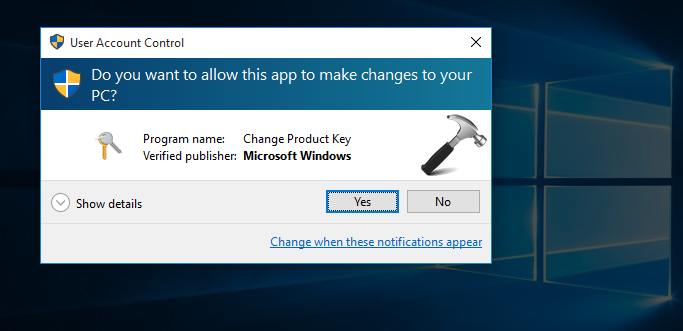
2. Then provide UAC permissions for this operation by clicking Yes here:
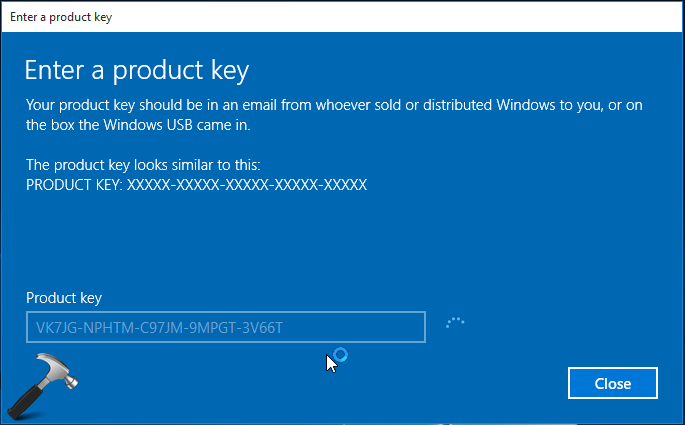
3. Next, type following product key in Enter a product key prompt:
VK7JG-NPHTM-C97JM-9MPGT-3V66T
4. Moving on, click on Start upgrade button then.
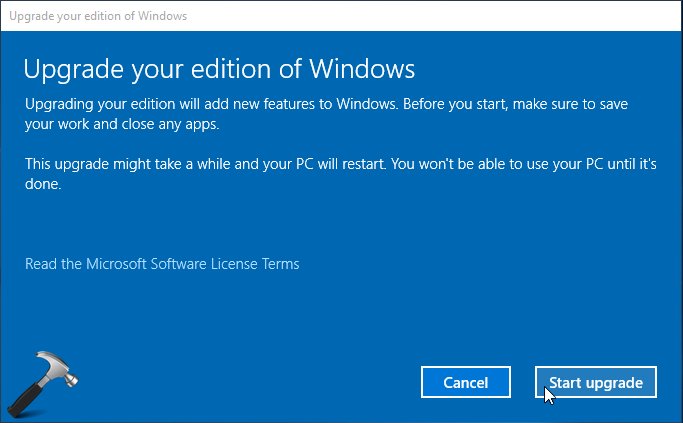
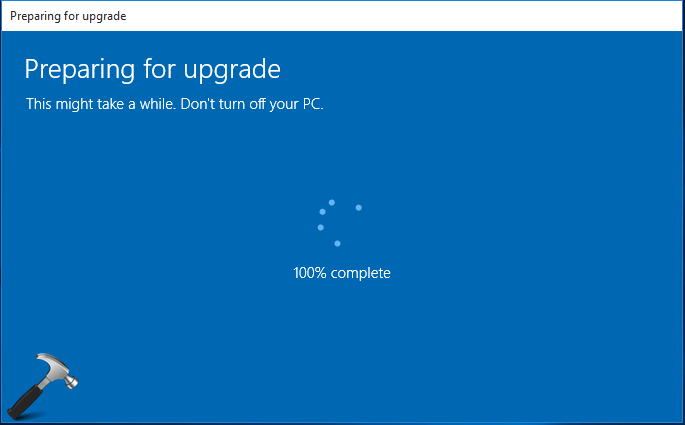
Now your Windows 10 will prepare for upgrading the edition. Please wait and track the progress here. Your system will shut down now.
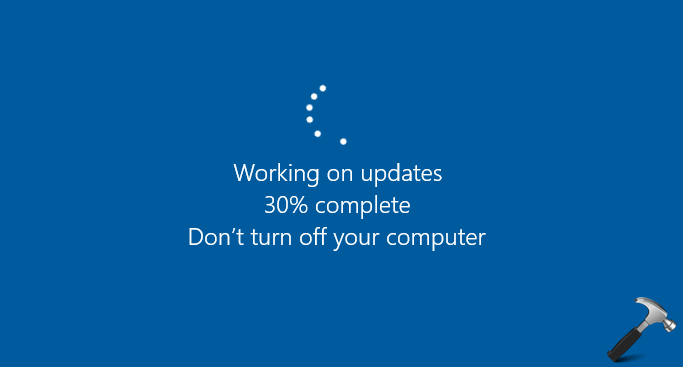
While system is turning off, you’ll see following screen:
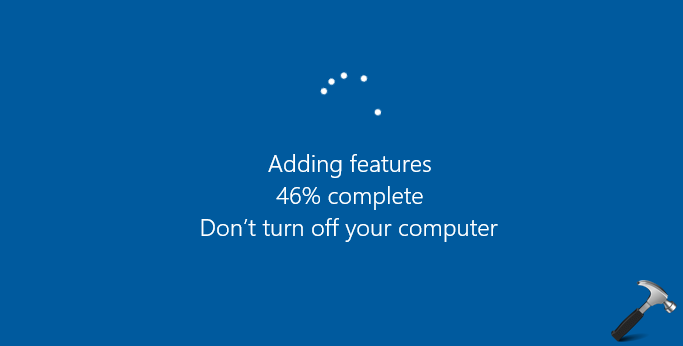
5. After restart, you’ll see adding features screen. Once this is completed to 100%, you can log on to your upgraded Windows 10 Pro edition.
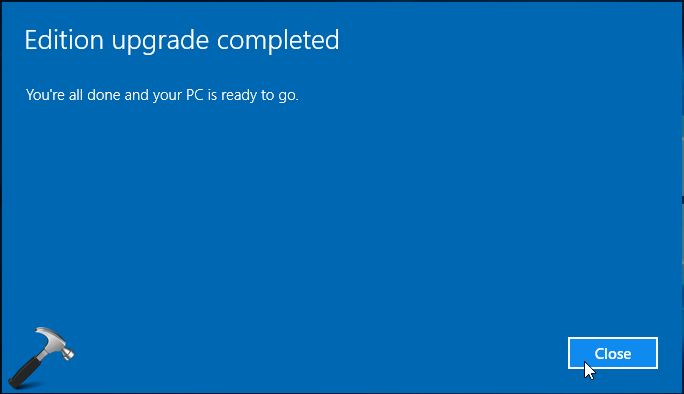
6. This confirmation prompt appearing after logon confirms that upgrade was successful.
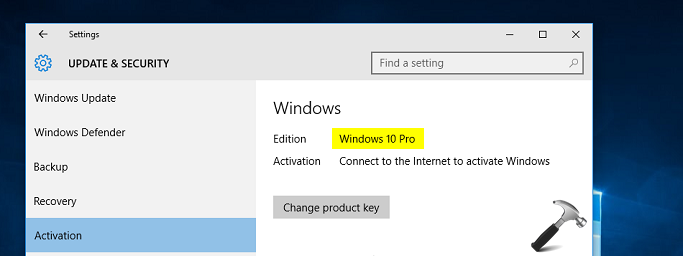
7. Finally, open Activation screen in Settings app to re-confirm your edition and activate it.
Checkout following video for live illustration of this method:
Enjoy the extended features of Windows 10 Pro!
Related: How To Buy Windows 10 Pro Upgrade Via Microsoft Store.
Also see: How to upgrade Windows 11 Home to Pro.


Thanks! Awesome ^_^
^^ Glad you liked it! :)
This is probably a stupid question but…what if you don’t have your own key to activate Pro? Can I get it for free? I did have Windows 7 Ultimate but couldn’t find the key anywhere so had to get Windows 10 Home.
^^ If you’re on Windows 10 Home, give a try to this method and see if you can upgrade to Pro :)
Hi there,
Probably its so late i tried this tutorial or hack
i had the Windows 7 edition which was permanently activated which came with the computer so then i had the option of recovering to windows7 with the computer
i did upgrade to windows 10 home and when i activated it to windows pro with the key you provided it got activated. but it says there’s been an activation failure ,previously it had the valid digital entitlement and NOW IT DOESN’T
PLEASE HELP !!
^^ Please refer: https://www.kapilarya.com/activation-failed-because-this-device-doesnt-have-a-valid-digital-entitlement-or-product-key
Do we need to off our network?
Reply Please
^^ Nope!
sir i have windows 7 home basic product keys, now i am using windows 10 home activated, can i upgrade to windows 10 pro.
^^ This usually works in the case when you install Windows 10 from ISO file having both the editions and you installed Home version first. Following that, you can upgrade to Pro using above mentioned steps. But as your case is of upgrade from Windows 7, I’m not sure this will work for you. But if you like, you may give it a try 😊
Thank you very much. It worked!
^^ Glad we could help 😎
Hi Kapil
I have 12 windows 10 pro in the office, hooked to win server 2012 R2. With recent 1607 anniversary upgrades we had a lot of issues and three of the computers had to be reinstalled. All three were unfortunately home; upgraded to pro in Oct via separatly purchased licenses; and on reinstalling they were lost. You can imagine more than 70-80 hours of time spent round and round with MS TS on chats and phones getting help. I had to purchase one of the three licenses again! ..
With that background, now I realize that two of the three machines are not connecting to the server as they used to be.. !! Is it the 1607? Where could the conflict be? I keep maintaining that the computer upgrades are still an issue and need to be fixed; but the MS support team always directs me to MS commercial support for enormous amounts of money! Insane! Nobody listens..
You have any insight how to fix this? Bothe the machines show ‘active win 10 pro’; connect well to the server; but on restarting and trying to log into the domain, dont recognize the username and pw!
please help .. thanks
^^ Use Media Creation Tool to reinstall the edition you want: https://www.kapilarya.com/download-latest-windows-10-iso-files. Since you’ve separately purchased license, you can use them to activate, after reinstall.
Thanks of lot
^^ Happy to help!
I’m 11 and I don’t know if I should do it as I think I will break my computer please reply! :(
^^ It won’t break your computer, you can go ahead and try the steps carefully.
i have a win 10 home OEM from ASUS
tried this and got the error code 0x0
i also tried uninstalling avast, disabling all startup programs, and disabling windows defender
I worked with me i need help
okay so I have windows 10 home with a digital license but I have no idea what the numbers are. You are telling me I can use I can use these numbers an it will work VK73G-NPHTM-C973M-9MPGT-3V66T
WOO HOO I THINK IT IS GOING TO WORK
^^ Great 😎
Sorry I use the Indonesian language before, okay what if I turn off the internet connection?
^^ In that case, key verification will be failed.
Sir, I have upgrade my windows 10 to pro but windows are not activated right now please tell me solution
^^ To activate, use the unique product key came with your Windows 10, when you bought it.
when i try to update my winsows 10 home in pro i receive this error:
0xc03f6506
why?
Moving to a new PC that I’m building myself. Currently running Dell OEM Win10 Home. New PC will have Win10 Pro, MSDN (multi-activation or retail keys) version.
My backup software can do a “system transfer” that will allow me to transfer everything (OS and applications) to the new computer.
Should I upgrade from OEM Home to MSDN Pro on the old computer and then transfer everything to the new computer?
Or just install Win10 PRO MSDN on the new computer and use the backup software vendor’s application transfer program to move the applications and registry entries.
My goals are:
Not have any “dinosaur bones” either from the OS on my SSD from the old OEM Home version on the new PRO version
Not have to reinstall and reconfigure everything (which would take about a week)
Thanks for any advice I can get…
^^ If you’ve MSDN retail keys and of course the ISO, first install Pro version on new machine and activate it. Now copy the contents from Home to Pro version. Let the OEM license intact, in case you need it later. By this you’ll have two different editions and both are activated.
Didn’t work. I think I need a new key.
^^ Which key? Generic or your unique product key?
Ok, so I’ve been reading your stuff so day, you’re amazing by the way, and I’m still unable to upgrade. This is exactly what it says,
“Unable to upgrade your addition we can’t activate windows on this device because you don’t have a valid digital license or product key if you think you do have a valid license or key then troubleshoot see below.
(0x803fa067)
^^ You can buy Pro upgrade from Store: https://www.kapilarya.com/how-to-buy-windows-10-pro-upgrade-via-microsoft-store.
that was at least 2 years ago. It will work now May 2021?
^^ It should!
It says the key is not valid
Just tried to upgrade win11 home to win11 pro, but as soon as I insert the Win11 Pro generic key and click on “Upgrade” the procedure starts and then stops saying that I don’t have a valid key (at least the original OEM Win11 product key isnt changed).
^^ You don’t have to use generic product key in Windows 11 for this edition upgrade. You can directly insert your unique Windows 11 Pro product key and restart to complete upgrade. Refer: https://www.kapilarya.com/how-to-upgrade-windows-11-home-to-pro.
What this article fails to mention is that you need to be OFFLINE for the generic key to work, otherwise it will just spit back an error saying it’s invalid. Once you turn off your internet, enter the key above, it will do the upgrade and restart. You can then enter your legit PRO key and go online again.
^^ Thanks for adding your views!