

It has been couple of weeks since Windows 10 released. In this period, we have thoroughly used this newly released operating system and finally we’re back with its review. If you’ve not got your copy of Windows 10 yet, you can download it using ways mentioned in following article:
Download Windows 10 Released To Manufacturing (RTM) Version
If you want to take advantage of free upgrade offer, but you’ve not received your copy of Windows 10, refer the instructions mentioned here:
[FIX] We’re Validating Windows 10 For Your PC
For making the clean installation of Windows 10, following step-by-step guide is available for you:
[GUIDE] How To Make Clean Install Of Windows 10
If you want to upgrade using ISO file, then here is another step-by-step guide for that:
[GUIDE] How To Upgrade To Windows 10 Using ISO File
In case, if you have issues regarding Windows 10 activation, checkout the following link:
[FIX] Cannot Activate Windows 10 Due To Various Errors
So this is all about Windows 10 download, install and activation. Now we come to the important features of this OS. In this review, we’ll see what makes Windows 10 so special and distinguish it from the previous Windows editions. We’ll also tell you currently known issues in the last operating system of Windows era.
So let’s start the review…
Page Contents
What’s New In Windows 10
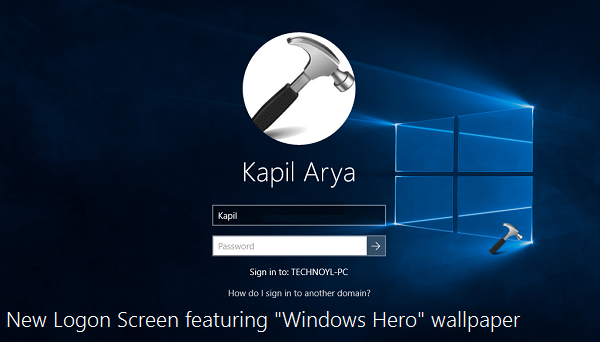
New Logon Screen Featuring Windows Hero Wallpaper
Windows 10 comes pretty decent and simplified logon screen featuring Windows Hero wallpaper in background. You can find some revamped and stylish icons at bottom part of the screen.
Official “Windows Hero” wallpaper is Ultra HD screen resolution (4K = 3840 x 2160 px) supported. It’s created using Windows 10 logo, smoke machines, colored filters, crystal dust, LEDs, lasers etc. Have a look at it:
Transparent and fully power packed Start Menu is back
On huge demand of users, Microsoft has bring back the Start Menu to Windows 10. The Start Menu gives you the pleasant feeling of old Windows editions, which you’ve used in past. The returned back Start Menu is more robust and can house both Desktop app as well as Universal app icons.
Checkout this article to make your Start Menu simplified:
[TIP] Make Start Menu Simplified In Windows 10
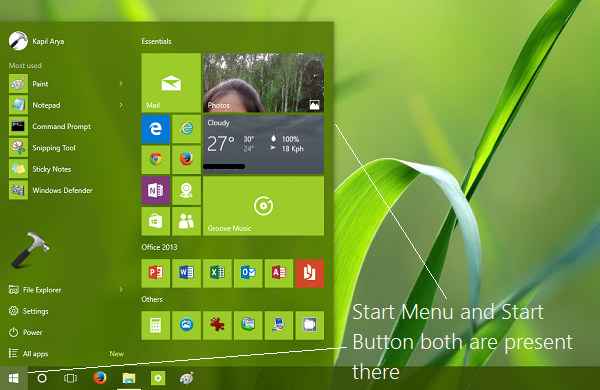
Start Menu comes with some transparency and Aero effects, read more here about this:
[How To] Enable or Disable Aero Glass Transparency From Start, Taskbar & Action Center In Windows 10
Start Screen is also present in Windows 10
In the past four years after release of Windows 8, many users have liked and got impressed with Start Screen. Microsoft has also taken care the affection of those users for Start Screen and made let this feature continued in Windows 10 too.
You can follow the steps mentioned here to enable Start Screen, and disable Start Menu:
[How To] Enable Start Screen In Windows 10
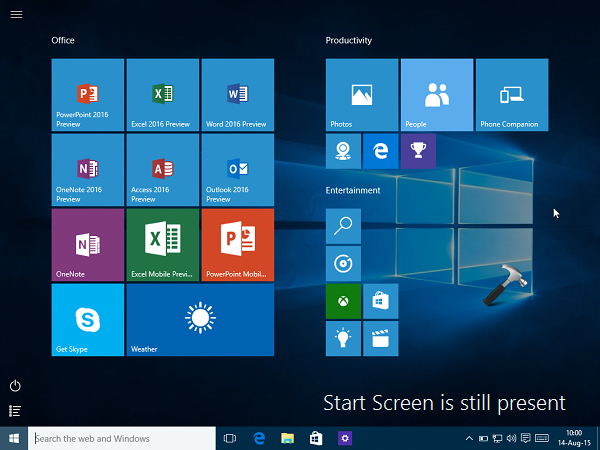
On the Start Screen, you can click the hamburger icon present at top left corner, to access your apps and other stuff.






wth, it took me half Hour to figure out where is start screen :-/ start menu is really old for me :P
oh that was fast, well thanks man. Good write up and can u tell me when is next preview coming?..
AWesOMe :)-:;,
thanks Kapil for the nice review. I m still downloading it hope it will finish by today. I m really excited to get my hands on it. Can’t wait ^_^
Why can’t Microsoft add Office as inbuilt in their os like the Linux have libreoffice
Ok…Much better Microsoft…miles and miles and miles better than Windows 8. I believe that Windows 8 was a bold statement, very bold, sometimes when aiming at the stars you lose your way. But Windows 10 is very very good, especially with the fact that you want to incorporate the new UI with a old school feel of Windows 7. I have to be honest, even though I love it, I will not pay for it. I have banged my head on a wall for the past two years with 8. So as we wait to hear if this will be an update for WIndows 8 users that have suffered for the past two years or if we will have to purchase. That is the big concern on my side, but I will let you know that I will not pay for something that should of been done with 8. So I guess it is in your court, I will use Lynx over 8 if I have to pay for 10 which is very unfair. But as far as 10 goes,I wish 8 would of had this design. You all have not lost your minds quite yet, much better WIndows.
Thank God, the start screen is not gone yet. It’s just beautiful, let retards enjoy the old school start menu hahaha.
finally they have restore start menu otherwise I have to move into Mac. Really nice MS!
This is intresting. Compatibilty issues gone in W10TP. It recognized by video driver automatically till now i have to install it manually. Perfect windows ;D
Ok, yes, it’s better than 8, but that really doesn’t say all that much.
Here’s the bottom line. We are NOT fooled, we are NOT impressed.
Tech Build 9860 available now and I thought I read some where that this new update was supposed to have over 7,000 new and different changes.
Can someone tell me where even one change is? It all appears to be the same to me.
My windows 10 build never recognised the drivers which worked in w8 and hence i uninstalled it back to Windows 8.1 :P
LoL Microsoft killed Start Screen that’s what I m expecting for. Really happy now ^_^
This was rude step and i offend it.start screen has became our dependency. M$ cant take it away from us like this!!!!
windows 10 error code 0xc000000d
I have no repair or installation cd.
HELP
^^ Refer: https://www.kapilarya.com/fix-the-boot-configuration-data-file-is-missing-some-required-information. You’ll at least need System Recovery Drive to proceed.
Windowws 10 is super cool much better than W7 for me :) (y>
I like d windows 10 very much :-)
ultimate review thankx a ton for this. I upgraded my 7 to 10 n everything is wkg perfect.. !